What you will learn
- Decide whether the outcome requires a synchronous meeting.
- Create an invitation with complete logistics and agenda.
- Handle time zones, recurrence and attendee roles.
- Update or cancel one authoritative event.
What you need
- A calendar application such as Outlook or Google Calendar.
- A sample meeting topic and at least one test attendee.
A calendar event should answer who, why, when, where and how to prepare
Outlook Calendar supports appointments, meetings and attendee response tracking.
When a meeting is scheduled in Outlook, time is reserved and attendee responses are tracked.
An appointment is a personal block; a meeting invites others. Use a meeting only when discussion, coordination or a live decision adds value. Status updates that need no interaction may be better as an email or shared document.
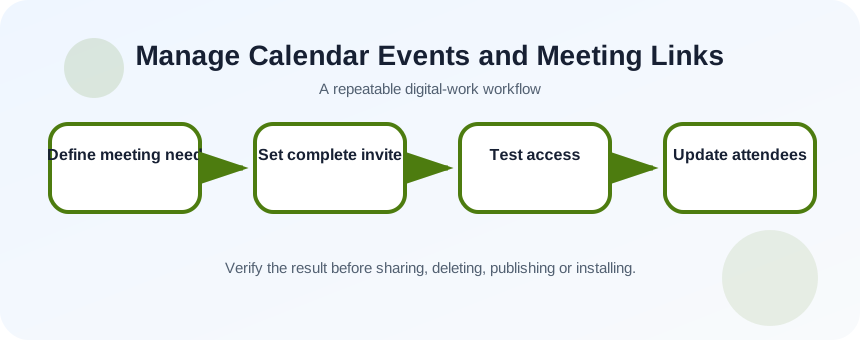
Define outcome and attendance
Write the decision or deliverable expected at the end. Invite required decision-makers and contributors; mark optional participants when the tool supports it. Choose a duration that fits the agenda and include preparation material in an accessible location.
- 1
State the meeting outcome.
- 2
Decide whether async work would be sufficient.
- 3
List required and optional attendees.
- 4
Choose duration and timezone.
- 5
Draft a three-item agenda.
- 6
Prepare links and documents.
Create one authoritative invitation
Use a title that describes the purpose, not simply “Meeting.” Add date, timezone, link or room, agenda, preparation and owner. Test the meeting link in a private session or approved test account. For recurring meetings, define the series end or review date instead of creating an endless recurrence.
- 1
Create a new meeting.
- 2
Enter a specific title.
- 3
Add required and optional attendees.
- 4
Set time, timezone and recurrence.
- 5
Insert meeting link or room.
- 6
Add agenda and preparation.
- 7
Send and verify the event on your calendar.
Manage changes and meeting readiness
When time, location or agenda changes, update the event and send the update to the correct attendees. Explain material changes in the event body. Cancel the authoritative event when the meeting will not happen.
Before the meeting, confirm the link, permissions, dial-in information and shared documents. During a handoff between organizers, transfer ownership where the platform permits or clearly establish who will send updates. Avoid pasting a private host link into a public invite.
- 1
Open the existing event.
- 2
Make the change in one place.
- 3
Add a note explaining the change.
- 4
Send the update.
- 5
Check attendee responses.
- 6
Test the final link before start time.
Audit the invitation from an attendee view
Open the event on another device or account. Confirm local time, title, link, agenda and documents. An attendee should know whether they are required, what to prepare and what decision will be made. If the event is recurring, verify that the change applies to the intended occurrence or series.
- The event has one authoritative time and link.
- Attendees can access preparation material.
- Updates and cancellations reach the intended people.
Build and update a test meeting
Create a complete invitation, then perform one controlled change.
- 1
Define a 20-minute decision meeting.
- 2
Create the invitation with agenda.
- 3
Invite a test account.
- 4
Open and test the link as attendee.
- 5
Change the time on the existing event.
- 6
Verify the update and then cancel the test.
Common mistakes to avoid
- Using a generic title.
- Forgetting timezone or meeting link.
- Creating duplicate events after changes.
- Inviting everyone as required.
Key takeaways
- A calendar invite is the authoritative logistics record.
- Purpose and preparation belong in the event.
- Update one event instead of creating competing versions.
Frequently asked questions
Should every calendar block invite other people?
No. Use appointments or focus blocks for personal time. Invite others only when their participation is required or useful.
How should I handle a changed recurring meeting?
Choose carefully between one occurrence and the entire series, explain the change and verify what attendees see.
Sources and further reading
- Get started with the Outlook CalendarMicrosoft Support
- Schedule a meeting or event in OutlookMicrosoft Support
Ready to continue?
Mark the lesson complete so your Learning Path progress stays current on this device.