Table of Contents
This practical guide explains how to upgrade from debian 11 ''bullseye'' to debian 12 ''bookworm'' with clear steps and useful context. It also covers common requirements, potential problems, and the details that can help you get better results.
If you are already using Debian 11 "Bullseye", you can directly upgrade to Debian 12 "Bookworm" from the terminal. Here's how to do it.
Upgrade from Debian 11 to Debian 12 Via CLI
You can use your existing Debian 11 installation to upgrade to the latest version. Follow the steps below to get started:
Step 1: Update Existing Packages
If you've been using Debian for a while, you probably already know the update/upgrade commands. Although there is a difference between update and upgrade commands, you can group them together in one command to update software packages easily:
sudo apt update && sudo apt upgrade -y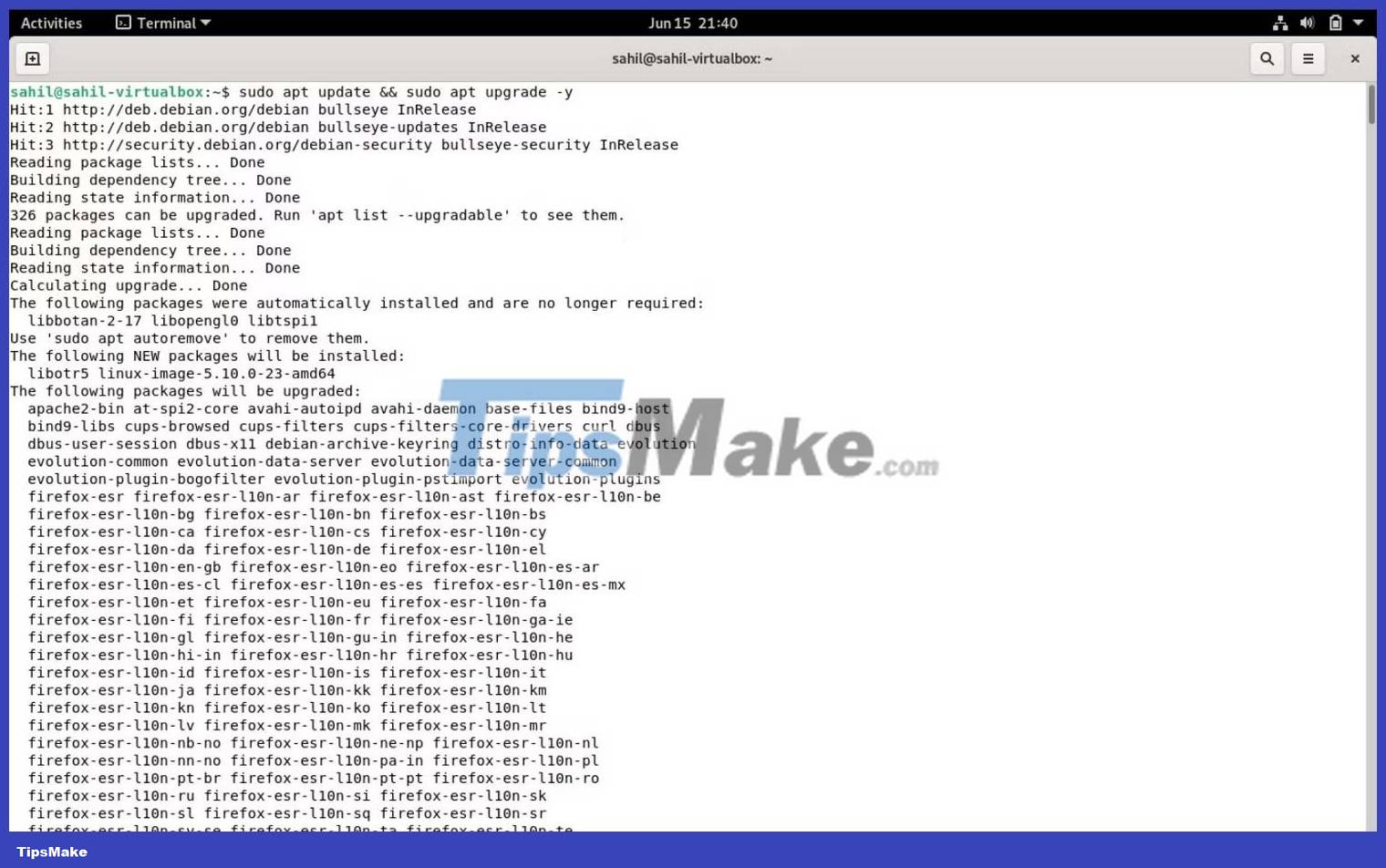
Once the update is complete, remove unnecessary packages before upgrading to Debian 12 with:
sudo apt --purge autoremoveStep 2: Edit the Files Sources.list
With installed packages updated and upgraded, you need to edit the sources.list file to update the details of the package sources. Open the source file with your favorite text editor:
sudo nano /etc/apt/sources.listNext, replace all instances of "bullseye" in the file with "bookworm".
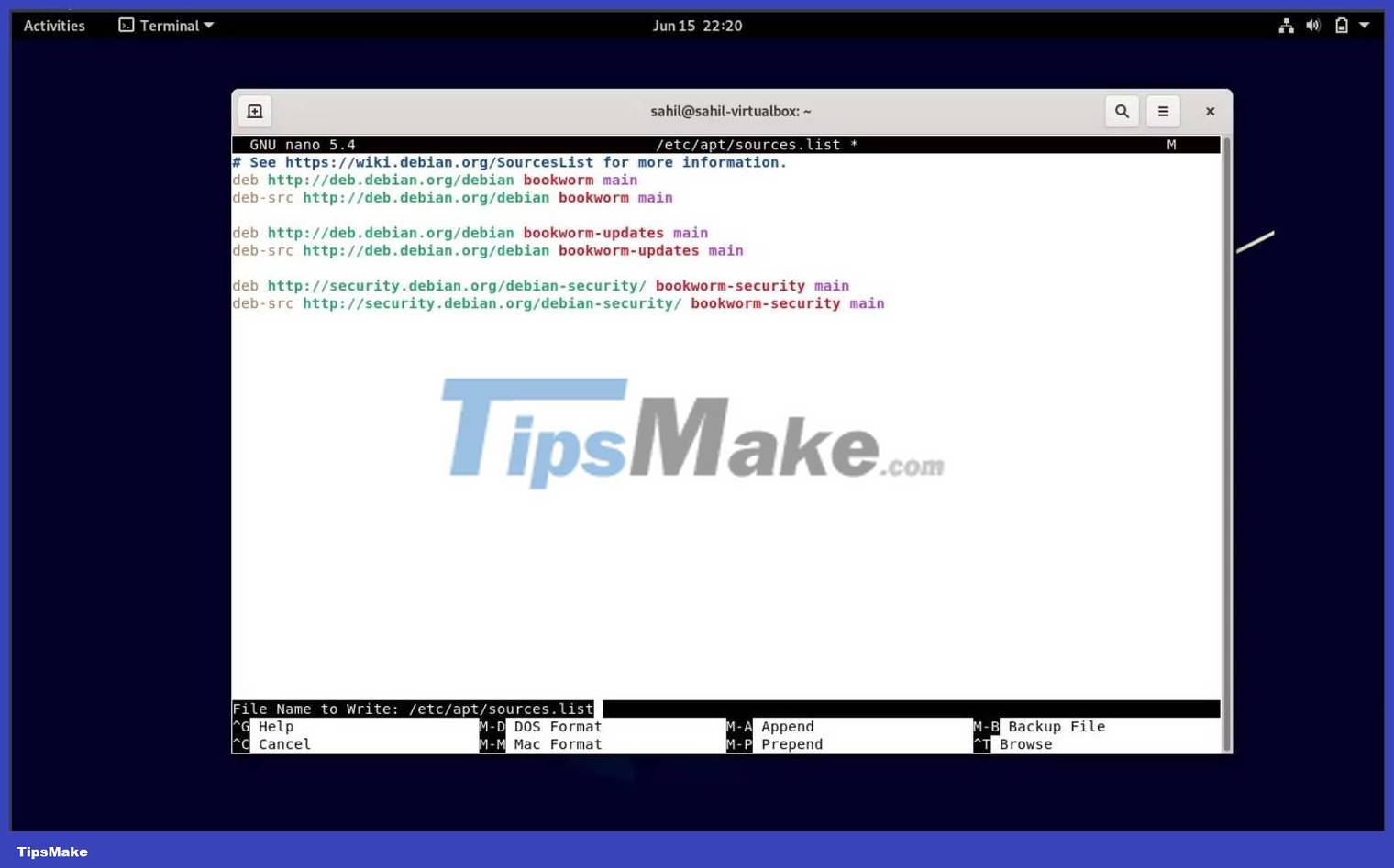
If you are using Nano, save the changes by pressing Ctrl + O . Then exit the editor by pressing Ctrl + X .
Step 3: Update Installed Packages on Debian
Now that you have the sources pointing to the Debian 12 repositories, it's time to update your packages. You can do so with the apt update command:
sudo apt updateOnce the system updates, it's time to upgrade your existing packages without adding any new packages to the upgrade process:
sudo apt upgrade --without-new-pkgs -y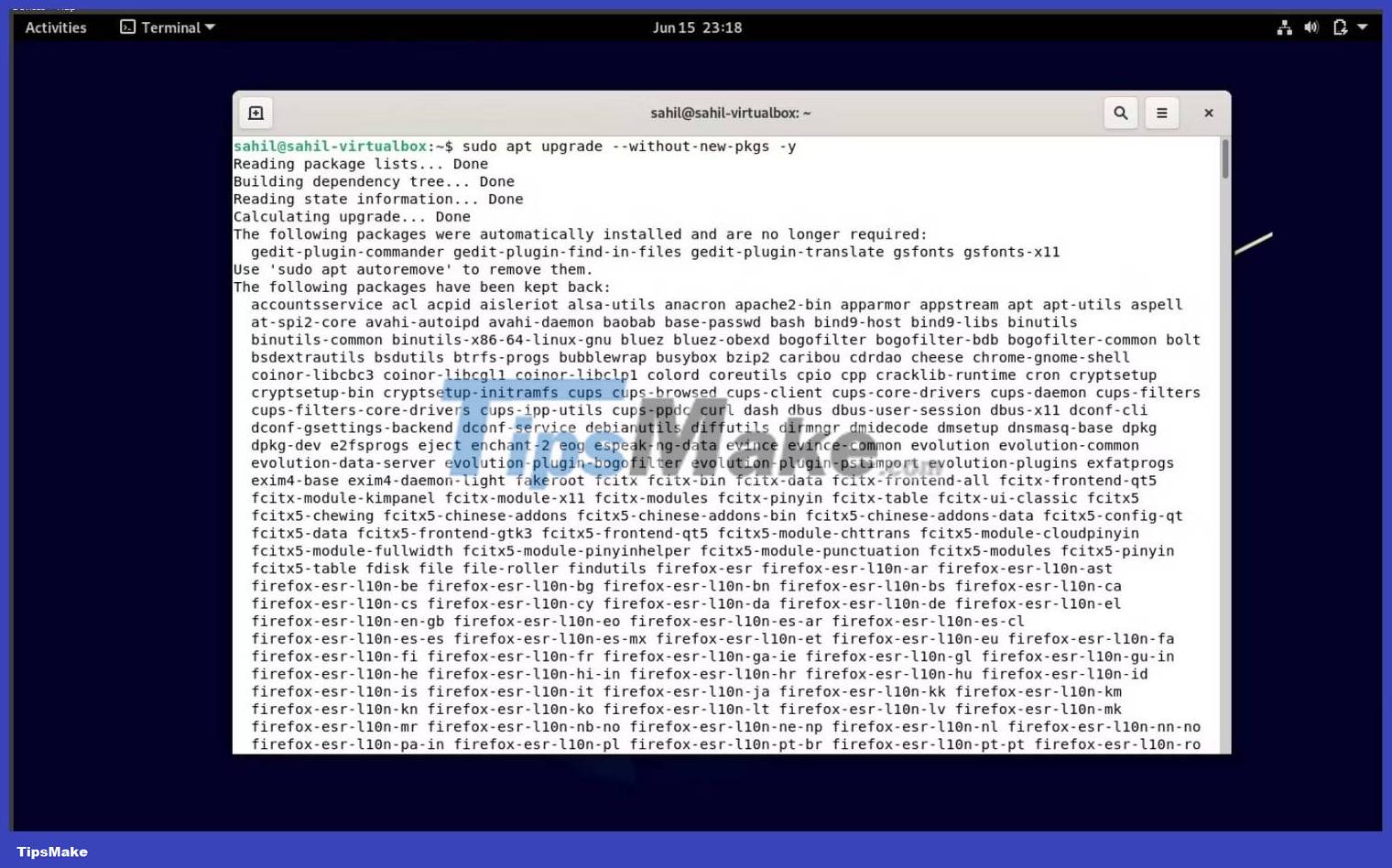
During the update process, follow the on-screen instructions and provide input if necessary.
Step 4: Perform a Full System Upgrade
With all the updates in place, it's time for the final upgrade to Debian 12 "Bookworm". Run the following command to upgrade your system to the latest Debian version:
sudo apt full-upgrade -y
After executing the full upgrade command, you must enter your sudo password. The upgrade process also takes time, so you should sit back and wait until the system upgrades.
Step 5: Reboot into Debian 12
When the installation is complete, reboot the system with the reboot command or via the Restart button:
sudo rebootWhen the system reboots, you should see a login screen with the Debian 12 logo. Confirm the upgrade by checking the version number of the operating system with the lsb_release and cat commands:
lsb_release -d cat /etc/debian_version
Extra Step: Remove Unwanted Packages
Once the Debian 12 upgrade is finally complete, you can remove any unwanted packages that may have been carried over from the previous OS installation with:
sudo apt --purge autoremove -y
Download and Install Debian 12 Via ISO Image
There is another way to download and try Debian 12 if you are not already using Debian 11 Bullseye. You can download the official ISO image from Debian's website and install it directly on your machine or on a virtual machine if you want to try it out before installing.
Conclusion
Understanding Debian 11 makes it easier to compare options, avoid common mistakes, and apply the information in this guide more effectively. Review the relevant requirements before making changes or choosing a solution.
FAQ
How do you upgrade from debian 11 ''bullseye'' to debian 12 ''bookworm''?
Follow the steps in this guide in order, confirm the required settings or tools, and verify the result before making additional changes.
Is it safe to upgrade from debian 11 ''bullseye'' to debian 12 ''bookworm''?
It is generally safe when you follow the recommended instructions, use trusted tools, and avoid changing settings you do not understand.
What should you do if the process does not work?
Recheck the requirements, restart the device or application when appropriate, and review each step for missed settings or compatibility issues.
Related Articles
 Notable Changes and Additions in Debian 11 'Bullseye'6 minutes read
 How to Upgrade Debian9 minutes read
 How to Install Debian on a Computer9 minutes read
 How to Install Python Packages in Raspberry Pi OS Bookworm: Practical Guide6 minutes read
 How to Install Gradle on Debian 106 minutes read
 Do Not Destroy the Debian System!16 minutes read
Reader Comments 0
Sign in with email or Google to join the discussion.