Table of Contents
Focus Mode hides Word's ribbon, status bar, and most window controls so the document fills the screen. It changes only the editing view; it does not alter document formatting or what will be printed.
Turn on Focus Mode in Word
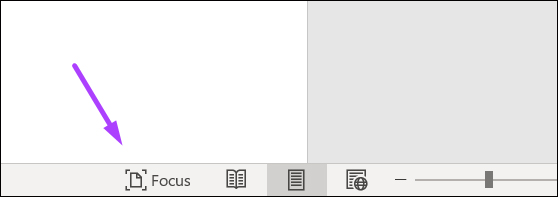
Use the status bar
Open the document and select Focus on the status bar at the bottom of the Word window. Depending on the Word version and window size, it may appear as an icon rather than a text label.
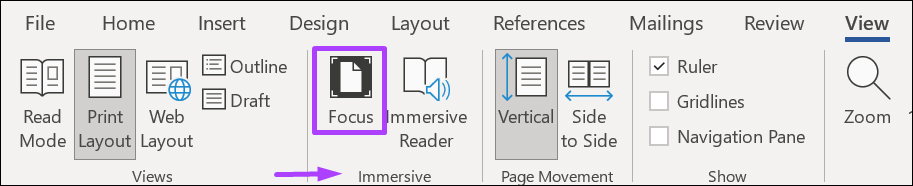
Use the View tab
Open the View tab and choose Focus. In some Windows versions it appears in the Immersive group.
Use the Windows keyboard sequence
In Word for Windows, press Alt, then W, then O. This is a Ribbon KeyTip sequence, so the keys do not need to be held simultaneously. Microsoft documents Alt+W, O in its Word navigation guide.
On Mac, use View > Focus or the status bar control because the Windows Alt sequence does not apply.
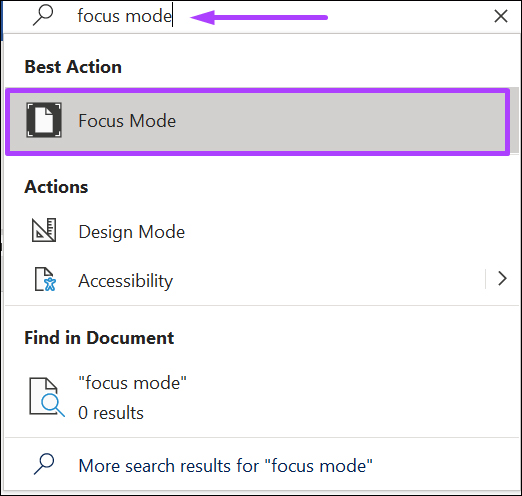
Search for the command
If the ribbon layout is unfamiliar, use the Search box at the top of Word, type Focus, and choose the Focus command from the results.
Show the ribbon while staying in Focus Mode
Move the pointer to the top of the screen. On Word for Mac, click the three-dot button when it appears to reveal the ribbon temporarily. The document stays in Focus Mode while you use a command.

Change the Focus background in Word for Mac
The Mac version of Word can show a different color around the document while Focus Mode is active:
- Reveal the ribbon with the three-dot button.
- Open the View tab and select Background.
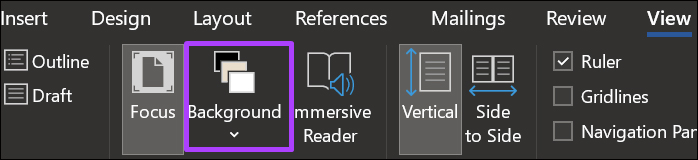
- Choose the background color you find comfortable.
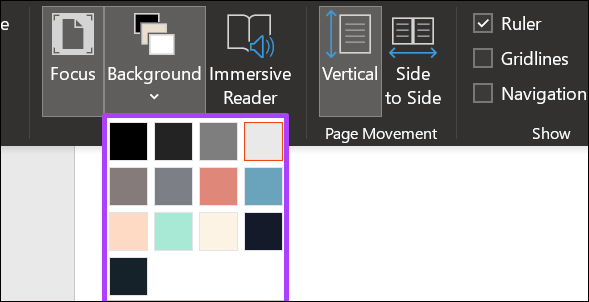
This is a viewing preference, not a document page color. If you want a dark Office interface outside Focus Mode, see how to turn on a dark Office theme. Microsoft's current Word Dark Mode guide explains the separate page and interface controls.
Exit Focus Mode
Press Esc to return to the normal Word window. You can also reveal the controls and select Focus again from the status bar or View tab.
If Focus is missing or does not behave as expected
- Update Word: older perpetual-license releases may not have the same Focus controls as current Microsoft 365 builds.
- Expand the window: a narrow window can collapse ribbon groups or hide status bar items.
- Check the status bar: Control-click it on Windows to review which view controls are displayed.
- Do not confuse Focus with Immersive Reader: Focus removes interface distractions for editing, while Immersive Reader adds reading aids such as column width, page color, and line focus.
- Silence system notifications separately: Word's Focus Mode does not enable Windows Focus or macOS Focus for other apps.
For additional ways to reduce visual clutter without using full-screen Focus Mode, see how to simplify the Word interface.
Related Articles
 How to Turn Focus Mode on Word for Mac5 minutes read
 How to Use the Focus Feature on iPhone, Apple Watch, and Mac13 minutes read
 How to Use Your Phone's Focus Mode to Focus More on What You're Doing8 minutes read
 How to Enable Focus Mode on Windows 11 Computers3 minutes read
 Focus Mode Chrome: How to Turn Focus Mode on Chrome4 minutes read
 Focus Mode Is Ready with Many New Features Worth Experiencing3 minutes read
Reader Comments 0
Sign in with email or Google to join the discussion.