Table of Contents
OpenBubbles is an independent project that can provide iMessage access on Android using information from genuine Apple hardware. It is not Apple's official Android Messages app. Before setting it up, understand the activation method, account risks and difference between an Apple Account email address and registering an Android phone number.
How the Mac activation method works
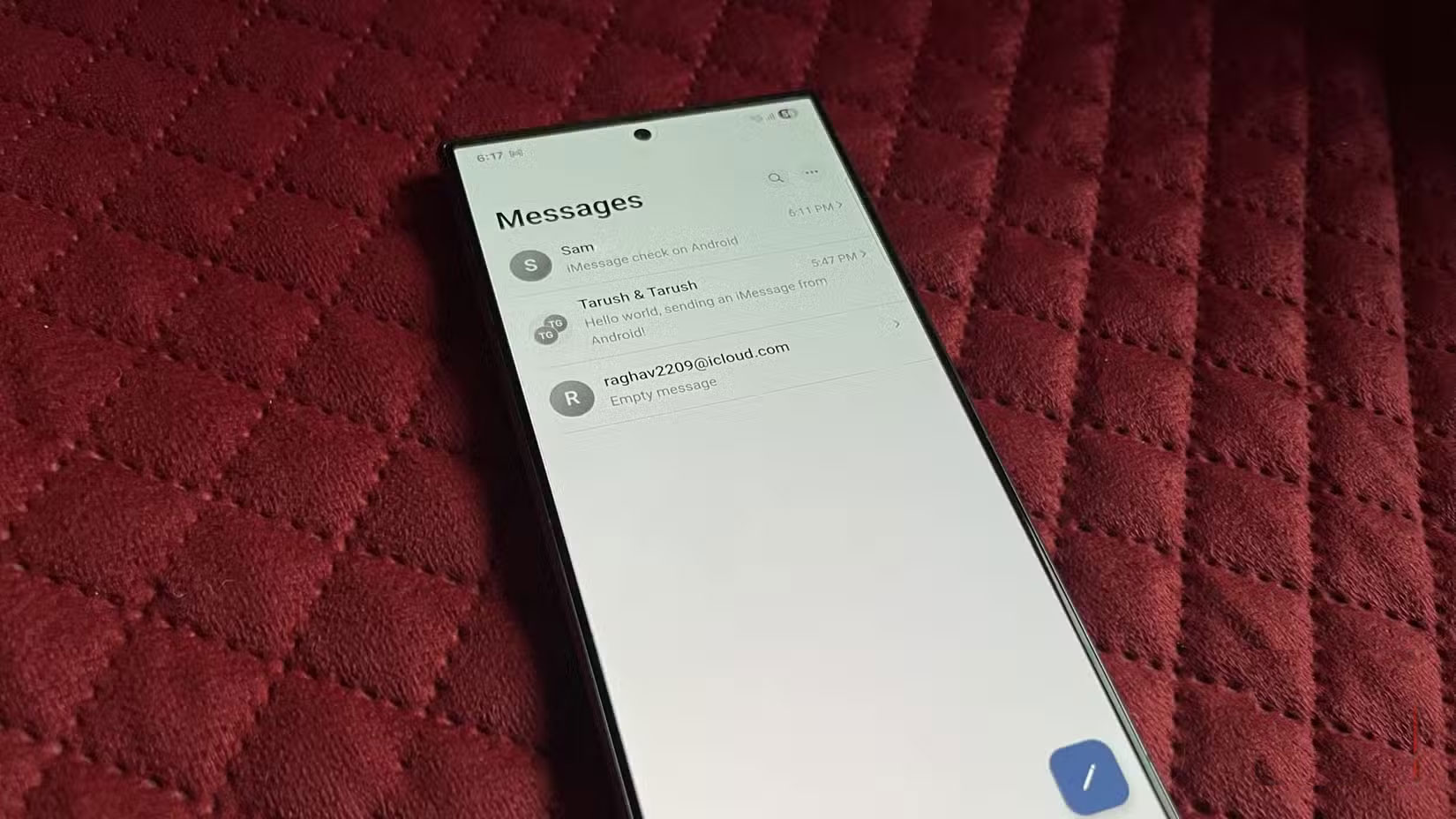
The project's self-host quickstart says a Mac can generate a QR or activation code for OpenBubbles. This supplies hardware information used in registration. The Mac does not need to remain online afterward, so describing it as a continuously running message relay is misleading.
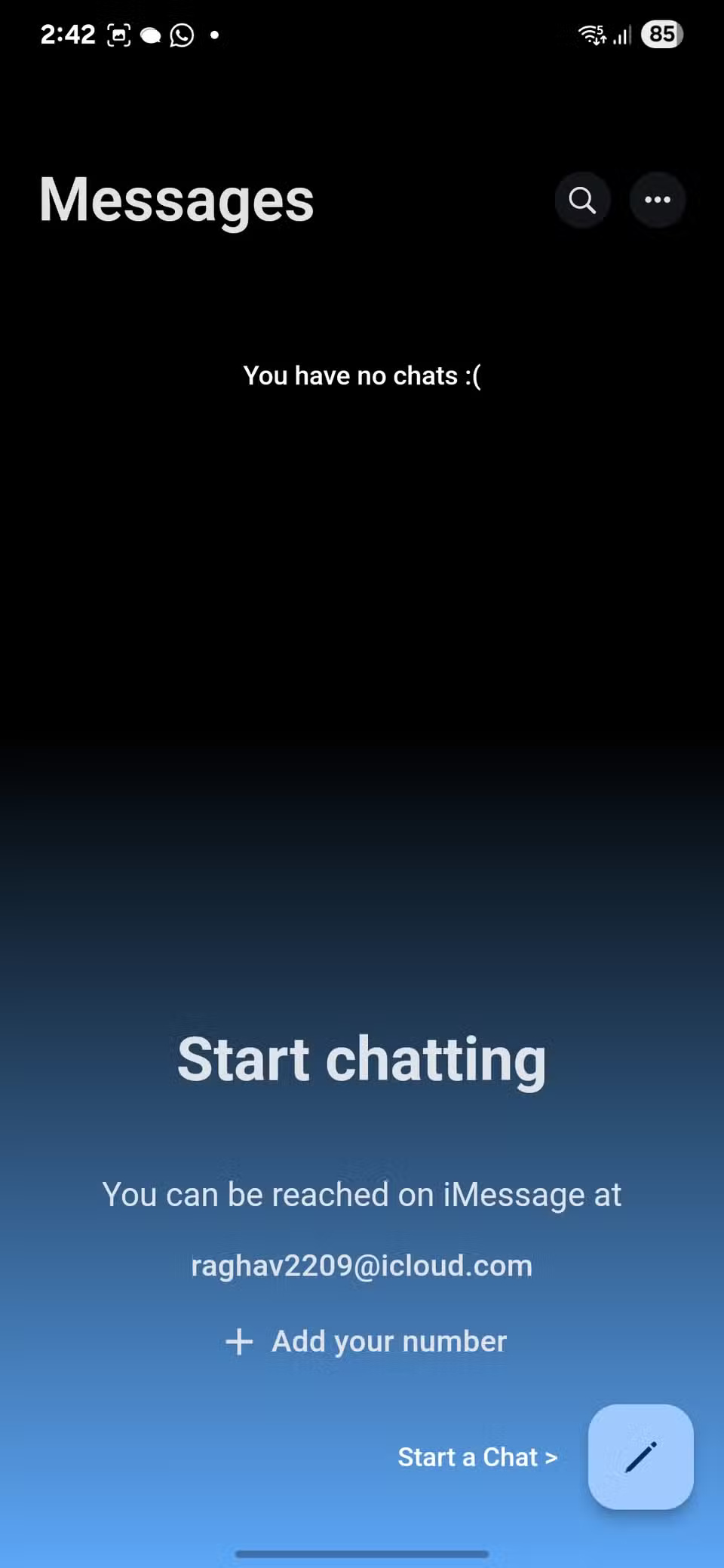
The same guide says the Mac method cannot register your Android phone number. Check which address your messages will use before assuming friends can reach the number already in their contacts.
Before entering account information
Read the project's FAQ and current privacy and support information. The developers describe local processing and direct Apple communication, but that is a project claim, not an independent guarantee that third-party software is risk-free. The FAQ acknowledges possible account restrictions and warns against virtual-machine hardware identifiers.
Use only official project distribution links. Keep activation codes and hardware identifiers private rather than posting them in a forum or sending them through an unrelated public tool. Do not assume an open-source label makes every downloaded build or configuration equivalent.
Basic Mac-based setup
- Follow the official quickstart to install OpenBubbles on the supported Android device.
- On a genuine supported Mac, obtain and run the project's hardware-code generator from its official link.
- Choose the self-hosted activation route in OpenBubbles and scan the displayed code, or enter it using the documented method.
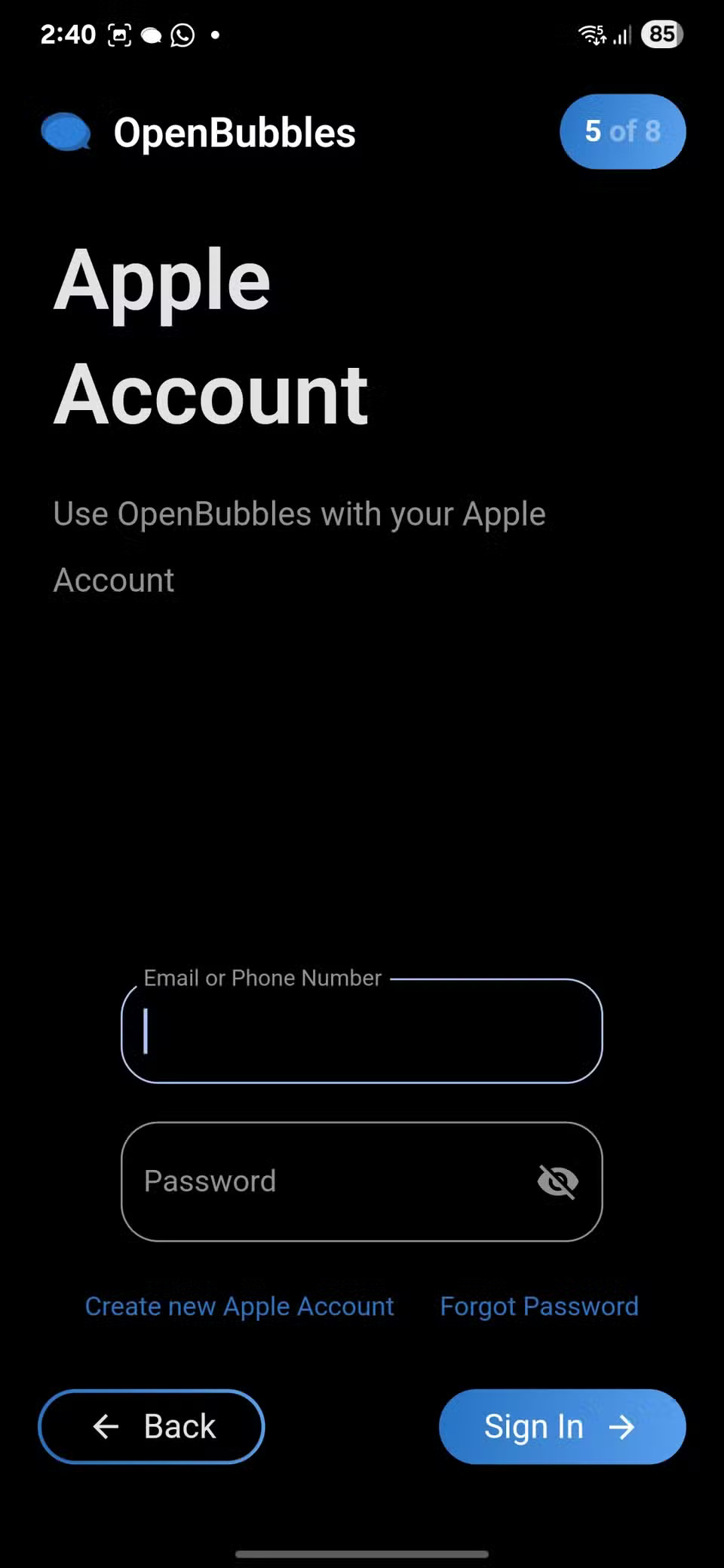
- Follow the current account prompts and review which sending identity is selected.
- Send a non-sensitive test message to a willing contact and verify replies before relying on the app.
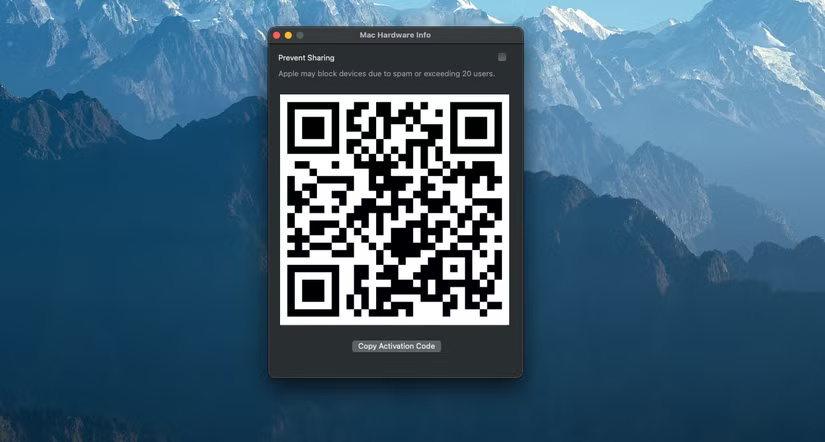
The screenshots show the general activation workflow; interface labels can change. Keep credentials out of screenshots and support logs.

Phone-number and hosted options are different
The project documents a separate iPhone-based registration path with model and software restrictions. Its quickstart does not recommend that route for new users, and it requires the iPhone to remain online. Do not downgrade a phone, weaken account protection or sideload an unfamiliar relay merely because an old article calls it easy.
A hosted option has a separate service relationship and terms. Read the project's explanation of hosted registration, then check current availability and charges. “Free app” does not establish that every setup path is free.
Test optional features separately
FaceTime, attachments and extensions may depend on the app version and configuration. Test calling and media with your actual contacts rather than assuming full feature parity with an iPhone. A working text message does not prove every accessory feature will work.
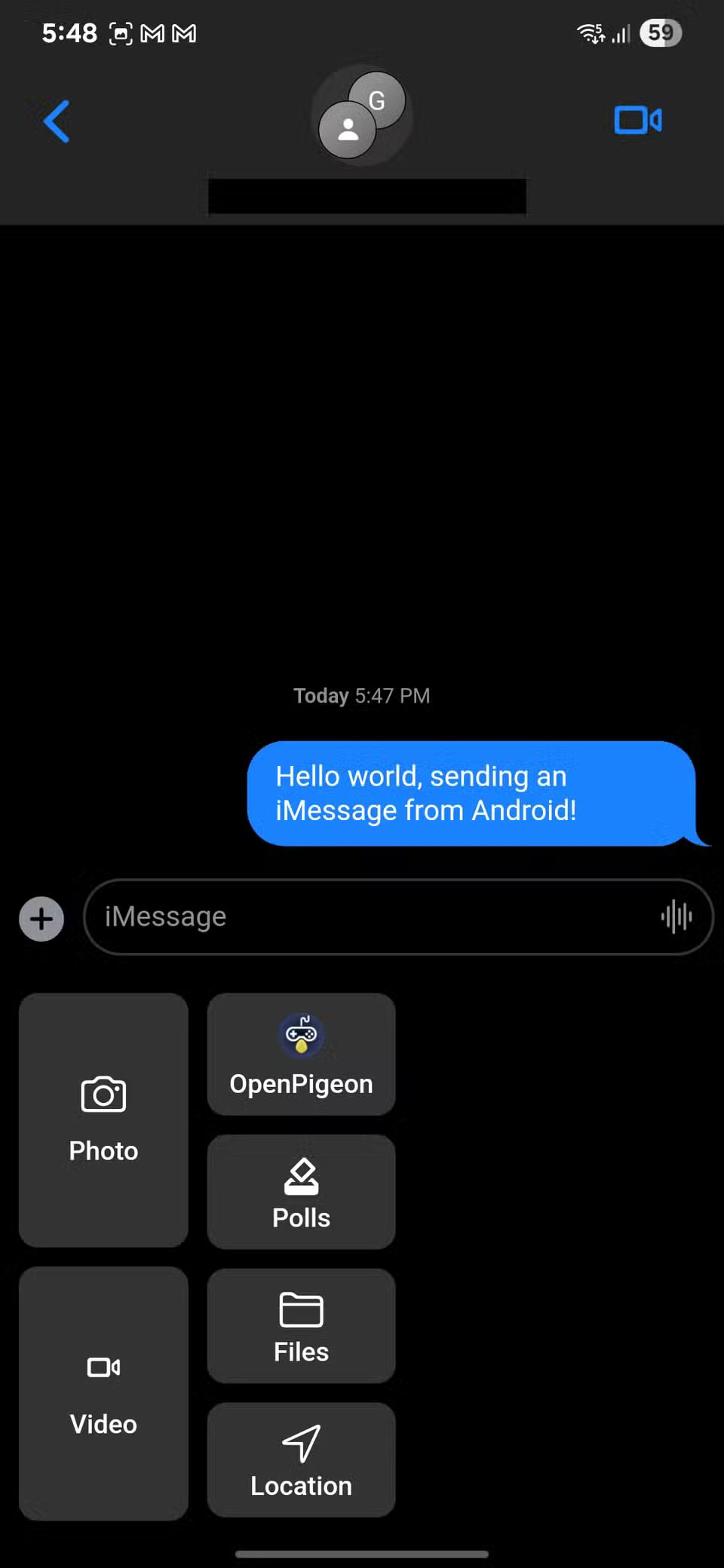
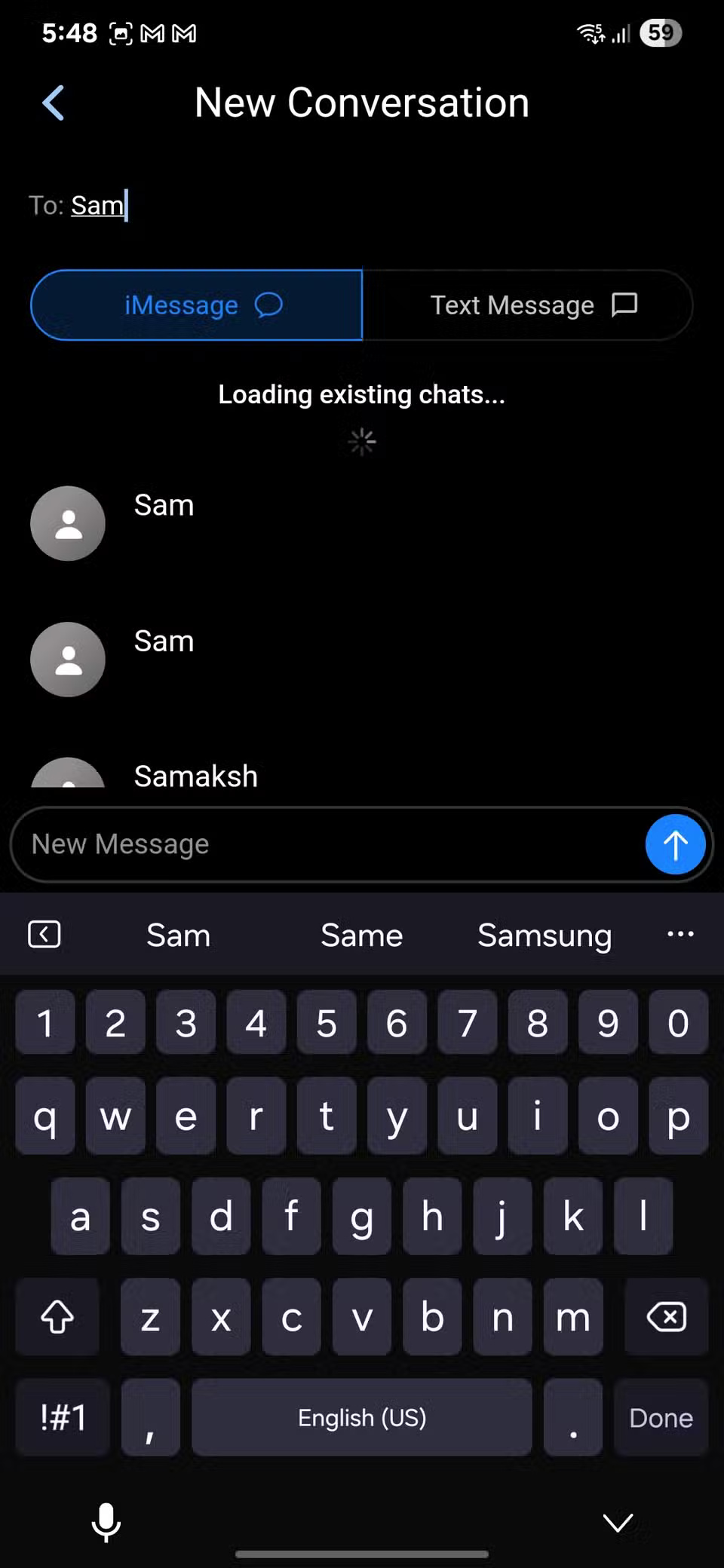
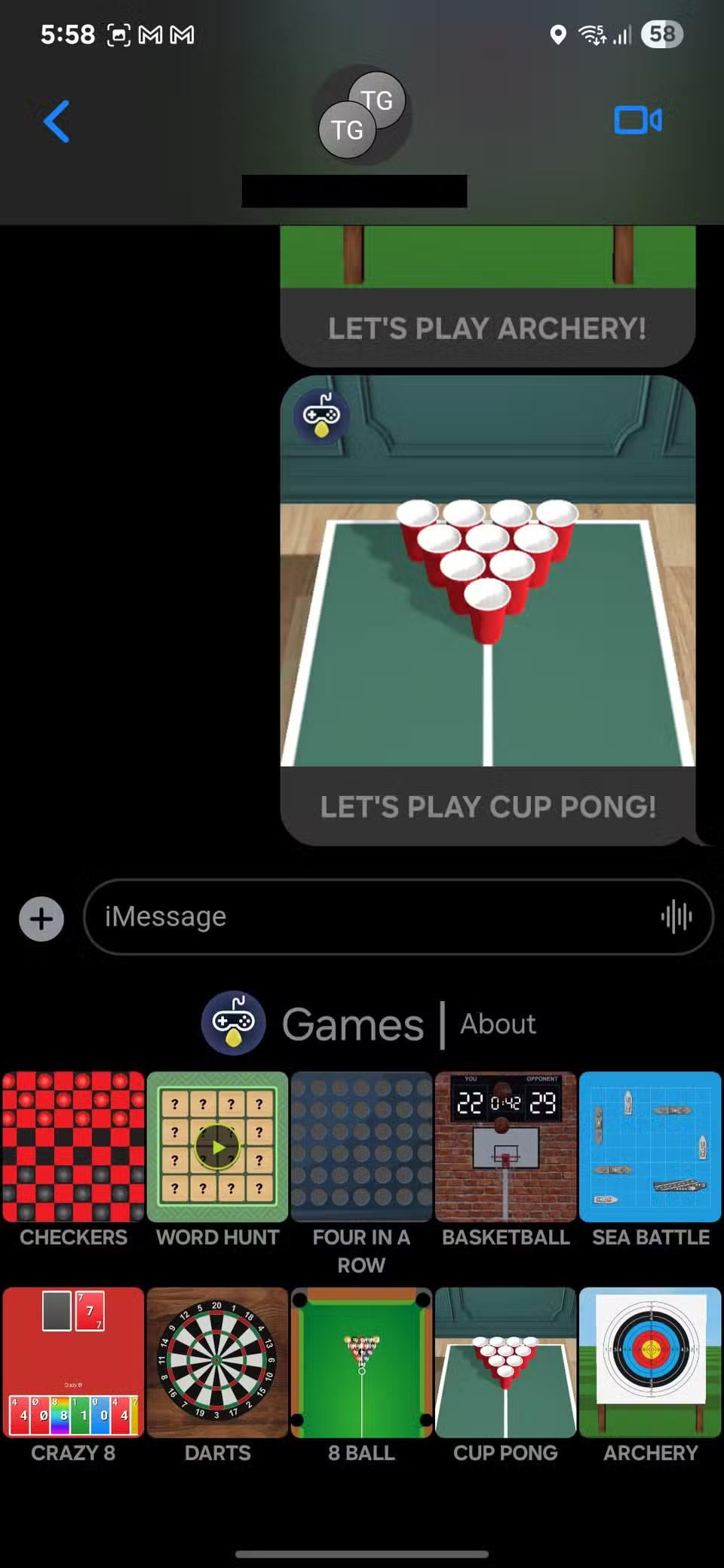
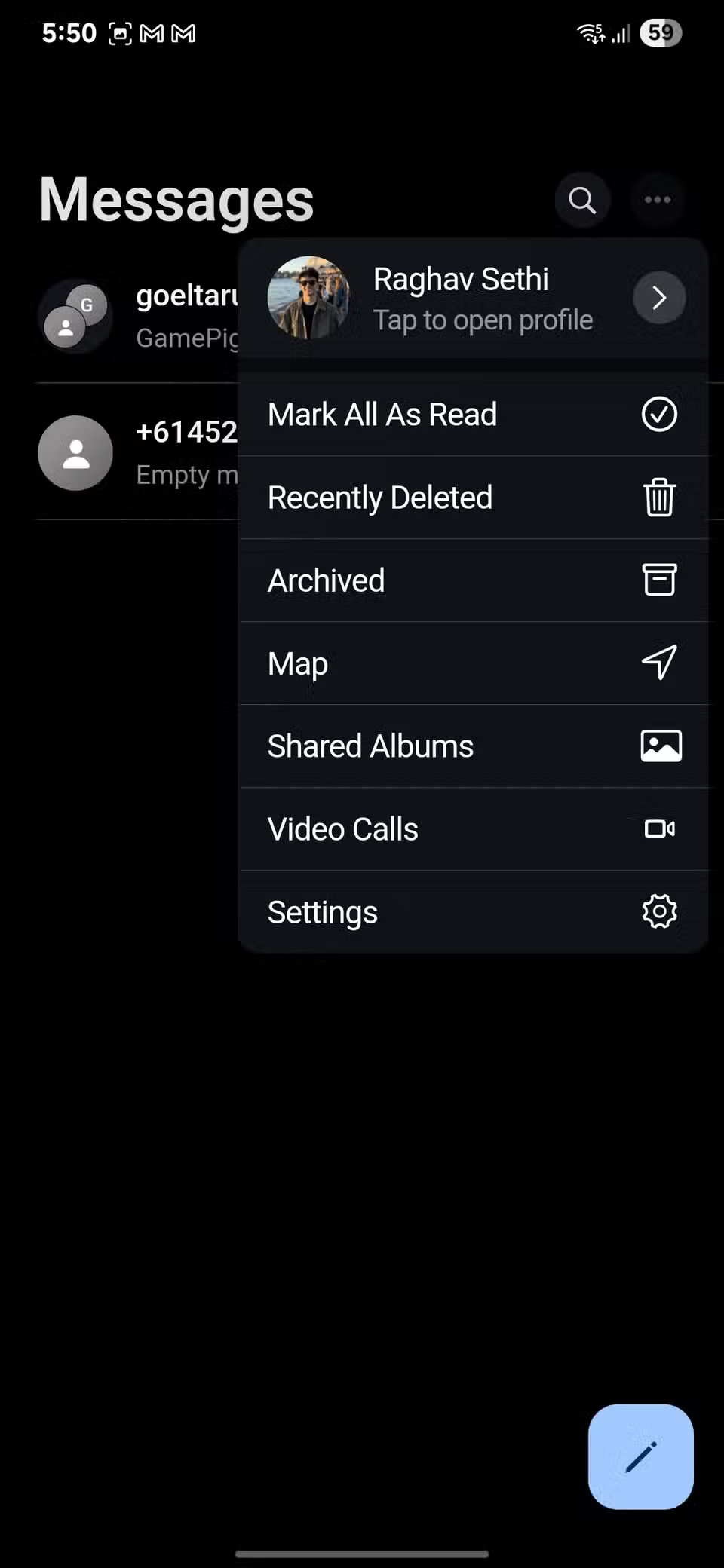
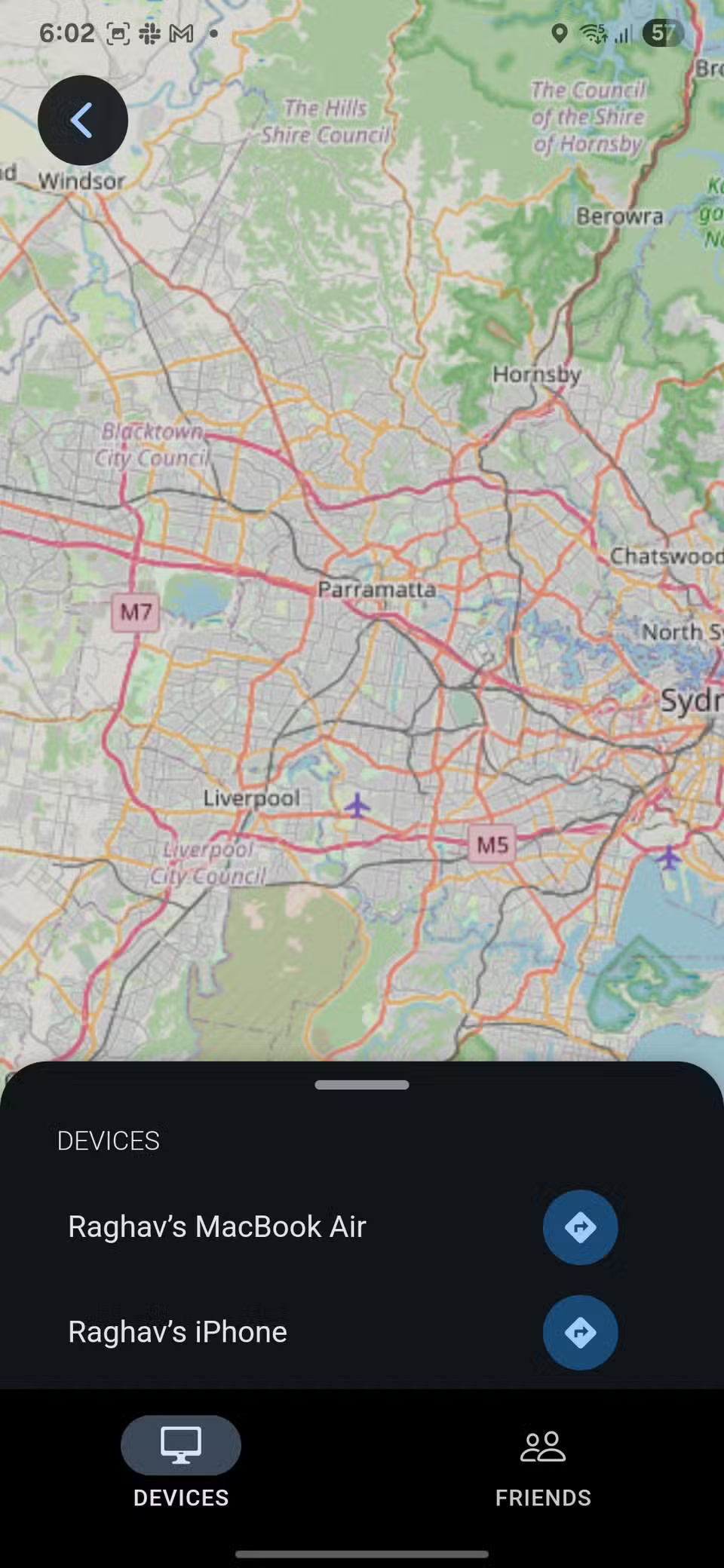
Older interfaces also show games, device maps and shared-album views. Treat those as separate features to verify, not as substitutes for Apple's device-recovery tools or a dependable copy of your photo library.
Consider a simpler cross-platform route
If the goal is better messaging between Android and iPhone, compare supported RCS or a messaging app both people already use. See iPhone RCS and messaging settings and Google Messages feature availability. Check the actual conversation's capabilities rather than relying on bubble color alone.
If you later stop using OpenBubbles, follow its current deregistration and backup instructions before uninstalling. Verify that contacts can reach your intended messaging address afterward.




Reader Comments 0
Sign in with email or Google to join the discussion.