Table of Contents
Several iPhone settings can reduce unwanted calls, limit unnecessary location precision, improve messages with Android users, or make a frequently used action easier to reach. They are not universal “turn these on now” recommendations: a useful setting for one person can create missed calls, weaker security, or more battery use for another.
The paths below reflect current iOS versions. A menu may be missing on an older iPhone or in a country, language, or carrier that does not support the feature.
1. Keep security updates on, but choose when full iOS updates install
Go to Settings > General > Software Update > Automatic Updates. The available controls can distinguish downloading updates, installing iOS updates, and installing security-related responses or system files.
Turning off every automatic-update option simply to avoid a reminder is usually a poor trade: software updates include security fixes as well as new features. A safer approach is to leave security-related updates enabled and decide whether full iOS releases should install automatically overnight.
- Enable automatic installation if you want timely fixes and normally charge the phone overnight on Wi-Fi.
- Disable only automatic iOS installation if an employer, critical app, or accessory requires you to test compatibility first. Check Software Update regularly and install approved fixes promptly.
- Back up before a major upgrade, especially when the phone contains the only current copy of important data.
Do not postpone security updates indefinitely for the sake of fewer notifications.
2. Screen unknown callers instead of silencing all of them
On supported software, go to Settings > Apps > Phone > Screen Unknown Callers. The options can include:
- Never: unsaved numbers ring normally.
- Ask Reason for Calling: the iPhone asks an unknown caller for a name and reason before the phone rings, then shows that response.
- Silence: unsaved numbers are silenced and sent to voicemail.
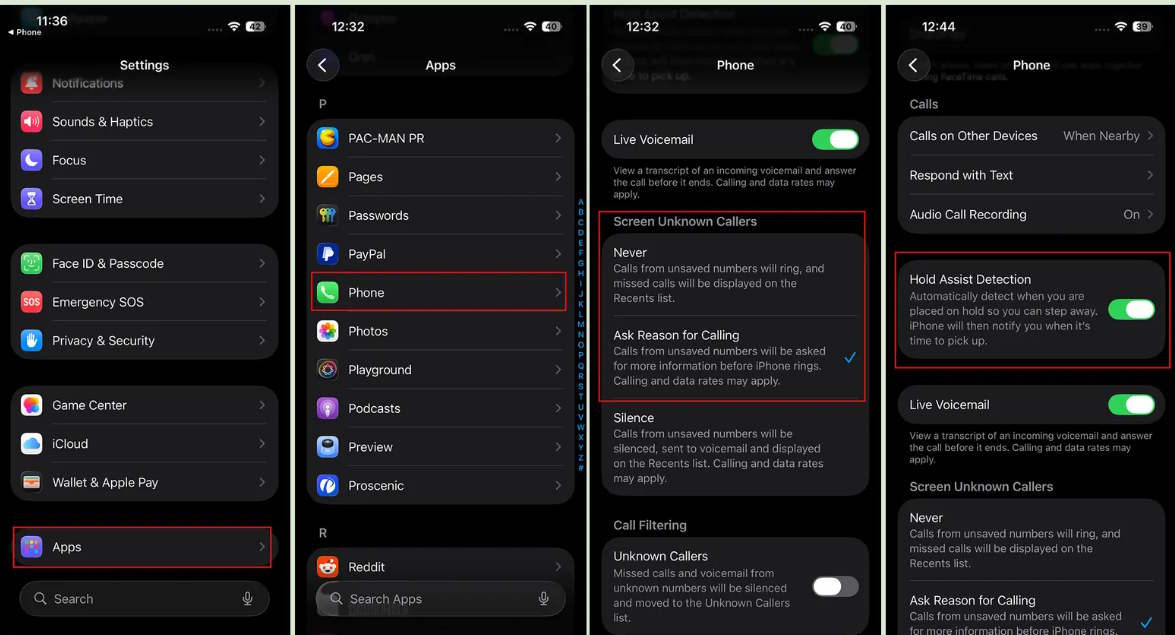
Ask Reason for Calling offers a useful middle ground for someone who receives spam but still expects calls from couriers, clinics, schools, recruiters, or new customers. Silence is more aggressive and can hide a legitimate call. Add important numbers to Contacts and review missed and filtered calls.
Call Screening depends on supported languages and regions. Apple’s call-screening guide lists the current behavior.
Hold Assist is a separate feature
Hold Assist can monitor a call when a business places you on hold and notify you when a live agent becomes available. During a supported call, open the call controls, tap More, then Hold Assist. It is not a setting required for unknown-call screening.
Apple documents Hold Assist for iPhone 12 and iPhone SE (3rd generation) or later, with regional limits. Check ring volume, Silent mode, and Focus before stepping away; otherwise, you may miss the notification that an agent has returned.
3. Give each app only the location accuracy it needs
Go to Settings > Privacy & Security > Location Services, then select an app. Review both when it may use location and whether it receives a precise position.
- Choose Never when the app has no clear location-based purpose.
- Choose Ask Next Time for occasional access that you want to approve case by case.
- Choose While Using the App for navigation, pickup, or delivery software that needs location during an active task.
- Leave Precise Location on for turn-by-turn navigation, emergency-related functions, or an active delivery to an exact address.
- Turn Precise Location off when a weather, news, social, or shopping app only needs a general area.
Approximate location is intentionally less exact, but it is not a promise that the app learns nothing about where you are. Review the app’s privacy policy and any account-level location history as well. Apple’s Location Services guide explains the current controls.
4. Set Auto-Lock for the situation, not permanently to Never
Go to Settings > Display & Brightness > Auto-Lock and select a delay. A short delay reduces the chance that someone can access an unattended unlocked phone and can also reduce unnecessary screen-on time.
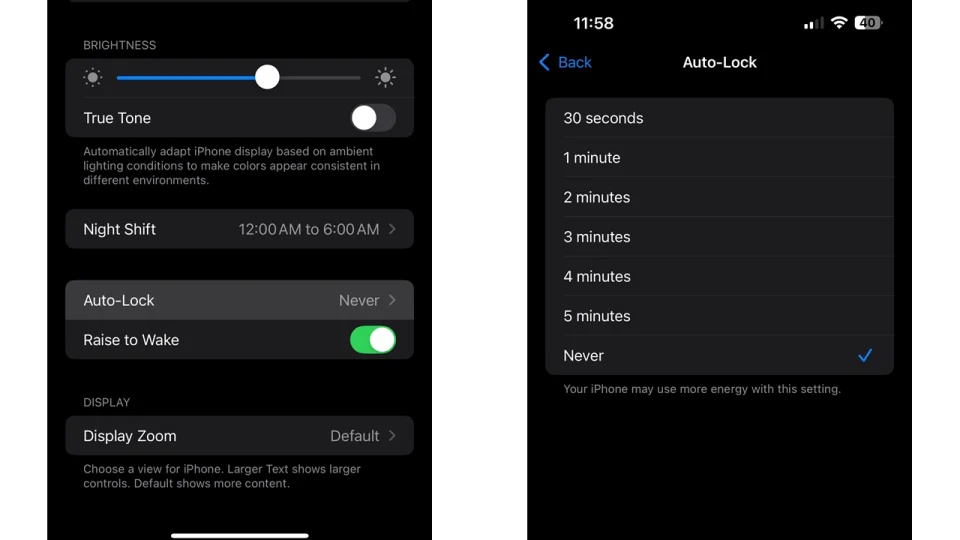
A longer delay can be useful for a recipe, sheet music, presentation, or reference document. Selecting Never leaves the screen on until you lock it manually, increasing battery use and the risk of an exposed unlocked phone. Change it temporarily, then restore a short delay afterward.
If Auto-Lock is dimmed, check whether Low Power Mode or a managed-device policy is controlling it.
5. Turn on RCS when your carrier supports it
RCS is Rich Communication Services, not “Recording Communication Service.” On iOS 18 or later with a supported carrier and cellular plan, go to Settings > Apps > Messages > RCS Messaging and enable it.
RCS can improve green-bubble conversations with supported non-Apple phones by adding features such as better media transfer, delivery or read status, and typing indicators. Exact capabilities depend on both participants’ devices, carriers, and messaging apps. Carrier data or message charges can still apply.
RCS is not the same as iMessage, and protection can differ by conversation. iOS 26.5 began rolling out end-to-end encrypted RCS in beta with supported carriers; do not assume every RCS chat is encrypted. Check the conversation indicator and Apple’s current RCS setup guide.
If the switch does not appear, update iOS, confirm the active cellular line, and ask the carrier whether it supports RCS on iPhone. After enabling it, activation can take a short time.
6. Use Back Tap as a customizable shortcut
Go to Settings > Accessibility > Touch > Back Tap. Assign an action to Double Tap, Triple Tap, or both. Available actions can include taking a screenshot, opening Control Center, starting an accessibility feature, scrolling, or running a Shortcut.
Back Tap is software-based and is separate from the physical Action button on supported iPhone models. It can provide a similar one-gesture convenience on compatible iPhones without an Action button.
Choose an action that is easy to notice if triggered accidentally. A flashlight, screenshot, or simple Shortcut is safer for testing than an automation that sends a message, deletes data, or changes many settings. If taps trigger through normal handling, move the action from double tap to triple tap or set it back to None.
Cases and tapping style can affect reliability. Apple’s Back Tap instructions provide the current path.
A quick review checklist
- Keep security fixes enabled and install full updates on a deliberate schedule.
- Use call screening only after considering legitimate unknown callers.
- Limit location permission and precision app by app.
- Prefer a short Auto-Lock delay for everyday security.
- Enable RCS only when the carrier and software support it, and check encryption status.
- Assign Back Tap to a reversible, low-risk action first.
After changing a setting, test the real behavior rather than assuming the label tells the whole story. Place a call from an unsaved number, send an RCS message to a supported Android phone, or try Back Tap with your usual case fitted.
Related Articles
 6 Default Settings You Should Turn Off in iPhone5 minutes read
 6 Hidden iOS Settings That Are Draining Your Data Plan7 minutes read
 7 Hidden Plex Settings You Should Use9 minutes read
 iPhone Has Hidden Trackpad: Have You Tried It?7 minutes read
 Unveiling Hidden iOS Settings That Will Give Your iPhone a New Look5 minutes read
 How to Change This Hidden Setting on Android to Make Everything Run Twice as Smoothly7 minutes read
Reader Comments 0
Sign in with email or Google to join the discussion.