Table of Contents
Windows 11 has two different drag-and-drop workflows: moving a file into an open app through the taskbar, and sharing it through a tray at the top of the screen. The taskbar workflow is built into Windows 11 version 22H2 and later. The top-of-screen Drop Tray has changed across releases and was removed by the August 2026 update for versions 24H2 and 25H2.
Use taskbar drag-and-drop
- Open the application that should receive the file.
- In File Explorer, press and hold the file with the left mouse button.
- Hover over the app’s taskbar icon until its window comes forward.
- Move into the app’s document or attachment area, then release the mouse button.
Dropping directly onto the taskbar icon is not the same as dropping into the application. The destination app must support the file type and the particular drop target. If dragging is inconvenient, use the app’s Open, Import, or Attach command.
What happened to the sharing tray?
Earlier Windows builds displayed suggested apps when a file was dragged toward the top of the screen. This feature was first called Drag Tray, then Drop Tray. Microsoft’s August 2026 update notes say it removes both the tray and its setting on affected devices. A missing tray on an updated PC therefore does not necessarily indicate a fault.
The screenshots below show the older experience. On a build that still has it, dragging a local file upward reveals the tray.
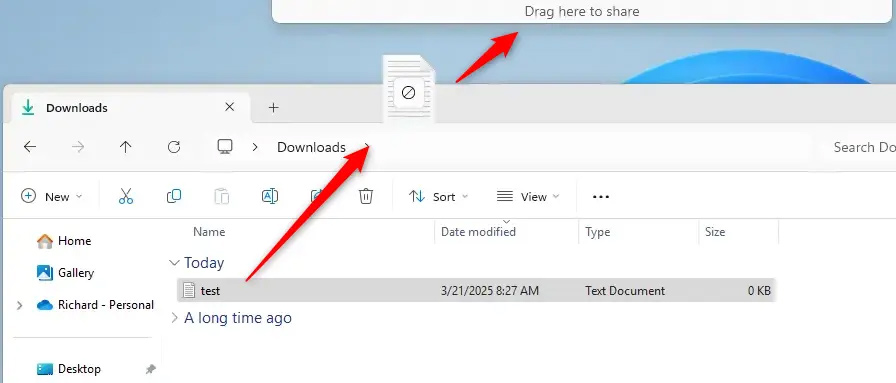
Dropping onto a suggested app opens its sharing workflow. The More option opens additional sharing choices; check the recipient and attachment before sending.
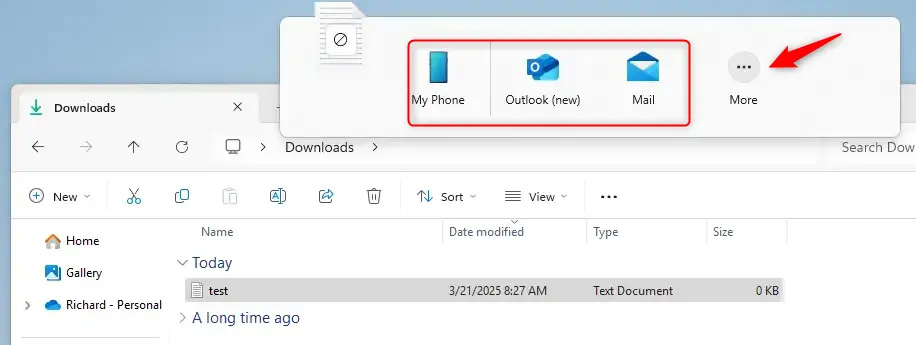
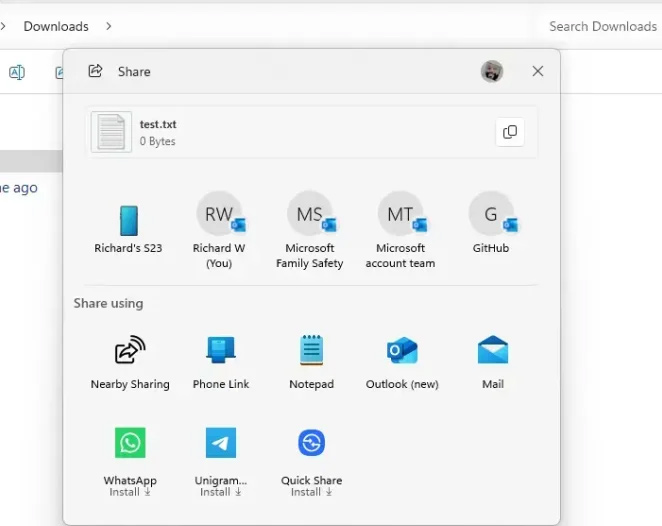
When the tray is unavailable, right-click the file in File Explorer and choose Share, or attach it directly inside the destination app.
Should you use ViVeTool to enable it?
The older instructions used experimental feature IDs with ViVeTool. Those IDs are build-dependent and are not a reliable way to restore a feature that Microsoft has removed. Check your version with winver before following any instructions written for an Insider build.
For background, see what ViVeTool does and how Windows feature flags work. Enabling a hidden flag does not install a missing feature or guarantee compatibility.
Do you still need the taskbar fix utility?
The Windows 11 Drag & Drop to the Taskbar utility addressed the missing taskbar behavior in early Windows 11 releases. Its developer’s repository says it is no longer needed for the native functionality restored in version 22H2.
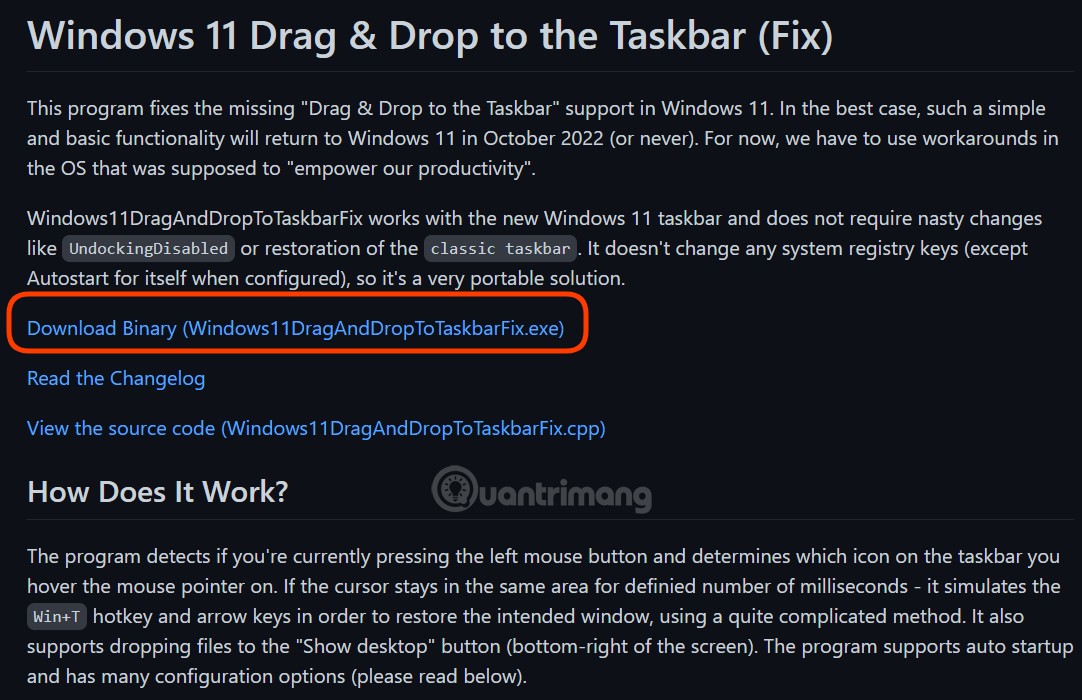
This older download screenshot is included for identification. The utility is separate from the top-of-screen sharing tray and does not enable that tray. On a current installation, try the built-in workflow before considering a legacy workaround.
Related Articles
 Instructions to Turn Off File Drag and Drop on Windows 11: Explained4 minutes read
 How to Set the Default Drag and Drop File Behavior on Windows 105 minutes read
 How to Bring File Drag and Drop - Drag and Drop Back to3 minutes read
 Steps to Fix the Error Can't Drag and Drop in Windows 108 minutes read
 How to Drag and Drop: Step-by-Step Guide6 minutes read
 How to Drag and Drop Files on iOS 154 minutes read
Reader Comments 0
Sign in with email or Google to join the discussion.