Table of Contents
Learn how to speed up file explorer on Windows 11 with clear steps, practical tips, and troubleshooting guidance for a reliable result.
Clear File Explorer cache and history
A simple way to improve File Explorer's performance without much effort is to clear the cache and history.
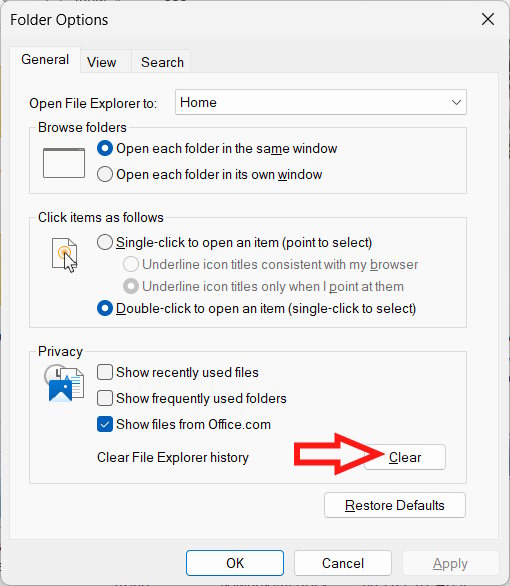
Click the three-dot icon in File Explorer and select Options . In the General tab , click the Clear button to proceed.
- How to delete search history for folders and files in File Explorer
Disable Quick Access
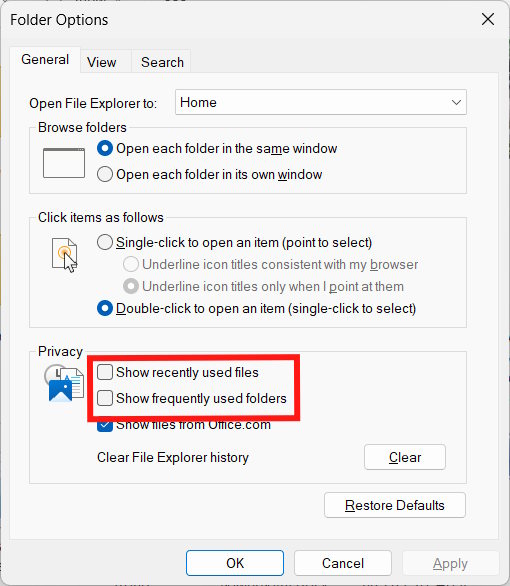
Quick Access makes accessing content more convenient, but it can also slow down File Explorer.
In File Explorer's Options interface, uncheck the boxes for "Show recently used files" and "Show frequently used folders" .
Slow down File Explorer indexing speed
Windows 11 File Explorer indexes files in the background, allowing for much faster file and folder searches when using Windows Search or when searching directly from the File Explorer search bar.
Fast indexing is quite resource-intensive and also affects File Explorer's performance.
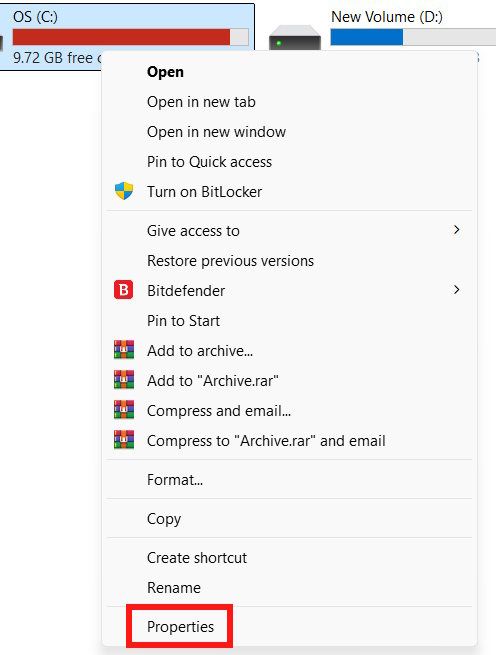
Open File Explorer and access drive C or any other drive you want to improve indexing. Next, right-click on the drive and select Properties .
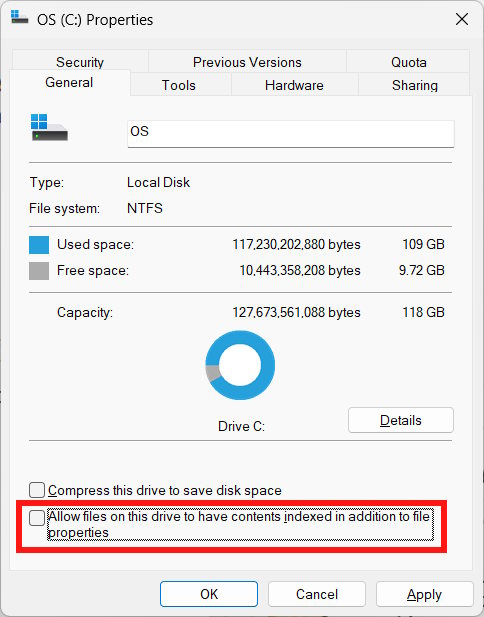
In the General tab , uncheck the box next to "Allow files on this drive to have contents indexed in addition to file properties." Finally, tap or click Apply, then click OK.
Disable folder type detection in File Explorer
Automatic Folder Type Discovery is a feature that automatically detects the type of folder—documents, images, or videos—based on the data within that folder. If an MP3 file is detected, it will switch the viewing mode to Music mode; if a JPEG file is found, it will switch to Pictures mode to prioritize thumbnails.
This also affects File Explorer's performance and causes it to lag. Please refer to the article below to disable this feature in the Registry.
- How to fix File Explorer lag on Windows 11
Switch to a different file manager
Finally, if you're still not satisfied with the performance of Windows' default File Explorer on your computer, you can switch to a different file manager.
- 7 best file management software options for Windows to replace File Explorer
Final Thoughts
Use this guide as a practical checklist for how to speed up file explorer on windows 11. Work through the steps in order, verify each result, and adjust the options to match your needs.
FAQ
What do you need before following this How to Speed up File Explorer on Windows 11 guide?
Review the required tools, accounts, settings, or materials mentioned in the article. Learn how to speed up file explorer on Windows 11 with clear steps, practical tips, and troubleshooting guidance for a reliable result.
What are the main steps for how to speed up file explorer on windows 11?
Follow the sections in order, especially Clear File Explorer cache and history, Disable Quick Access, Slow down File Explorer indexing speed. Complete each step before continuing and verify the result as you go.
What should you do if the process does not work as expected?
Recheck the prerequisites, update the relevant app or service, review the settings, and repeat the step that caused the issue. Use any troubleshooting notes included in the guide.
Related Articles
 How to Fix File Explorer Lag on Windows 11: Step-by-Step Guide8 minutes read
 6 Windows File Explorer Add-ons That Make Life Easier7 minutes read
 Files Is a Windows File Explorer Alternative That Meets All User Needs6 minutes read
 7 Notable Changes in File Explorer Windows 117 minutes read
 Fix File Explorer Error Not Working on Windows 105 minutes read
 5 Best Windows File Explorer Extensions to Manage Files on the8 minutes read
Reader Comments 0
Sign in with email or Google to join the discussion.