What you will learn
- Map common permissions to legitimate app functions.
- Distinguish foreground, one-time and persistent access.
- Revoke unnecessary permissions without guessing.
- Respond to apps that refuse to work with reasonable limits.
What you need
- Access to operating-system privacy or permissions settings.
- A list of apps used for camera, microphone, location or files.
Connect each permission to a visible feature
Google documents site permission choices such as one-time access, access while visiting and never allow for resources including camera, microphone and location.
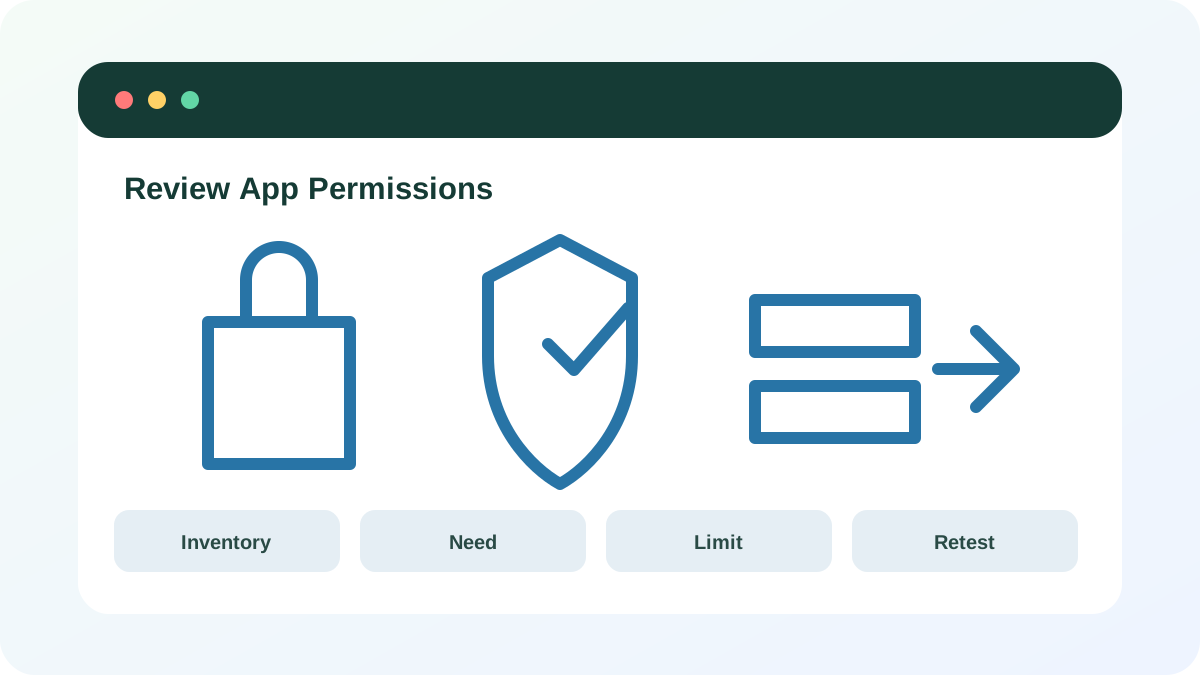
Operating systems use similar categories for installed apps. The correct question is not “Do I trust this app completely?” but “Does this feature need this resource now?” A flashlight does not need contacts; a video meeting needs microphone only when you use audio.
Review high-impact categories first
Start with camera, microphone, precise location, contacts, photos/files, accessibility, screen recording and background operation. Accessibility and device-administrator permissions can be especially powerful. On managed work or school devices, policy may control these settings; do not defeat management controls.
- 1
Open Privacy, Permissions or App settings.
- 2
Review camera and microphone lists.
- 3
Review precise and background location access.
- 4
Review contacts, photos and file access.
- 5
Identify accessibility, screen-recording or administrator privileges.
- 6
Mark apps you no longer use for removal.
Reduce access one permission at a time
Prefer selected photos or folders instead of full-library access when supported. Choose approximate rather than precise location when sufficient. Use “only while using” or one-time permission for occasional tasks. Change one setting, then test the relevant feature so you know what the permission controlled.
- 1
Select one app and one permission.
- 2
Write the feature that supposedly needs it.
- 3
Change persistent access to one-time or while-in-use when available.
- 4
Restrict full-file access to selected items.
- 5
Close and reopen the app.
- 6
Test the feature and restore only the minimum required access.
Handle excessive or unexplained requests
If an app demands unrelated access, verify that you installed the official product and review vendor documentation. Deny the request, remove the app or choose an alternative when the feature cannot justify the permission. Unexpected camera or microphone indicators deserve prompt review, but first close active calls and browser tabs that may legitimately use them.
- 1
Capture the app name and exact request.
- 2
Deny access temporarily.
- 3
Check the official help page for the feature.
- 4
Review active browser tabs and background apps.
- 5
Uninstall or report the app if the request remains unexplained.
- Every sensitive permission maps to a used feature.
- Unused apps and stale permissions were removed.
- Background and precise access are limited where practical.
Audit five sensitive permissions
Review one phone or computer and make controlled changes.
- 1
Choose camera, microphone, location, files and notifications.
- 2
List apps with access to each.
- 3
Remove one stale permission.
- 4
Reduce one permission to while-in-use or selected data.
- 5
Retest the affected feature.
- 6
Document any app that needs replacement.
Common mistakes to avoid
- Granting every permission during first launch.
- Revoking many settings at once and not knowing what broke.
- Assuming a permission list proves malicious behavior.
- Keeping unused apps with powerful background access.
Key takeaways
- Permissions should match a current feature.
- One-time and selected-data access reduce exposure.
- Controlled retesting reveals the minimum needed privilege.
Frequently asked questions
Why does an app ask again after I denied permission?
It may ask when you use a feature that depends on the resource. Decide based on the feature and choose one-time access when available.
Should I disable all location services?
That may break navigation, emergency and device-finding functions. Limit precise and background access app by app instead of applying a blind global change.
Sources and further reading
- Change site settings permissionsGoogle Chrome Help
- Windows Security app overviewMicrosoft Support
Ready to continue?
Mark the lesson complete so your Learning Path progress stays current on this device.