Table of Contents
This guide will show you how to use Google Drive with ChatGPT to speed up data analysis.
ChatGPT can work with files stored in Google Drive either through an available Google Drive connection/plugin or by attaching a supported file to the chat. The exact setup depends on the ChatGPT surface, plan, workspace configuration, and administrator permissions, so a fixed list of eligible plans can become outdated.
Choose the safest connection method
- For a single file: Attach the file or paste its exact approved Drive link when the interface supports it.
- For repeated work: In ChatGPT Work, install or select the approved Google Drive plugin, authorize only the account you intend to use, and invoke it explicitly in the prompt.
- For organization data: Use a workspace-approved account and follow the administrator's data, retention, and sharing policies. Do not connect a personal account to company files.
Tell ChatGPT exactly which file, sheet, tab, date range, or folder to use. Ask it to state the source and flag missing or inconsistent data. Before sharing the result, open the original Drive file and verify important numbers, names, dates, quotes, and permissions.
Official OpenAI documentation explains plugins and Google Drive connections and recommends treating generated work as a draft that must be checked. Related TipsMake articles cover useful ChatGPT file features, NotebookLM versus ChatGPT for source-based work, and ChatGPT versus Microsoft Copilot.
Check whether Google Drive access is available
Google Drive access varies by ChatGPT surface, plan, workspace settings, region, and administrator controls. On other accounts, availability and limits can differ, so check the tools shown in your current interface before relying on this workflow. accounts have limited access to this service. The free version allows a limited number of file attachments per day.
Security and permission checks
According to OpenAI's privacy policy page, ChatGPT may use user content and account information to train its models. You can request to opt out by accessing the privacy request portal. Click on " Do not train on my content" and enter your email address on the next page. You can also request to have your personal information removed from the ChatGPT model output.
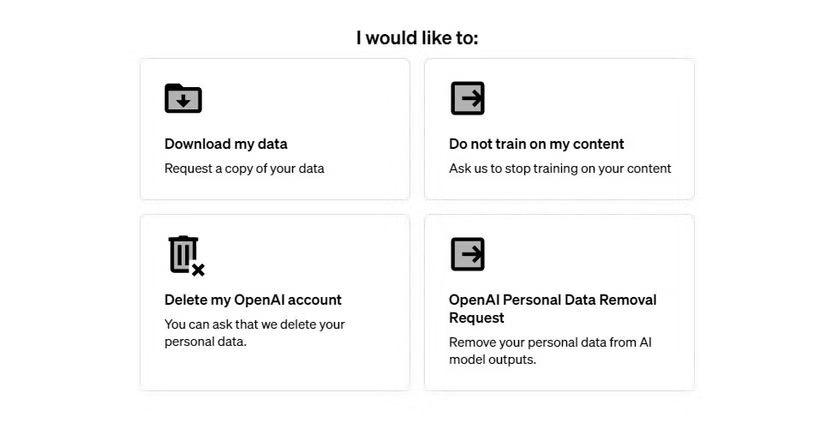
Although OpenAI guarantees privacy, you must ensure that the documents you upload do not include sensitive information such as addresses, bank details, and medical information. Review the contents of your file before adding it to ChatGPT.
Warning: ChatGPT may not provide accurate answers. Always review and cross-check the results.
using Google Drive with ChatGPT on PC
You need to subscribe to ChatGPT Plus to upload unlimited files after integrating Google Drive with ChatGPT. However, the service allows non-members to attach a certain number of files for free. ChatGPT-4o can also respond to audio and video input.
You can link your Google Drive account to ChatGPT to access your files. Alternatively, you can also link it to Microsoft OneDrive. You can manage attachments on your Drive after granting the necessary permissions.
1. Access the ChatGPT website from any browser.
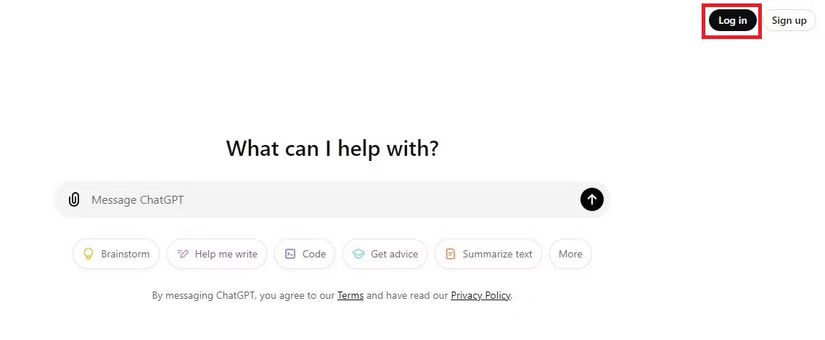
2. Click on Log in to sign in to your account.
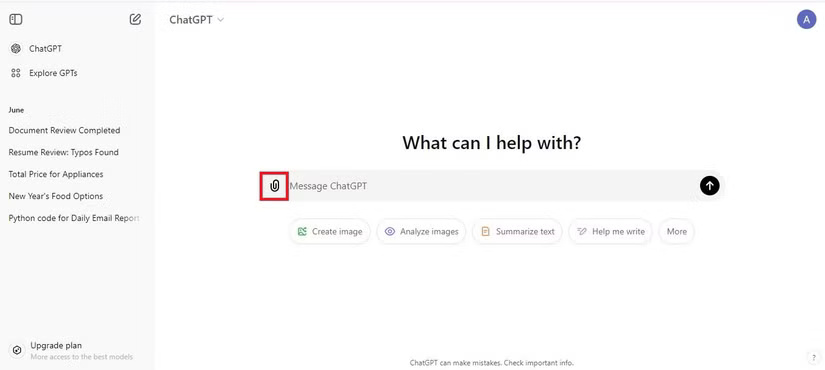
3. Click the paperclip icon in the chat window.
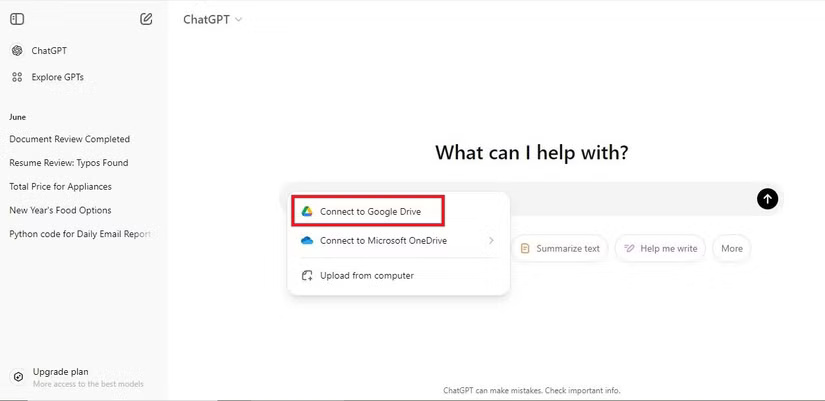
4. Select Connect to Google Drive.
5. Click Continue to allow ChatGPT access to your Google account.
6. Go to the chat window and click on the paperclip icon.
7. Click on Add from Google Drive.
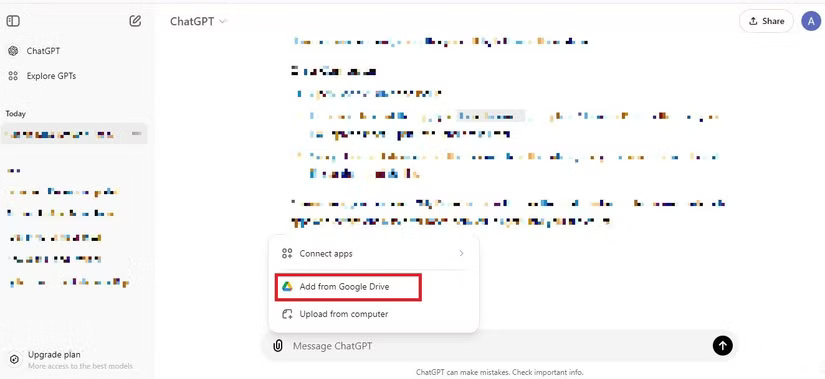
8. Select the file.
9. Enter your prompt.
Use a Drive file with ChatGPT on mobile
The following steps apply to both Android and iOS. Although this article uses an Android phone to take screenshots, the steps are similar on an iPhone.
1. Launch the ChatGPT application.
2. Start a new conversation.
3. Click on the folder icon at the bottom.
4. Click on the Google Drive icon.
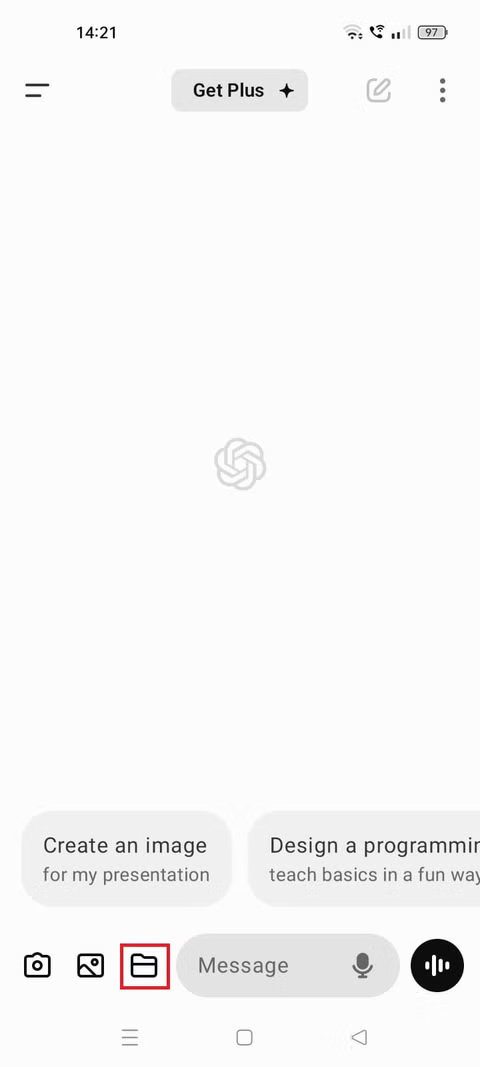
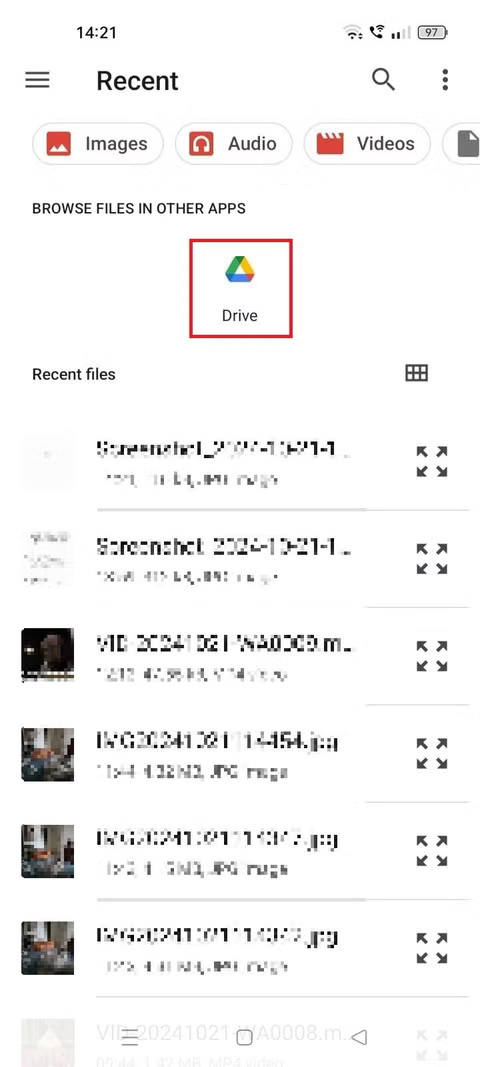
5. Select the file.
When a Drive connection is useful
Integrating ChatGPT with Google Drive provides a convenient way to manage documents. You can easily access files from Drive instead of uploading them from your computer or searching for documents. The integration supports Google Docs, Sheets, Slides, Microsoft Word, PowerPoint, and Excel. It summarizes large files and saves you the trouble of searching for relevant information within the document. You can also use ChatGPT to proofread, translate, and correct your documents.
Use ChatGPT like a pro
Linking Google Drive to ChatGPT makes file management easy, allowing you to analyze data and summarize documents. The service also lets you save important conversations and view your chat history. You can get the most out of your chatbot with the best ChatGPT extensions.
Related Articles
 How to Use the ChatGPT API: a Complete Guide from a to Z12 minutes read
 How to Use ChatGPT API: Clear Instructions9 minutes read
 How to Integrate ChatGPT with VSCode for Increased Productivity5 minutes read
 Top 10 Common Google Drive Problems and Solutions11 minutes read
 Great Way to Integrate ChatGPT into Word with Just a Few Simple Steps Explained4 minutes read
 How to Automate Document Creation with ChatGPT in Microsoft Word: Practical6 minutes read
Reader Comments 0
Sign in with email or Google to join the discussion.