Table of Contents
Quick Overview
Edge : Follow this practical guide to save RAM When Using Edge Browser.
The Edge browser is a product of Microsoft. However, Microsoft Edge consumes a significant portion of system resources to increase its performance. When this happens, Edge's memory usage on Windows computers can increase, affecting overall performance. So here I will guide you on how to save space on Edge on Windows 11 effectively.
1. Use Microsoft Edge task manager to close tabs
Step 1 : Open Edge browser on your computer, right-click and select Browser task manager or click on the 3-dot button and select More tools > Browser task manager

Step 2 : Then find and select the Google Tab > then click the End Process button.

2. Turn on productivity mode in Microsoft Edge
Step 1 : Open Microsoft Edge, click on the three-dot menu icon in the top right corner and select Settings from the list.

Step 2 : Navigate to the System and performance tab. Use the drop-down menu next to 'Turn onefficiency mode when' to select Always.

3. Disable startup boost in Edge
To turn off startup boost in Edge, type edge://settings/system in the address bar at the top and press Enter. Then turn off the switch next to "Startup boost." Or you can click Settings and then System and performance > Startup boost.
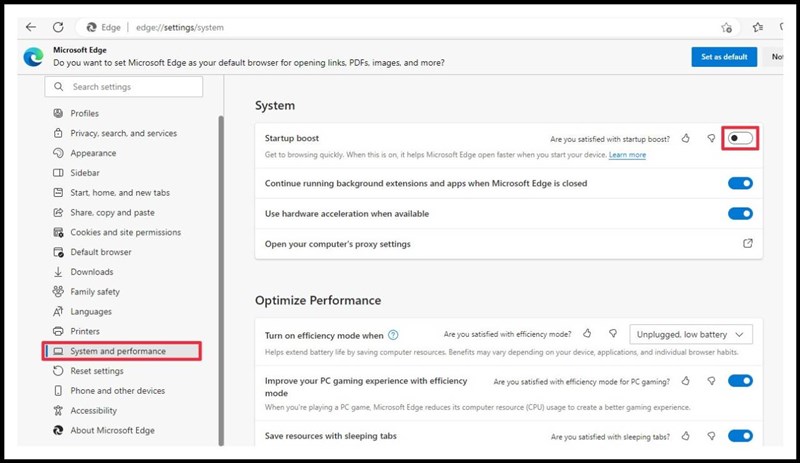
Good luck in saving space on Edge. Please like and share.
FAQ About Edge
What should you prepare before you save RAM When Using Edge Browser?
The Edge browser is a product of Microsoft
What should you do if save RAM When Using Edge Browser does not work?
Understanding Edge helps you evaluate its benefits, limitations, and potential risks before making a decision.
How can you get better results when working with Edge?
Then turn off the switch next to "Startup boost." Or you can click Settings and then System and performance > Startup boost
Related Articles
 20 Small Tips with Edge Browser You Should Know (Part 1)6 minutes read
 Knowing These 21 Shortcuts You Will Be Able to Use Edge Browser7 minutes read
 Trick to Remove Edge Browser on Windows 10: Browse Edge3 minutes read
![[Video] Admire the Latest Images of Microsoft Edge Browser on Chromium Platform](/data/thumbs_200x120/[video]-admire-the-latest-images-of-microsoft-edge-browser-on-chromium-platform_thumbs_200x120_Ye41FjEk7.jpg) [Video] Admire the Latest Images of Microsoft Edge Browser on Chromium Platform3 minutes read
[Video] Admire the Latest Images of Microsoft Edge Browser on Chromium Platform3 minutes read Instructions for Installing Extensions on Edge Browser Windows 103 minutes read
 This Is How to Speed up Edge Browser4 minutes read
Reader Comments 0
Sign in with email or Google to join the discussion.