Table of Contents
To use Gemini instead of Google Assistant on an Android phone, set Google as the default digital assistant app, then choose Gemini in Google's assistant settings if the choice is available. Some phones already use Gemini by default.
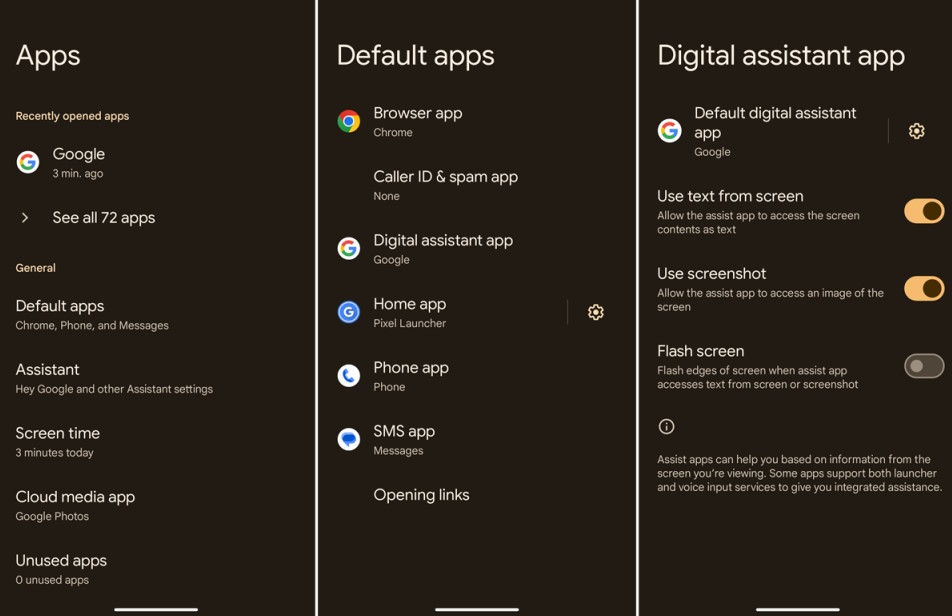
Check the default assistant app
- Open Android Settings > Apps > Default apps.
- Open Digital assistant app or the similarly named assistant setting.
- Select Google as the default assist app.
The wording varies by phone manufacturer. Selecting Google provides the assistant integration; it is not necessarily a choice between separate Google Assistant and Gemini entries.
Choose Gemini
Install or update the official Gemini app through Google Play, open it, and follow the setup prompts for your account. If a switch prompt appears, read the information and confirm that you want Gemini as your assistant.
Where the selector is available, open the Google app, tap your profile picture, then Settings > Google Assistant > Digital assistants from Google > Gemini. Another supported route on some devices is Settings > Apps > Assistant > Digital assistants from Google.
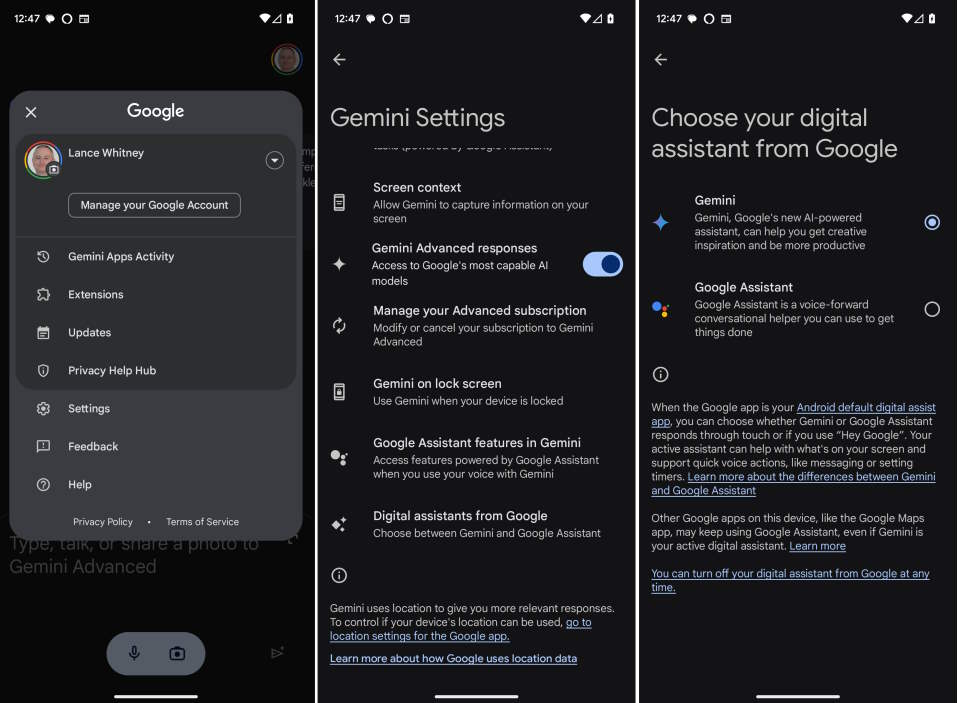
The screenshots show an earlier interface. If the menus differ, use Google's Gemini mobile setup instructions. Account eligibility, device support, language, and administrator settings can affect availability.
Open Gemini after setup
You can open the Gemini app directly. The assistant overlay may also open through your phone's configured gesture or a long press of the power button. The power-button shortcut depends on device settings; it does not work identically on every Android phone.
If you want hands-free access, check the available Hey Google and Voice Match options in Google's assistant settings. Test a harmless question first to confirm which assistant responds.
Check what your setup can do
Start with a question, a follow-up, or a draft message. Device actions and access to services such as Gmail depend on supported connected apps, permissions, and account settings. Review a draft before sharing it, and confirm recipients before asking for a call or message.
See making calls with Gemini on Android for that specific workflow. Review chatbot activity and privacy controls before sharing private information.
If Gemini does not become the assistant
- Recheck the default digital assistant setting and update the Google and Gemini apps.
- Confirm that you are signed into the intended account and that the account is eligible.
- Check whether your device's gesture or power-button setting opens another app.
- If a work or school account is restricted, ask its administrator rather than changing unrelated permissions.
On devices where a return option remains available, Gemini's profile menu may offer Switch to Google Assistant. Follow the displayed confirmation. If the option is absent, do not assume that an old menu path or reinstalling the app will restore it.
Related Articles
 Google Assistant’s Move to Gemini on Android: What Changed in 2026
 Google Assistant is disappearing from your smartwatch
 How to use Gemini AI as a virtual assistant on Android to replace Google Assistant
 Is Gemini Useful as an Android Assistant? What to Check
 How to Create a Custom Gem in Google Gemini
 How to Change the Default Digital Assistant on Android
Reader Comments 0
Sign in with email or Google to join the discussion.