Table of Contents
You can remove the sign-in password from a local Windows 11 account. A Microsoft account must keep its Microsoft password, although you can use Windows Hello or configure automatic sign-in on an appropriate home PC. These choices have different security consequences, so first identify the account type under Settings > Accounts > Your info.

Before removing the password
A password or Windows Hello prompt prevents anyone with physical access from immediately opening your files, saved browser sessions, email, and apps. Keep sign-in protection on laptops, shared computers, workplace devices, and any PC used outside a controlled room. You can press Windows + L whenever you step away; see more ways to lock a computer.
Drive encryption and account sign-in protect against different risks. Removing a login password does not turn off encryption, but it makes data accessible to anyone who can start and use the signed-in PC. If the device supports it, review how to turn on BitLocker in Windows before weakening local sign-in protection.
Remove the password from a local account
- Press Windows + I and open Accounts > Sign-in options.
- Expand Password and select Change.
- Enter the current password, then select Next.
- Leave the New password, Confirm password, and Password hint fields blank.
- Select Next > Finish, then lock or restart the PC to verify the change.
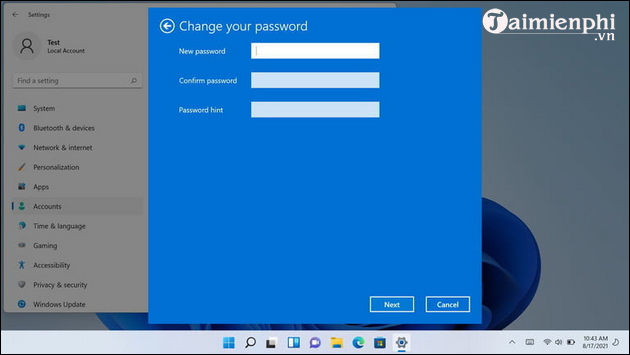
This method applies to a local account only. If Settings asks you to manage the password online or identifies the account as a Microsoft account, do not try to blank the password fields.
Microsoft account: use a PIN or Windows Hello instead
You cannot remove the password from a Microsoft account on one PC without changing how that account is used. A convenient alternative is a Windows Hello PIN, fingerprint, or face sign-in under Settings > Accounts > Sign-in options. A PIN is tied to the device and is not the same as the Microsoft account password.
If you specifically need a passwordless local account, you can switch the current Windows profile to a local account from Settings > Accounts > Your info > Sign in with a local account instead, if that option is available. Read the prompts carefully: Microsoft synchronization and some connected services may need to be configured again. Back up important files and verify the new local profile before making other account changes.
Sign in automatically without deleting the password
Automatic sign-in retains the account password but has Windows use stored credentials during startup. Consider it only for a stationary, personally controlled PC. Do not enable it on a laptop, shared computer, work device, or a machine containing sensitive information.
- Press Windows + R, type netplwiz, and press Enter.
- Select the correct user account.
- Clear Users must enter a user name and password to use this computer, then select Apply.
- Enter and confirm the account's current password. Restart the PC to test automatic sign-in.
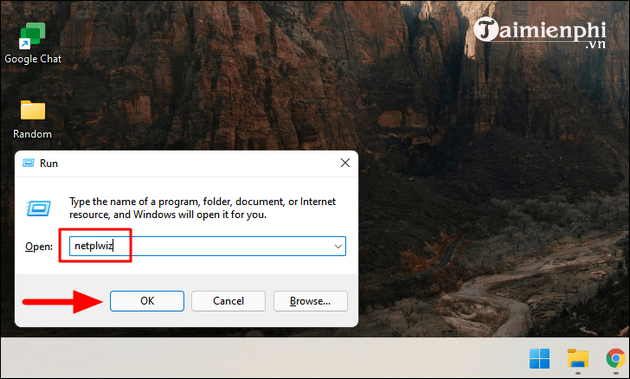
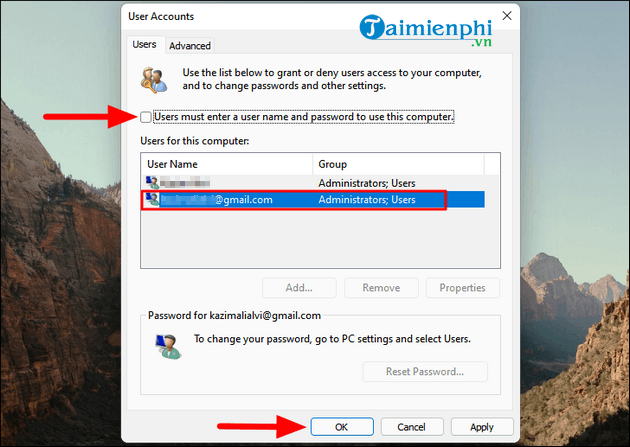
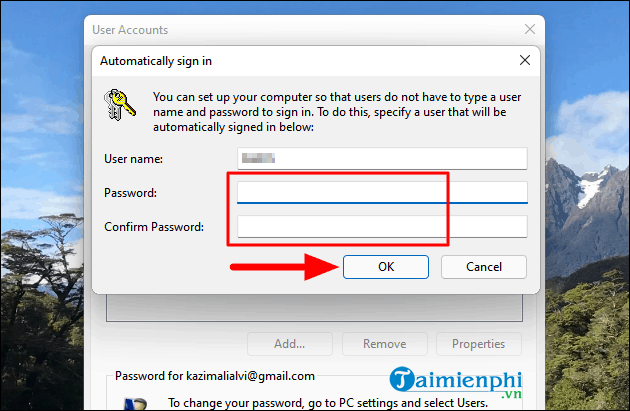
If the checkbox is missing, Windows Hello-only sign-in may be enabled under Settings > Accounts > Sign-in options > Additional settings. Changing that policy affects account security, so prefer a PIN unless automatic startup is genuinely necessary.
Avoid the Registry password method
Do not create DefaultPassword and AutoAdminLogon values manually in the Winlogon Registry key. That legacy method can expose a reusable password to software or administrators that can read the computer's configuration. It also creates needless risk of Registry errors. The local-account and User Accounts methods above are clearer and safer.
If you need to restore sign-in protection
For a local account, return to Settings > Accounts > Sign-in options > Password and choose Add. To turn off automatic sign-in, run netplwiz, select the account, restore the requirement to enter a user name and password, and restart. Test the result before leaving the PC unattended.
Related Articles
 Turn Off Windows 10 Password When Logging in for Only 10 Seconds5 minutes read
 How to Remove Administrator Password in Windows 711 minutes read
 Top 3 Simple Ways to Change Computer Password on Windows6 minutes read
 How to Quickly Remove BIOS Password on Computer5 minutes read
 I'm Typing in the Computer When I'm Used to It7 minutes read
 How to Turn Off the Win 10 Password - Uninstall and Delete the Windows 103 minutes read
Reader Comments 0
Sign in with email or Google to join the discussion.