Table of Contents
On a laptop or all-in-one PC, the fastest way to change brightness is the slider in Windows Quick Settings or Action Center. A desktop connected to an external monitor often has no Windows brightness slider; use the monitor's physical controls or a supported DDC/CI utility instead.
Use Quick Settings or Action Center
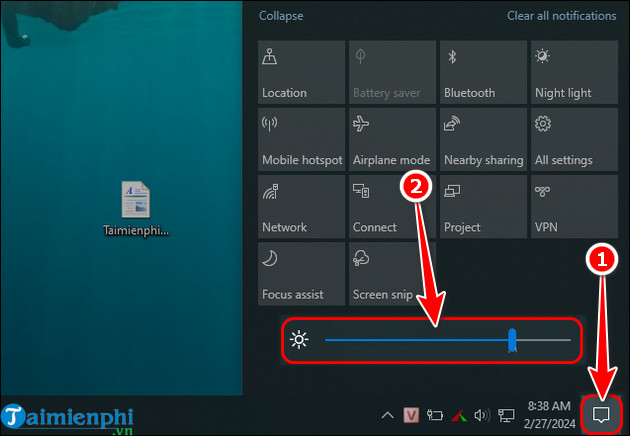
On Windows 11, press Windows + A and drag the brightness slider. On Windows 10, select the Action Center icon at the right of the taskbar and drag the slider with the sun icon.
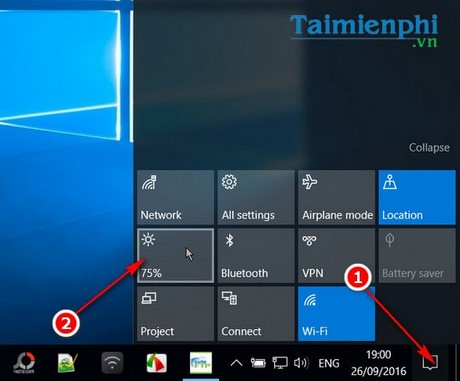
Early Windows 10 versions used a brightness tile that cycled through fixed levels instead of a slider.
Use the laptop brightness keys
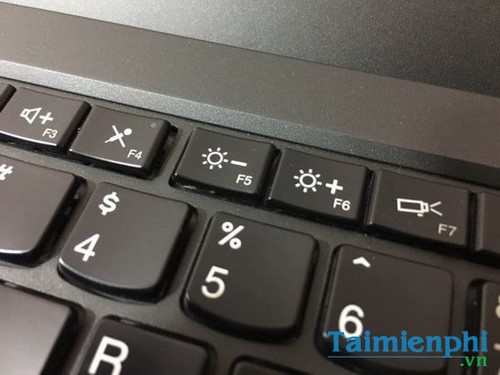
Look for sun icons on the function-key row or arrow keys. Depending on the keyboard mode, press the key directly or hold Fn. Common pairs include F5/F6, F11/F12, or the up/down arrows, but the icons—not a generic key list—are the reliable guide for a particular model.
If the keys do nothing, install the manufacturer's hotkey, system-interface, chipset, and graphics packages. Also check whether Fn Lock is enabled.
Change brightness in Settings
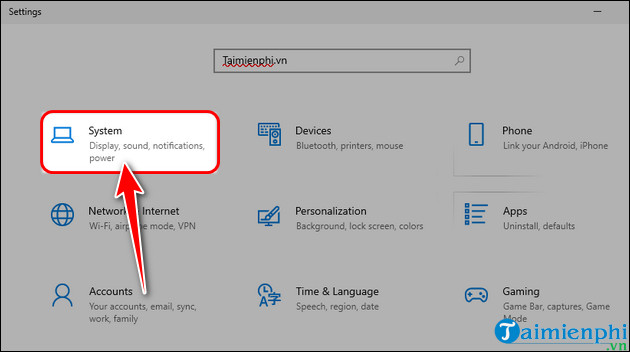
- Press Windows + I.
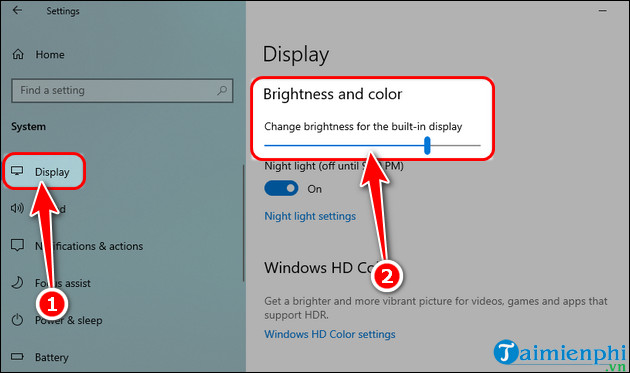
- Open System > Display.
- Under Brightness or Brightness & color, move the slider.
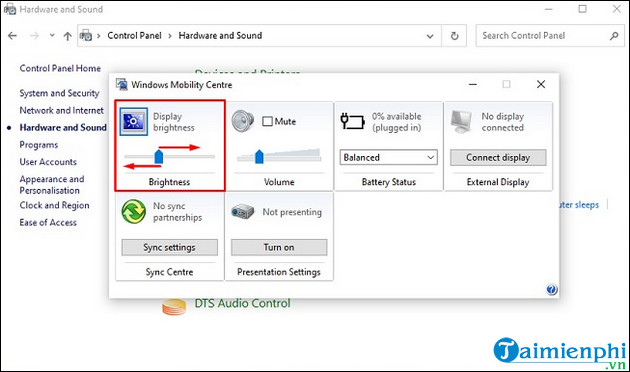
Windows Mobility Center can provide another control on supported laptops. Search for Windows Mobility Center and adjust Display brightness. The control may be missing on desktops and some modern devices.
Adjust an external monitor
Use the buttons, joystick, or on-screen menu on the monitor. Some displays support brightness commands through DDC/CI; enable that feature in the monitor menu before using Windows or a reputable control app. TipsMake's overview of useful Windows 11 additions includes an external-monitor brightness utility.
HDR mode, a dock, KVM, adapter, or unsupported cable can prevent software brightness control. If the screen is merely dim, also check the monitor's eco mode, local dimming, HDR setting, and input profile.
Control automatic and content-adaptive brightness
Supported laptops may adjust brightness from an ambient-light sensor or from the content on screen. Under System > Display > Brightness, expand the control and choose whether brightness should change automatically with lighting or content.
Automatic brightness is not inherently harmful to battery life; it can reduce power use by dimming the panel. Turn it off only when its changes are distracting or inaccurate. Battery Saver may also lower brightness temporarily.
If the brightness slider is missing or greyed out
- Confirm that you are adjusting the built-in display, not an external monitor.
- Restart Windows, then open Device Manager.
- Under Monitors, enable Generic PnP Monitor if it was disabled.
- Under Display adapters, roll back a driver if the problem began after an update; otherwise install the PC maker's graphics driver.
- Disconnect docks and adapters to test the built-in panel directly.
If the slider moves but brightness does not change, compare behavior in firmware setup or the manufacturer's hardware diagnostics. A panel cable, sensor, backlight, or mainboard fault may require service.
Use brightness for comfort, not as a medical guarantee
Choose a level that keeps text readable without glare and adjust room lighting to reduce reflections. Brightness alone does not prevent eye strain; regular breaks, appropriate text size, viewing distance, and a correct prescription matter too.
Related Articles
 Steps to Change Screen Brightness on Windows 114 minutes read
 How to Change Brightness on Windows 10 for Laptops and Pcs5 minutes read
 How to Turn Off the Automatic Screen Brightness Change4 minutes read
 Manual Manual and Automatic Computer Screen Brightness Adjustment9 minutes read
 Adjusting the Screen Brightness on an HP Laptop4 minutes read
 How to Adjust the Screen Brightness of Android Phones6 minutes read
Reader Comments 0
Sign in with email or Google to join the discussion.