Table of Contents
This updated guide explains how to Register for TranS Online through clear steps, practical examples, and important checks that help prevent common errors.
1. How to Register TranS on Your Computer
Step 1:
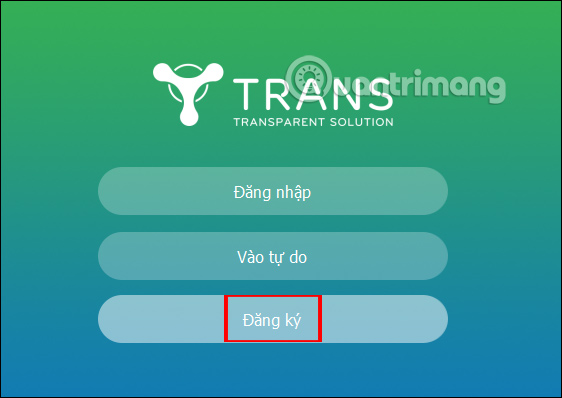
Please click the link below to install TranS software on your computer and then click Register to create an account.
- Download TranS software on the computer: http://v3. getpedia. net/data/? q==gTO3kDM0kTO5UjM4QjMyczM2wXM3UDO0EDflhXZuMlbhJHVwVHdlN1LzAzL0AzLwIDMy8SZslmZvEGdhR2L&e=o
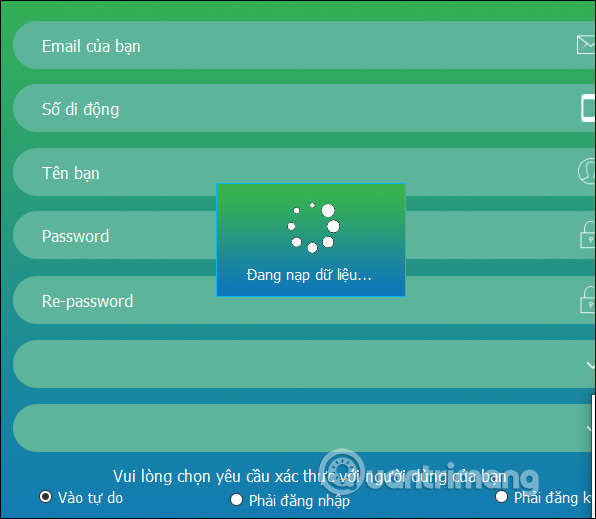
At this time display information for users to enter information including:
- phone number
- Full name
- password
- Enter the password
- What is the purpose of using TranS?
- nation
Then check the box Require authentication with users:
- Into freedom
- Must be logged in
- Must register in advance
If it is a fee-for-money teaching center for students to join, click Must register first, and if free, click Must login, Free to enter your own purpose. Finally click Sign up to complete. So you have created a TranS account.
Note : After registering an account, you need to contact Namviet Company (submit registration on the web) below to receive an email with a link to activate the unlimited use license because otherwise you can only use it After 60 minutes, TranS will shut down.
https://hoptructuyen.vn/
Step 2:
You then log in the account TranS has created.

Step 3:
Then the teachers choose Teachers , or other content to join the classroom on TranS.

2. Teaching Online Instruction on TranS
TranS is developed using the same technology platform as Zoom, so you need to install Zoom to use.
Step 1:
Display Join Audio Conference via Mic & Speaker interface to enter the room.

Step 2:
Now displays the Zoom Meeting ID interface. with the class information as well as the classroom password for teachers to send students to participate. Click the i icon to view information.

Step 3:
The online learning interface on TranS is the Zoom learning interface, so read the article below to learn on Zoom.

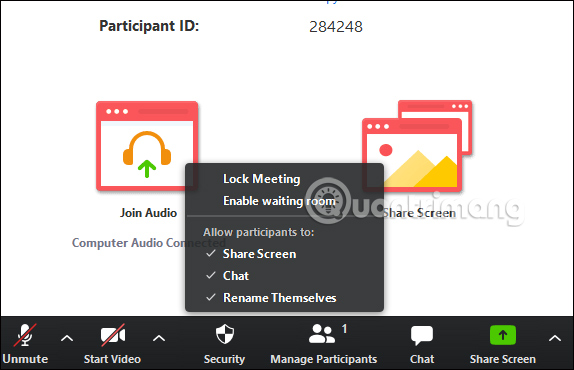
Note Zoom recently updated the interface and provided an additional Security section with options as below to increase security features on Zoom when learning online. Teachers use these options throughout the teaching process.
3. Study Online on TranS
If you are a student, at TranS interface we will click Students to join.
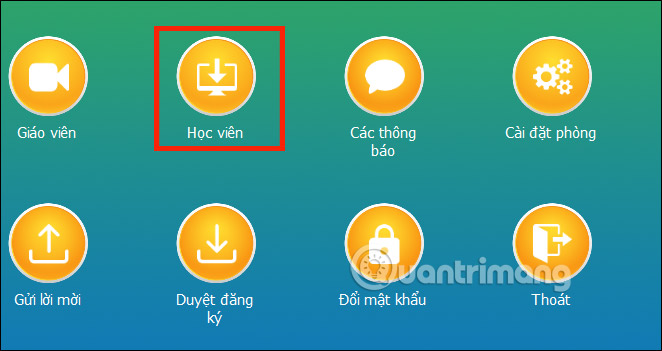
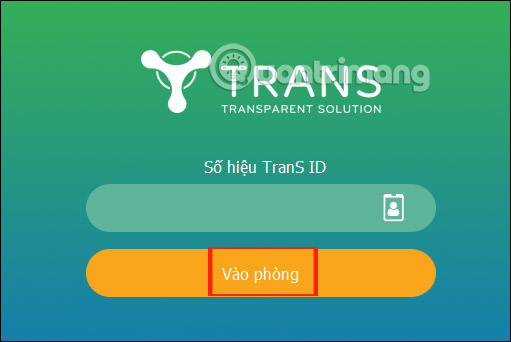
You will then be asked to enter your teacher's TranS ID and press Enter to join the teacher's classroom. Note that the teacher has to open the room before the student will be allowed to join.
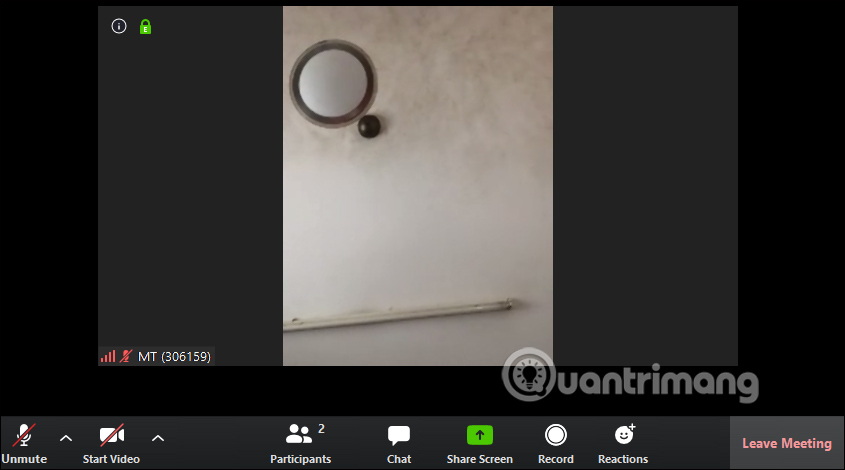
The interface of the participants is very simple and does not have the same settings as the teachers. This interface is also the Zoom interface on the computer.
FAQ
What is the easiest way to Register for TranS Online?
Start with the requirements in this guide, then follow each step in order. Check the result after every major change so problems are easier to identify.
Can beginners follow these instructions?
Yes. The process is organized into practical steps, and you can repeat any step before moving forward.
What should I check if the method does not work?
Confirm your software or device version, permissions, settings, file format, and internet connection when the task depends on online services.
Related Articles
 TranS - Free Online Learning Software3 minutes read
 Guidance on Registration of Cars, Granting of License Plates via6 minutes read
 How to Register Online, Online Tax Code Quickly, Neatly8 minutes read
 How to Register E-wallet VTC Pay5 minutes read
 How to Registering as an Online Citizen Identity at Home4 minutes read
 How to Sign Up Zoom.us Learn Online for Free3 minutes read
Reader Comments 0
Sign in with email or Google to join the discussion.