Table of Contents
This practical guide explains how to post Instagram contributors. Follow the steps in order, review the requirements first, and use the troubleshooting notes when a setting or option does not work as expected.
Instagram Collaborator Posting Guide
Quick Guide
Post on Instagram > Select Instagram tag > Select collaborator > Enter the name of the person you want to collaborate with > Post to Instagram account.
Detailed instructions
Step 1:
First, you post to your Instagram account as usual.
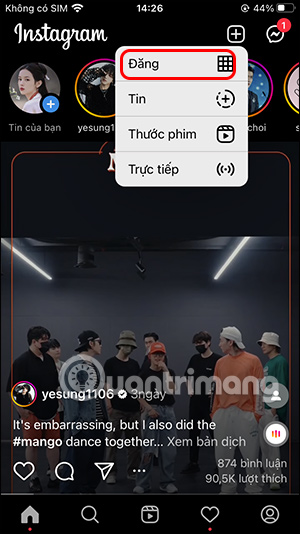
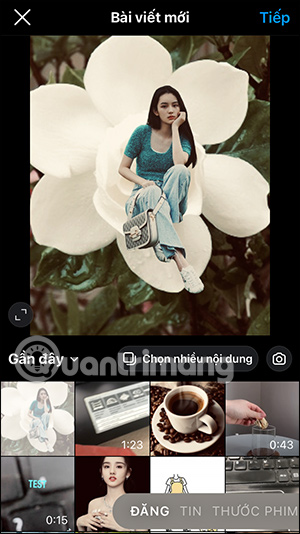
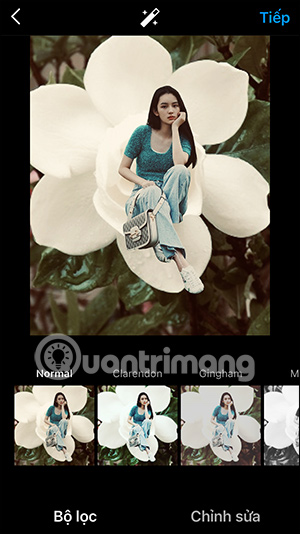
Step 2:
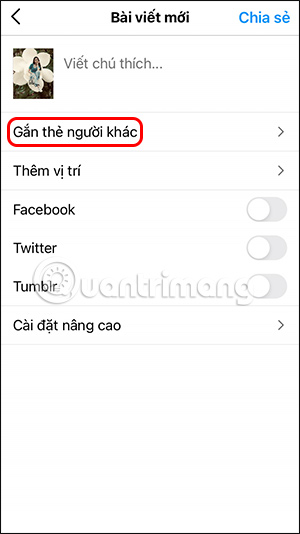
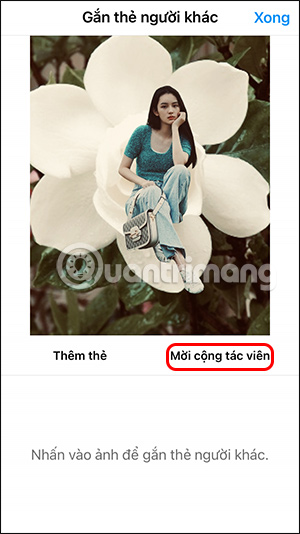
In the interface of posting articles on Instagram, you select Tag others . At this time, the user will select Invite collaborators .
Step 3:
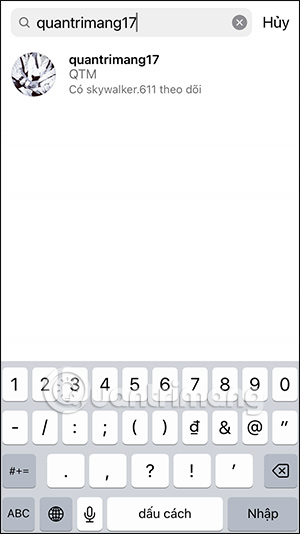
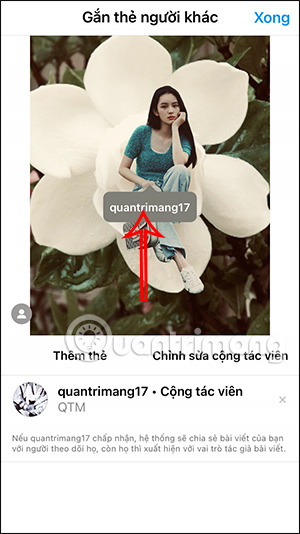
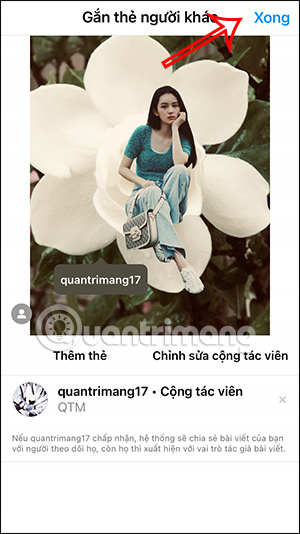
Now you will enter the name of the person you want to invite to work on the Instagram post . We can only invite 1 person to be a collaborator for the Instagram post. Then the Instagram account name will be displayed in the photo, as a tag. Finally, click Done in the upper right corner.
Step 4:
So you have invited the Instagram account to be a post collaborator. Next, you proceed to post the article as usual . The person invited to be a collaborator will receive a notification to accept or not.
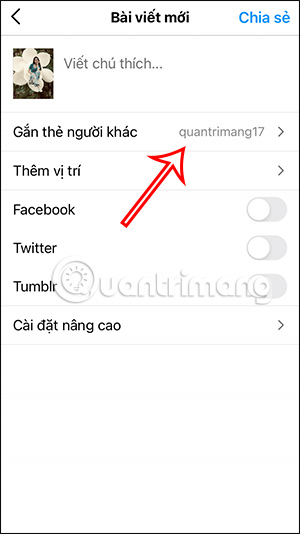
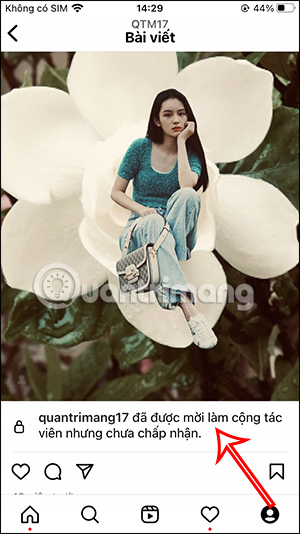
Step 5:
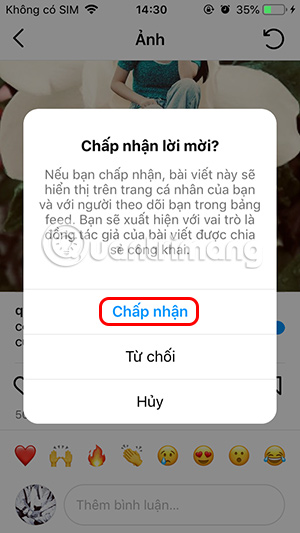
The collaborator receives a notification that a tag has been added to an Instagram post. Tap on the notification and you'll be taken to the collaborator's Instagram post, where you tap Review .
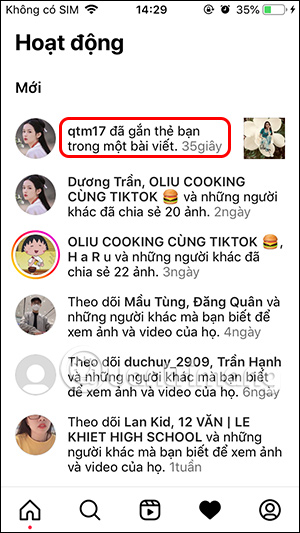
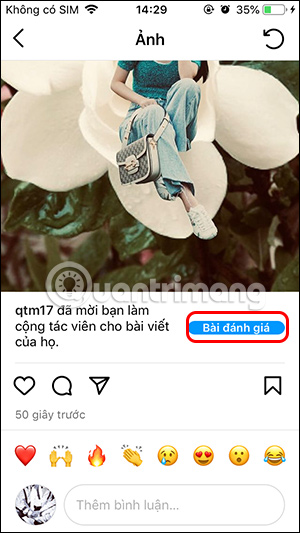
Step 6:
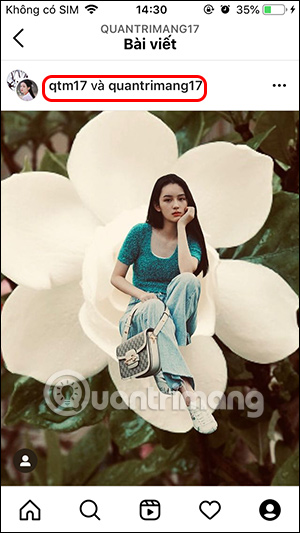
Now the option is displayed for you to accept or decline this collaborator's invitation . If accepted , the post will be displayed on their account, along with the names of the 2 accounts .
Step 7:
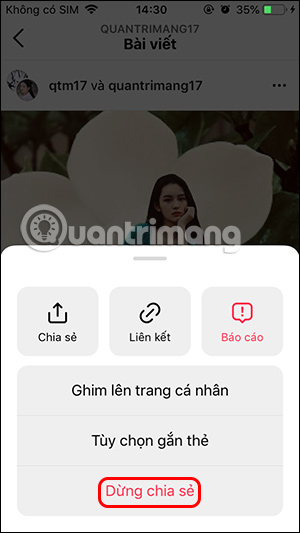
If they don't want to be an Instagram post contributor , select the 3 dots icon in the right corner of the post and select Stop Sharing .
Step 8:
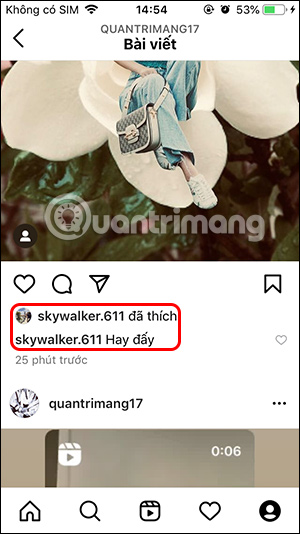
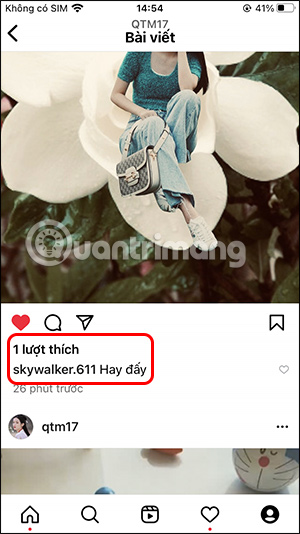
Now when a post of 1 of the 2 has likes and comments , it will be synchronized on both accounts .
FAQ
What should you know about quick Guide?
Post on Instagram > Select Instagram tag > Select collaborator > Enter the name of the person you want to collaborate with > Post to Instagram account.
What should you know about detailed instructions?
First, you post to your Instagram account as usual.
What does this guide cover?
This guide explains post Instagram contributors, including the main steps, important details, and practical considerations.
Related Articles
 How to Post Photos to Instagram: Clear Instructions14 minutes read
 Post on Instagram Without Sending Notifications to Friends: How-To Guide3 minutes read
 Best Time to Post Instagram Reels7 minutes read
 How to Add Featured Instagram2 minutes read
 How to Find Instagram Post Drafts3 minutes read
 How to Post Photos to Instagram from a Computer9 minutes read
Reader Comments 0
Sign in with email or Google to join the discussion.