Table of Contents
You can watch nature documentaries and wildlife compilations free on the regular YouTube app, including selected videos available in 4K. Use a rights holder's official channel, check the video's quality options and choose a film that is available in your region. Free videos may include advertising.
This means YouTube on a television, not the separate YouTube TV subscription service. You do not need a YouTube TV subscription to watch ordinary free YouTube uploads.
Find a film worth watching
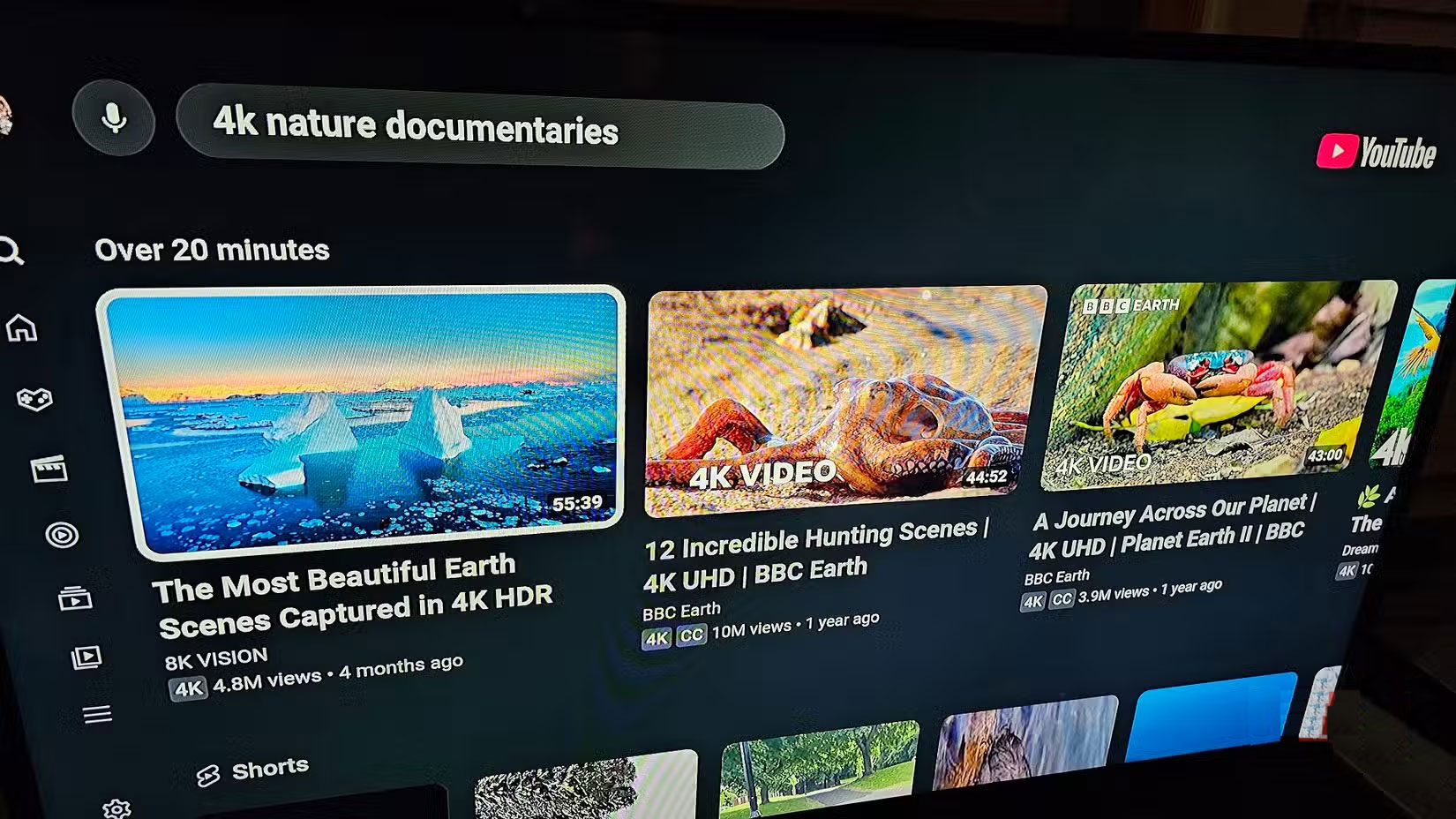
Search for a specific subject such as “ocean wildlife documentary 4K” or “African animals BBC Earth 4K.” A narrower search is more useful than a broad request for nature videos, especially on a TV where typing and filtering can be awkward.
On a computer, use the available search filters to narrow video duration and 4K results. On a TV, include the subject, channel and “4K” in your search. Read the description before playing: a full documentary, a collection of scenes, a short clip and an ambient landscape video provide different viewing experiences.
Prefer uploads from the broadcaster, producer or an identifiable licensed distributor. A famous documentary title in an unknown account's upload does not establish that the account has permission to publish it.
Start with BBC Earth
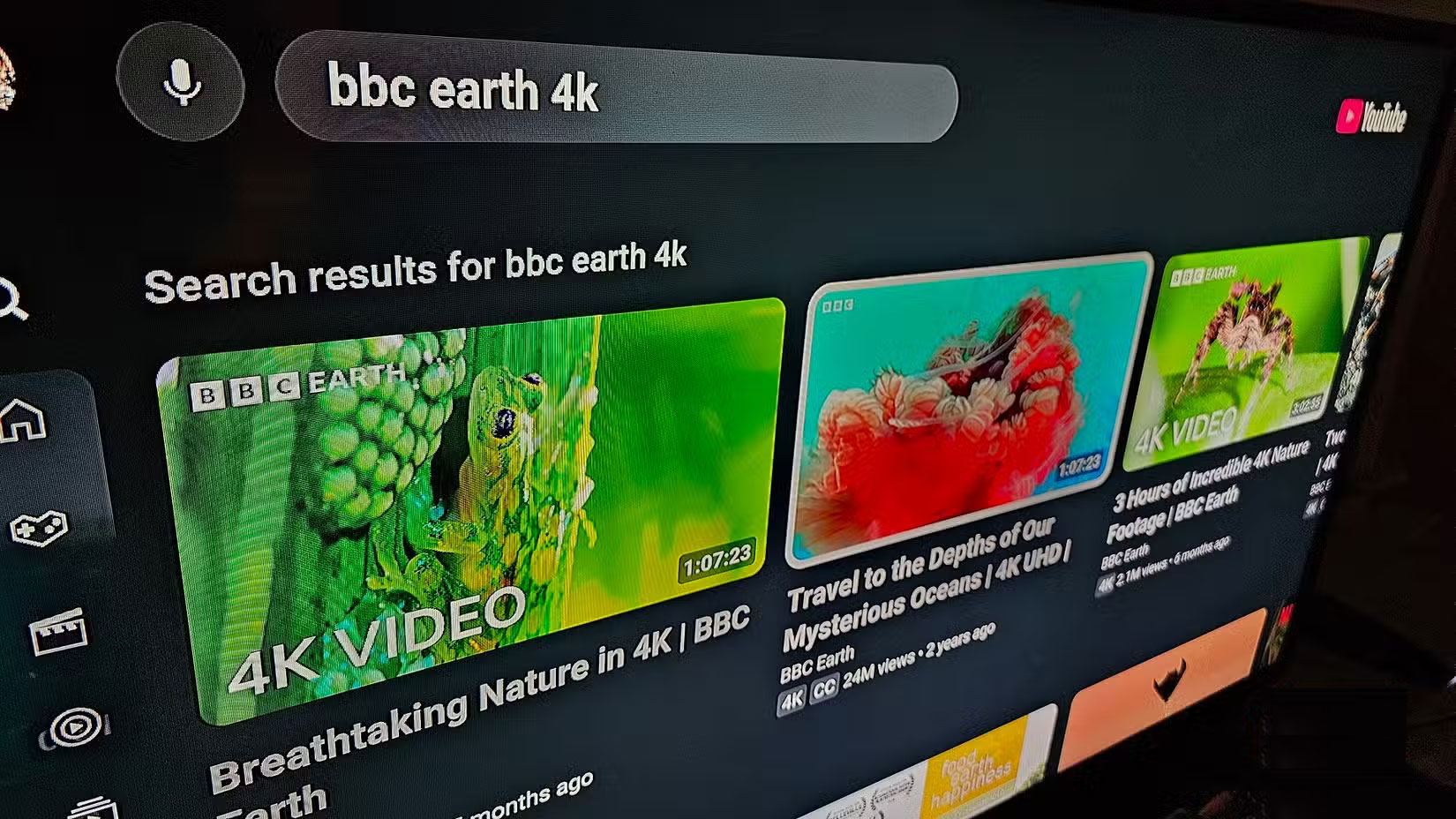
BBC Earth publishes natural-history videos, including clips and longer compilations. For example, its official upload Two Hours of 4K Nature Scenes gathers scenes from different locations. It is a compilation rather than a promise of access to every complete BBC series.
Check each video's title, description and available resolution. Do not assume everything on a channel is 4K, narrated by the same presenter or available in every country.
Evaluate other documentary channels individually
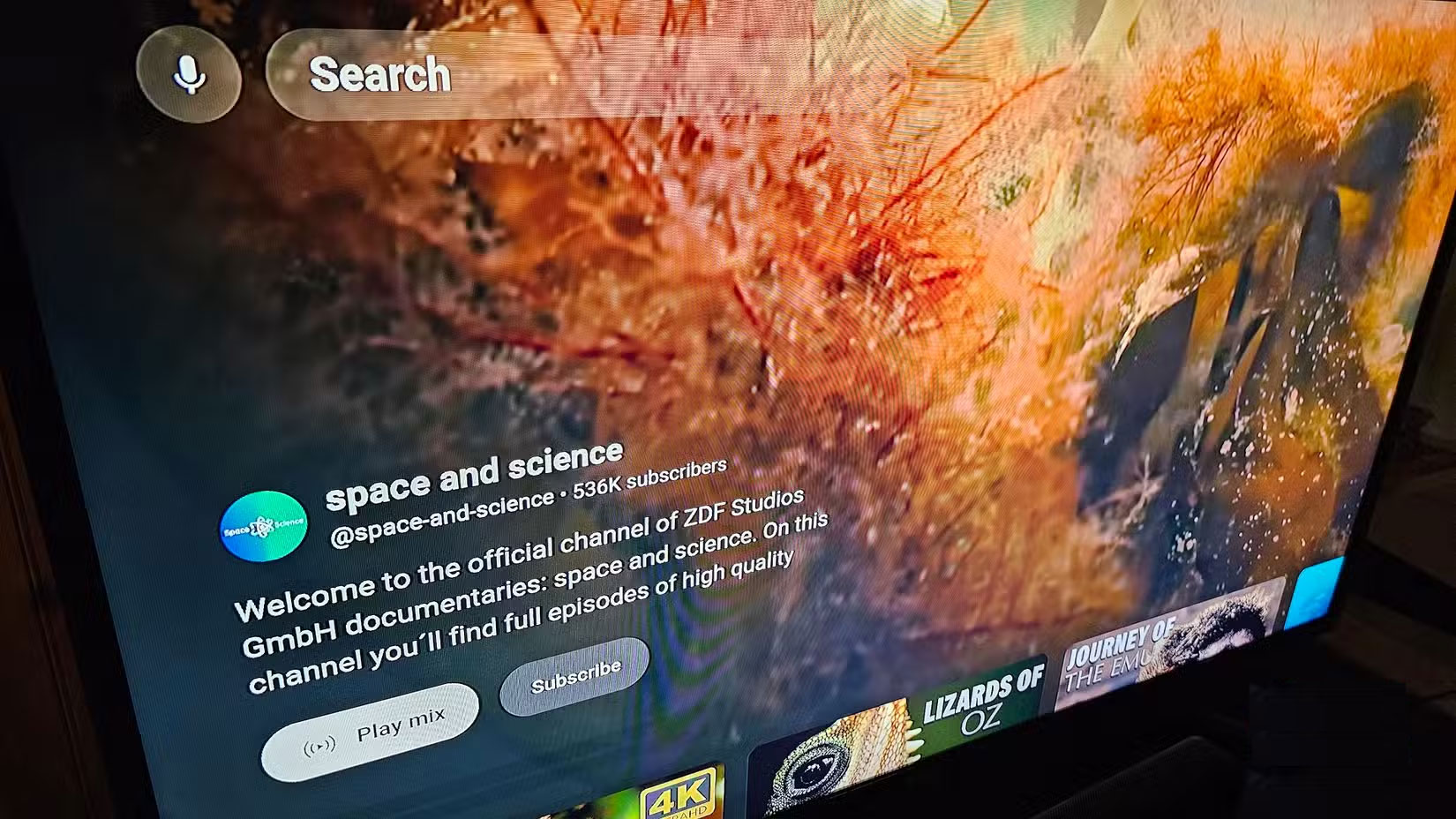
Search results may also surface channels such as Space and Science. Look at the particular film's production credits and topic before choosing it. A channel can mix wildlife, astronomy and general science, so its name alone does not tell you what a given video covers.
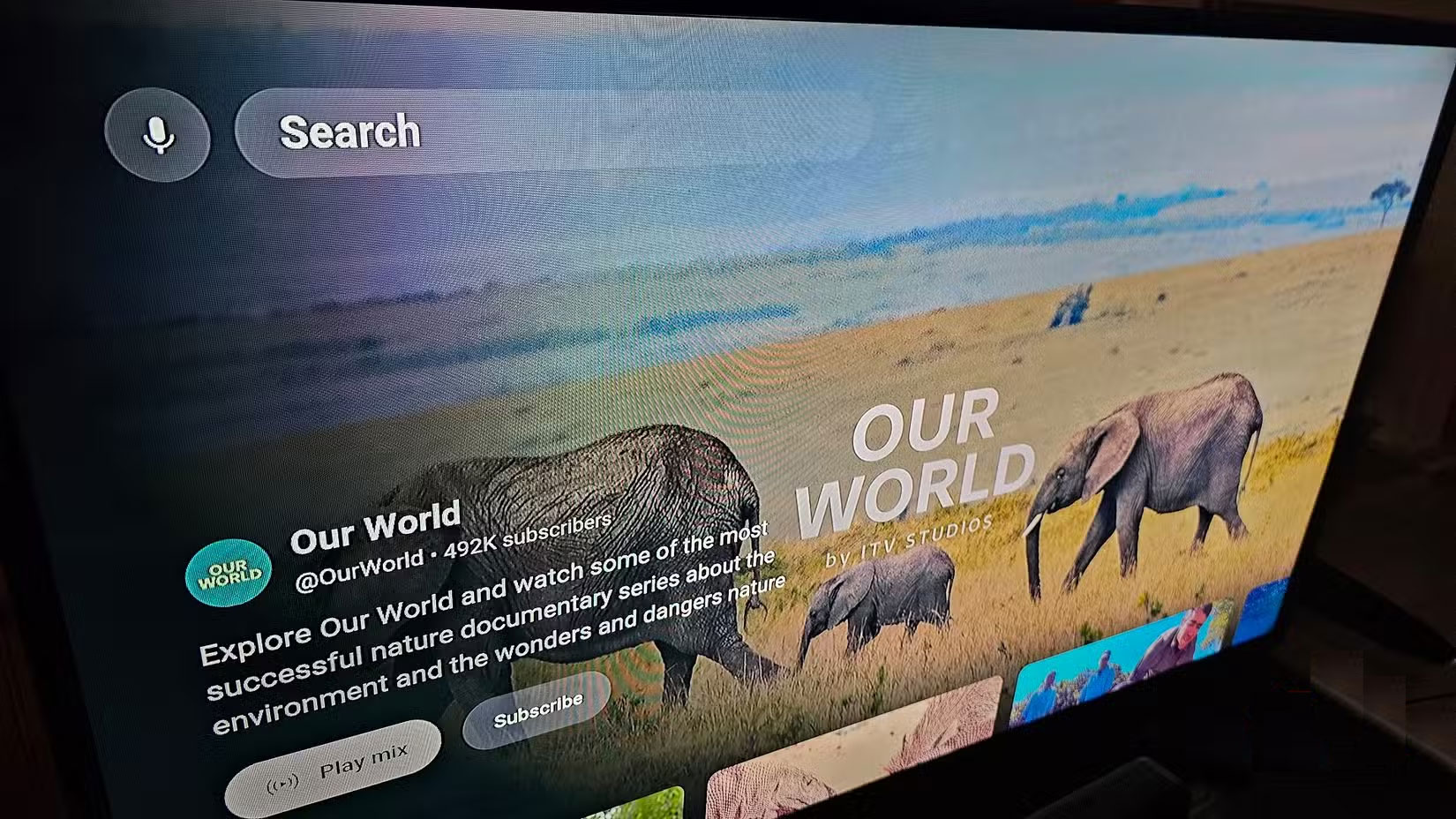
The same applies to channels named Our World or similarly broad documentary labels. Review the channel identity, source credits, running time and upload description. Do not judge factual reliability or licensing solely from a polished thumbnail or a “4K” label.
Check that the TV is actually playing 4K
- Open a video in the YouTube app.
- Open the player's Settings menu and select Quality.
- Choose 2160p if offered. If it is unavailable, the video, app or device may not support that playback option.
- Allow playback to settle and check whether it remains smooth. If it repeatedly buffers, try a lower resolution while troubleshooting the connection.
YouTube adjusts automatic quality according to playback conditions. A 4K title does not guarantee 4K playback, and a compatible display, playback device and app are needed to see the full resolution. You can still watch the content at a lower available resolution on an HD screen.
See YouTube's video-quality instructions for the current controls. If you use an LG television, the YouTube app guide for LG webOS provides related navigation help; older menu screenshots may differ.
Make longer viewing sessions easier
Save suitable videos to a playlist on your account, then open that playlist on the TV. Check the next item before leaving autoplay running: recommendations can lead away from the subject or repeat material from earlier compilations.
If playback struggles, test a stable connection close to the router or use Ethernet where practical. Do not buy a new display merely because one upload looks soft. First check the selected resolution and the source video. For TV picture adjustments, see picture settings for films and other viewing. HDR and 4K are different features; one does not prove the other is active.
Related Articles
 The Best Space Documentaries to Broaden Your Horizons
 Free users can access YouTube Originals to watch movies from September 24
 Watch blocked YouTube videos with a free Chrome extension
 YouTube offers 100 Hollywood copyrighted movies with ads
 How to register a package to watch Youtube Mobifone video
 4 YouTube add-ons that make watching long videos more enjoyable.
Reader Comments 0
Sign in with email or Google to join the discussion.