Table of Contents
With the new Photos app on Mac, you need to use the Option key when opening the app to more easily move your iPhoto library to Photos.
Move your iPhoto library to the Photos app on your Mac.
Step 1: Close the Photos and iPhoto apps if they are currently open.
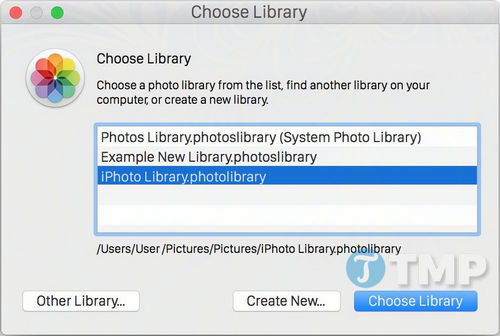
Step 2: Reopen the Photos app and hold down the Option key until the Choose Library window appears, then select one of the following options:
- If you see the iPhoto library in the list, simply select the library and press Choose Library to open the photos in Photos.
- Otherwise, select Other Library , navigate to your iPhoto library location, and open the photo as usual.
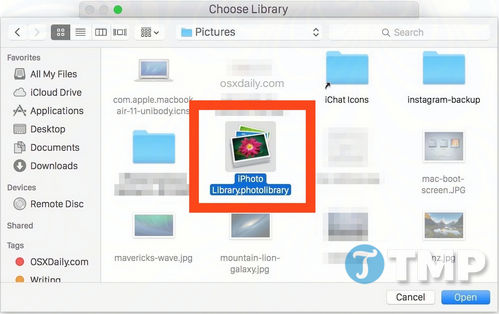
Step 3: The Photos app will import photos from your iPhoto library. Immediately, the photos from your iPhoto library will appear in Photos. However, with a large photo library or storage on an external hard drive, the import process may be slower.

If you already have the Photos app, you'll be working with two different photo libraries. Therefore, it's best to move the iPhoto (or Aperture) app into the Photos app the first time you open it.
If you want to merge two photo libraries, you can't directly merge iPhoto and Photos libraries; you can only do it by manually importing the photos. To do this, you can go to File > Import or drag and drop photos from one library to the other via the file system.
In older versions of Mac OS X, merging photo libraries was a useful feature. However, since the OS X Yosemite update, Apple has replaced iPhoto with the Photos app. Therefore, you need to move your iPhoto library to Photos if you want to store photos on your Mac.
Above, TipsMake has guided you on how to move your iPhoto library to the Photos app on your Mac. If you want to move photos from your iPhone or iPad to your computer, it's also quite simple. You can use software like iTools, or copy photos from your iPhone to your computer without any software, which is simple and convenient.
Related Articles
 Backup Iphoto Photo Library4 minutes read
 Device: How to Put Photos into Iphoto3 minutes read
 Select: How to Shrink a Photo in Iphoto4 minutes read
 How to Prevent Iphoto from Starting Automatically?4 minutes read
 Click: How to Crop Images in Iphoto2 minutes read
 How to Export Google Photos Library5 minutes read
Reader Comments 0
Sign in with email or Google to join the discussion.