Table of Contents
Connecting a second monitor to your computer is useful when you want to move more work to another screen. But what if the Taskbar is not displayed on the second screen? If you need to put the Taskbar on one or more screens, you need to follow the instructions below with a few different ways.
Show Taskbar on multiple monitors
Step 1:
First, open Settings, then select Personalization . Then look to the side and select Taskbar to adjust.
Step 2:
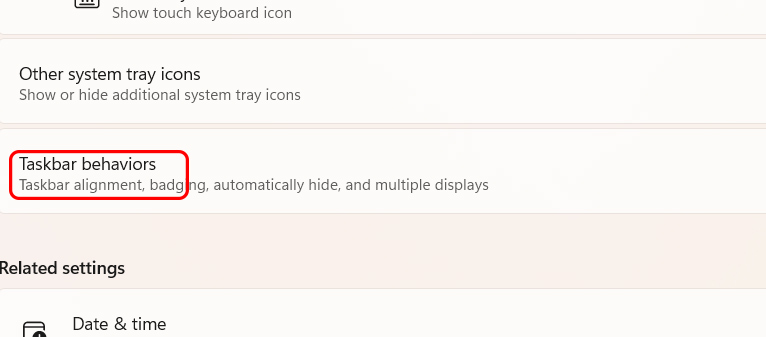
Then you select Taskbar behaviors to adjust the display settings for the taskbar.
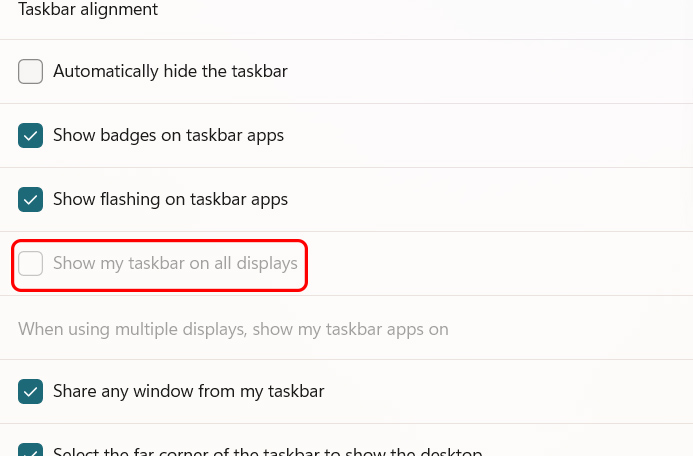
When you have connected multiple computer screens, you need to select Show my taskbar on all displays .
Drag the Taskbar to another screen
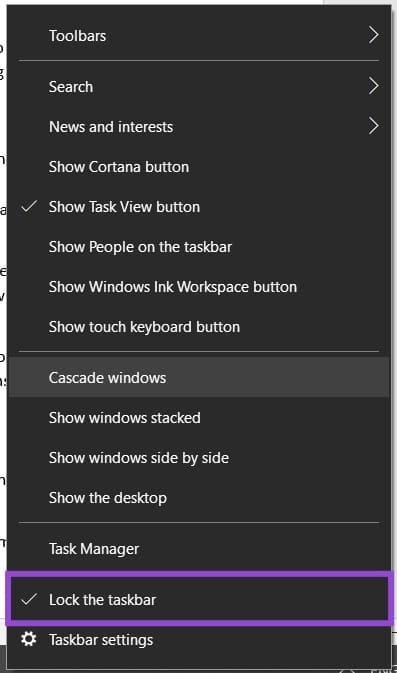
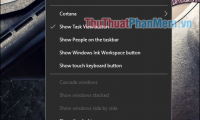
Right-select the Taskbar and uncheck Lock the taskbar .
From here you click and drag the taskbar to the secondary monitor's desktop. You can also place it on any edge of the screen.
Turn another screen into the main screen
If you frequently use the secondary monitor and need the taskbar, you can turn it into the primary monitor.
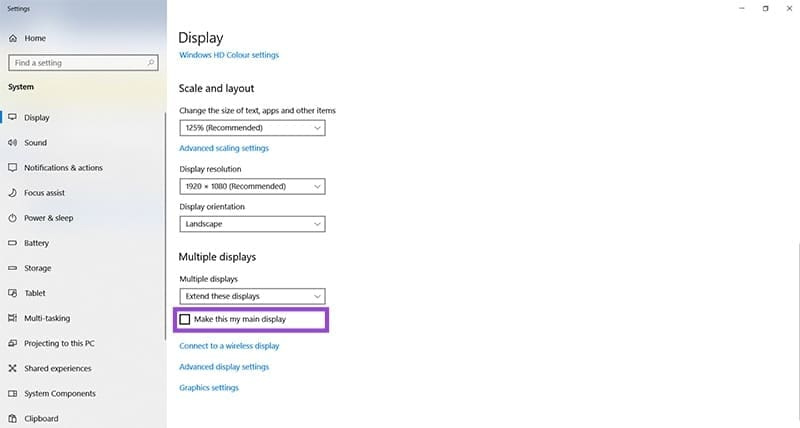
Open Settings and select Display , then look to the side and select Multiple Displays . Next, check Make this my main display to set this screen as the main screen.
- How to change monitor 1 and 2 in Windows
Final Thoughts
Following the steps in order and checking version-specific settings should make it easier to Move Taskbar to Another Screen. If an option looks different, verify the device, app, or operating-system version before changing additional settings.
FAQ
What is the best way to Move Taskbar to Another Screen?
Start with the requirements described in the article and follow the steps in order. Connecting a second monitor to your computer is useful when you want to move more work to another screen. But what if the Taskbar is not displayed on the second screen?
What should you know about Show Taskbar on multiple monitors?
First, open Settings, then select Personalization. Then look to the side and select Taskbar to adjust.
What should you do if the instructions do not match your screen?
Check the device, software version, account permissions, and regional settings. Interfaces can change after updates, so use the closest matching option and consult the official support documentation when necessary.
Related Articles
 How to Move the Taskbar to Different Locations on the Desktop2 minutes read
 Taskbar: Complete Guide: After All, Microsoft Seems to Be Working on3 minutes read
 Taskbar: Complete Guide: Microsoft Explains Why Users Can't Yet Own the4 minutes read
 How to Move Windows 11 Start Menu to the Left6 minutes read
 How to Move the Taskbar to the Top, Right, or Left4 minutes read
 Do You Know What Is the Optimal Location of the Windows8 minutes read
Reader Comments 0
Sign in with email or Google to join the discussion.