Table of Contents
Windows can automatically hide the Taskbar to provide more vertical space. When auto-hide is enabled, move the pointer to the Taskbar edge—or swipe inward from that edge on a touchscreen—to reveal it temporarily. Turning on auto-hide does not conceal your activity: open apps still appear in Task View, Alt + Tab, and other system interfaces.

Hide or show the Taskbar in Windows 11
- Right-click an empty area of the Taskbar and select Taskbar settings.
- Expand Taskbar behaviors.
- Select Automatically hide the taskbar to hide it, or clear the option to keep it visible.
To reveal a hidden Taskbar temporarily, move the pointer to the bottom edge of the screen. If you moved the Taskbar using a customized shell, use that edge instead.
Hide or show the Taskbar in Windows 10
Right-click an empty area of the Taskbar and select Taskbar settings.
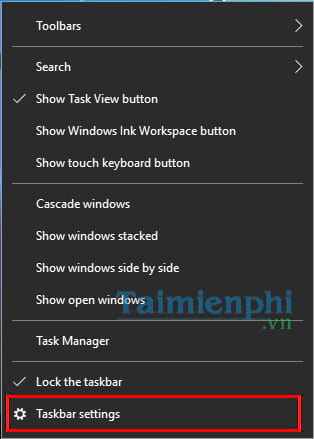
Switch Automatically hide the taskbar in desktop mode to On. If you use tablet mode, configure its separate auto-hide switch as well.
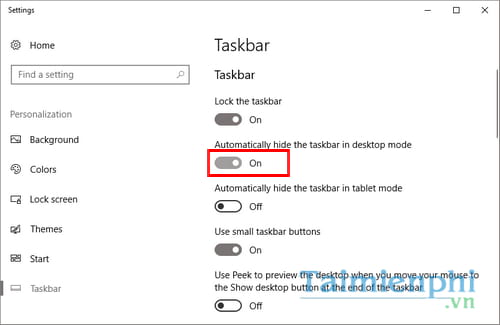
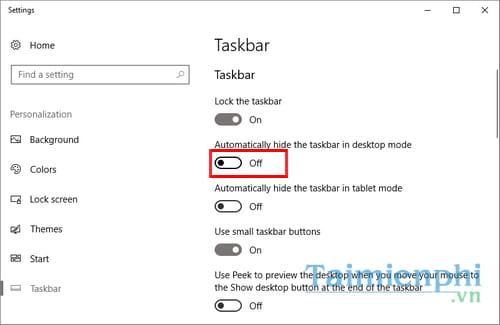
To keep the Taskbar visible again, return to the same page and switch auto-hide to Off.
Windows 10 reached the end of standard support on October 14, 2025. The setting remains available on existing installations, but use a supported Windows release when the hardware permits.
Hide or show the Taskbar in Windows 7 or 8
Right-click an empty area of the Taskbar and choose Properties.
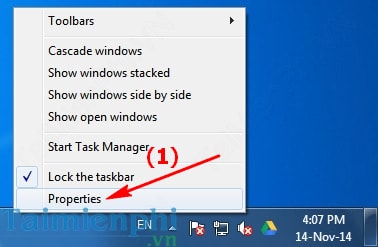
On the Taskbar tab, select Auto-hide the taskbar and click Apply or OK.
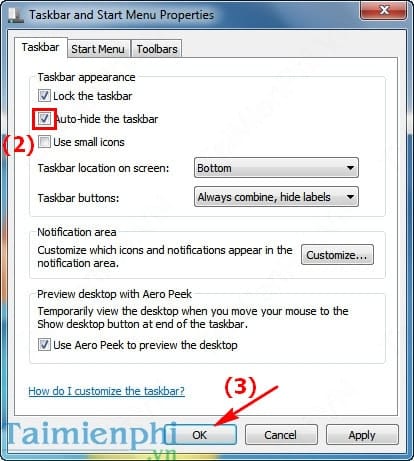
Move the pointer to the Taskbar edge whenever you need it.

To restore the permanent Taskbar, clear Auto-hide the taskbar.
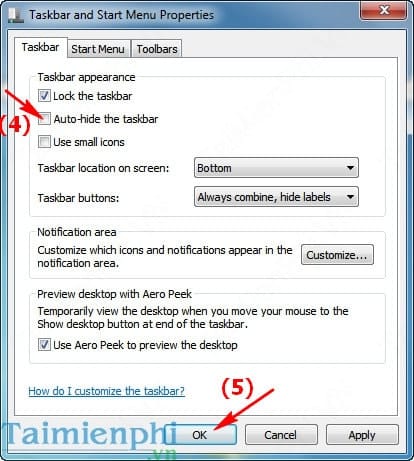
Legacy Windows XP steps
Windows XP is unsupported and should not be connected to the internet. On an offline legacy PC, right-click the Taskbar and select Properties.
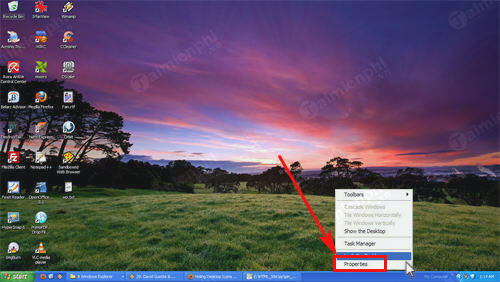
Select or clear Auto-hide the taskbar, then choose OK.
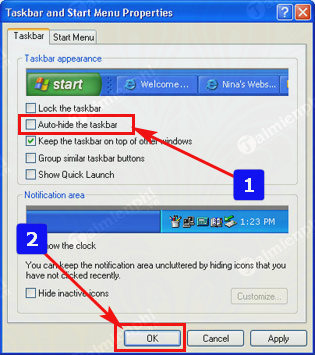
If the hidden Taskbar will not reappear
- Press the Windows key to open Start.
- Move the pointer to each display edge and check secondary monitors.
- Press Ctrl + Shift + Esc, select Windows Explorer, and choose Restart.
- Dismiss a flashing application or notification that is holding the Taskbar open.
- Restart the PC if Explorer does not recover.
For persistent problems, see how to fix Taskbar auto-hide. To free space without hiding the entire bar, review ways to maximize Windows 10 display space or manage notification-area icons.
Related Articles
 Instructions to Hide Taskbar in 2 Steps3 minutes read
 How to Hide the Windows Taskbar7 minutes read
 How to Hide and Show the Taskbar on Windows 103 minutes read
 How to Customize the Taskbar in Windows: Step-by-Step Guide15 minutes read
 How to Automatically Hide the Taskbar When Zooming in on the4 minutes read
 Tips to Automatically Hide the Taskbar on Windows 102 minutes read
Reader Comments 0
Sign in with email or Google to join the discussion.