Table of Contents
A Trojan is malware that pretends to be legitimate or is hidden inside another file or installer. The safest removal process is to isolate the computer when sensitive data may be at risk, update a trusted antivirus product, run a full scan, use an offline scan for persistent threats, and review the remediation results. Do not try to identify and delete random system files manually.
Windows 7 and Windows 8 are no longer supported by Microsoft. If a Trojan is found on one of those systems, move important data through a controlled recovery process and migrate to a supported operating system. Installing antivirus cannot replace missing operating-system security updates.
What a Trojan can do
“Trojan” describes the delivery method rather than one fixed behavior. Depending on the payload, a Trojan may:
- open remote access to the computer;
- steal passwords, browser cookies, documents, or payment information;
- download additional malware;
- display fake antivirus warnings or advertising;
- join the PC to a botnet;
- record keystrokes or screen activity;
- encrypt or destroy files;
- disable security settings and hide its components.
A slow PC, pop-ups, redirects, or crashes can have non-malware causes. Treat them as signs to investigate, not proof of a Trojan.
Immediate steps when a Trojan is suspected
- Disconnect from untrusted networks if you see credential theft, remote control, ransomware, or security tools being disabled. Unplug Ethernet and turn off Wi-Fi.
- Do not log in to important accounts on the affected computer.
- Disconnect external drives after stopping any active file transfer.
- Record what happened: the alert name, file path, time, suspicious download, email, or website.
- In a workplace, contact IT or security before changing the system or deleting evidence.
Scan with Microsoft Defender
If Microsoft Defender Antivirus is the active security provider:
- Open Windows Security > Virus & threat protection.
- Open Protection updates and check for current security intelligence.
- Select Scan options > Full scan > Scan now.
- When the scan finishes, open Protection history and expand each detection.
- Choose Quarantine when you are unsure. Remove an item after confirming it is malicious; do not select Allow simply to make an alert disappear.
TipsMake provides more ways to run a full Microsoft Defender scan. If another reputable antivirus is active, use that product's update, full-scan, and quarantine functions instead of enabling a second real-time scanner.
Use Microsoft Defender Offline for persistent malware
If the same detection returns after a restart or malware interferes with normal scanning, save open work and run Microsoft Defender Offline from Scan options. Windows restarts into a recovery environment and scans before normal Windows and most malware components load.
After the PC restarts, open Protection history to review the result. Microsoft's Virus & threat protection guide explains the current scan options.
Verify the computer after remediation
- Restart Windows and update the antivirus again.
- Repeat a Quick or Full scan.
- Check startup apps, browser extensions, scheduled tasks, and installed programs for entries related to the infection.
- Install Windows and application updates.
- Confirm that real-time protection, the firewall, and browser reputation protection are active.
- Monitor accounts and the computer for renewed alerts or unusual sessions.
If security settings immediately turn off, the same Trojan returns, an unknown administrator account appears, or sensitive business data was accessible, rebuilding Windows from trusted media may be safer than continuing to trust the installation.
Reset credentials from a clean device
An information-stealing Trojan can copy passwords and session cookies before it is detected. From a different, known-clean device:
- change the email password first, then financial, work, cloud, and social accounts;
- revoke active sessions and unknown devices;
- enable multi-factor authentication;
- replace reused passwords with unique ones;
- contact the relevant provider if unauthorized activity occurred.
Why the old Group Policy method does not remove Trojans
Some legacy guides open gpedit.msc, enable Removable Disks: Deny execute access, and run gpupdate /force. This policy can prevent executable files from launching from removable disks on supported Windows editions. It does not scan the computer, identify malware, delete a Trojan, reverse stolen credentials, or clean an infected USB drive.
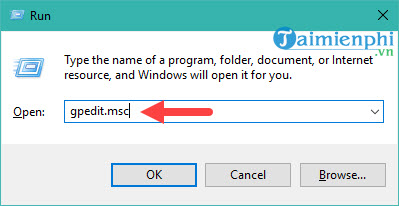
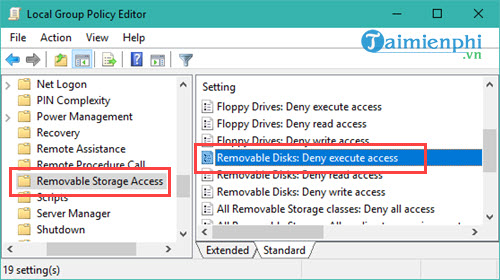
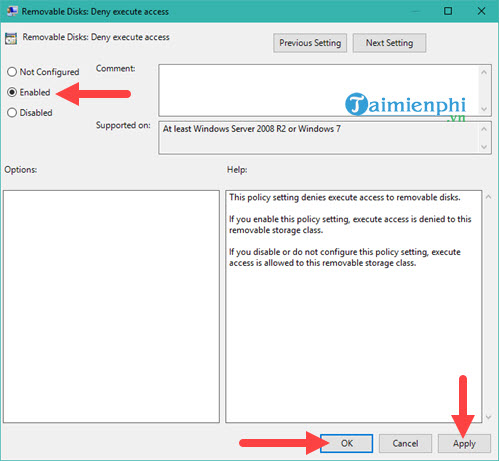
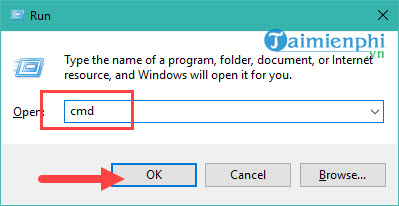
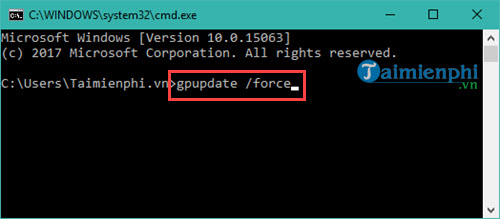
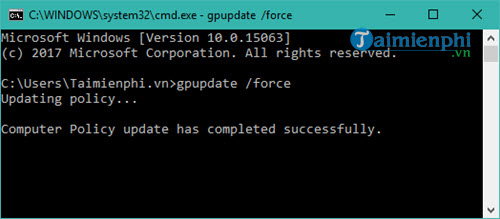
Use removable-media restrictions as an optional prevention control in a managed environment, not as malware removal. Blocking all removable storage can also interrupt legitimate devices and workflows, so administrators should test the policy and document exceptions.
Be cautious with dedicated “Trojan remover” utilities
The following screenshot shows an older standalone Trojan-removal product. A familiar name or an old review does not establish that a utility is currently maintained or safe.

Download a second-opinion scanner only from the security vendor's official site, verify its digital signature, and do not install another full real-time antivirus alongside the active one. To check a non-confidential file or URL, compare TipsMake's online malware scanners.
Prevent another Trojan infection
- Keep Windows, browsers, office applications, and internet-facing tools updated.
- Download software from the developer or official app store, not a repack or crack site.
- Keep internet-sourced macros and scripts blocked unless their source is verified.
- Use a standard user account for daily work where practical.
- Maintain offline or versioned backups and test restoration.
- Use multi-factor authentication and a password manager.
- Scan removable media and disable unnecessary autorun behavior.
A computer can already have built-in protection even when no third-party antivirus is installed. Read what happens when a PC has no active antivirus protection and confirm the provider status in Windows Security.
Related Articles
 Limiting the Spread of Virus, Trojan Manually on Windows3 minutes read
 Use the Cmd Command to Remove Viruses on Windows Computers3 minutes read
 What Is a Trojan? How to Avoid Trojan Attack?5 minutes read
 Remove Viruses, Trojans on Windows 7 Manually3 minutes read
 Kill Viruses, Windows 7 Trojans Without Downloading Software3 minutes read
 What Is the Wacatac.b!ml Trojan? How to Remove It from Windows?10 minutes read
Reader Comments 0
Sign in with email or Google to join the discussion.