Table of Contents
PXA Stealer is a Windows information-stealing malware family distributed through convincing files and fake software packages. Once executed, it can collect browser passwords, cookies, autofill records, payment data, cryptocurrency-wallet information, and application tokens. Protection starts with preventing the initial execution—not merely switching off browser autofill.
What the documented campaign did
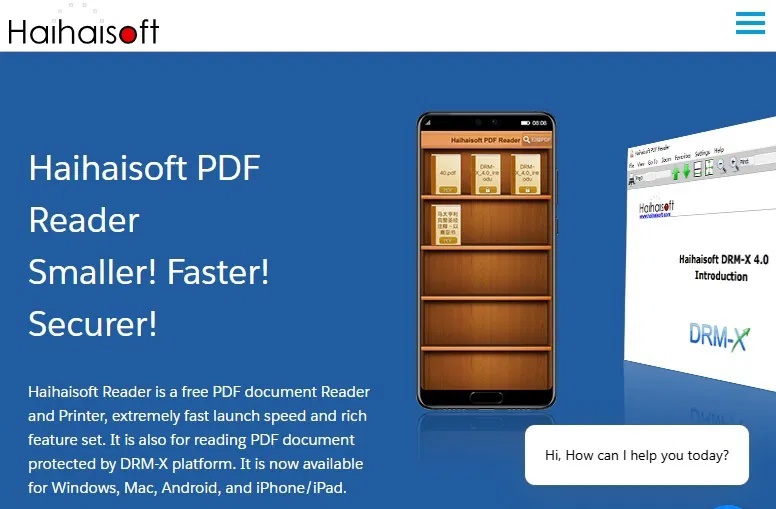
Research published by SentinelLabs and Beazley Security in August 2025 described a Python-based PXA Stealer operation associated with Vietnamese-speaking threat actors. The researchers observed malicious archives posing as legitimate software, including Haihaisoft PDF Reader and Microsoft Word 2013. A legitimate executable could be bundled with a malicious DLL so that launching the expected program also loaded the stealer.
The investigation linked the operation to more than 4,000 victim IP addresses across 62 countries and reported over 200,000 stolen passwords, alongside cookies, autofill records, credit-card data, and tokens. Those figures describe the researchers’ observed dataset at that time; they are not a count of every infection.
How PXA Stealer reaches a computer
The exact lure can change. Observed chains included ZIP archives, spoofed download pages, and packages named to resemble familiar document or application files. Some components were hosted on legitimate cloud services, which does not make the file itself trustworthy.
- A familiar product name is not proof that the download came from its publisher.
- A digital signature should be checked, but a signed component can still be abused in a malicious package.
- An error message after opening a file does not prove nothing happened; background processes may already have run.
- File extensions can be hidden by Windows, allowing an executable to resemble a document.
Download software and attachments safely
- Start from the publisher: type the official domain or use a trusted store instead of an advertisement, unsolicited message, or download portal.
- Check the actual file: enable file-name extensions in File Explorer and be suspicious of double extensions, unexpected archives, and executables presented as documents.
- Verify context: confirm an unexpected attachment through a different channel, even when the sender name looks familiar.
- Scan before running: use the installed security product. A multi-engine service such as VirusTotal can provide another signal, but uploaded files may be shared with security partners, so do not submit confidential documents.
- Keep protections current: update Windows, the browser, security definitions, and document software.
TipsMake also explains how online malware scanners work. For a slow or suspicious Windows PC, follow the scan guidance in Computer Running Slow and How to Fix It.
Browser passwords and autofill: the real risk
Browser password managers encrypt stored credentials and remain safer than reusing memorable passwords. The problem is that malware running as the signed-in user may be able to access decrypted browser data, steal session cookies, or capture information when it is used. Disabling autofill alone does not remove that endpoint risk.
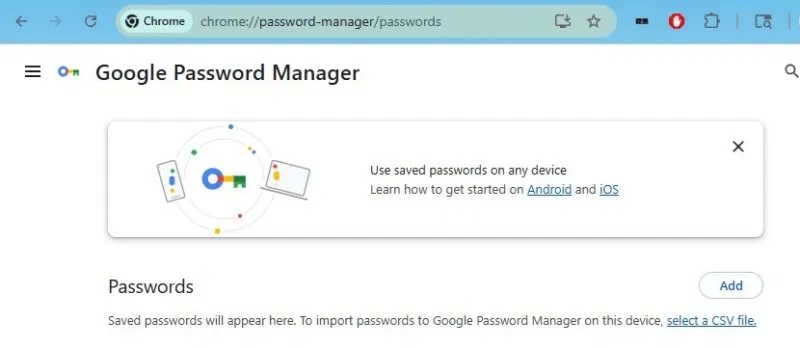
Use a reputable browser or standalone password manager to generate a unique password for every account. Protect the manager with a strong master password, secure the recovery method, enable multi-factor authentication, and require reauthentication for sensitive fills where supported. Never store seed phrases or private cryptocurrency keys in a general browser autofill field.
Session cookies matter too: an attacker may reuse a stolen authenticated session without entering the password. Signing out other sessions and revoking tokens is therefore part of recovery.
If you opened a suspicious file
- Disconnect the affected Windows computer from Wi-Fi and Ethernet if active theft may be underway.
- From a different, trusted device, change the password for the primary email account first, then financial, work, social, and other important accounts. Use unique replacements.
- Revoke active sessions, application passwords, connected apps, and authentication tokens. Rotate recovery codes and enable multi-factor authentication.
- Contact the employer’s security team immediately if the device or account is managed.
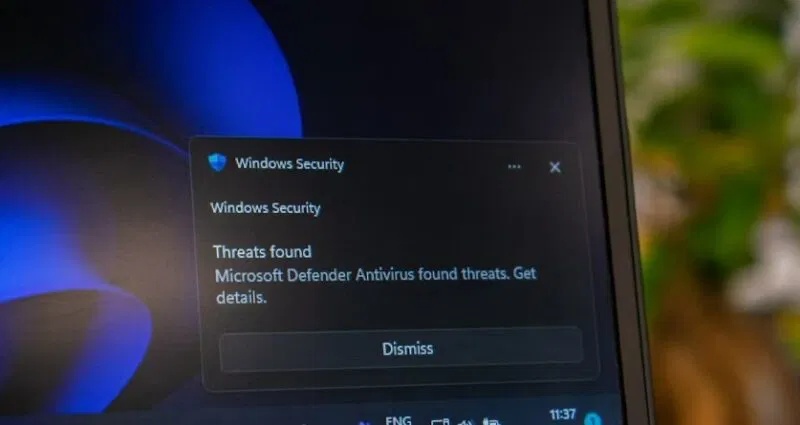
- Run Microsoft Defender Offline or another trusted offline scan, followed by a full scan. Preserve evidence if the incident involves a business.
- Monitor financial accounts and contact the card issuer if payment details may have been exposed.
- If compromise is confirmed or cannot be ruled out, back up essential documents carefully and consider a clean Windows reinstall. Do not restore unknown executables or scripts.
Practical prevention checklist
- Download installers only from verified publisher pages or trusted stores.
- Treat unexpected ZIP, ISO, LNK, SCR, EXE, and macro-enabled Office files as high risk.
- Show file extensions and do not bypass SmartScreen or antivirus warnings without a specific, verified reason.
- Use standard-user privileges for daily work where practical.
- Keep offline or versioned backups that malware cannot silently overwrite.
- Use unique passwords and multi-factor authentication, preferably phishing-resistant methods when available.
For technical indicators and the original campaign analysis, see the SentinelLabs report.
Related Articles
 Mars Stealer - Dangerous Malware That Silently Steals Cryptocurrency4 minutes read
 How to Stay Safe from 'Spyloan' Android Apps That Use Your Data5 minutes read
 Warning: Panda Stealer Malware Is Stealing Your3 minutes read
 What to Do to Make Sensitive Photos and Videos Not Exposed and5 minutes read
 How to Stay Safe Online: Clear Instructions17 minutes read
 Don't Fall for These Reddit Scams That Are Waiting to Install Malware3 minutes read
Reader Comments 0
Sign in with email or Google to join the discussion.