Table of Contents
Avira Free Security can be installed on Windows in a few minutes: download the installer from Avira, open the downloaded file, approve the Windows prompt, and follow the setup wizard. The current installer handles most choices automatically, so old screens that ask for Express, Custom, or personal details may no longer appear.
Before you install Avira
- Use a supported Windows PC and an administrator account.
- Keep an internet connection available so the installer can download current components and updates.
- Make sure there is enough free storage. Avira currently lists a 1 GHz processor, 2 GB of RAM for Windows 10 or 11, and 1.8 GB of available disk space among its Windows requirements.
- Do not run two real-time antivirus products at once. If another third-party antivirus is installed, remove it first and restart Windows.
Check the official Avira system requirements before downloading, especially on an older PC. For more context on choosing protection, see TipsMake's guides to free antivirus software and what happens when a computer has no antivirus.
How to download and install Avira Free Security
- Go to Avira's official website and choose Free Download. Avoid download pages that bundle unrelated software.
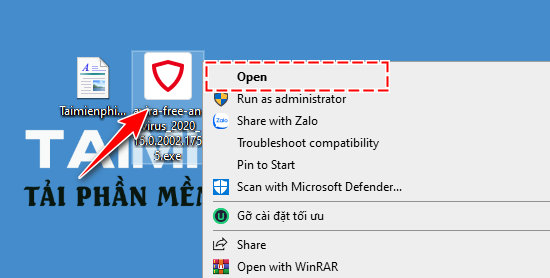
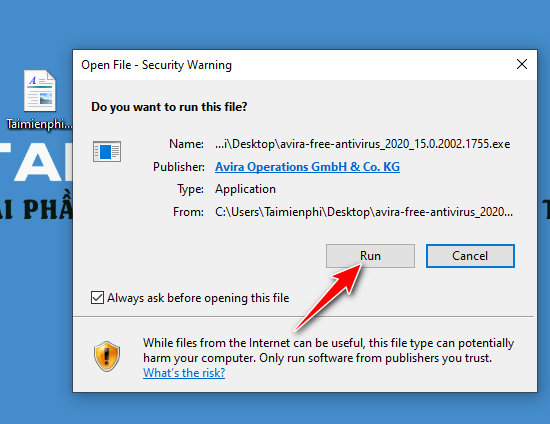
- Open the downloaded installer from your browser's download list or the Downloads folder. If Windows User Account Control asks for permission, confirm only after checking that the publisher is Avira.
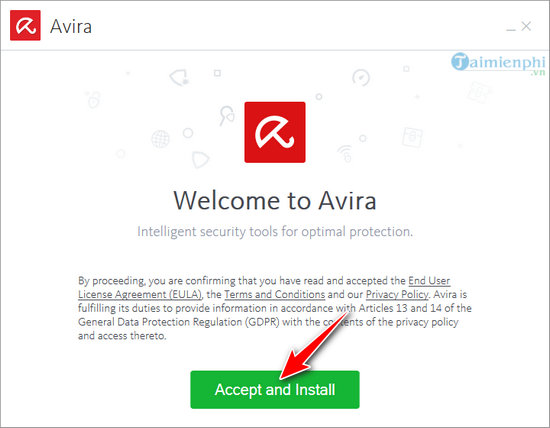
- Follow the on-screen instructions. The wording can change between releases, but the current process is largely automatic.
- Wait for installation and initial updates to finish, then open Avira Security.
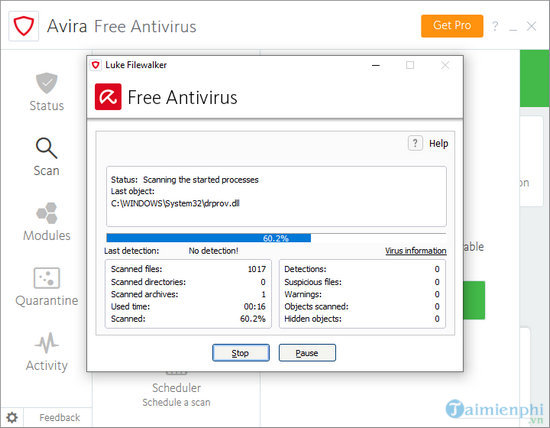
- Run the first Smart Scan or antivirus scan and review the results before removing or quarantining anything.
Avira's current support page summarizes the same download-and-run process in its Free Security installation instructions.
What the older installation screens look like
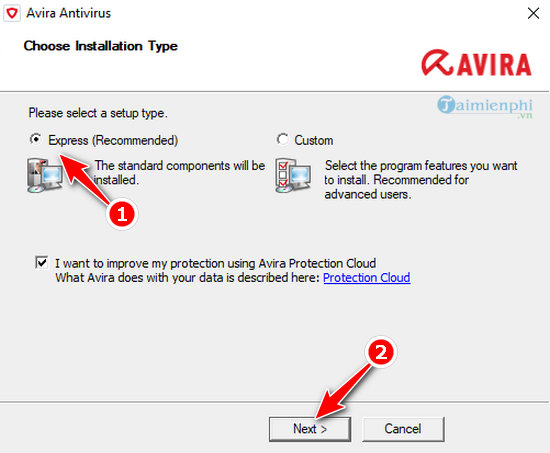
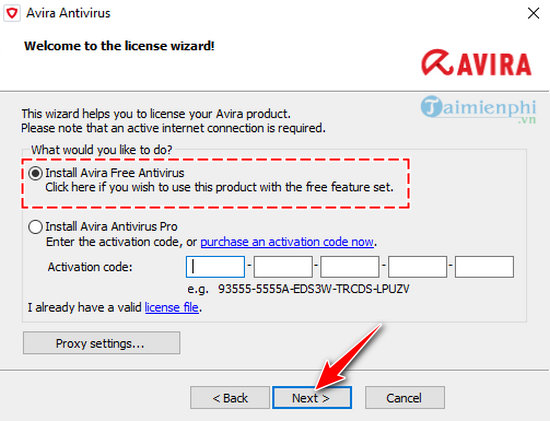
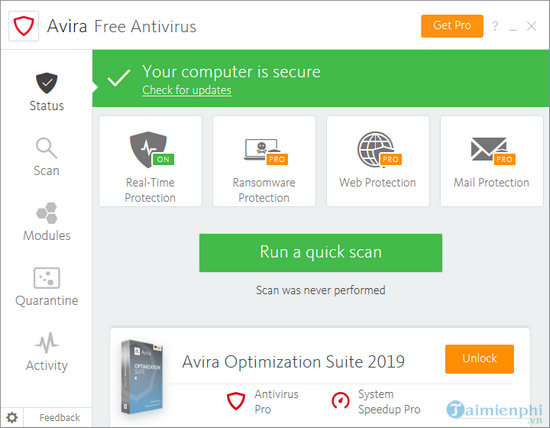
The screenshots below are retained for readers using an archived installer. They show an older Avira Free Antivirus setup and should not be treated as the current workflow.
Some releases offered Express and Custom installation choices. Express used the default components; Custom exposed additional choices. These options may be absent from the current installer.
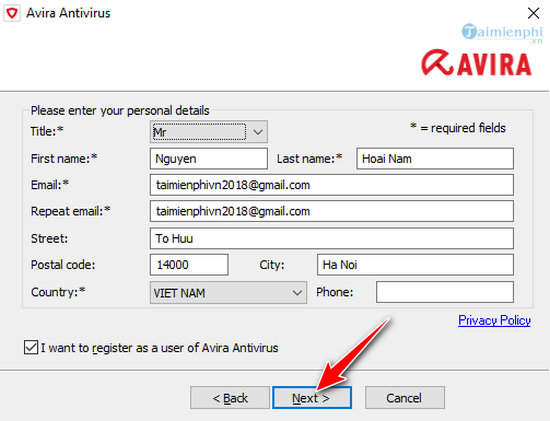
Older installers could also request registration details. Do not enter personal information merely because an old screenshot shows this form; follow the prompts shown by the installer downloaded from Avira today.
Very old maintenance and configuration screens
The following images come from an even earlier Avira release. A screen offering Modify, Repair/Update, or Remove usually means Avira is already installed and the setup program is in maintenance mode—not that a new installation requires choosing Modify.
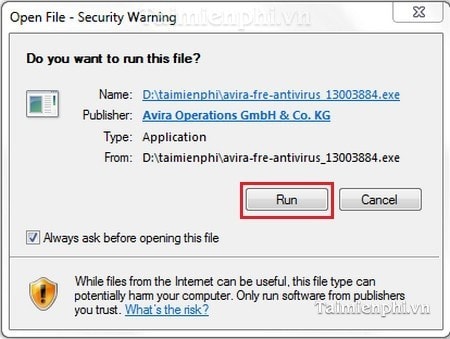
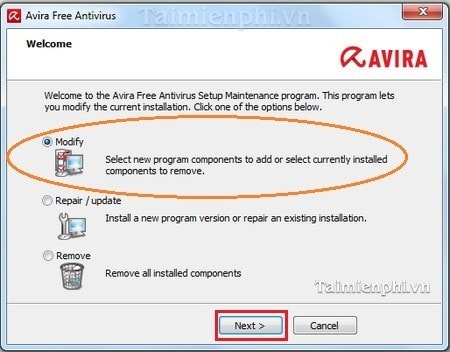
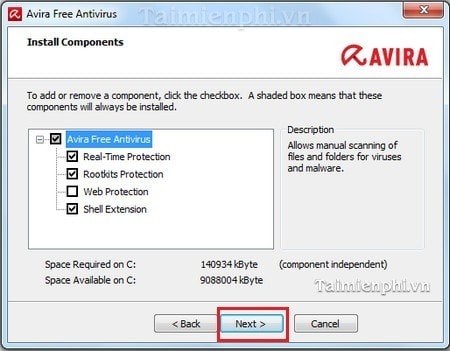
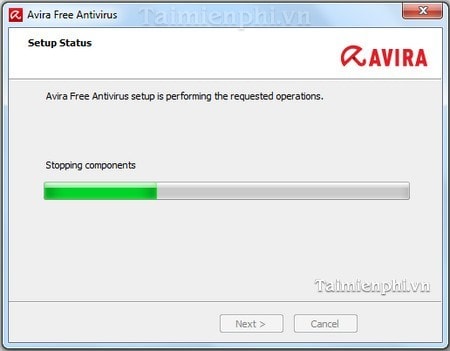
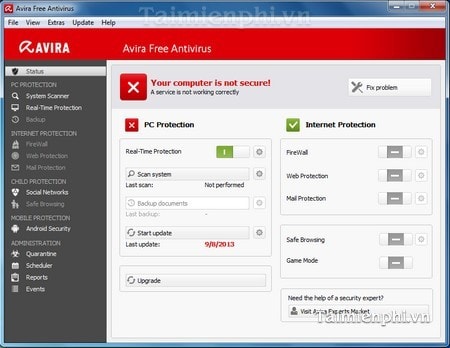
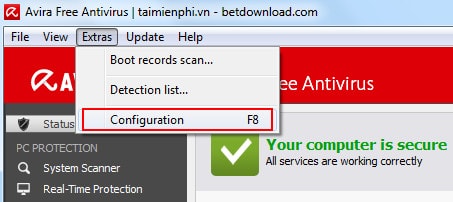
Menu paths such as Extras > Configuration > Real-Time Protection belonged to older versions. Use the settings available in your installed version instead.
After installation
Allow Avira to update before relying on the first scan. Confirm that real-time protection is enabled, run a scan, and review any detections carefully. If setup fails, restart Windows, install pending Windows updates, verify that another antivirus is not active, and download a fresh installer from Avira. You can also compare the trade-offs in TipsMake's guide to paid antivirus software.
Related Articles
 Offers for Copyright of Avira Prime Antivirus Software, Priced at3 minutes read
 How to Turn Off and Block Ads on Avira Free AntiVirus4 minutes read
 Top Free Antivirus Software, No Bloatware and Requires Upgrade to6 minutes read
 Top Free Antivirus Software for Windows15 minutes read
 Top 5 Free Antivirus Software of 20113 minutes read
 10 Most Effective Antivirus Software for Windows 201910 minutes read
Reader Comments 0
Sign in with email or Google to join the discussion.