Table of Contents
A legitimate CAPTCHA may ask you to select images, solve a simple challenge, or click a verification box. It should not ask you to open Windows Run, PowerShell, Command Prompt, Terminal, or a developer console and paste a command. Instructions such as Win + R → Ctrl + V → Enter are a strong sign of a fake CAPTCHA malware attack commonly called ClickFix.
If you see that sequence, stop. Do not paste or run anything, even if the page resembles Cloudflare, Microsoft, Google, or another familiar service.
What a ClickFix attack does
ClickFix is social engineering rather than an automatic software exploit. The attacker displays a fake verification, error, or “fix” page and places a command on the clipboard when the victim clicks a button. The page then tells the victim to open a Windows utility, paste the hidden text, and execute it.
The pasted command can use trusted Windows tools to download or launch malicious code. The final payload varies by campaign and may steal browser data, session cookies, passwords, cryptocurrency-wallet information, or install additional malware. A page cannot be considered safe merely because no file download dialog appears.
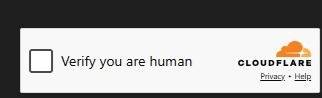
Microsoft reports that these lures arrive through phishing links, malicious advertising, and compromised or attacker-controlled websites. CISA has also documented fake CAPTCHA delivery in ransomware activity. This means a legitimate-looking domain or familiar visual design is not enough evidence that the prompt is genuine.
Fake CAPTCHA warning signs
- The page asks you to press Win + R, open a terminal, launch PowerShell, or use a developer console.
- It tells you to paste clipboard contents that you cannot inspect.
- It asks you to run a script, command, installer, or browser “fix” to prove you are human.
- The challenge appears after clicking an ad, opening an unexpected attachment, or following an urgent email link.
- The address differs from the site you intended to visit, or a redirect opens a new domain.
- The page claims verification failed and immediately supplies manual system instructions.
- A command window, script host, installer, or security warning appears during the supposed verification.
Poor grammar and low-quality graphics can be clues, but polished pages can also be malicious. The decisive warning is the request to perform operating-system actions. A real web verification does not need you to run a local command.
What to do if you have not run the command
- Do not press Enter and do not approve any security prompt.
- Press Esc to close the Run or terminal window, then close the browser tab.
- Replace the clipboard contents by copying a harmless word or restart the device.
- Do not return through the same ad, email, or link.
- If the page appeared on a work device, report the URL and screenshot to your IT or security team.
Merely copying text to the clipboard is not the same as executing it. However, if you are unsure whether a command ran, treat the device as potentially affected and follow the recovery steps below.
What to do if you pasted and executed it
- Disconnect the device from networks. Turn off Wi-Fi and unplug Ethernet. Do not use the potentially infected computer to sign in to accounts.
- Contact your organization's security team. A managed device may require evidence collection, isolation, or reimaging. Do not delete logs before they are reviewed.
- From a clean device, protect accounts. Change passwords for accounts used or stored on the affected computer, revoke active sessions, and enable multifactor authentication. Prioritize email, password manager, financial, work, social, and cryptocurrency accounts.
- Update security definitions and scan. Run a Microsoft Defender full scan, followed by Microsoft Defender Offline or your organization's approved recovery process. TipsMake's Windows troubleshooting guide shows where those scan options are located.
- Check for follow-on abuse. Review sign-in history, forwarding rules, recovery details, new devices, financial transactions, and security alerts.
- Consider a trusted rebuild. If an information stealer or remote-access payload may have run, a clean operating-system reinstall can be more reliable than assuming every change was removed.
Do not change passwords on the suspect device first. Malware may capture the new credentials or reuse active browser sessions. Password changes also do not revoke every existing token, so use each service's “sign out of all sessions” or equivalent control.
Why disabling Windows Script Host is not a complete fix
Registry instructions that disable Windows Script Host can break legitimate administration and business software while leaving other ClickFix execution paths available. Attackers may use PowerShell, mshta.exe, rundll32.exe, curl.exe, or other built-in tools. Changing one registry value is therefore not a dependable consumer defense.
Similarly, blocking JavaScript on every website will break many normal pages and does not protect against malicious email attachments, copied commands, or other delivery routes. Selective script blocking can help experienced users, but it requires ongoing decisions and should not replace endpoint protection, browser updates, and cautious behavior.
Reduce the risk of fake verification attacks
- Keep Windows, the browser, and security software updated.
- Leave Microsoft Defender real-time protection, cloud-delivered protection, and reputation-based protection enabled unless an administrator provides another managed solution.
- Use a standard user account for everyday work when practical.
- Open services from bookmarks or typed addresses instead of urgent email links.
- Avoid downloading browser updates, codecs, or verification tools from a webpage prompt.
- Inspect the destination of advertisements and shortened links before opening them.
- Use an organization-approved web filter and endpoint detection tool on business systems.
- Train users on the simple rule: verification happens in the webpage, not in Windows Run or a terminal.
A current antivirus product is one layer of defense, not permission to execute an unexpected command. TipsMake's comparison of Windows antivirus options explains the tradeoffs between built-in and third-party protection.
Authoritative guidance
Microsoft's ClickFix threat analysis explains how attackers abuse clipboard copying and Windows utilities. CISA's malicious copy-and-paste guidance describes the same technique and defensive actions.
The essential rule is easy to remember: if a CAPTCHA asks you to leave the browser and run a command, it is not a normal CAPTCHA. Close the page and report it.
Related Articles
 How Criminals Use CAPTCHAs to Spread Malware: Explained6 minutes read
 What Is a CAPTCHA? What Types of CAPTCHA Are There?9 minutes read
 The Origin of CAPTCHA and ReCAPTCHA6 minutes read
 People and AI Are Racing Arms, This Is Why the CAPTCHA Is Getting Harder and Harder8 minutes read
 Malware Reconciliation Design (Part 3)8 minutes read
 How to Protect Google Chrome from Rust Malware EDDIESTEALER6 minutes read
Reader Comments 0
Sign in with email or Google to join the discussion.