Table of Contents
IOS 26 combined with the Liquid Glass interface on iPhone will bring users many unique designs, such as transparent icons.
IOS 26 combined with the Liquid Glass interface on iPhone will bring users many unique designs, such as transparent icons. You can adjust the icons on the iPhone home screen yourself, such as changing the dark icon on the iPhone screen. Below are instructions for making transparent icons on iPhone.
Instructions for making transparent icons on iPhone
Step 1:
You Press and hold on the phone screen , then tap The Edit button In the top left corner. Continue to Tap Customize To edit the iPhone home screen.
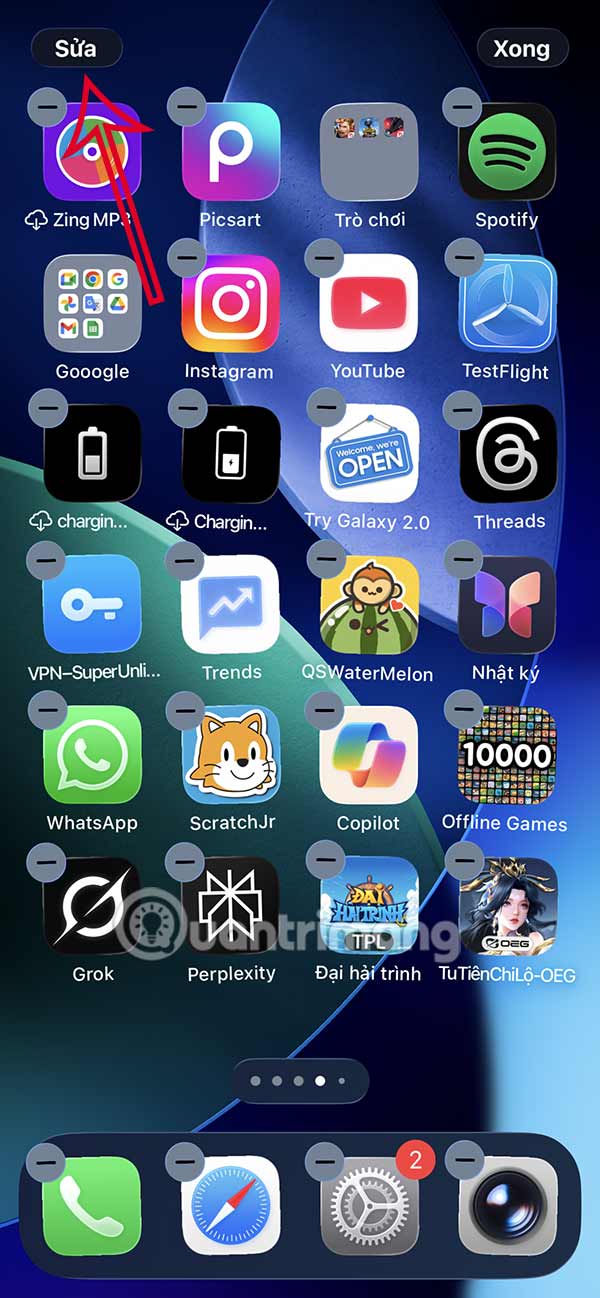
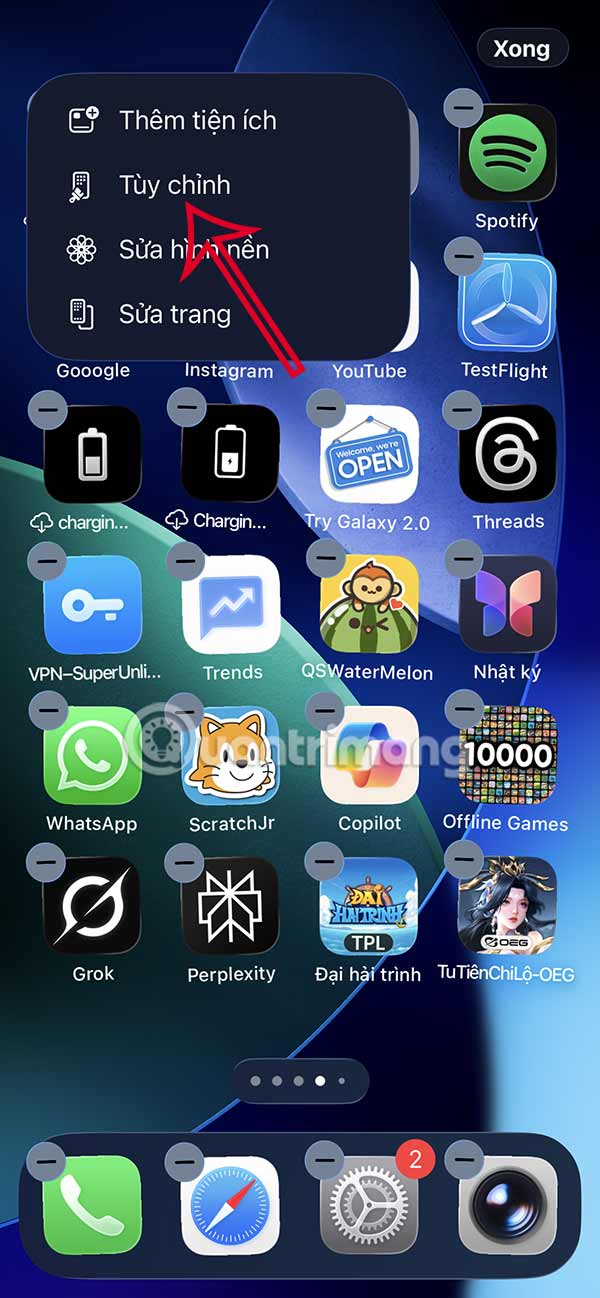
Step 2:
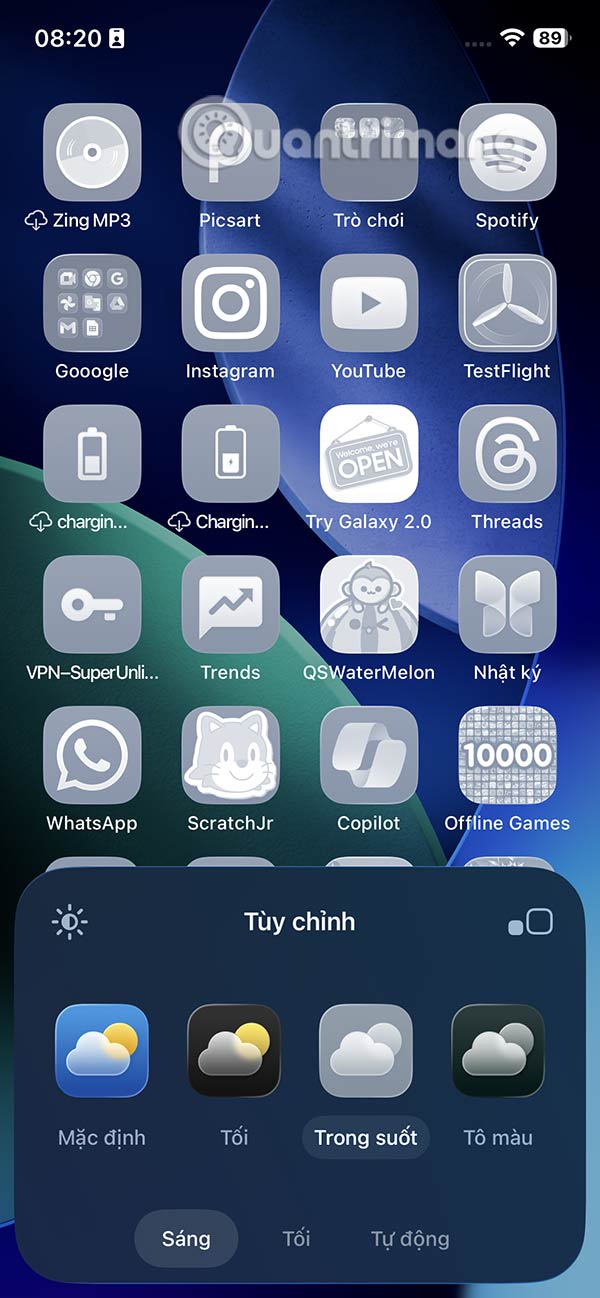
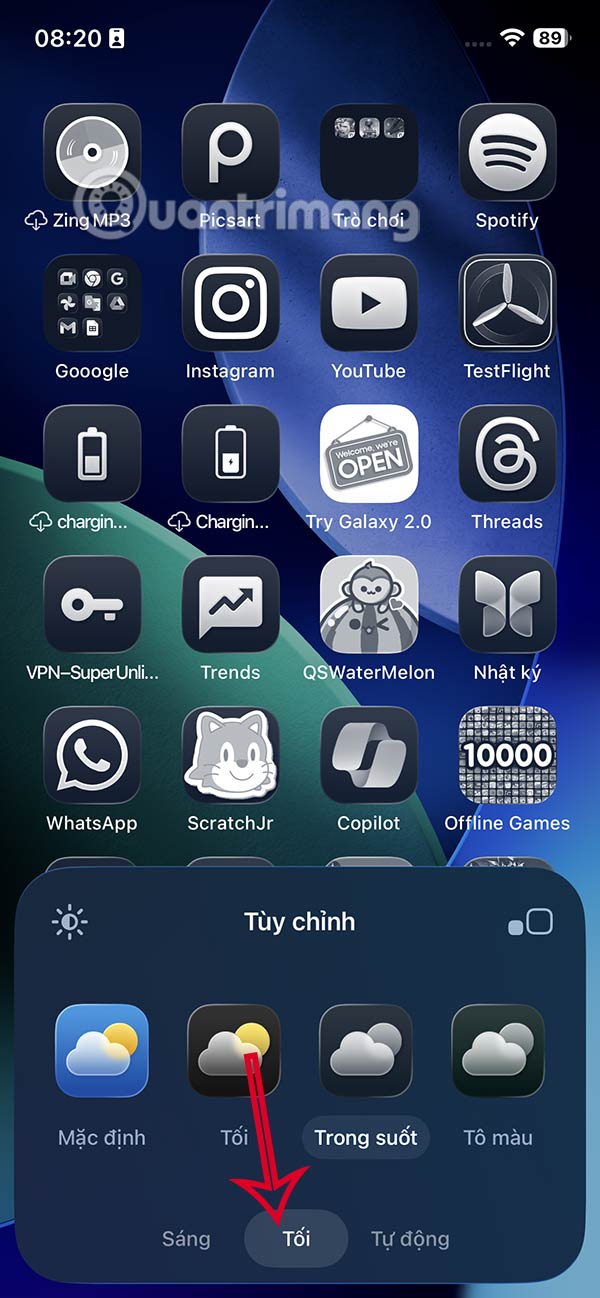
Display the interface for adjustment, you click on Transparent mode To switch to transparent icon style on iPhone lock screen. Immediately after that, you will see The icon on iPhone screen switch to transparent mode As shown below.
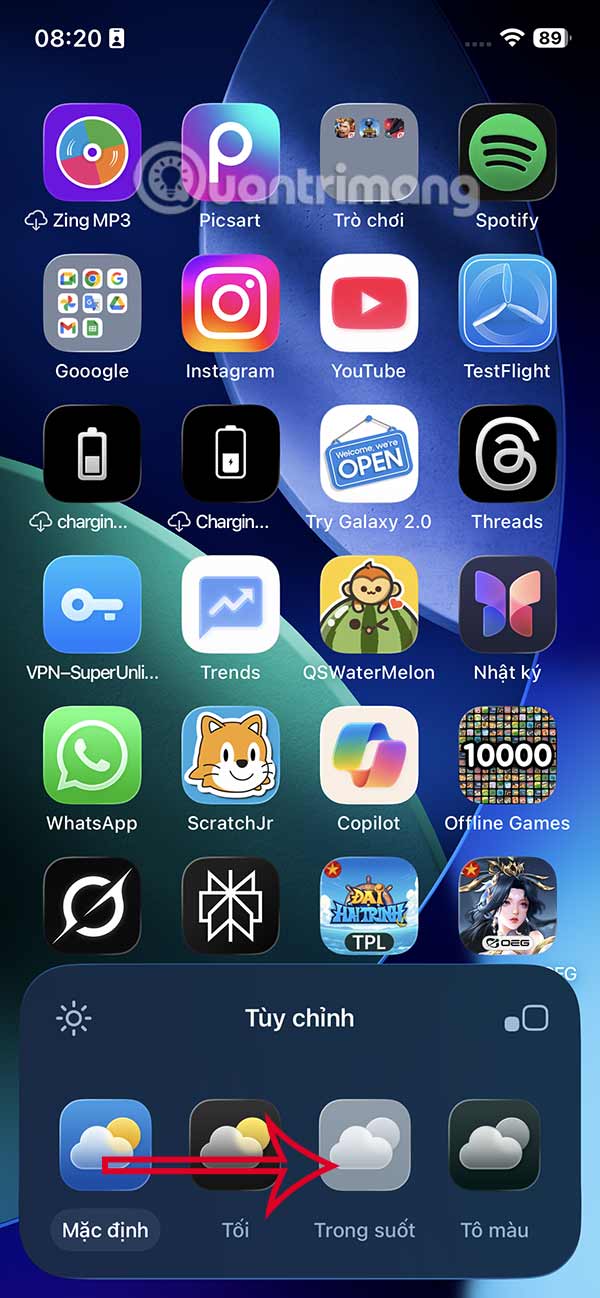
Step 3:
You can switch to dark mode for your iPhone screen, or adjust the lighting further.
Step 4:
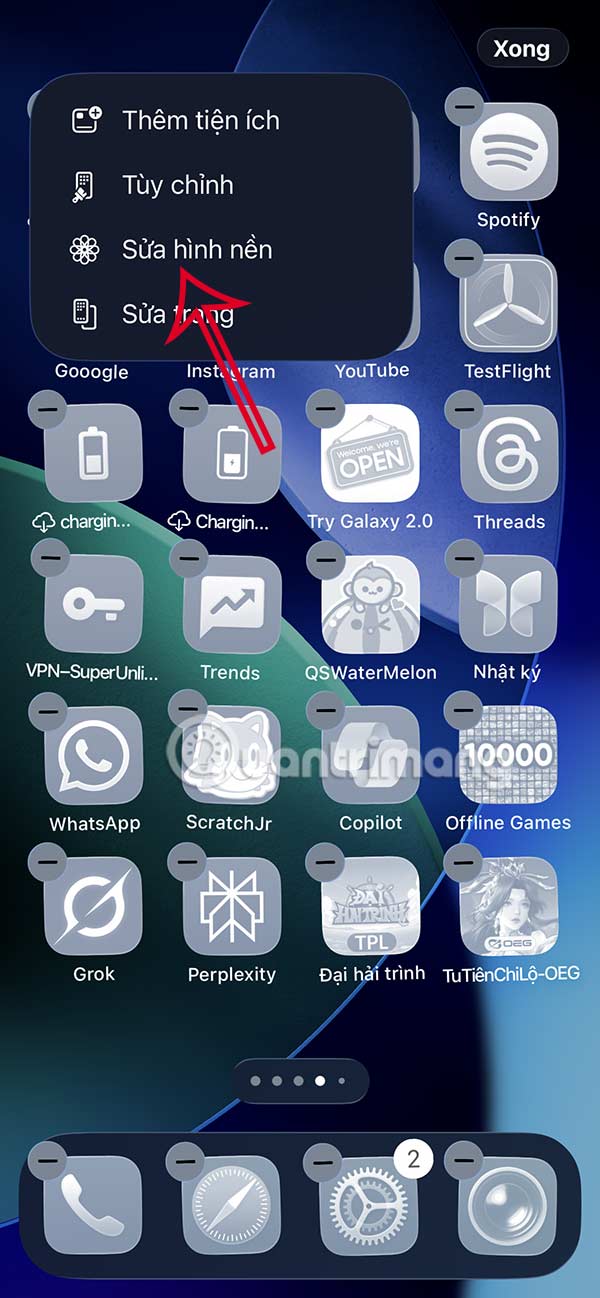
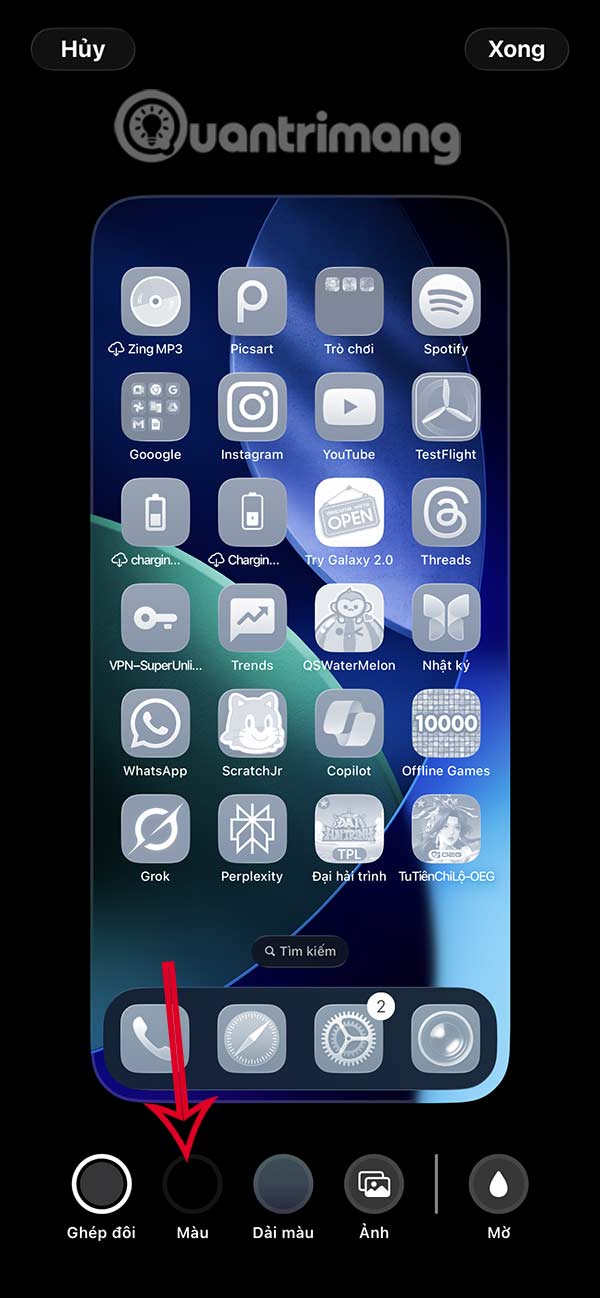
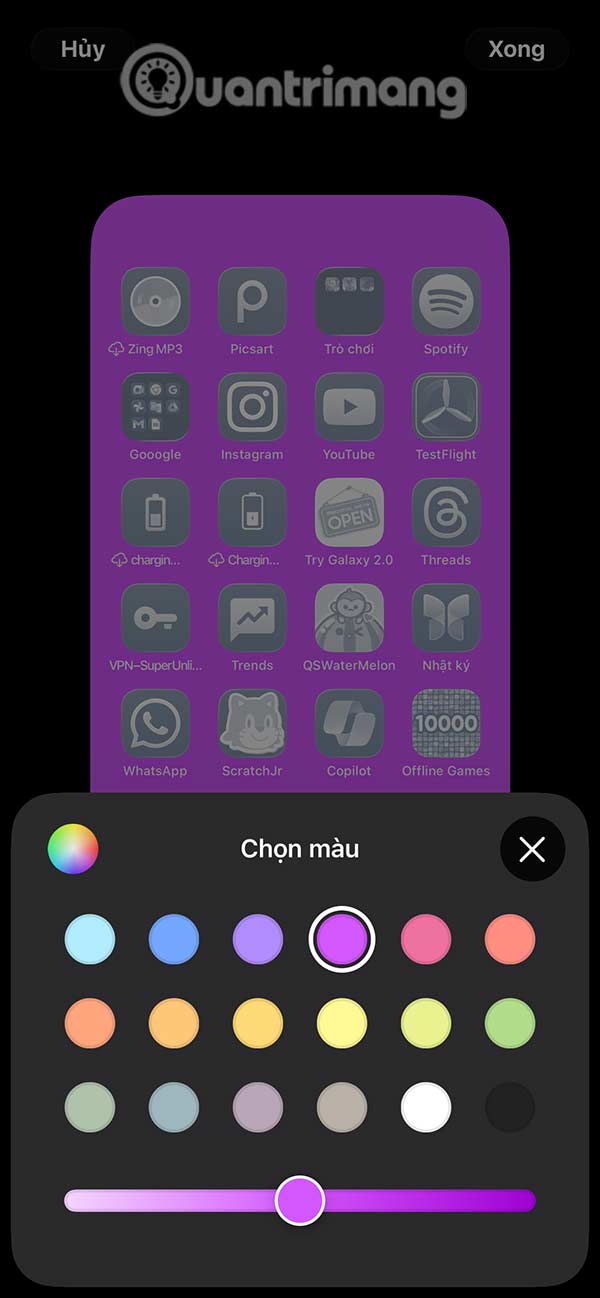
To Highlight transparent icons on iPhone , You can Change the background color or blur the background . Press and hold on the home screen and then select Edit wallpaper. Now Select Color And then select the color to choose the appropriate color.
FAQ
How do you make transparent icons on iPhone: step-by-step guide?
In practical terms, iOS 26 combined with the Liquid Glass interface on iPhone will bring users many unique designs, such as transparent icons.
What should you check before getting started?
Review the requirements, compatible device or software version, and any warnings described in the guide before making changes.
What should you do if the steps do not work?
Repeat the steps in order, confirm that your app or system is up to date, and review the troubleshooting details provided above.
Related Articles
 How to Make App Icons Transparent on iOS 264 minutes read
 This Little Trick Can Make Your Widget Invisible on iOS 143 minutes read
 How to Put the Icon Between the Taskbar and Make the Taskbar Transparent on5 minutes read
 How to Make the Screen Transparent iPhone: Step-by-Step3 minutes read
 Download This Wallpaper for iOS 12.1, the iPhone Screen Will Be Interesting to Make the Folder3 minutes read
 How to Make a Transparent Background in Canva for Free6 minutes read
Reader Comments 0
Sign in with email or Google to join the discussion.