Table of Contents
This updated guide explains how to Login 2 Nick Zalo on the Computer through clear steps, practical examples, and important checks that help prevent common errors.

1. Login 2 Zalo Nick Using Zalo Web and Zalo PC
Zalo provides us with two solutions on PC that is using Zalo app or using Zalo web version. You can take advantage of the Zalo and Zalo web apps on your PC to log in to two different Zalo accounts.
Step 1: Visit the following website https://zalo. me/pc.

Step 2: You install the Zalo app and log in your account normally.
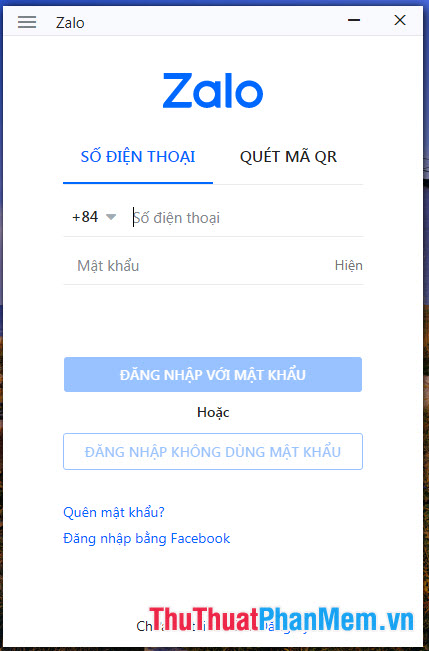
For Zalo web will ask you to confirm the account by selecting the most recent contact. You select 3 nearest contact list (1) and click Reply (2) .

So we have logged in 2 nick Zalo on the computer without any problems by the simplest method.
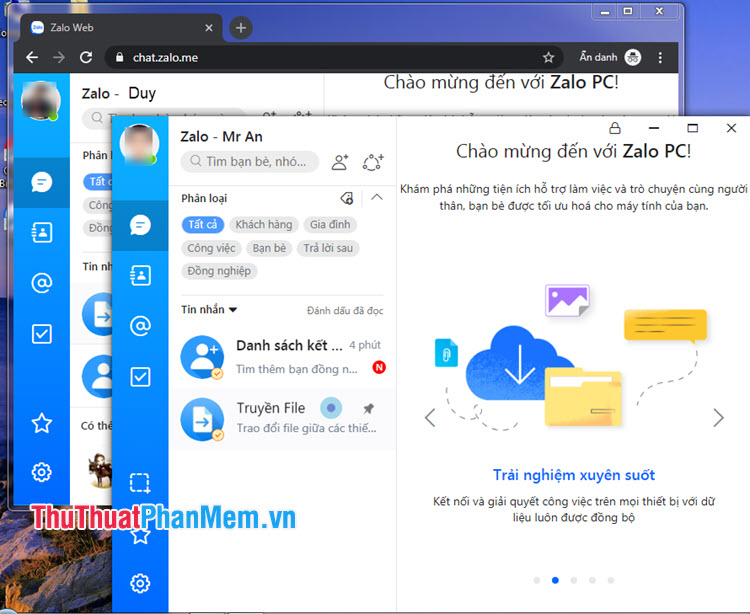
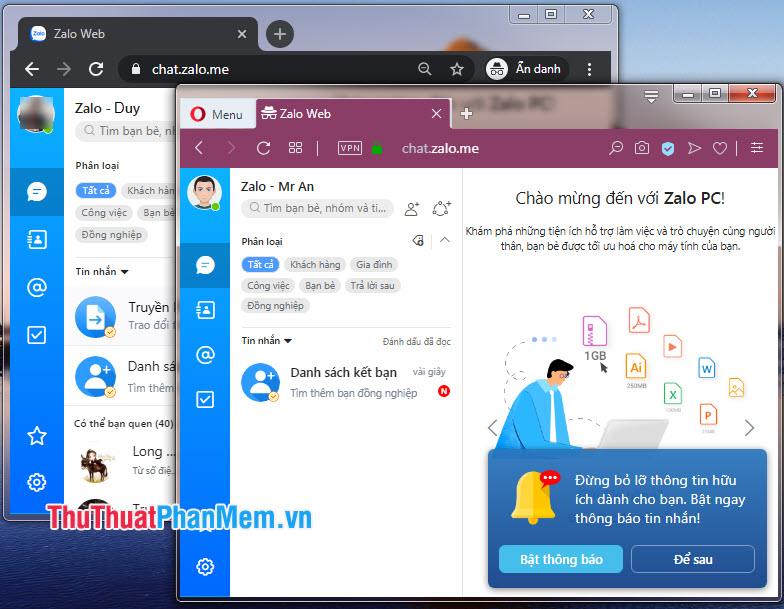
2. Use Two Different Web Browsers or Use One with an Incognito Tab
By using any two browsers or using an incognito tab, we can use two Zalo accounts at the same time on the Web. You login to Zalo web at the following homepage: https://chat. zalo. me
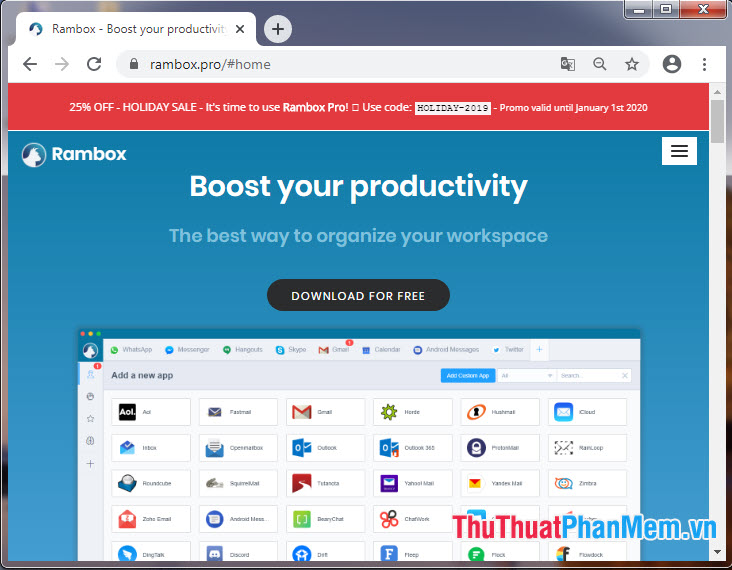
3. Using the Rambox Software
Step 1: You access the link https://rambox. pro/#home and download the Rambox software.
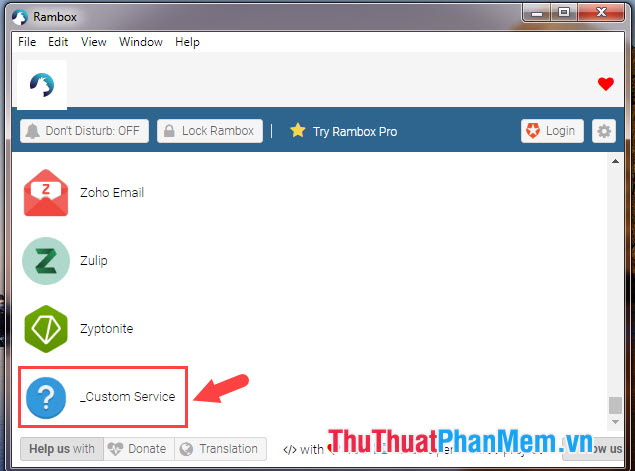
Step 2: You install and open Rambox up. Next, scroll down and find _Custom Service .
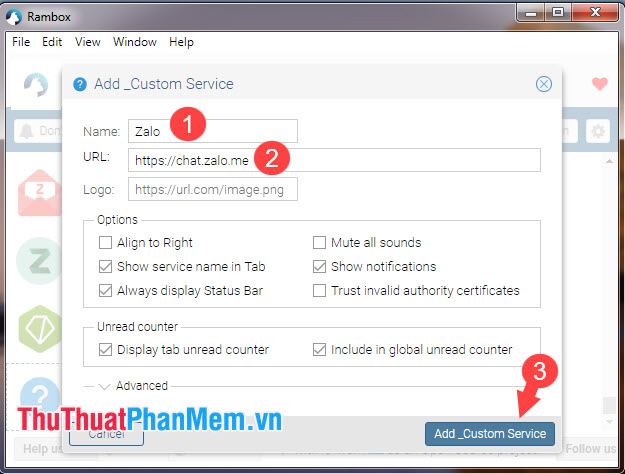
Step 3: Next you name the item Name is Zalo (1) . The URL of the Zalo web address is https://chat. zalo. me (2) . Then you click Add_Custom Service (3) to add Zalo.
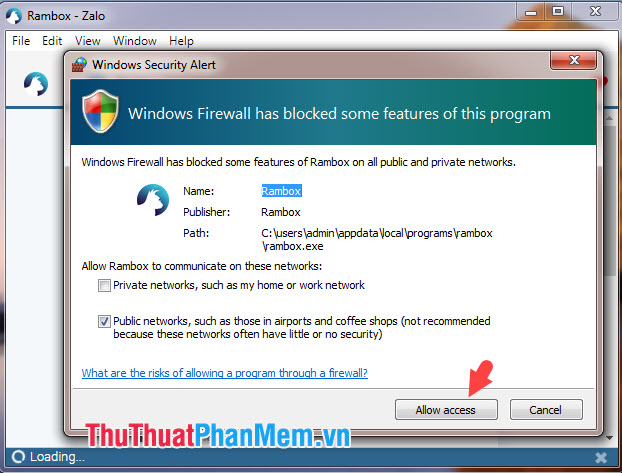
Step 4: Next, click Allow access to allow the software to access the network through the firewall.
Step 5: We log in Zalo normally, if you may need to login two Zalo accounts then you repeat from Step 2 and log in with the secondary account.

Zalo account 1

Zalo 2 account
With instructions to login 2 nick Zalo on the computer, we can solve the job easier and more smoothly. In addition, you can also use VMWare virtual machine to log open Zalo on the virtual machine and log in with two Zalo nick easily or use an Android emulator like Bluestack, Nox App Player. to install and use Use Zalo on the Android emulator. Good luck!
FAQ
What is the easiest way to Login 2 Nick Zalo on the Computer?
Start with the requirements in this guide, then follow each step in order. Check the result after every major change so problems are easier to identify.
Can beginners follow these instructions?
Yes. The process is organized into practical steps, and you can repeat any step before moving forward.
What should I check if the method does not work?
Confirm your software or device version, permissions, settings, file format, and internet connection when the task depends on online services.
Related Articles
 How to Login 2 Zalo Accounts on the Phone4 minutes read
 How to Create a Zalo Account on Your Phone?2 minutes read
 How to Login to Zalo Via Your Facebook Account on PC, No Password4 minutes read
 How to Login Zalo on Computers and Laptops4 minutes read
 Instructions for Fixing Error Zalo 502: How to Fix Zalo Error4 minutes read
 How to Use Zalo Web Without Installing Software6 minutes read
Reader Comments 0
Sign in with email or Google to join the discussion.