Table of Contents
Windows 10 April 2018 Update is version 1803, an unsupported 2018 release. Home and Pro servicing ended in November 2019, and Enterprise and Education servicing ended in May 2021. Do not clean-install it for everyday browsing, work, or gaming.
Use current installation media for normal PCs
Download Windows 11 from the official Microsoft page when the PC is compatible. If licensed hardware must be reinstalled with Windows 10, use Microsoft's current Windows 10 media page and review its end-of-support and ESU information. Microsoft documents the expired 1803 servicing dates on the version 1803 lifecycle page.
Only reproduce 1803 for a documented legacy need
A software-compatibility lab, forensic reproduction, museum system, or disconnected appliance may need this exact version. Use a legally licensed image from an authorized archive, record its source and SHA-256 checksum, and run it in an isolated virtual machine or segmented network. Never enter current passwords, personal data, or production credentials.
Prepare before writing a USB drive
- Back up the target system and verify recovery.
- Record the licensed Windows edition and BitLocker recovery key.
- Obtain storage, chipset, USB, display, and network drivers from the hardware manufacturer.
- Use a blank USB drive and disconnect other removable storage. The creation process erases the selected device.
- Confirm UEFI/GPT or legacy BIOS/MBR requirements. TipsMake's bootable USB guide explains the difference.
Archived media-tool installation
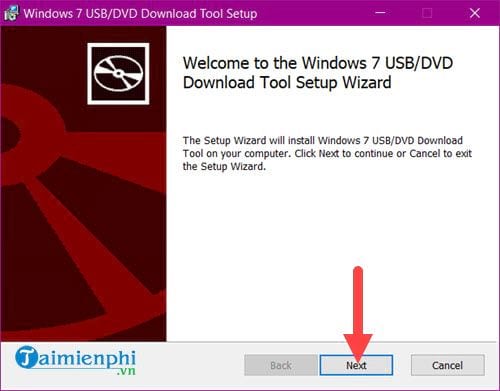
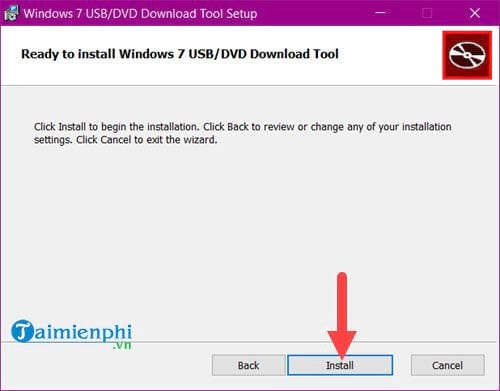
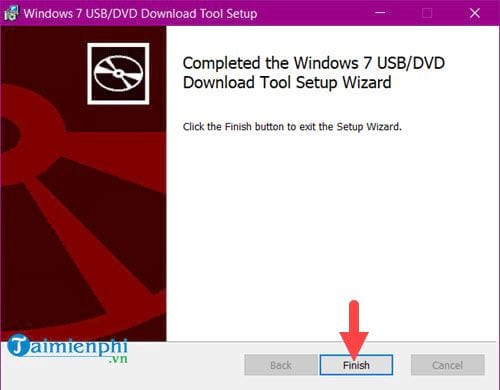
The original walkthrough installed the old Windows 7 USB/DVD Download Tool. These screens are retained for historical context; for a supported Windows release, use Microsoft's current Media Creation Tool instead.
Select Next in the old tool's installer.
Select Install.
Close Setup after it reports completion.
Historical USB creation sequence
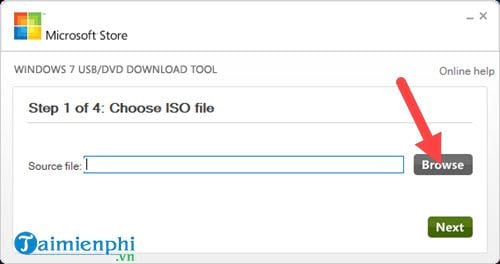
Open the old media tool and choose Browse.
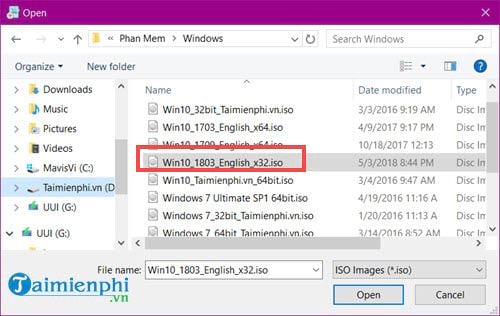
Select the authorized 1803 ISO and choose Open.
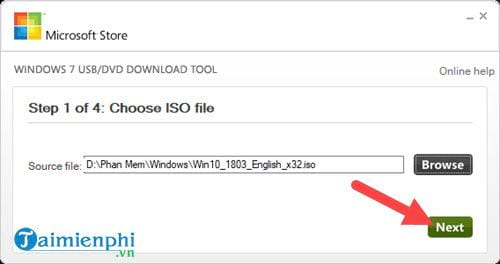
Continue with Next.
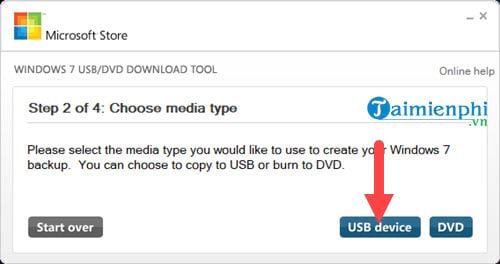
Select USB device rather than DVD.
Identify the USB by its drive letter and capacity, then choose Begin copying.
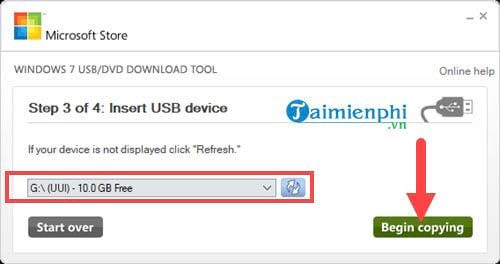
The next prompt warns that the selected USB will be erased.
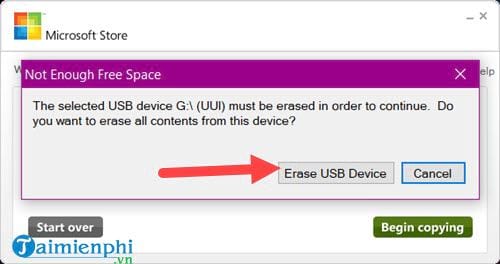
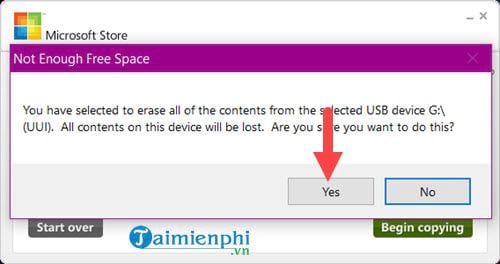
Confirm only after checking the drive again.
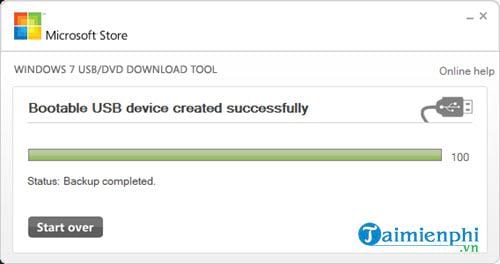
Wait for copying and verification to reach 100%. Time varies by the computer and flash drive.
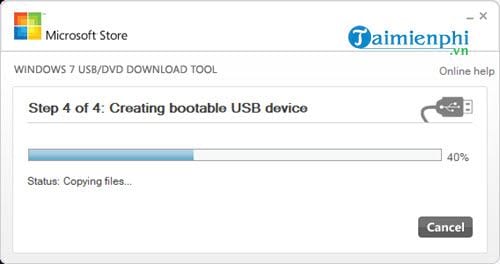
Close the tool only after it reports completion, then eject the media safely.
Do not inject generic USB 3.0 drivers without evidence
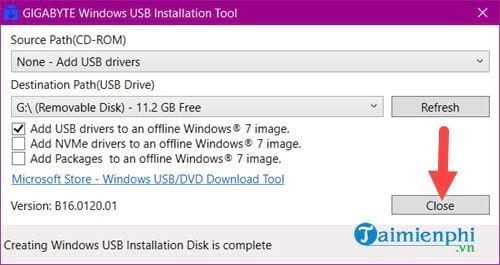
The original guide used a third-party “Windows USB Installation Tool” to inject USB drivers. Windows 10 version 1803 already contains broad USB 3 support, and an arbitrary driver bundle can make Setup unbootable or introduce an untrusted driver. Use this legacy path only when the target hardware demonstrably loses keyboard, mouse, or installation-media access and the manufacturer supplies the exact signed driver.
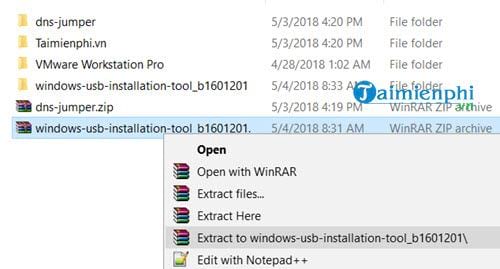
The archived workflow first extracted the old utility.
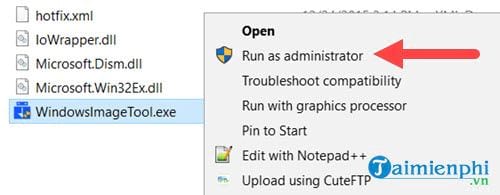
It then ran the utility as administrator.
The option shown explicitly refers to an offline Windows 7 image. Do not assume it safely supports every Windows 10 image.
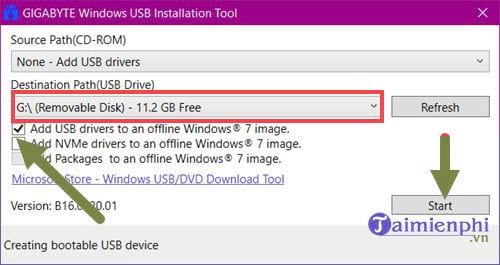
Driver injection rewrites the installation image and may take time; interruption can corrupt the media.
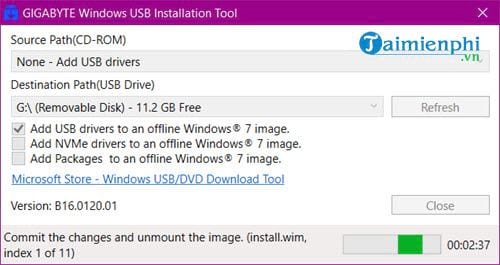
A completion message does not prove that the injected driver matches the target hardware. Test the media only in the isolated lab.
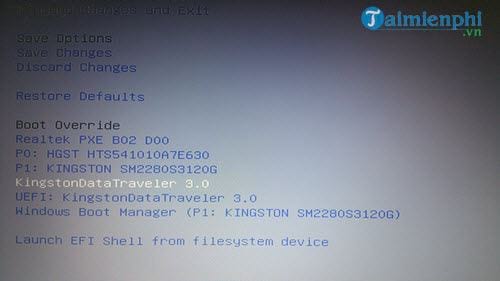
Boot Windows Setup
Use the PC's one-time boot menu and select the USB entry that matches the intended firmware mode. Prefer this to changing the permanent boot order.
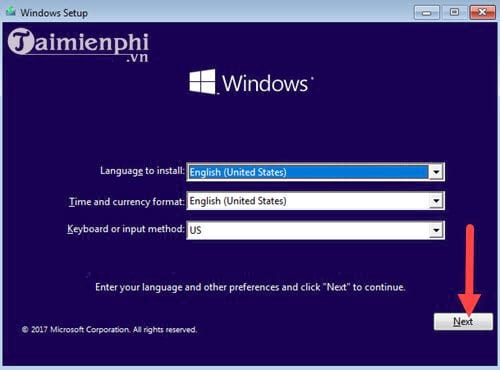
Confirm language, time, and keyboard choices, then select Next.
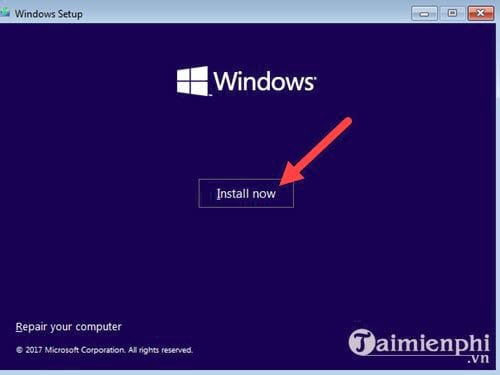
Select Install now.
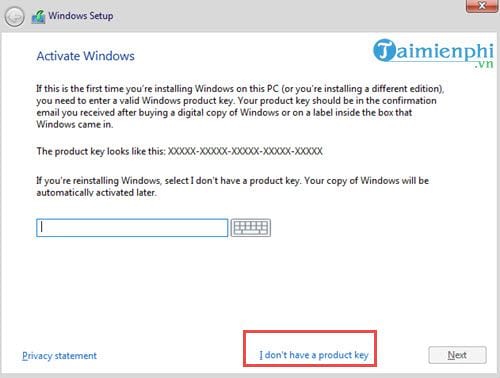
Choose the licensed edition and install type
Select I don't have a product key only if the device has a matching digital license or you will activate later with a valid license. This option does not create a permanent free license.
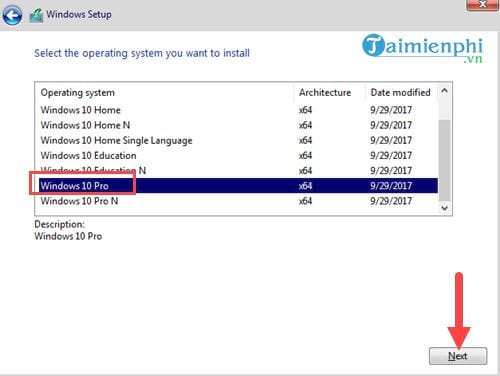
Choose the edition that matches the license. Home and Pro are not interchangeable for activation.
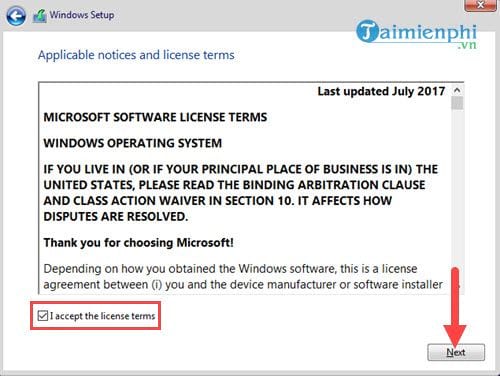
Read and accept the license terms only when they apply.
The two installation choices have different purposes.
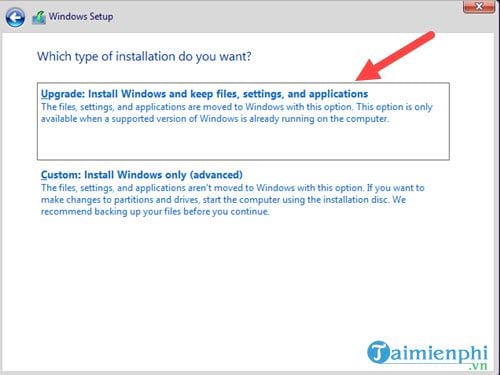
- Upgrade keeps supported files and applications only when Setup is launched from within a compatible running Windows installation. A normal in-place upgrade should not be started by booting from USB.
- Custom performs a new installation. Deleting or formatting partitions permanently erases their contents.
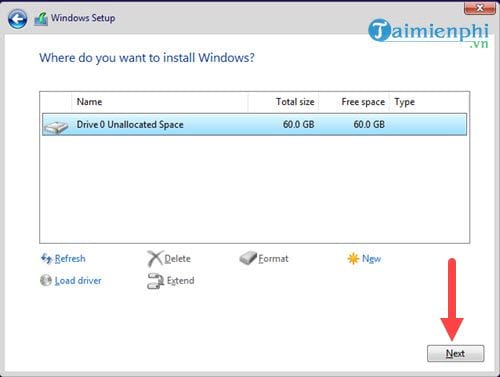
Select the target disk carefully
Identify the intended disk by size, partitions, and connection. Stop if you cannot distinguish it from a data or backup drive. Disconnect non-target drives when practical.
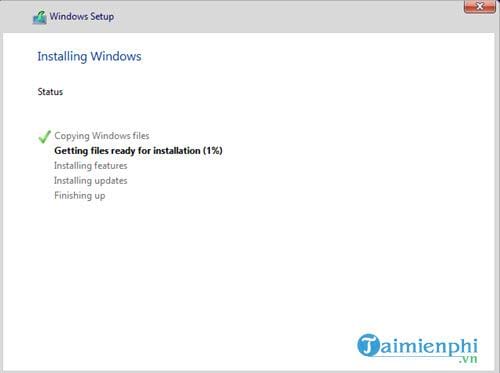
Setup copies files and restarts several times. Do not interrupt power.
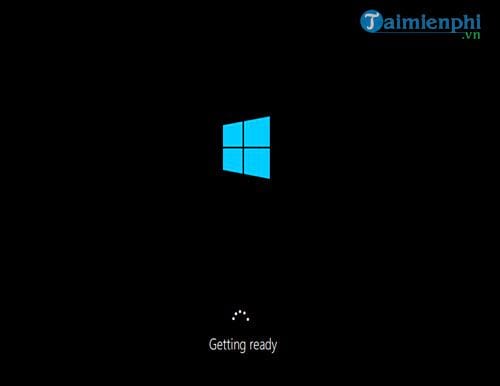
When the Windows logo appears after a restart, allow the internal drive to continue; do not start the USB installer again.
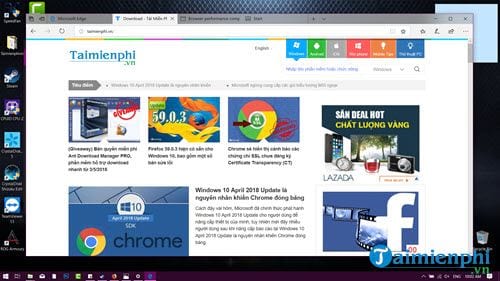
The original version 1803 desktop
The first-run experience promoted the Microsoft Edge version included at the time.
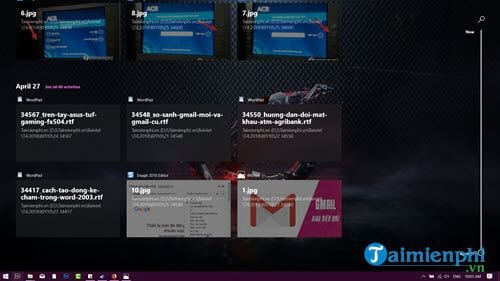
Task View exposed the Timeline activity-history feature.
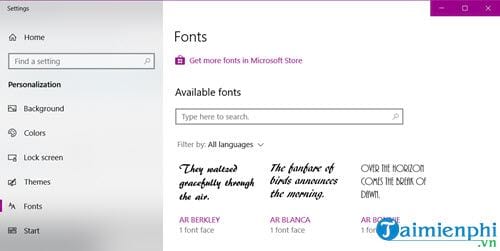
Settings also added font management.
These screens are historical; current Windows interfaces and features differ.
Secure the historical lab
- Keep the system offline or behind strict segmentation.
- Disable shared clipboard, folders, USB passthrough, and host integration unless the test requires them.
- Use unique disposable credentials and no personal data.
- Take a clean snapshot before installing the legacy application under test.
- Retire the image when the reproduction work is complete.
For a supported clean install, reset, repair, or recovery workflow, use TipsMake's Windows installation and recovery guides.
Related Articles
 How to Uninstall Windows 10 April 2018 Update4 minutes read
 How to Fix Common Windows 10 April 2018 Update Errors8 minutes read
 The Computer Encountered Many Strange Phenomena After Upgrading Windows 10 April Update4 minutes read
 How to Download Windows 10 April Update 2018 Update 18035 minutes read
 What's Special About Windows 10 April Update Update?1 minutes read
 How to Monitor and Save Internet Capacity on Windows 10 April4 minutes read
Reader Comments 0
Sign in with email or Google to join the discussion.