Table of Contents
Knowing how to identify whether Windows 10 is an upgrade or a fresh installation will let users know whether the Windows 10 pre-installed on their computer.
Whether you're doing a fresh install or simply updating Windows 10 from Windows 7 or Windows 8, the Windows operating system still records or stores all the necessary information. The following extremely simple guide shows you whether your Windows 10 update is due to a Windows 10 upgrade or a fresh installation.
How to tell if Windows 10 is an upgrade or a fresh installation.
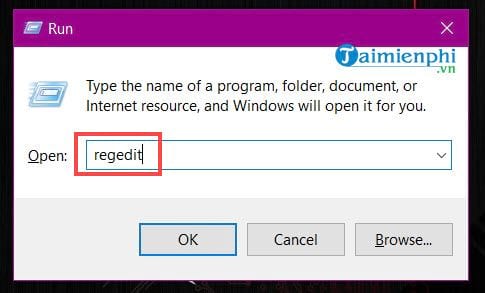
Step 1: To determine whether Windows 10 is an upgrade or a fresh installation, you need to access the Registry Editor on your computer. To access it, press Windows + R, then type Regedit , and press OK .
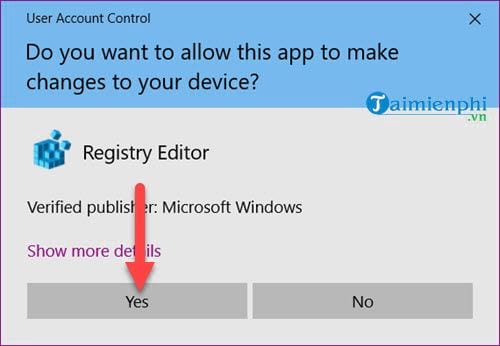
If you then receive a system message confirming access to the Registry Editor, select Yes ; otherwise, skip this step.
Step 2: Here, access the following path: Computer > HKEY_LOCAL_MACHINE > SYSTEM > Setup and check its subfolders.
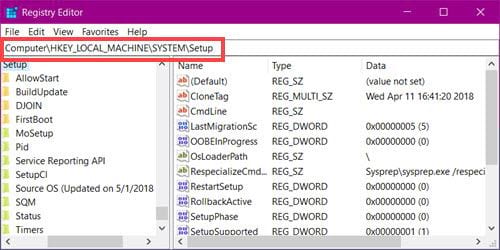
Step 3: If you find an "Update" folder within the "Setup" folder, it means Windows 10 is an upgrade, not a fresh installation. This is also how to determine whether Windows 10 is an upgrade or a fresh installation on your computer or laptop.
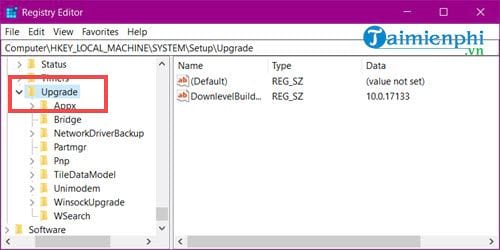
Note: The Windows 10 upgrade or fresh install information only applies to those who have just purchased a computer. Those who have updated to subsequent versions of Windows 10 multiple times will obviously have this folder.
How to identify which version of Windows 10 you are upgrading from.
Besides identifying whether it's an upgrade or a fresh installation of Windows 10, we can also check which version of Windows 10 was the most recent update.
Note: This method only identifies your most recent Windows 10 upgrade, not the original version.
- Still within the Setup folder that we accessed earlier, find the item named Source OS.
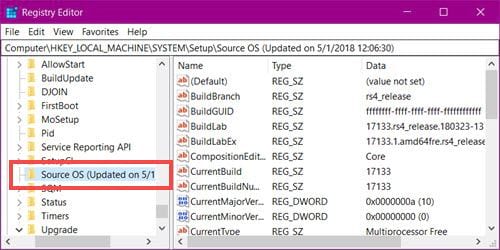
In the Source OS section, simply find the ProductName ; the Data section shows you the most recent version of Windows 10 you upgraded to.
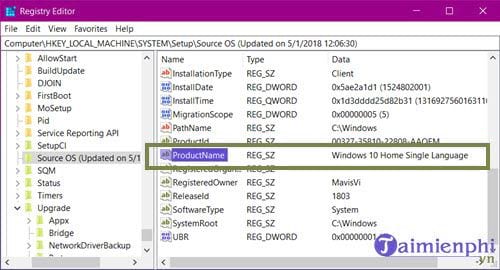
Above are some simple yet interesting tips for those who like to tinker with Windows 10, helping you identify whether it's an upgrade or a fresh installation. Identifying whether it's an upgrade or a fresh installation isn't the most important thing; what's more important is that we've discovered many new features in Windows 10, including the Registry Editor, a very useful tool on computers and laptops.
If you've just installed Windows 10 Pro and haven't activated it yet, don't worry, use the activation code and refer to the article on activating Windows 10 Pro here for instructions.
FAQ
What should you know about identifying whether windows 10 is an upgrade or a fresh installation on?
Knowing how to identify whether Windows 10 is an upgrade or a fresh installation will let users know whether the Windows 10 pre-installed on their computer.
How can you tell if Windows 10 is an upgrade or a fresh installation?
Step 1: To determine whether Windows 10 is an upgrade or a fresh installation, you need to access the Registry Editor on your computer.
Do the steps or features vary by device or software version?
They can. Menu names, available settings, and compatibility may differ by device, region, account type, or software version, so check the options shown on your own screen.
Related Articles
 How to Create a Recovery Disc in Windows 713 minutes read
 How to Use the Fresh Start Feature to Restore Windows 10 Creators6 minutes read
 Should I Install or Upgrade the Operating System?8 minutes read
 Instructions to Fix Windows 7 Installation Error12 minutes read
 When Will Windows 11 Come Out? Should I Upgrade to Windows6 minutes read
 A Collection of Windows 10, 8.1, 7, and XP Installation Files6 minutes read
Reader Comments 0
Sign in with email or Google to join the discussion.