Table of Contents
A virtual machine lets you prepare and capture a Windows system image without repeatedly reinstalling a physical computer. For a legacy BIOS/MBR image, configure the VM for legacy firmware and use an MBR virtual disk. Capture the required boot and Windows partitions with a compatible imaging tool.
The original method applies an untouched Windows installation image offline before its first boot. That is different from capturing a fully configured Windows desktop with applications already installed. Decide which result you need before starting.
Prepare an isolated reference VM
- Create a disposable VM in VMware or VirtualBox, with a virtual disk large enough for Windows and the intended workload.
- Select legacy BIOS firmware for this MBR example.
- Obtain official Windows installation media and a compatible WinPE rescue ISO.
- Provide a separate location to save and export the captured image.
- Avoid attaching host physical disks unless you understand the passthrough configuration.
Use a Windows version and architecture appropriate to the target. Standard Windows 11 deployment uses UEFI rather than this legacy example. A virtual-machine image also does not provide licenses for every computer to which it is deployed.
For VM setup background, see setting up a VirtualBox system and the virtual machine application comparison.
1. Prepare the virtual disk
Boot the VM into the compatible rescue environment. Confirm that the partition tool is operating on the disposable virtual disk, then prepare the MBR partition layout required by your installation method.
If using a single legacy boot-and-Windows primary partition, it needs the appropriate active flag and boot files. A separate data partition can hold source files or a temporary captured image, but it is not an independent backup.
2. Make the Windows source available
Attach the Windows ISO to the VM's virtual optical drive, or copy it into the guest and mount it with the rescue environment's tool. A physical USB drive is not mandatory if the hypervisor can attach the ISO directly.
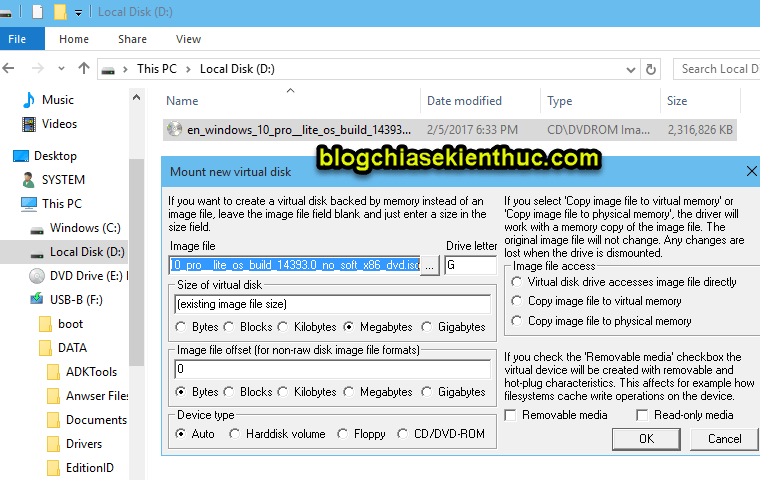
Check that the mounted image's sources folder is accessible. It may contain install.wim or install.esd; choose a deployment tool that supports the actual source.
3. Apply the image and prepare boot files
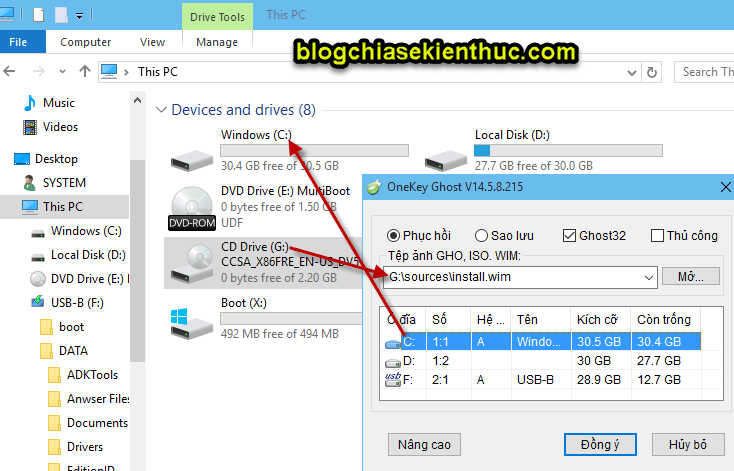
The older screenshot shows Onekey Ghost selecting a Windows image. Do not assume that every Onekey Ghost build supports the same inputs. A GHO archive and a WIM image are different formats.
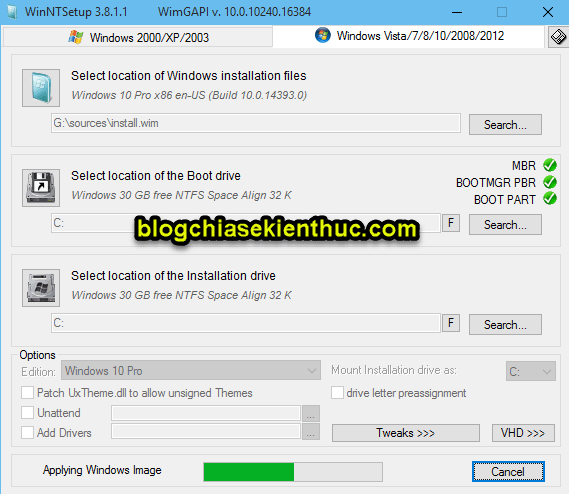
WinNTSetup is an alternative for supported WIM or ESD sources. Select the intended Windows edition, boot partition, and installation partition. Check all destination fields before applying the image.
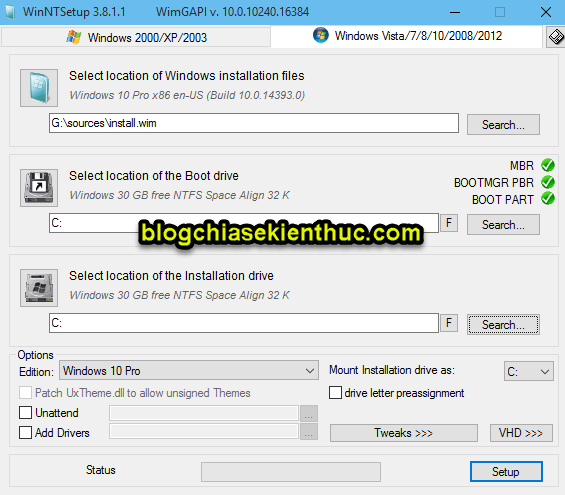
For more detail, see the WinNTSetup deployment walkthrough. Ensure the legacy boot configuration is prepared as well as the Windows files; copying the image alone is not enough.
4. Choose an offline or configured reference image
Capture before first boot
If your goal is a clean, not-yet-configured installation, remain in WinPE after applying the image. Make only documented offline changes you understand, then capture it. First-boot setup will still run after deployment.
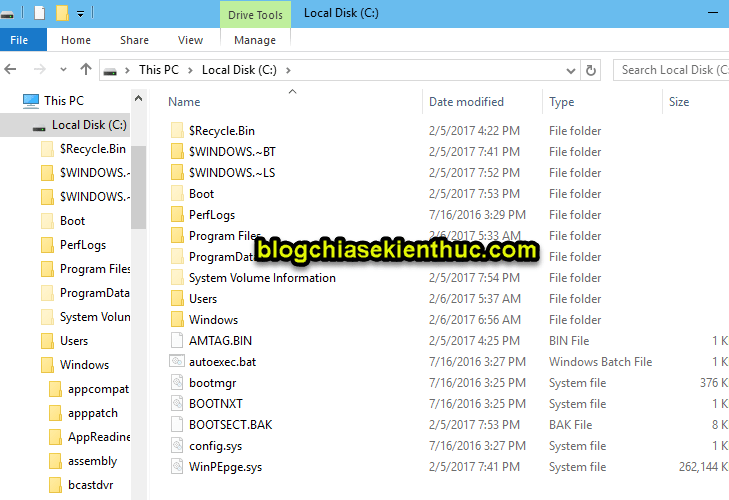
Offline Registry editing is optional and unnecessary for a basic image. Do not load a hive from a guessed C: path; identify the actual offline Windows volume. Unsupported tweaks can make the image harder to maintain.
Capture after configuring Windows
If you boot Windows to add applications or settings and intend to deploy it to other computers, follow Microsoft's reference-image process. Generalize the installation with Sysprep before capturing it, using the documented options for your deployment scenario.
Read the Sysprep process overview. Generalization removes machine-specific information; it does not guarantee all installed software supports redistribution or different hardware.
5. Capture and export the image
Boot the imaging environment and choose the correct backup operation in your tool. Capture every partition required to recreate the intended legacy boot arrangement, and save the archive outside the partition being captured.
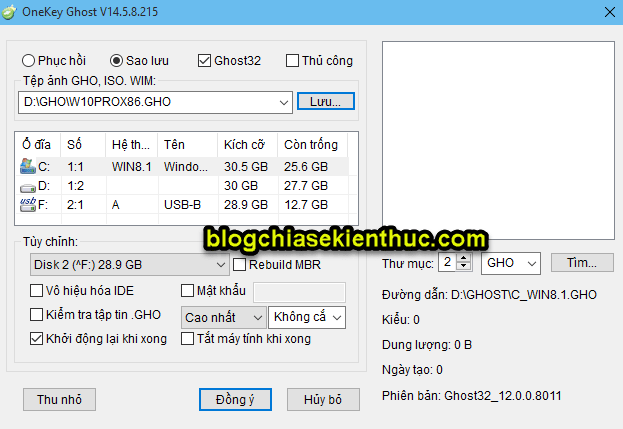
Export the archive to storage outside the VM and verify that the exported copy is readable. A normal VM shutdown does not delete files on a persistent virtual disk, but deleting the VM's disk, reverting certain snapshots, or discarding nonpersistent changes can remove work.
6. Test a restore before relying on the image
- Create a second disposable VM with the intended firmware mode.
- Restore the exported archive using the matching imaging software.
- Confirm that Windows boots and completes the expected setup.
- Check drivers, application behavior, and licensing requirements for the eventual targets.
Keep notes on the source image, capture tool, partition layout, and customizations. A successful capture message is useful, but a successful test restore is what demonstrates that the archive can recover the intended system.
Related Articles
 Restore a Legacy BIOS/MBR TIB Backup with Acronis True Image
 How ghost Windows 7/8, Windows 10 with OneKey Ghost
 How to create and extract Ghost in UEFI standard and standard GPT hard drive
 How to ghost computer with file * .tib UEFI standard
 Create UEFI standard USB boot with DLC Boot
 Restore a GHO Windows Image on UEFI: Compatibility and Boot Checks
Reader Comments 0
Sign in with email or Google to join the discussion.