Table of Contents
Reader Mode removes navigation, ads, sidebars, and other page furniture so an article is easier to read. Safari and Brave can open compatible articles in a simplified view automatically. Chrome, Firefox, and Android offer useful reading tools, but their built-in options are generally manual rather than a universal “always on” setting.
No reader can convert every webpage. Interactive apps, home pages, social feeds, paywalled content, and pages with too little article text may be unsupported or lose important controls. Reader Mode changes presentation; it does not grant access to content you are not entitled to view.
Quick comparison
| Platform | Automatic option | Best approach |
|---|---|---|
| Safari on iPhone/iPad | Yes, for supported sites | Turn on All Websites under Safari > Reader. |
| Android | No universal browser default | Use Google's Reading mode accessibility shortcut. |
| Brave on desktop | Yes, for detected articles | Enable Speedreader globally or per site. |
| Safari on Mac | Yes, for supported sites | Set Reader to On for other websites. |
| Chrome on desktop | No built-in global default | Open Reading mode in the side panel or use a reviewed extension. |
| Firefox | Manual by default | Use Reader View or a reviewed add-on for selected sites. |
Automatically use Reader in Safari on iPhone or iPad
- Open Settings.
- Go to Apps > Safari > Reader.
- Turn on All Websites.
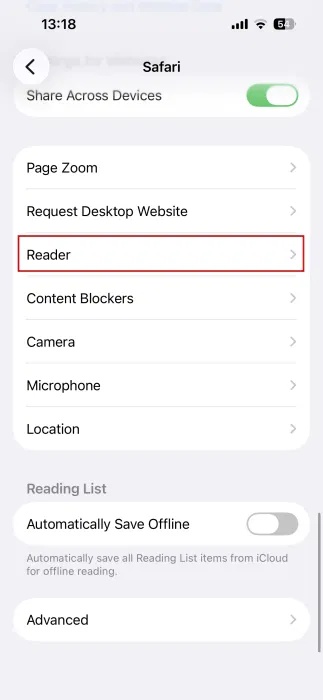
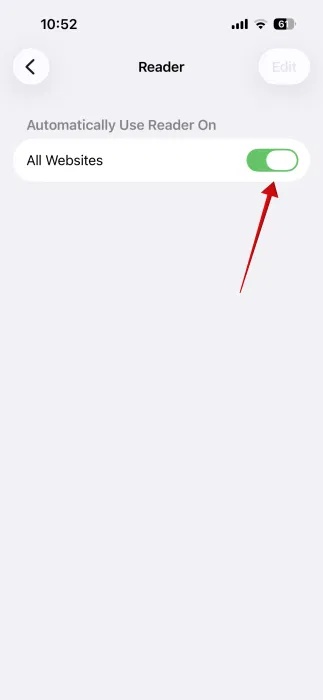
Safari will now switch compatible article pages to Reader after they load. Apple describes the setting as applying to all websites that support Reader, so pages that are not recognized as articles will remain in their normal layout.
Use or disable Reader for one site
On an article, open Safari's page menu in the address bar, select Website Settings, and turn Use Reader Automatically on or off for that site. To leave Reader temporarily, open the page menu and choose Hide Reader.
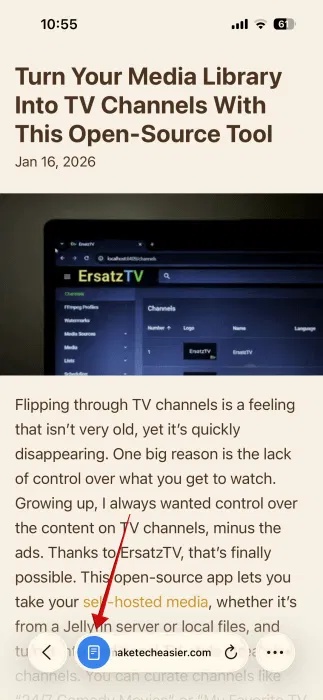
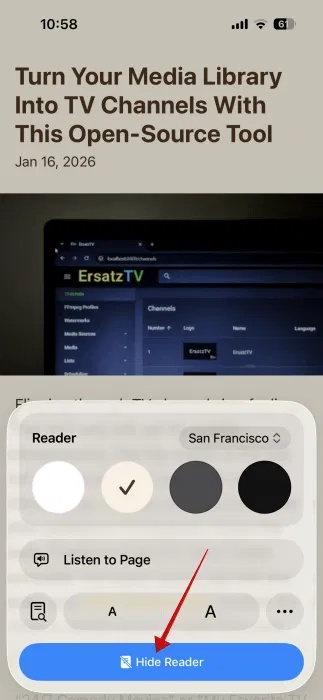
Hiding Reader on the current page does not turn off the global setting. For listening instead of reading, see how to use Safari's Listen to Page feature.
Use Reading mode on Android
Google's official Reading mode app is the most consistent Android option. It provides a simplified layout and read-aloud controls through an accessibility shortcut, and it can work with long articles in supported websites or apps.
- Install Reading mode from Google Play.
- Open it and follow the setup instructions.
- In Android Settings, open Accessibility > Reading mode.
- Turn on a shortcut, such as the floating accessibility button, a gesture, or the volume-key shortcut available on your device.
- Open an article and invoke the shortcut.
Google states that Reading mode does not support PDFs, emails, chat messages, or social-media feeds. It is activated with the shortcut rather than forced automatically over every page.
Chrome on Android
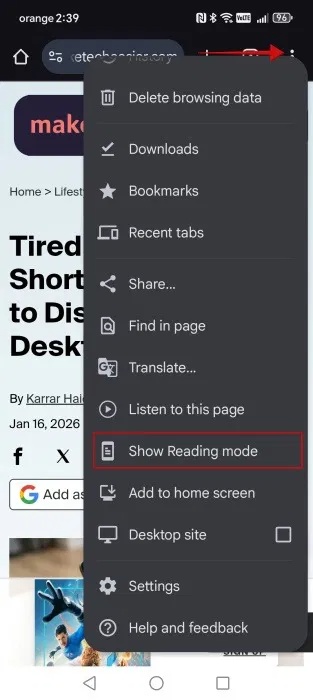
Some Chrome versions and phones offer Show Reading mode in the three-dot menu. Use it when it appears. Older builds exposed experimental options under chrome://flags, including a Reader mode trigger:
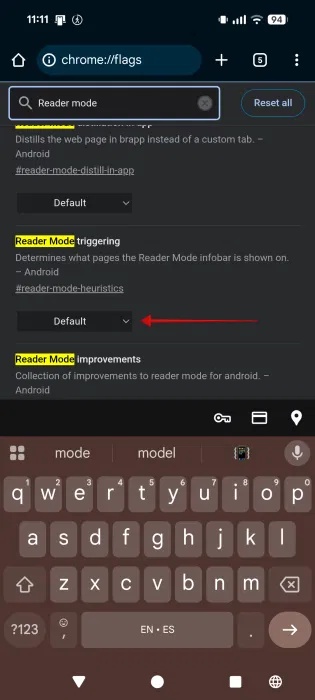
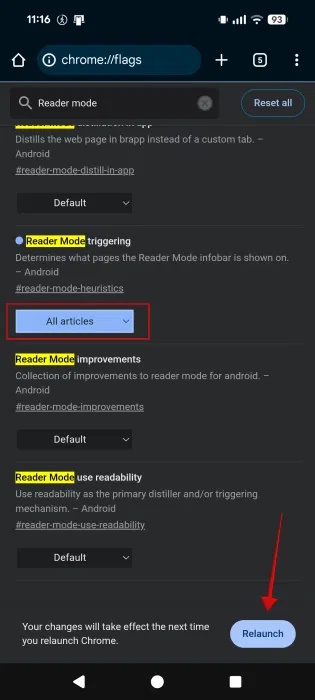
Flags are temporary experiments. Their names, effects, and availability can change or disappear after an update, so they are a poor basis for a permanent setup. Prefer the supported Android Reading mode app or Chrome's visible menu command.
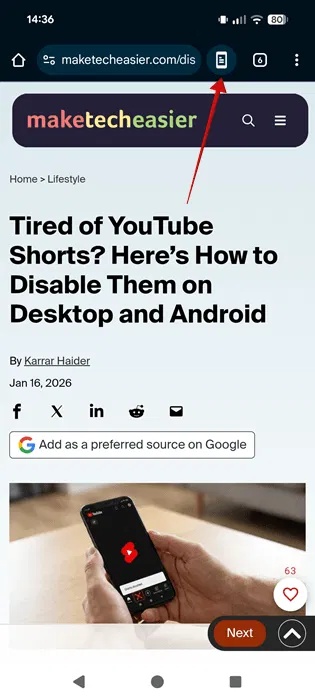
The redesigned Chrome command can appear as Show Reading mode on eligible pages, but availability varies by version and device.
Firefox on Android
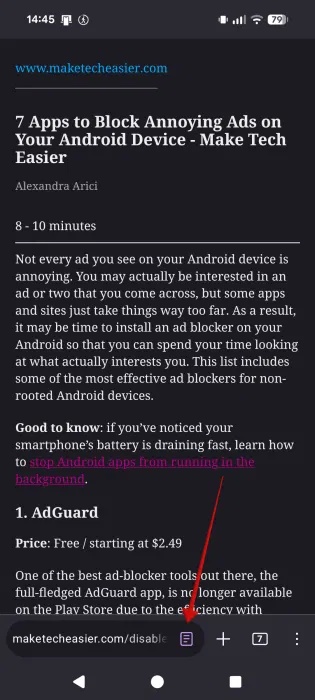
Firefox shows a Reader View icon in the address bar when it recognizes an article. Tap the icon to enter or leave the simplified view. The built-in control is manual.
Automatically simplify articles in Brave on desktop
Brave's Speedreader detects pages that look like articles and simplifies them before they finish loading. On an eligible article, select the Reader icon in the address bar to enable Speedreader.
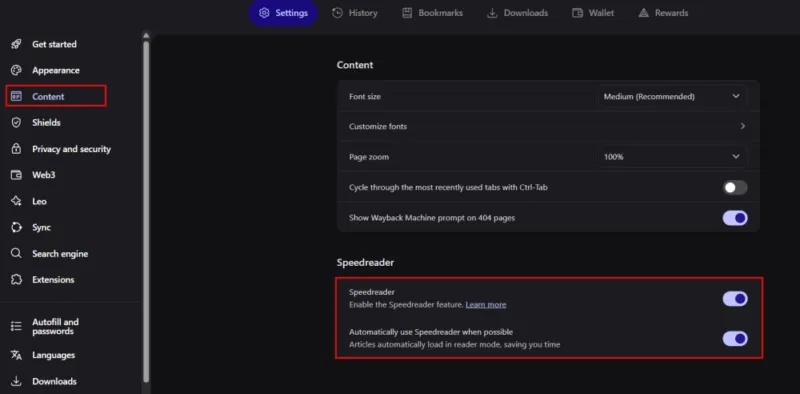
In the Speedreader toolbar, open the tuning controls. Enable Speedreader by default for the current site or choose the global option to apply it whenever Brave recognizes a supported article.

To return to the full page, select View original or turn off Speedreader from the address bar.
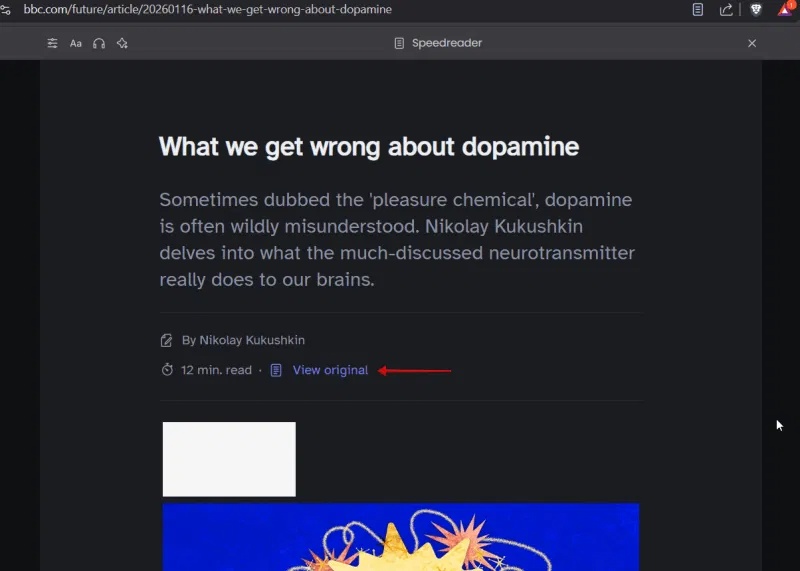
Brave's official Speedreader guide documents the global and site-specific defaults. Even with the global option enabled, pages that Brave cannot classify as articles remain unchanged.
Automatically use Reader in Safari on Mac
- Open Safari > Settings > Websites.
- Select Reader in the sidebar.
- For individual open websites, choose On or Off.
- Set When visiting other websites to On if you want Reader whenever Safari supports it.
You can override the behavior for a specific site without changing the default for every other site.
Firefox desktop: built-in Reader View or an add-on
Firefox's built-in Reader View is manual: select the page-shaped icon in the address bar on a supported article. Firefox does not provide a first-party global automatic setting.
A third-party add-on such as Automatic Reader View can attempt Reader View for sites you specify, or for all eligible pages. After installation, open Add-ons and themes, find the extension, and open its options.
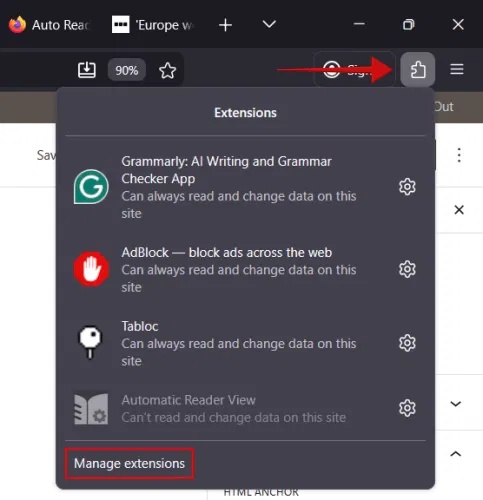
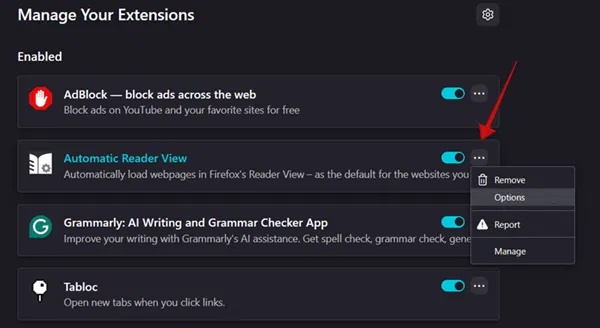
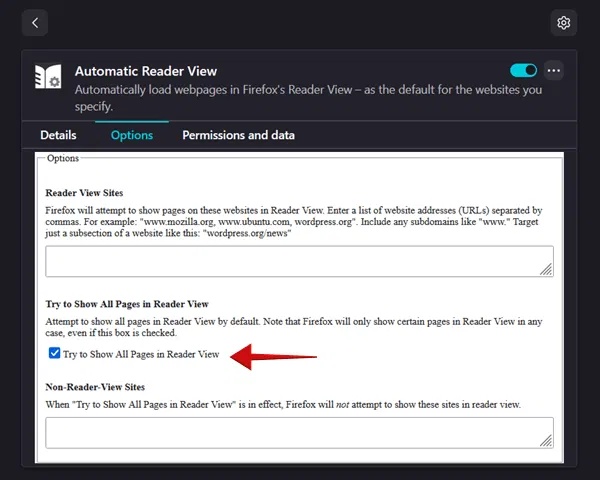
Enable the option to attempt Reader View on all pages only if that behavior is useful. The add-on still depends on Firefox recognizing the page as readable.
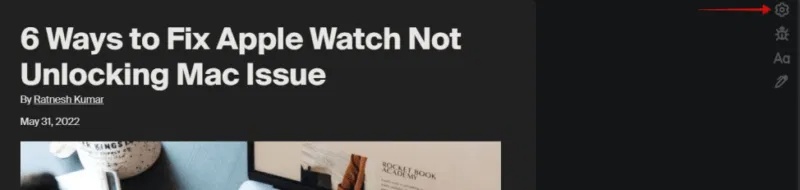
Use the Reader View close control to return to the original page.

Before installing any browser extension, review its publisher, update history, required permissions, and privacy information. Automatic Reader View requires access to browser tabs; that permission is relevant to its job but still deserves review.
Chrome desktop: built-in side panel or Unclutter
Chrome's current built-in Reading mode opens in a side panel. Select More > More tools > Reading mode, then pin the Reading mode control to the toolbar if you use it often. It does not automatically replace every page. For more ways to configure the panel, see using Reading mode in Chrome.
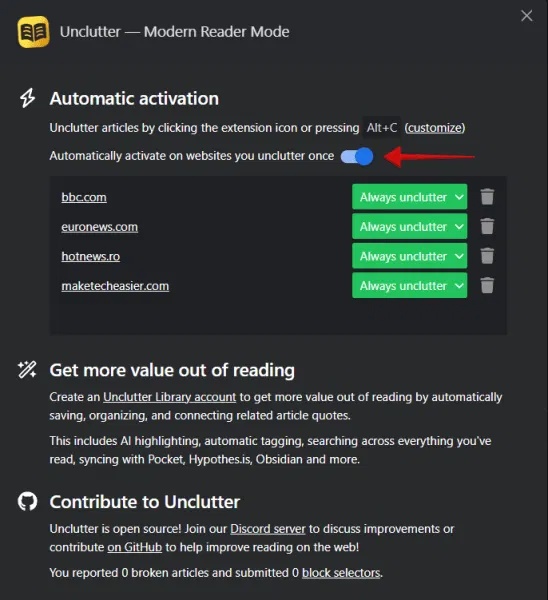
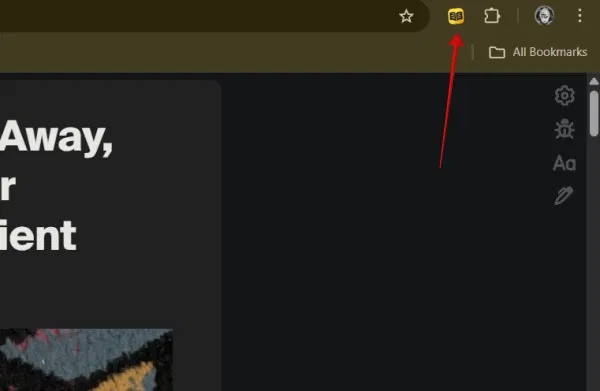
If you specifically need automatic behavior, an extension is required. One option shown in the original workflow is Unclutter from the Chrome Web Store. Activate it on an article, then open its settings.
Its automatic setting can reuse Reader Mode on pages or sites you have previously uncluttered. Check the extension's current wording because the interface can change.
Select the extension control again to exit its reading view.
When Reader Mode breaks a page
- Return to the original view before completing forms, purchases, sign-ins, comments, or other interactive tasks.
- Use the normal page when images, tables, code blocks, footnotes, or embedded media are missing.
- Create a per-site exception instead of disabling automatic Reader everywhere.
- Use browser zoom, text-size controls, or accessibility settings when the page is not eligible for Reader Mode.
Reader Mode is best for conventional articles. Treat the original page as the source of record whenever the simplified version omits context or controls.
Related Articles
 Automatically Open Favorite Articles with Reader Mode Reader on3 minutes read
 How to Activate and Use the New 'Reader Mode' Feature, Which4 minutes read
 How to Turn on Full Screen Mode When Reading PDF Files Using Foxit2 minutes read
 Google Quietly Removed Reader Mode on Chrome3 minutes read
 How to Use Newspaper Reading Mode in the Browser6 minutes read
 How to Turn on Google Chrome's Newspaper Reading Mode on Android5 minutes read
Reader Comments 0
Sign in with email or Google to join the discussion.