Table of Contents
iFinD Data Recovery can scan supported drives and memory cards for deleted photos. Recovery depends on whether usable image data remains; neither a high advertised success rate nor a listed filename guarantees an intact photo.
Stop using the affected device immediately. For a camera card, stop taking pictures and remove it from the camera. Check backups, Trash or the Recycle Bin before scanning.

Prepare the software and destination
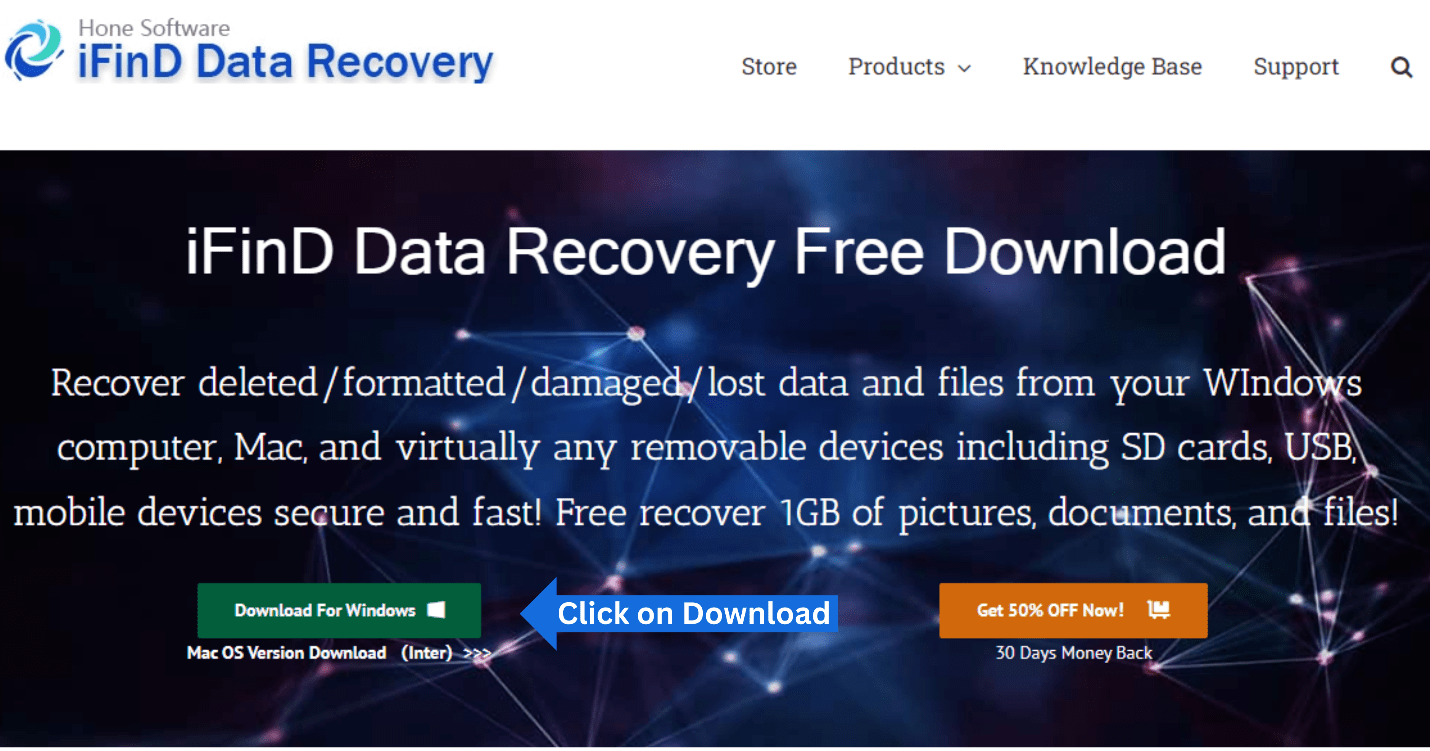
Get the installer and compatibility details from the official iFinD website. The vendor currently presents a Windows data-recovery product; do not assume an old claim of macOS support applies to the download you find. Check the exact operating-system and filesystem requirements.
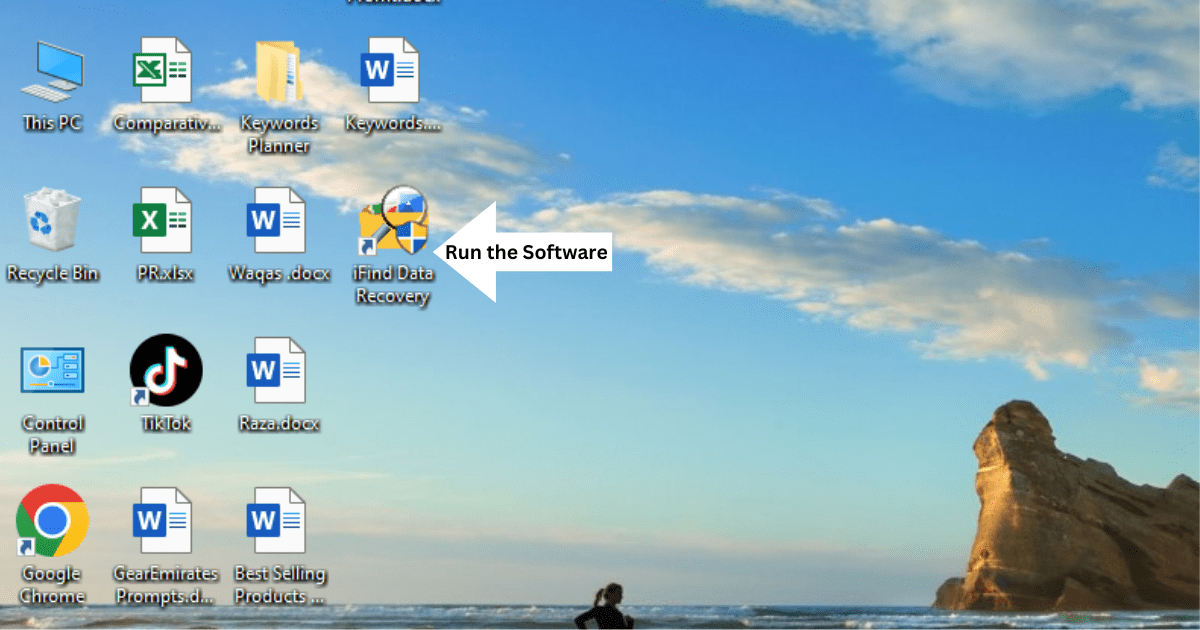
Install the program away from the affected drive. Prepare another healthy physical drive with enough free space for the recovered photos. Check the current trial and export limits rather than relying on an old 1 GB allowance.
Choose the correct recovery mode
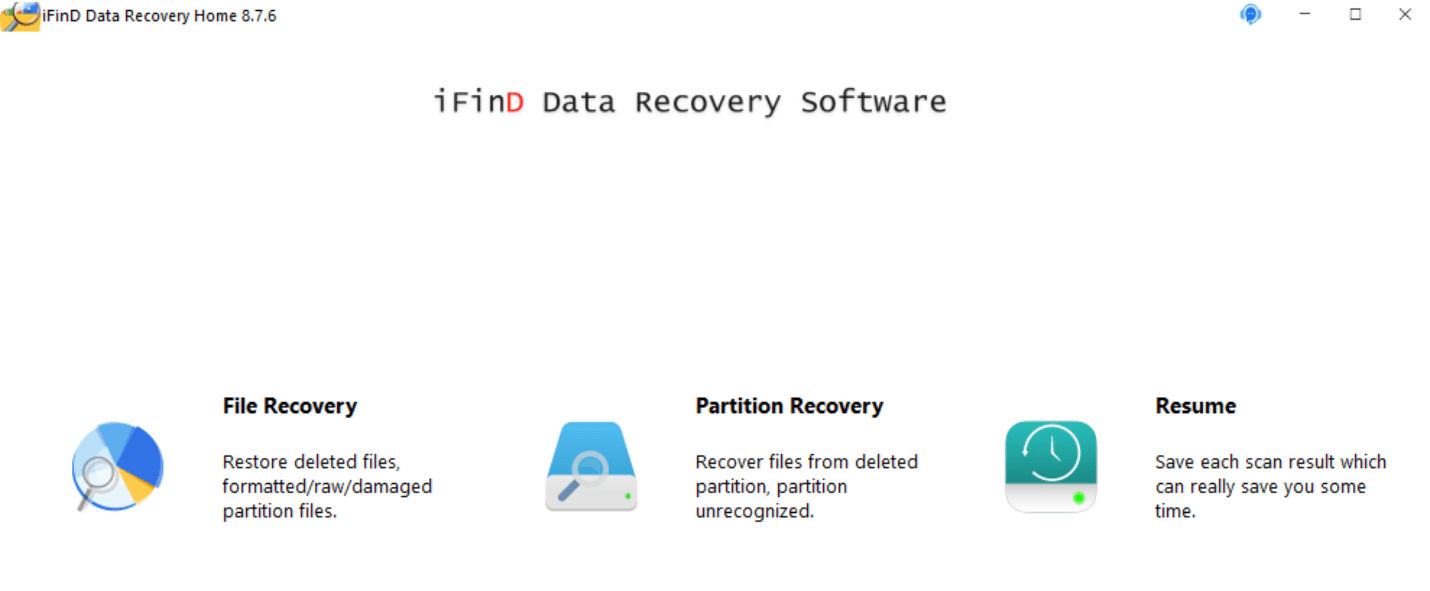
The older interface shown here offers:
- File Recovery: Start here for deleted files on a recognized volume.
- Partition Recovery: A separate workflow for missing or inaccessible partition structures. Review its actions before applying any disk changes.
- Resume: Reuse saved scan information where supported.
A device showing as RAW or unallocated should not be formatted or given a new partition just to make it visible. If your photos are valuable and the situation is unclear, preserve the source and seek advice before attempting repairs.
Select and scan the photo source
Choose the device or volume that originally held the photos. Identify a memory card or external disk by capacity and model, not just its drive letter.
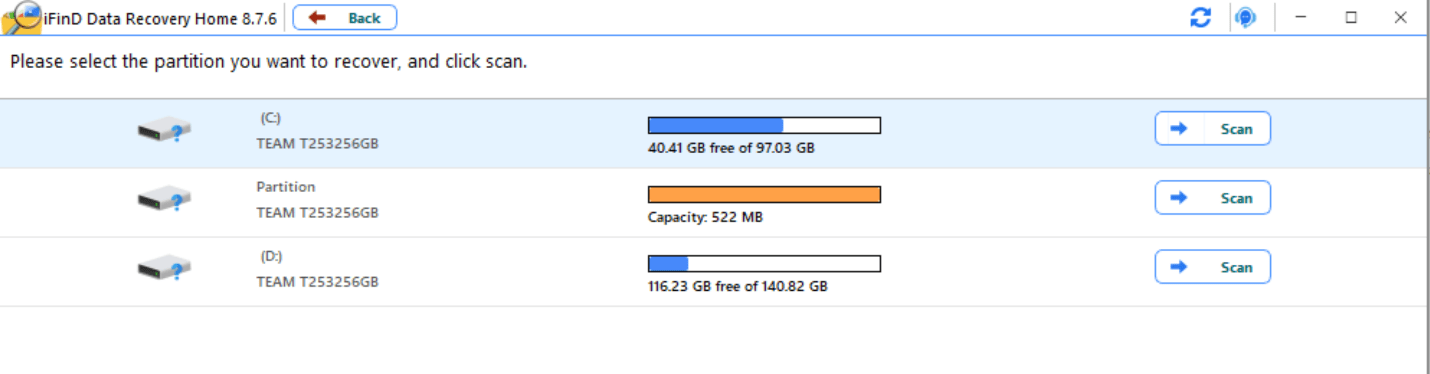
Start the scan and monitor the device's behavior. Scan time depends on capacity, connection, scan mode and device condition; there is no dependable “one minute per gigabyte” rule.
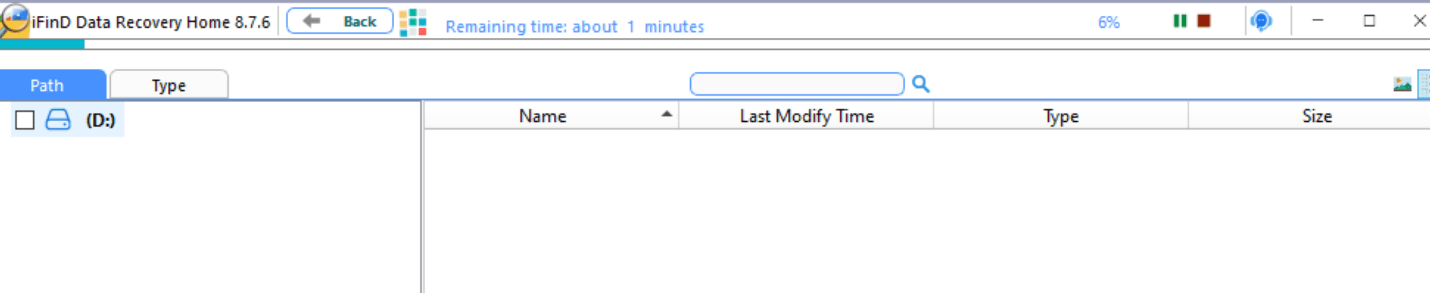
Preview images before exporting
Filter the results by image type, name or path where available. Preview several important photos. Check that the image is complete and opens at the expected size; a thumbnail may remain even when the full photograph is damaged.
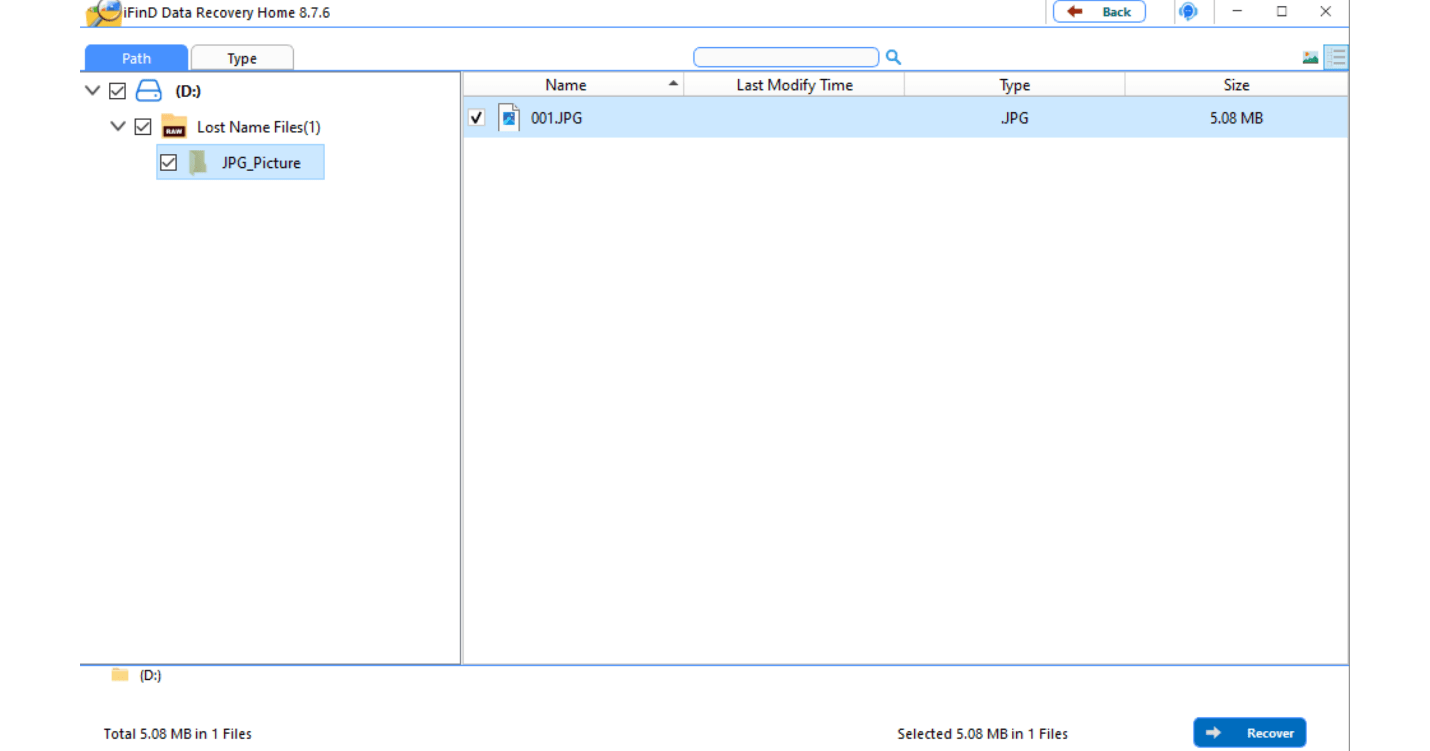
Support for camera RAW formats varies by software version and camera format. A format count does not establish support for your particular files. After a deep scan, photos can also lose their original filenames or folder structure.
Recover to separate storage
Select the photos you need, choose Recover and save them to another physical drive. Do not export to the original card or another folder on the source drive.
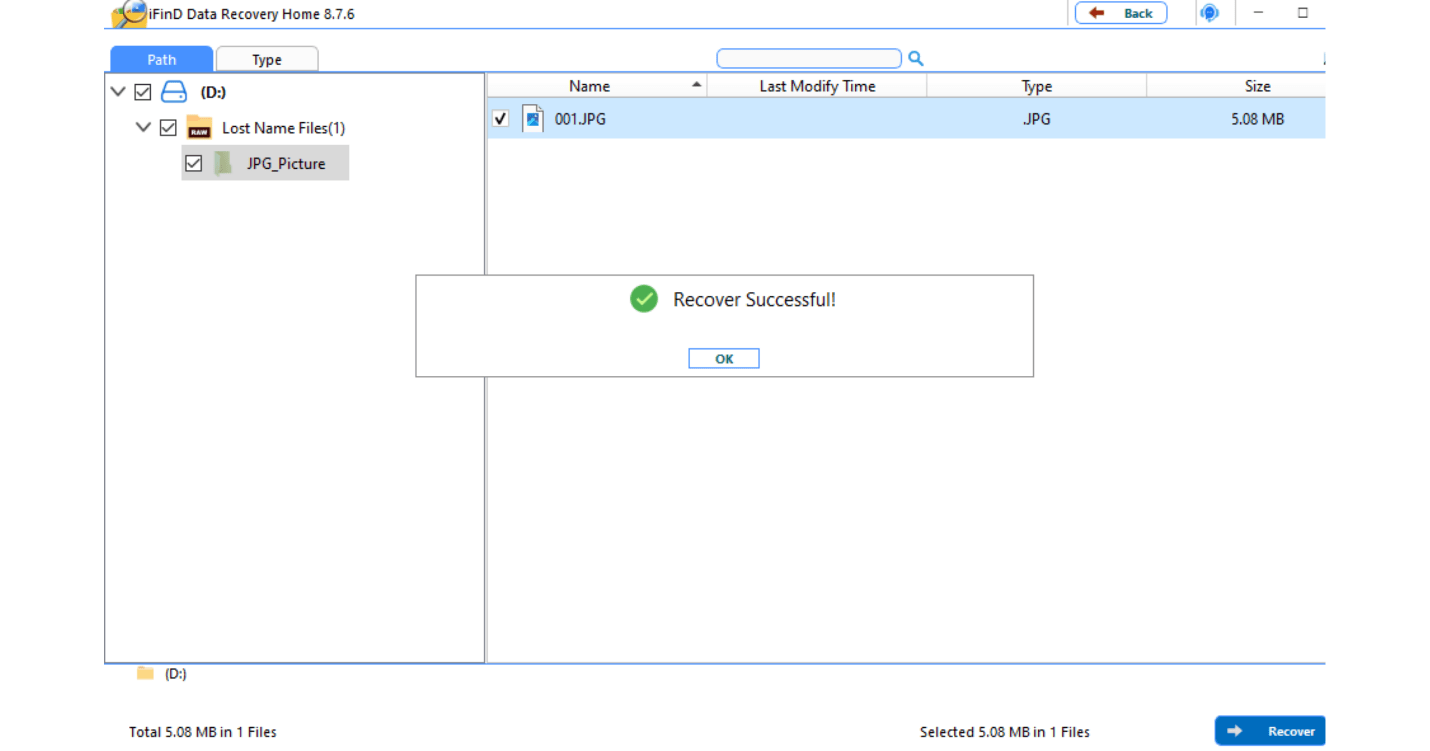
Open the saved copies in a suitable image viewer or RAW application. Keep the source unchanged until you have verified the important results. For other recovery options, see deleted-photo recovery.
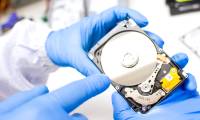
If the device disconnects repeatedly, makes unusual noises or has physical damage, stop repeated scans. This damaged-drive guide explains why specialist assessment may be more appropriate. Once your photos are safe, maintain another verified copy so that a recovery scan is not your only option.
Related Articles
 Recover deleted data - Recover data that was Ghost, Format
 Recover accidentally deleted data in USB
 Recover deleted data with Recuva
 How to recover deleted files with iSkysoft Data Recovery
 How to Recover Deleted Files with Recuva
 Invite Any Data Recovery - software that helps recover lost data on a Mac, costing 56 USD, is free
Reader Comments 0
Sign in with email or Google to join the discussion.