Table of Contents
If a deleted file is still in the Windows Recycle Bin, open the bin, select the file and choose Restore. You do not need recovery software for that step.
If the bin has been emptied, or the file was deleted with Shift + Delete, a recovery scan may find a remaining copy. This guide explains the older iMyFone D-Back for Windows workflow. Recovery depends on the condition of the data and is not guaranteed.
Protect the source before scanning
Stop saving files to the affected drive. Install recovery software elsewhere and prepare a separate physical drive for recovered files. Avoid reinstalling Windows, formatting or running disk-changing repairs while the missing files are still the priority.
Check backups and cloud-service deleted-items folders first. For related options, see recovering lost or overwritten files.
Get the Windows recovery product
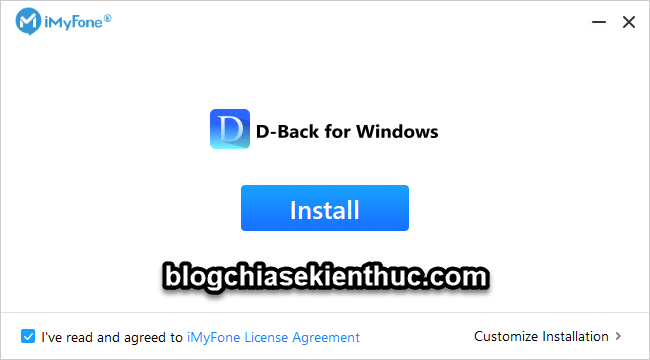
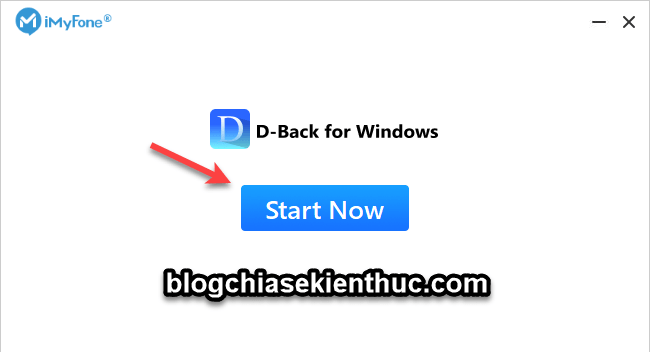
Use the official D-Back Windows recovery guide. D-Back also appears in phone-recovery and other product workflows, so confirm that the installer and license cover computer-drive recovery.

Review the current system requirements and trial limits. Do not assume that every feature is unrestricted or that a file appearing in a scan will be fully recoverable.
Select the correct scan location
Older versions provide shortcuts such as Recycle Bin, Desktop and Select a Folder. For files removed from the bin, start with its recovery option. If you know the original volume or folder, select that location when appropriate.
A missing-location or entire-disk option can help when the expected partition is not listed. It is not a reason to initialize or format the source. Identify external drives by their model and capacity, because drive letters can change.
The program may also show options for importing saved scan results or recovering from an unbootable computer. Those are separate workflows. Creating recovery media can erase its destination USB, so consult the matching instructions before using that feature.
Scan, filter and preview
- Start the scan of the selected location.
- Use file-type, path, name or date filters to locate likely results.
- Preview important files where supported.
- Select only the results you need before choosing Recover.
A filename, including one beginning with a dollar sign, is not a reliable test of whether a file can be recovered. Some results are metadata or partial files; others may have lost their original names. Judge recoverability by the preview and the saved file's actual contents.
Save to another drive and verify
Choose a separate healthy physical drive with enough free space as the recovery destination. Do not save to another folder on the source drive. Once exported, open the recovered copies and check that documents, photos and videos contain the expected data.
If the source drive behaves abnormally, makes unusual noises or repeatedly disconnects, stop repeated scans and consider specialist help. See recovering data from a damaged drive before attempting more changes.
Original video demonstration
The video shows the interface used by the original guide. Menu names may differ in later versions.
Related Articles
 How to Restore Deleted Files from the Recycle Bin in Windows
 4 ways to recover files from Recycle Bin in Windows 10
 How to restore the Recycle Bin icon lost in Windows 10
 5 Recycle Bin settings on Windows 11 you should know
 How to recover deleted files from the Windows Recycle Bin
 How to recover deleted files permanently in the trash
Reader Comments 0
Sign in with email or Google to join the discussion.