Table of Contents
If a Google Drive file is still in Trash, you can restore it yourself. If it has been deleted from Trash, use Google's account-specific recovery options promptly. Recovery after permanent deletion is limited and cannot be guaranteed.
Restore a file still in Trash
- Open Google Drive using the account that held the file.
- Choose Trash in the sidebar, or open Drive Trash.
- Find the file. Sorting by the date it was trashed can help.
- Right-click it and choose Restore, then check its original location.
Google states that files remain in Trash for 30 days before permanent deletion. Manually deleting them from Trash removes that ordinary restore option sooner. The official recovery page provides the current procedure.
Confirm that the file was actually deleted
Search Drive by name and file type, and check whether you are signed into the correct account. A file can also disappear from your view because it was moved or because its owner changed sharing access.
If someone else owns the file, ask that owner to check its location, Trash and permissions. Removing a shared item from your view is different from deleting a file you own.
Personal Google accounts: check the recovery request
- Open Google's Drive support page.
- Sign in with the affected account and reload the page if requested.
- Use the file-recovery option offered for that account, if available.
- Read the eligibility information, verify the account details and submit the requested information accurately.
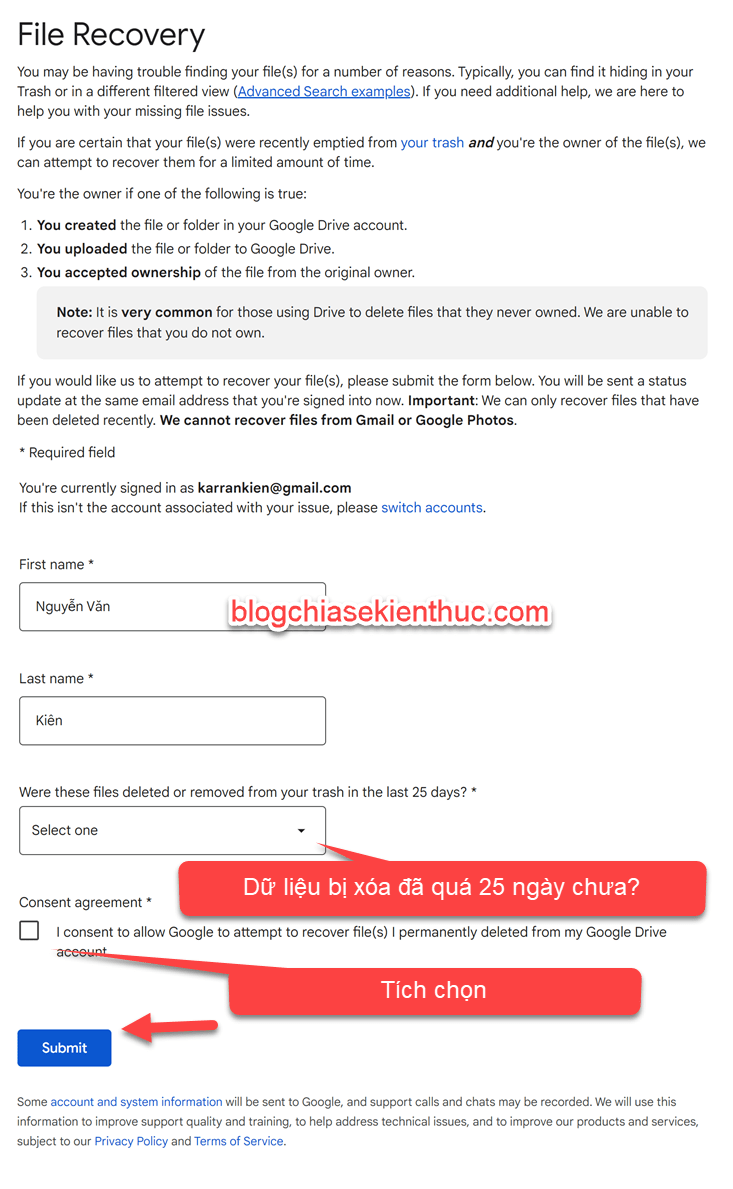
Follow the instructions and status messages from Google. Do not rely on the old claim that changing the interface language always exposes the form, or that every request finishes within a fixed number of hours.
Keep any confirmation email and check Drive for restored files. A request is not a promise of restoration. Avoid further permanent deletions while you are assessing what is missing.
Work or school accounts: contact your administrator
If the account belongs to Google Workspace, contact your organization's administrator promptly. Administrator restoration has its own eligibility, retention and account rules. Provide the affected account, approximate deletion date and the file names or folders involved.
Shared-drive files can involve a different ownership and administrative workflow from personal My Drive files. The administrator should use the documentation appropriate to that location rather than a personal-account form.
What desktop recovery software can and cannot do
A disk scanner on your computer does not scan Google's remote storage. It may only help with a local copy that actually existed on your device. Check local backups, downloads and collaborators' authorized copies separately.
Google Drive recovery is also separate from Gmail, Google Photos and WhatsApp backup recovery. Use the support route for the service that held the missing data.
For other cloud services, see cloud deleted-file recovery. Before your next cleanup, review Google Drive storage cleanup options and keep an independent copy of files you cannot afford to lose.






Reader Comments 0
Sign in with email or Google to join the discussion.