Table of Contents
iBoysoft Data Recovery for Mac scans supported storage for lost files and lets you preview results before exporting them. It can be useful when a backup is unavailable, but recovery depends on the device, filesystem and what happened after the files were lost.
First check Trash, Time Machine and any cloud-service deleted-items folders. Stop writing to the affected drive, and prepare another physical drive for recovered files. If a Word document is the problem, this Mac Word recovery guide also covers document-specific options.
Check compatibility before installation
Use the vendor's Mac recovery instructions to confirm support for your macOS version, Mac hardware and source filesystem. Do not treat an old list of Intel, T2 or Apple Silicon models as a guarantee for every configuration.
If the lost files are on an external drive, install the app on another device or volume. If they are on the internal startup storage, minimize further use before choosing a recovery method. Installing onto the source can create additional writes.
Grant the permissions your setup requires
Full Disk Access
On macOS 13 or later, open Apple menu → System Settings → Privacy & Security → Full Disk Access. Add or enable the trusted recovery app and authenticate when requested. On older macOS versions, use System Preferences → Security & Privacy → Privacy instead.
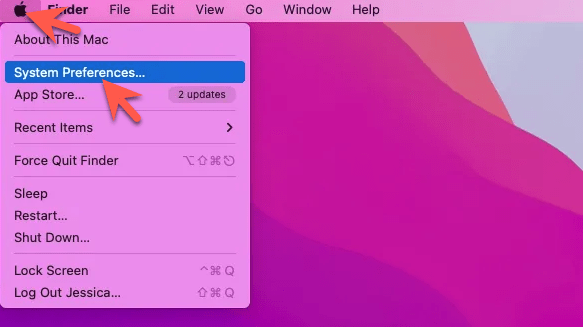
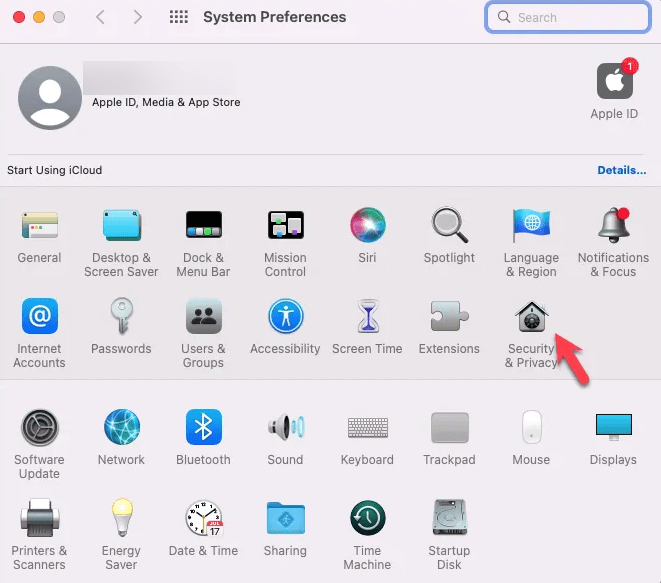
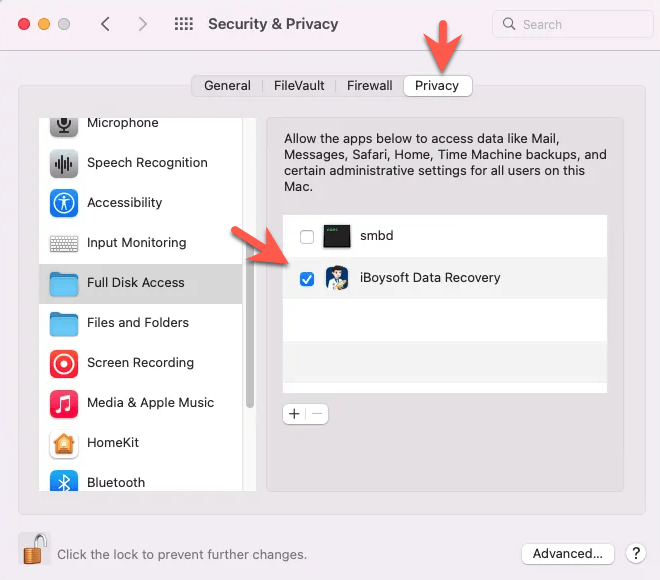
Full Disk Access allows broad access to protected data. Grant it only to a copy you obtained from the vendor and trust. Apple's Privacy & Security guide explains the permission. Reopen the app after changing it if requested.
System-extension prompts
Some configurations require an additional extension to scan internal storage. Follow the instructions for your exact Mac and macOS version, and verify the developer named in the prompt.
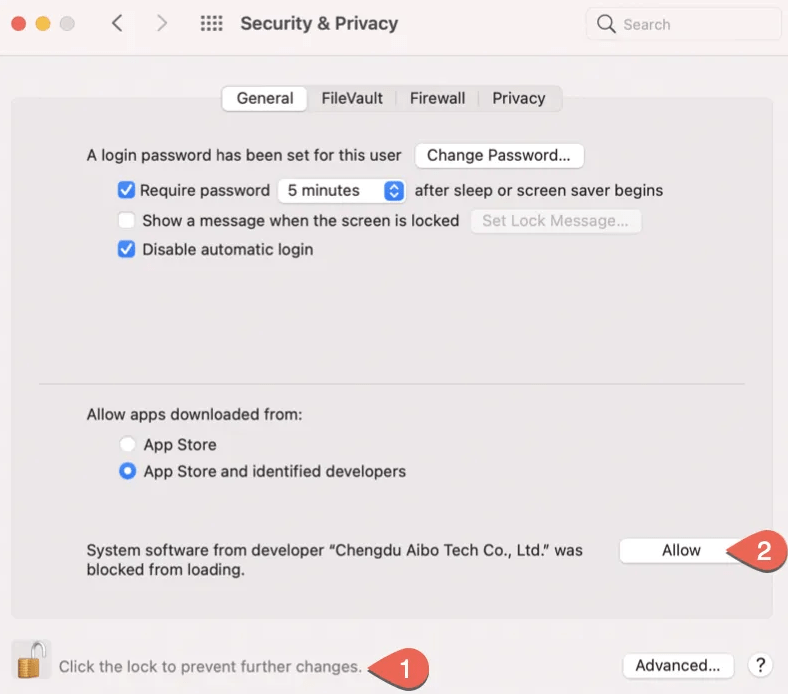
On Apple Silicon, the process can involve startup-security settings, not simply an ordinary permission switch. Review the vendor's Apple Silicon extension instructions before deciding whether to proceed. Do not change security settings based only on an old screenshot.
Select the source and scan
- Open the data-recovery view.
- Identify the device or volume containing the missing files. Check its name, capacity and connection rather than choosing “Apple SSD” automatically.
- If the expected volume is missing, use the documented device-level scan workflow rather than creating a replacement partition.
- Choose Search for Lost Data or the equivalent command in your version.
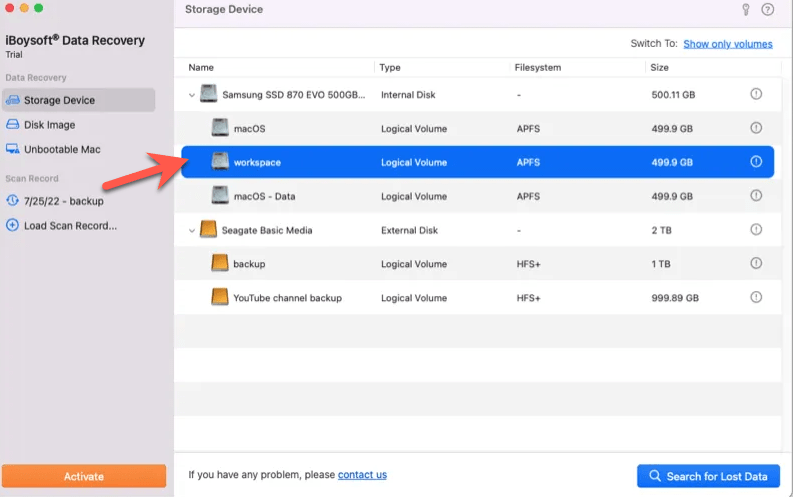
For encrypted storage, valid credentials may be required. Recovery software does not bypass FileVault or APFS encryption merely because it supports scanning those filesystems. Stop if the source cannot be unlocked or identified confidently.
Preview, filter and recover
Allow the scan to progress while the device remains stable. Use file-type, path, name and date filters to find likely results. A longer scan can find additional candidates, but finishing a scan does not guarantee complete files.
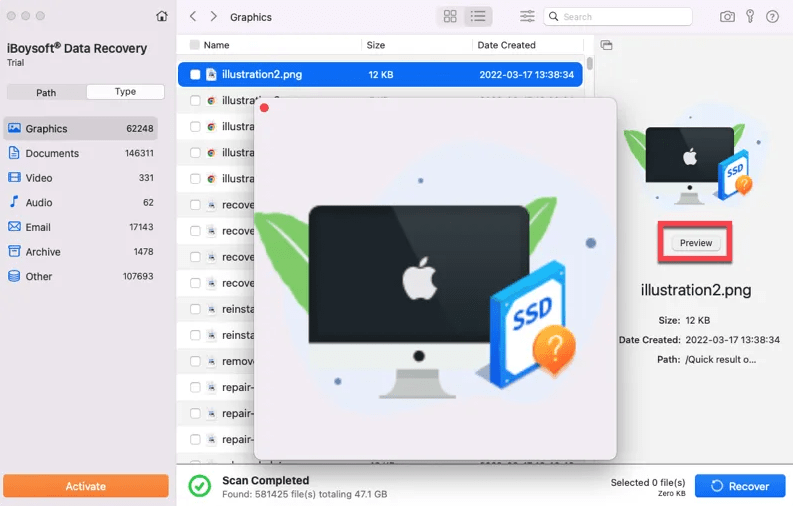
Preview important results where possible, then select the files you need and choose Recover. Save them to another healthy physical drive with sufficient free space.
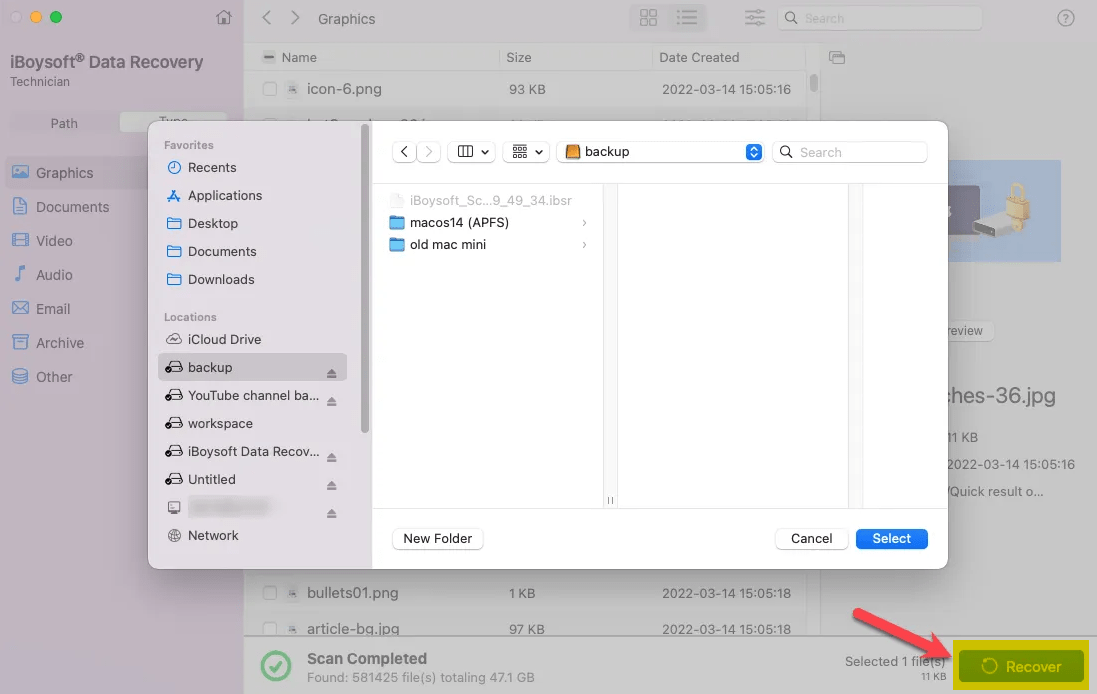
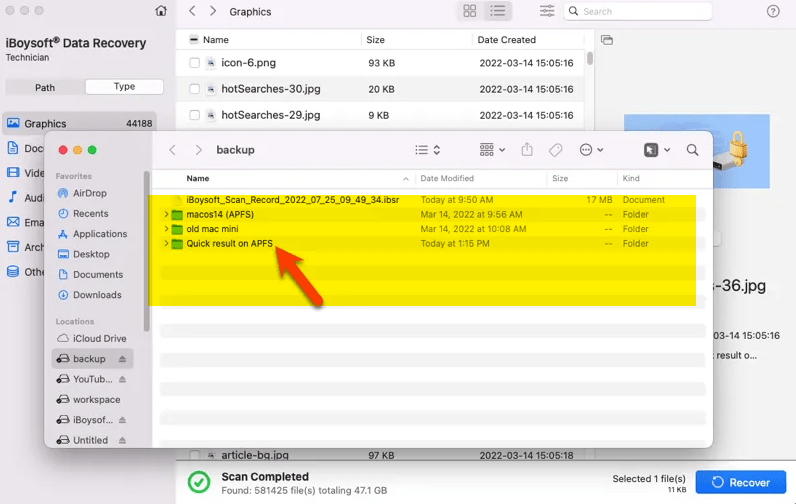
Open the exported files to verify their contents. A thumbnail or filename alone does not establish that a document, photo or video is intact. Keep the source unchanged until you have checked essential data.
If the Mac will not start
The vendor documents a separate recovery-environment workflow for supported configurations. It still involves third-party recovery software and has hardware, network and access requirements. It should not be described as guaranteed recovery without software or treated as identical on every Mac.
Consult the current vendor instructions before using that route. If the source device is physically damaged or repeatedly disconnects, avoid repeated scans and consider specialist help. For future protection, compare Time Machine and iCloud Drive and maintain a separate verified backup.
Original video demonstration
Related Articles
 Invite to download iBoysoft Data Recovery Professional, the lost data recovery software 69.95 USD, free for life
 How to Recover Data from BitLocker Encrypted Drives Using iBoysoft BitLocker Recovery
 Invite Any Data Recovery - software that helps recover lost data on a Mac, costing 56 USD, is free
 Recover lost data on SSD
 Recover deleted data - Recover data that was Ghost, Format
 How to safely and effectively recovery data on Android devices
Reader Comments 0
Sign in with email or Google to join the discussion.