Table of Contents
The laptop battery error message "plugged in, not charging" or, in other words, the laptop battery isn't charging. There are many reasons for this, including problems with the charging port, the connector inside the laptop, or sometimes just dust from neglecting to clean the laptop, causing the connector pins and port to malfunction.

But whatever the reason, try the following steps to see if you can fix the laptop battery error "plugged in, not charging".
Guide to fixing the laptop battery error "plugged in, not charging"
tipsmake.com is not sure if this method will fix the "plugged in, not charging" laptop battery error because we don't know your specific case, but below is considered the standard and best way to fix the "plugged in, not charging" laptop battery error.
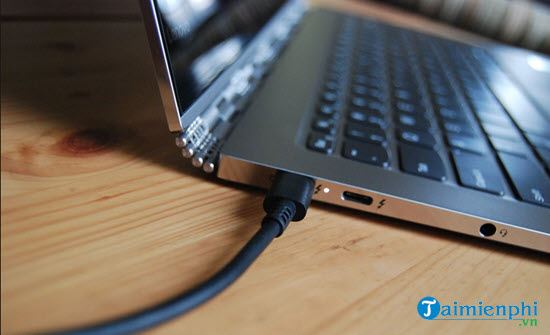
Step 1: The first thing you need to do is turn off your laptop and then immediately unplug the charger from the laptop . Remember to only unplug it from the laptop; leave it plugged into the power outlet.
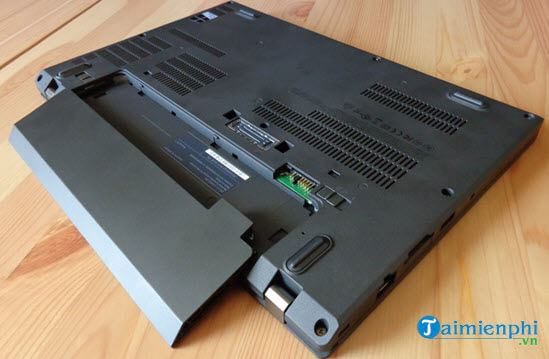
Step 2: Immediately remove the battery from the laptop. For laptops with integrated batteries, you will have to disassemble the laptop and remove the battery. Rest assured that most modern laptops have easily removable batteries, and it won't significantly affect other components.
Step 3: Proceed to clean all related components such as the connectors, battery contact points, and cables when you remove the battery from the laptop.
- At the same time, plug the laptop back into the charger even though it's not plugged in . The laptop will now run directly on power from the wall outlet.
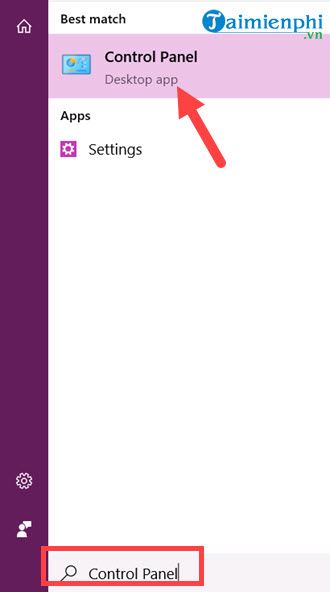
Step 4: Click the Start Menu , then type Control Panel and access this tool.
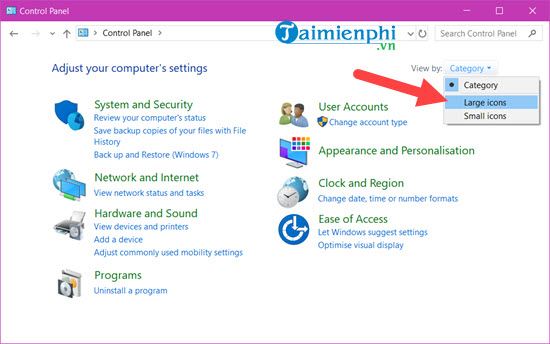
Step 5: In the Control Panel, click on Category > select Large icon .
Step 6: Find the Device Manager section and click on it to access it.
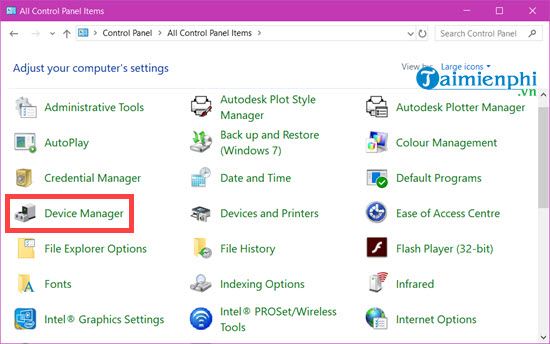
Step 7: In Device Manager , find the Batteries section > right-click on all the entries in this section > select Uninstall device to remove them all.
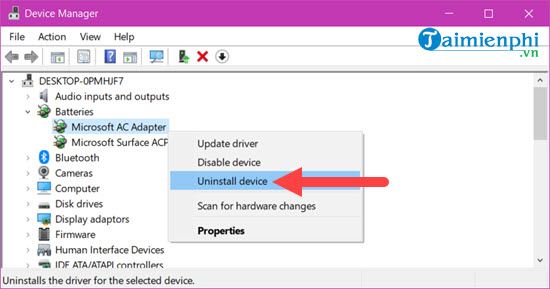
-> After completing the above steps, turn off the computer , unplug the power cord, and reinsert the battery. Then plug the power cord back in and turn the computer back on.
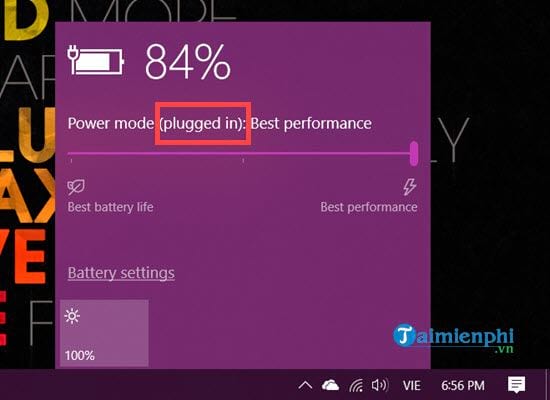
Step 8: Check that you see a "Charging" or "Plugged in" message; if so, the laptop battery error "plugged in, not charging" has been completely eliminated.
The above is one way to help you fix the "plugged in, not charging" error on your laptop. However, if the "plugged in, not charging" error persists after trying the above methods, it's best to seek help from laptop repair professionals or find a warranty service center if your laptop is still under warranty to resolve the issue. It's possible your battery is worn out or damaged and can no longer charge. Additionally, you should regularly check your laptop battery for signs of wear and tear so you can take timely corrective action.
Battery degradation is an inevitable problem for any battery-powered device, and laptops are no exception. However, if you charge your laptop battery correctly, its lifespan can be extended by at least 30% compared to normal use. So why not update your knowledge on how to properly charge your laptop battery ? It will not only save you money but also minimize the risk of damage to other components.
Related Articles
 How to Fix 'Plugged in, Not Charging' Laptop Battery Error5 minutes read
 Steps to Fix Charging Laptop Not to Power9 minutes read
 Fix Laptop Battery Plugged in Not Charging Error7 minutes read
 Tips to Overcome Laptop Battery Charging Error7 minutes read
 How to Check Battery Capacity and Wear - Check Laptop Battery10 minutes read
 How to Set Up the Correct Battery Charging Mode for Windows 10 Laptops7 minutes read
Reader Comments 0
Sign in with email or Google to join the discussion.