You're planning to buy a laptop or PC and are interested in learning about its ports, especially the USB 3.0 ports, which are of great interest to many users. However, you may have limited information about this port format.
In recent years, the name USB 3.0 has gradually become common on technology devices such as laptops, PCs, portable hard drives, etc., and has received much attention from technology users. Why has this USB connection become so popular, and how is it different from the previous USB 2.0 generation? With the comparison of USB 2.0 and USB 3.0 that tipsmake previously shared, you can get a general idea of that.

In the following article, tipsmake will help you answer more detailed questions about USB 3.0, such as its concept and how to identify a USB 3.0 port on a laptop or PC.
What is USB 3.0?
USB (Universal Serial Bus) is a widely used connection standard that allows computers and laptops to connect directly to other peripheral devices such as keyboards, mice, portable hard drives, the internet, and other devices like tablets and smartphones. The numbers following the name USB , such as 1.1, 2.0 , or 3.0 , indicate different versions of this connection standard. USB 3.0, officially released in 2009, boasts data transfer speeds up to 10 times faster than USB 2.0, marking a significant advancement in technology. One of the advantages of USB 3.0 is its backward compatibility with USB 2.0, allowing you to easily connect devices with USB 2.0 interfaces. However, the speed will be limited and slower.
Despite having the same shape, name, and purpose—connecting to peripheral devices—not all USB ports are the same. Some are designed to perform functions that others do not. For example, you might notice your phone charges faster with one USB port but slower with another. So, when buying new electronic devices like laptops, motherboards, or portable hard drives, how do you know if they support USB 3.0? The answer is below.
How to identify USB 3.0 ports on a laptop or PC.
To identify a USB 3.0 port on a laptop or PC, there are two main methods:
Method 1: Identifying USB 3.0 ports by color
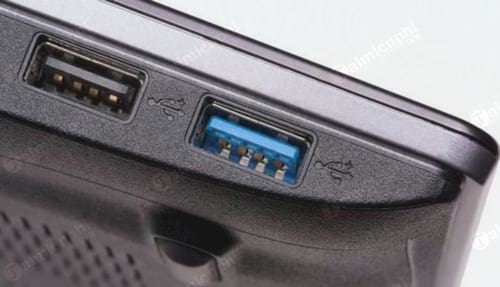
Perhaps everyone knows this method and finds it easy to distinguish between USB 3.0 and USB 2.0. USB 3.0 connectors are usually painted blue by manufacturers (both the male and female ends) to easily differentiate them from the slower USB 2.0 ports with black pins.
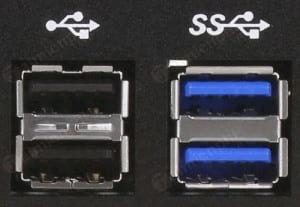
Method 2: If the USB port isn't painted in a specific color, you'll have to look at the symbol next to it to distinguish between 3.0 and 2.0 standards. Typically, USB 3.0 ports will have "SS" before the USB symbol, while USB 2.0 ports won't (SS stands for Super Speed).
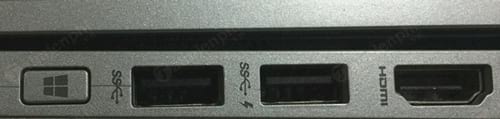
Additionally, on some newer devices, you may see a USB port icon with a lightning bolt symbol, meaning this USB port is designed for charging external devices such as phones, iPods, etc.
The outstanding features of USB 3.0
- In theory, the maximum speed of USB 3.0 is 4.8 - 5 Gbps, approximately 600 - 625 MB/s, while USB 2.0 has a maximum speed of 480 Mbps, or 60 MB/s. You can easily see that USB 3.0 is 10 times faster than USB 2.0.
- The number of wires in USB 3.0 has doubled, from 4 to 8. These additional wires require more space in both the cable and the connector, so new connector designs have been developed.
- USB 2.0 provides 500 mA while USB 3.0 provides up to 900 mA. USB 3.0 devices provide more power when needed and are more energy-efficient when the device is connected but not active.
- Instead of processing data in one direction, USB 3.0 uses two unidirectional data paths, one for receiving data and one for transmitting data, whereas USB 2.0 can only process data in one direction.
- A new feature integrated into USB 3.0 (using the NRDY and ERDY packages) is the notification of a device not syncing with the host. When data is transferred through a USB 3.0 device, cable, and connection, the host will send a notification request to choose how to connect the devices. These devices may be accepted for connection or ejected.
Learn about the new USB 3.1 standard.
USB 3.1 is the next version of the 3.0 protocol; however, USB 3.1 is further divided into two types.
- USB 3.1 Gen 1: This protocol is quite similar to USB 3.0, and its maximum speed remains at 4.8 - 5 Gbps, but it's only slightly better in terms of performance. Basically, you don't need to worry too much about this protocol.
- USB 3.1 Gen 2: This is the new protocol you should pay attention to. This protocol offers a maximum data transfer speed of up to 10 Gbps, double that of USB 3.0/3.1 Gen 1. The USB 3.1 Gen 2 icon is also slightly different, featuring a plus sign (+) after it, indicating SuperSpeed+.
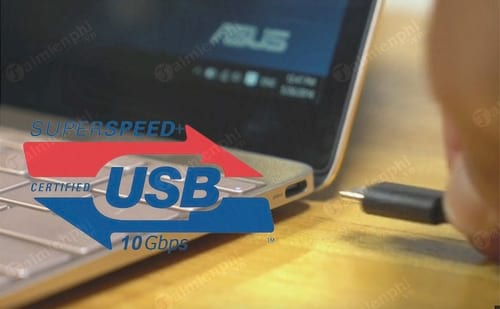
However, it will take quite some time for this new USB 3.1 standard to become widespread due to its technical requirements and high cost; therefore, the position of USB 3.0 will remain firmly in place for at least a long time to come.
So, through the article shared by tipsmake above, you now know how to identify USB 3.0 ports on laptops and PCs, right? Hopefully, this article will provide you with useful knowledge and contribute to your decisions when choosing and purchasing technology devices.
Additionally, in our previous article, we shared how to install USB 3.0 drivers for Windows 7 to install the operating system on some models that no longer support installing Windows via USB. If you are interested, you can refer to the guide on installing USB 3.0 drivers for Windows 7 here.
USB drives are useful tools for users; besides storing data, using a USB drive to install Windows is one of the methods commonly used by computer enthusiasts. If you want to install Windows 10 without spending money on a disc, you can create a Windows 10 installation USB drive using the simplest tools and equipment. With just a USB drive with 4GB or more of memory and applications that support creating bootable USB drives, you can easily create a Windows 10 installation USB drive in the shortest amount of time.
Related Articles
 Why Do Future Laptops Need USB-C Ports on Both Sides?8 minutes read
 Note When Choosing to Buy a Laptop8 minutes read
 Whether You Are Ready or Not, Windows 10 Laptops Will Use All USB-C Ports5 minutes read
 How to Lock USB Ports on Windows 7/8/104 minutes read
 16 Connection Ports Are Commonly Found on Computers and Their Functions20 minutes read
 How to Disable USB Ports: Step-by-Step Guide6 minutes read
Reader Comments 0
Sign in with email or Google to join the discussion.