Table of Contents
If you're facing problems with your SD card being damaged or unreadable, please continue reading this article from TipsMake to learn some ways to fix a damaged or unreadable SD card.
There are many reasons why an SD memory card might be damaged or unreadable, including a faulty card reader, USB port, or computer. Refer to the article below from TipsMake to learn some ways to fix a damaged or unreadable SD memory card.
How to fix a damaged or unreadable SD memory card
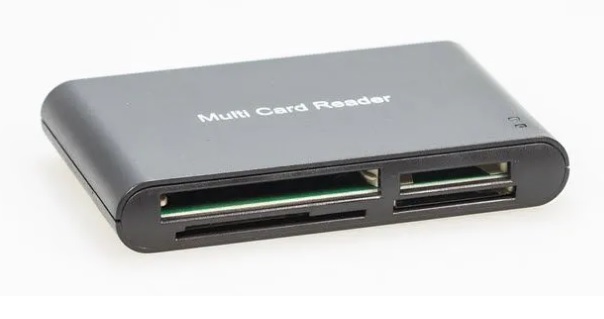
Method 1: Check the card reader.
As mentioned above, the cause of a damaged or unreadable SD card could be a faulty or malfunctioning card reader.
This is especially true if the SD card error only occurs in a specific device. Try plugging the card reader into a different computer, or alternatively, try plugging in a new card reader and see if the SD card error persists. If the error remains, refer to some troubleshooting steps in the following section.
Method 2: Use a different USB port
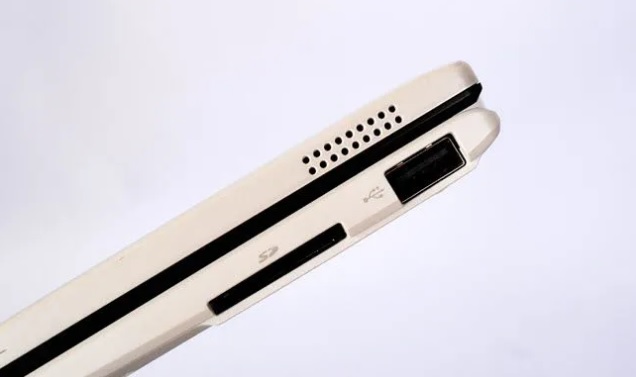
Some computers and laptops are equipped with multiple USB ports. Try plugging the SD card into each port one by one and check if the "card not read" error persists.
If the card reader (or USB cable) is working on a different USB port, the culprit causing the SD card error is none other than the USB port itself.
Method 3: Restart your computer
If the above methods don't work, try the traditional solution of restarting your computer to fix the "SD card not readable" error. In many cases, restarting your computer can also resolve many errors and problems that users encounter.
Disconnect the memory card reader, then restart your computer, reconnect the card reader, and check if the error persists.
Method 4: Update drivers
Most USB card readers will automatically install the driver the first time a user connects these devices to a computer.
However, manufacturers often update their own drivers to fix bugs or improve their products. These driver updates are available for download, but users rarely pay attention to them.
Visit your card reader manufacturer's website and check for any device driver updates. If available, download and install the driver, and then check if the SD card reading error persists.
Method 5: Check if the memory card or USB drive appears in My Computer (This PC).
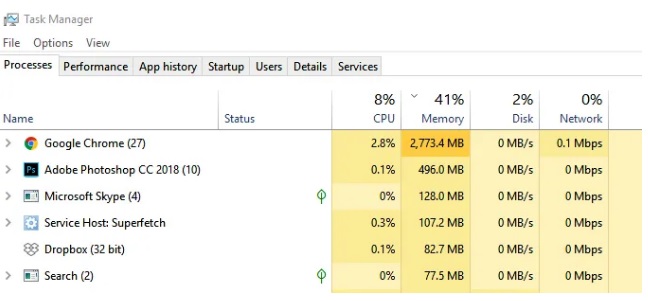
If your computer doesn't recognize the SD card or USB drive, and the device name isn't displayed in My Computer (This PC), it's likely that your computer is running low on memory. Try closing all programs and letting the computer run idle for a few minutes.
Alternatively, you can use Task Manager (on Windows) or Activity Monitor (on Mac) to force stop applications that are consuming a lot of device memory.
If the drive letter or name still doesn't appear when you plug in a USB drive or memory card reader to your computer, you'll have to manually assign a drive letter or name using Disk Management.
Method 6: Turn off Write Protection
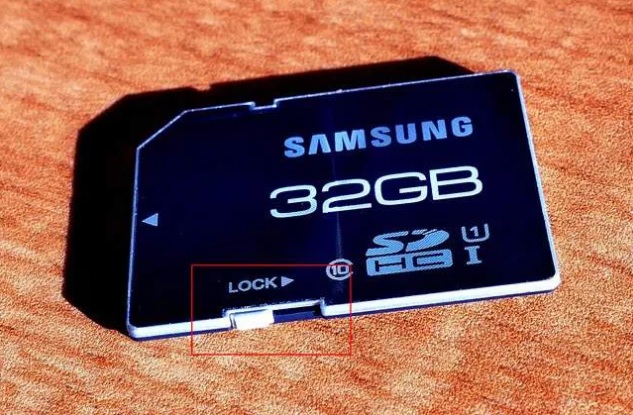
If your computer recognizes the SD card but doesn't allow you to modify files, the reason might be that read-write protection is enabled. There's a physical on/off switch on the SD card; you might have accidentally turned it on during troubleshooting.
In this case, the solution is to disable the read-write protection feature and check if the SD card reading error still persists.
Method 7: Format the SD card to fix errors.
Formatting settings can affect which devices can read the SD card. For example, if you format the SD card so that the device works on a computer rather than a smartphone.
To make your memory card readable on your favorite device, the solution is to reformat it. Note that formatting an SD or micro SD card will erase all contents on the card and restore it to its original state. Therefore, make sure you have backed up your important files and data on the memory card to avoid data loss.
Encrypt your SD card or USB drive on Windows 10
In summary, the article above has guided you through several ways to fix a damaged or unreadable SD card. Additionally, you can refer to other articles on TipsMake to learn how to show hidden files on USB drives and memory cards caused by viruses, or how to resolve issues where files are not visible when opening a USB drive.
Related Articles
 How to Fix USB Error or SD Memory Card Error22 minutes read
 How to Fix Corrupt Memory Card: Complete Guide11 minutes read
 How Professional Companies Recover Data on Memory Cards3 minutes read
 What Is the Function of Memory Card? Features, Uses, and Key Details7 minutes read
 How to Repair a Corrupted Memory Card: Step-by-Step Guide10 minutes read
 Which Good Memory Card Companies Should Buy the Most Today?8 minutes read
Reader Comments 0
Sign in with email or Google to join the discussion.