Table of Contents
When your USB ports suddenly stop working, the problem can always be attributed to either hardware or software. Thuthuat.taimienphi.vn will provide you with some simple ways to fix unusable USB 3.0 ports that you can do yourself.
Whether you're connecting a USB drive, headphones, a printer, trying to sync your MP3 player, or even your smartphone, you'd expect your devices to work instantly when you plug the cable into the USB port. But what if nothing happens afterward? Perhaps your USB 3.0 port is malfunctioning. So what do you do when this happens?
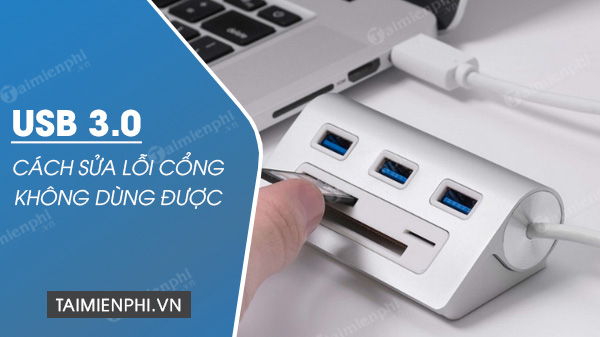
How to fix a non-working USB 3.0 port.
Table of Contents:
1. Ensure the USB cable is connected .
2. Install the new driver .
3. Update and check for USB 3.0 in the BIOS .
How to fix a non-working USB 3.0 port
Make sure the USB cable is connected
The first thing you need to check is whether the USB cable is connected to a USB 3.0 port internally, especially if you're using a front-facing USB port on your PC. If you're having trouble with a rear-facing USB 3.0 port on your PC or laptop, you can skip this suggestion.
First, turn off your computer and unplug the power cord. Then, you'll need to open the case to inspect the motherboard.
The image above shows what a USB cable looks like and where it needs to be connected. You'll find this on the underside of your motherboard. Make sure they are connected, as the USB cable could be loose. If you don't find anything like the image above, your computer case probably doesn't have a USB 3.0 port on the front. See how to fix a computer that doesn't recognize USB here.
Install the new driver
You may need to update your USB 3.0 driver. To do this, you need to find out which driver your computer needs by accessing Device Manager using the following steps:
- Press the Windows key , type "Device Manager" in the taskbar search box, and click on Device Manager from the search results. - In the Device Manager
window , find Universal Serial Bus controllers and click the small arrow next to it. - Next, find the name of your USB 3.0 or 3.1 driver.
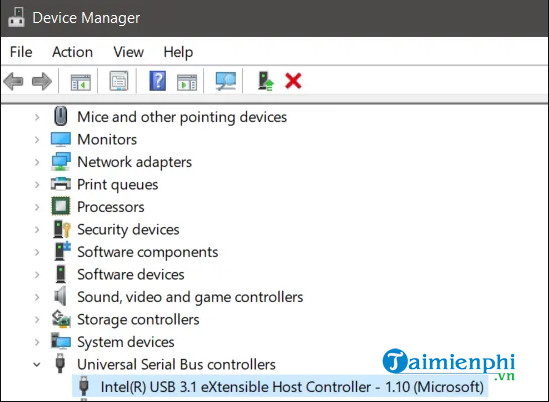
Now, search for its name on Google and go to the manufacturer's homepage to download the latest version. Make sure you are downloading the correct driver for your computer's operating system. Before downloading, click the padlock icon next to the website address to verify it is from the correct source.
If no download link is available for your operating system, it's likely because the manufacturer didn't provide a download link from their website and requires users to download it via their operating system. In this case, you can check for updates in the following way:
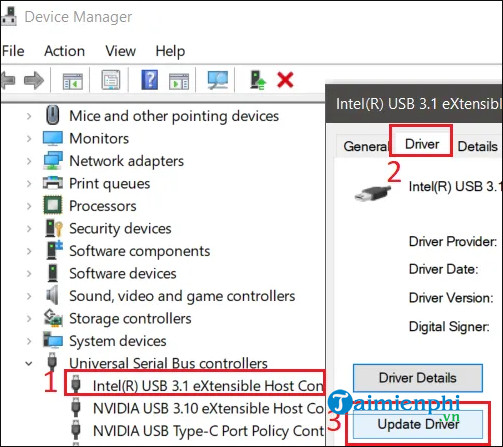
- Press the Windows key , type "Device Manager" into the search bar on the taskbar, and click on "Device Manager" from the search results. - In the Device Manager
window , find "Universal Serial Bus controllers" and click the small arrow next to it. - Then, right-click on the USB 3.1 driver and select "Properties ". - Click on the "Driver" tab > "Update Driver ". - Click on " Search automatically for updated driver software" .
Windows 10 will begin a search and may return a new driver as a result, or it may indicate that you have already installed the latest driver. In that case, proceed to the next step below.
Update the BIOS and check for USB 3.0 in the BIOS
In many cases, the motherboard is responsible for software issues related to USB 3.0 ports or any other ports on it. Therefore, updating to the latest version or upgrading to the latest BIOS can resolve the problem. First, you need to find the motherboard name to locate the latest BIOS driver online.
To identify the motherboard name, follow these steps:
- Open the Start menu , search for CMD , and click on Command Prompt in the search results.
- In Command Prompt , type ` wmic baseboard get product, manufacturer`.
- Note down the result.

You need to find the drivers for your motherboard. This is fairly easy to do because each manufacturer has its own website for their products and will have a support page for each motherboard.
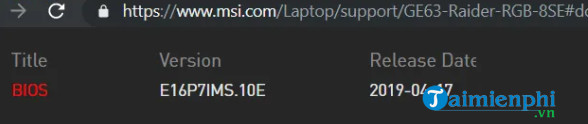
Before downloading, you need to make sure you're accessing the correct manufacturer's website by clicking the lock icon next to the website address. Then download the BIOS.
To ensure you have the latest BIOS version, follow these steps:
- Open the Start menu , search for CMD and System Information .
- Click on System Information , open the System Summary tab , and search for BIOS Version/Date .
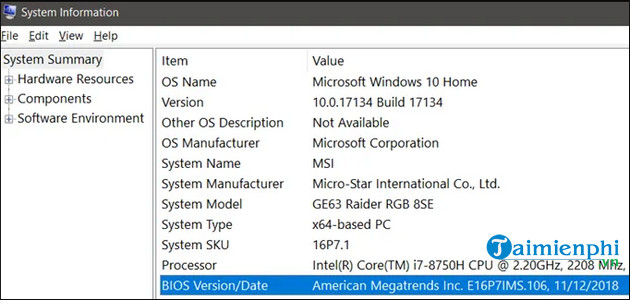
In the Value field , note the listed date and compare it to the date on the BIOS manufacturer's website. If the latest BIOS on the website was released on the most recent date, then you can install it.
Now it's time to install the new BIOS. For this step, you'll need a USB drive. Locate the BIOS update you just downloaded on your PC. Extract it if necessary and drag the files from it to your USB drive.
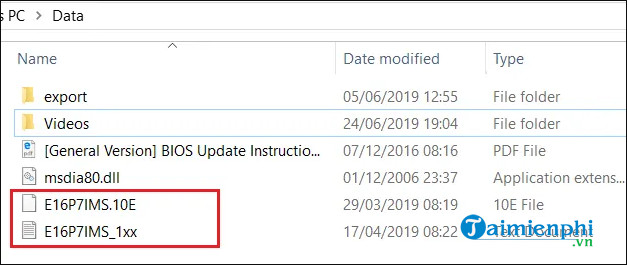
Important note: You must ensure that the files are at root level. They cannot be located in just any directory.
When you download a BIOS update, you will be provided with a PDF or .txt file explaining the steps to install the new version.
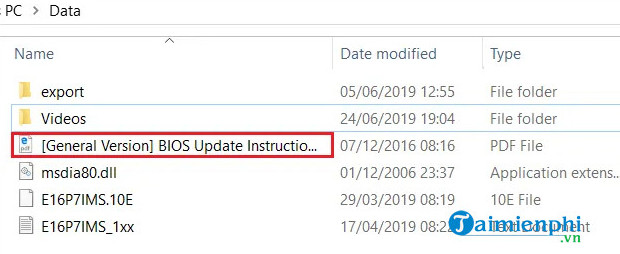
The reason you need to read the manual is because each BIOS will have different installation steps, but the process is generally similar. You must turn off your computer and restart it. During startup, you enter the BIOS by pressing a specific key while your PC is on, then look for the BIOS update option. You can find the correct key in the support documentation or on the screen when the computer starts up. If you need further instructions, read the documentation provided by your manufacturer.
Related Articles
 What Is Port 0 Used For?4 minutes read
 Fix USB Not Working in Linux9 minutes read
 How to Clean the Charging Port: Practical Guide8 minutes read
 What Is AAA PC Port? Why Do They Have So Many Problems?7 minutes read
 How to Change LPT Port in CMOS7 minutes read
 How to Connect Printer 2.0 USB Port to USB 3.0 Port on Windows 104 minutes read
Reader Comments 0
Sign in with email or Google to join the discussion.