Table of Contents
After updating to iOS 27, start with settings that affect everyday use: display readability, location sharing, and any new AI features your iPhone supports. Siri AI and the advanced Photos tools have additional device, language, and region requirements, so you may not see every option on every phone.
Check Siri AI eligibility before signing up
Siri AI is an optional beta on eligible Apple Intelligence devices, including iPhone 15 Pro and Pro Max, iPhone 16 models and later, and iPhone Air. It currently starts in English and is unavailable on iPhone in the EU. Check Apple's current Siri AI requirements if the option is missing.
- Open Settings > Siri. Turn on Siri if necessary.
- Tap Try Siri AI (Beta) and follow the setup screens.
- Read the privacy choices before agreeing to share audio or text. Optional feedback sharing is a separate decision from wanting to try the assistant.
- Allow any required download to finish. Joining may involve a waitlist.
For context on the features behind Siri AI, see what Apple Intelligence does.
Make Liquid Glass easier to read
Open Settings > Appearance > Liquid Glass. Move the slider to the right for more tint, or left for a clearer appearance. Check menus and notifications against your own wallpaper and choose the setting that makes text easiest to read.
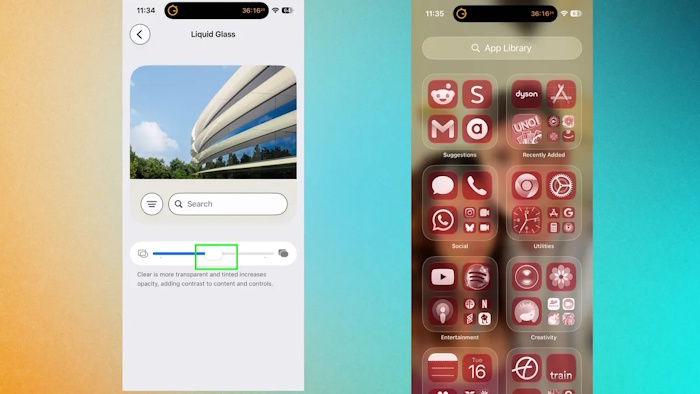
If the slider is unavailable, check whether Reduce Transparency or Increase Contrast is enabled under Accessibility > Display & Text Size. Those accessibility settings can override the appearance control. Keep them enabled if they better meet your needs; changing the visual style is optional.
Try Photos edits on a duplicate first
On supported devices, open a photo in Photos, tap Edit, and choose the available Apple Intelligence tools. The main options serve different purposes:
- Spatial Reframing: changes the apparent viewpoint and composition.
- Extend: adds generated content outside the original edges, useful when you need more space around a subject.
- Clean Up: removes distractions and fills the selected area. Tap, brush over, or circle the unwanted object, then inspect the result.

These tools can create plausible details rather than recover what the camera actually captured. Duplicate an important image before experimenting, zoom in on edges and faces, and undo an edit that changes something you need to keep accurate. A simple crop may be a better choice when you only want to remove an edge distraction.
Allow background setup to finish
Search results, downloaded AI models, and photo processing may need time to settle after an update. Leave the phone connected to reliable Wi-Fi and power during an idle period. There is no useful fixed completion time for every device.
If search continues to miss an app or content type, open Settings > Search and review what is allowed to appear. Check storage and pending software or app updates before treating the problem as a permanent fault.
Review who can see your location
In Find My > People, review your existing sharing contacts. To start a new share, tap the add button, select Share My Location, choose a person, and select a duration. The Custom option lets you specify a duration or end time.
To pause sharing with one person, open their entry, tap the more button, and choose Hide Location. Sharing automatically resumes the next day. Use Stop Sharing My Location when you want it to remain off. Do not assume another person cannot notice a change; Apple's location-sharing guidance explains the distinction.
Create a small shortcut and inspect its actions
In Shortcuts, tap the add button and use the description option, when available, to explain a small task. Start with something easy to verify, such as preparing a reminder or opening a document.
Review the generated actions, chosen files, recipients, and permissions before running it. A shortcut you run manually and an automation triggered by an event are different: check the trigger and confirmation settings before expecting it to run by itself. The document shortcut example shows a straightforward workflow you can inspect and adapt.
Related Articles
 What Do You Need to Prepare for iPhone While Waiting for iOS 11. 3?7 minutes read
 Things to Do Before Installing OS X 10. 84 minutes read
 Why Should You Wait for Wi-Fi 8 Instead of Upgrading Your Router Today?8 minutes read
 10 Things to Remember When Upgrading the Server8 minutes read
 How to Save Money When Upgrading Your Smart TV8 minutes read
 8 Things to Do After Updating to Windows 1110 minutes read
Reader Comments 0
Sign in with email or Google to join the discussion.