Table of Contents
The video translation feature on supported websites in Microsoft Edge lets you translate video audio and subtitles using AI technology.
Video translation on supported websites in Microsoft Edge lets you translate video audio and subtitles using AI technology. Currently, real-time video translation only works on certain websites, including YouTube. Here's how to enable video translation on Microsoft Edge.
How to enable video translation on Microsoft Edge
Step 1:
Open Edge browser then Select Settings In the displayed list.
Step 2:
Switch to the new interface, click on Languages On the left side, then look to the right, find the Translation group and Turn on Offer to translate videos on supported sites To activate video translation mode on supported websites.
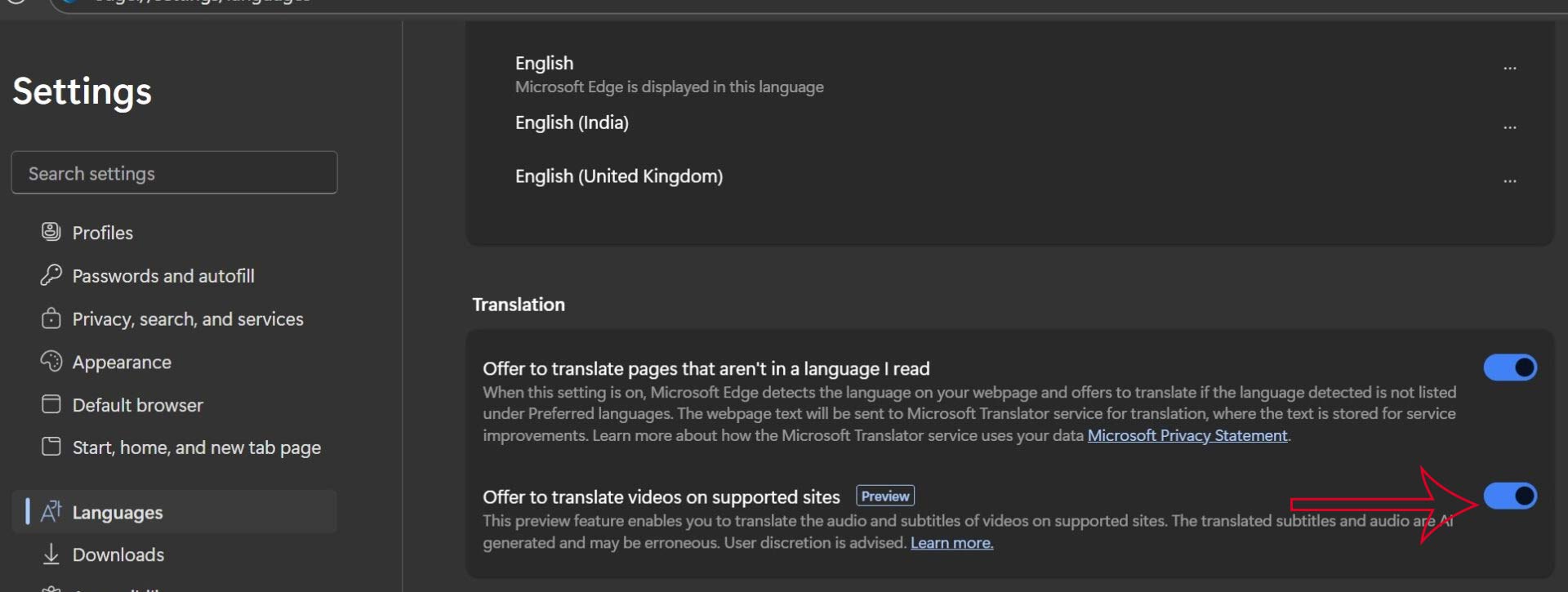
The video translation feature for websites supported on Edge is currently deployed on Microsoft Edge 141.0.3537.13. Due to the limited feature and the use of AI technology to translate videos, the translation language only supports Spanish, Korean and English and the translation is not completely accurate. To use this feature, the computer also needs at least 12 GB of RAM and a 4-core CPU to ensure the computer runs stably when using this technology.
FAQ
How do you enable video translation in Microsoft Edge: step-by-step guide?
In practical terms, the video translation feature on supported websites in Microsoft Edge lets you translate video audio and subtitles using AI technology.
What should you check before getting started?
Review the requirements, compatible device or software version, and any warnings described in the guide before making changes.
What should you do if the steps do not work?
Repeat the steps in order, confirm that your app or system is up to date, and review the troubleshooting details provided above.
Related Articles
 How to Enable and Disable Video Background in Microsoft Edge4 minutes read
 How to Translate YouTube Video Subtitles on Microsoft Edge3 minutes read
 Guide to Translating Web Pages Automatically with Edge Browser on Android4 minutes read
 How to Adjust the Sidebar on Microsoft Edge4 minutes read
 How to Use Video as New Tab Background on Microsoft Edge4 minutes read
 How to Enable Automatic HTTPS on Edge2 minutes read
Reader Comments 0
Sign in with email or Google to join the discussion.