Table of Contents
Right on eNetViet, teachers can easily take attendance or approve leave applications. Below are instructions for taking attendance and approving leave applications on eNetViet.
ENetViet provides full functions for schools and teachers to manage students, communicate with parents about students' learning situation. Right on eNetViet, teachers can easily take attendance of students or approve leave applications. Below are instructions for taking attendance and approving leave applications on eNetViet.
How to check in on eNetViet
Step 1:
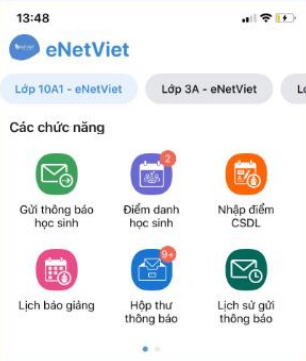
Teachers access eNetViet and click on Student Attendance In the Functions section.
Step 2:
You click on The Attendance button And the application will display the list of students in the class and default to the status Attending School. If any student is absent with or without permission, you choose the corresponding status and Click Confirm Attendance .
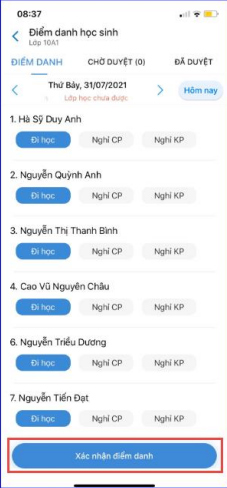
Once the teacher chooses to take attendance, parents will receive immediate notification. This helps parents closely monitor their child's attendance.
How to approve leave application on eNetViet
Step 1:
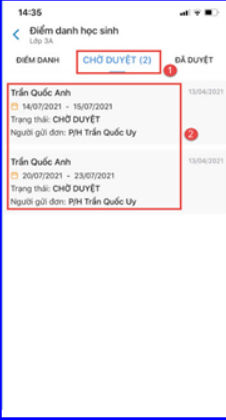
Teachers Click on Student Attendance In the Classroom Management Section. In the Pending approval Tab, teachers click on the leave application that needs to be approved.
Step 2:
Enter your signature if any and Click Approve . Once the teacher approves the student's leave request, the parent will receive an immediate notification that the leave request has been approved.
FAQ
How do you take attendance and approve leave requests in eNetViet?
In practical terms, right on eNetViet, teachers can easily take attendance or approve leave applications. Below are instructions for taking attendance and approving leave applications on eNetViet.
What should you check before getting started?
Review the requirements, compatible device or software version, and any warnings described in the guide before making changes.
What should you do if the steps do not work?
Repeat the steps in order, confirm that your app or system is up to date, and review the troubleshooting details provided above.
Related Articles
 How to Record Attendance of Employees10 minutes read
 Law University Takes Attendance by Qr Code, Students Only Have 604 minutes read
 This Is the First University in Vietnam to Take Attendance with Face Recognition, Evasion Is Only4 minutes read
 Things You Should Not Leave in Your Car: Complete Guide7 minutes read
 The App Store Was Tricked into Approving Malicious Apps: What You Need to Know4 minutes read
 Windows Utilities Are Required for 20 Essential Tasks13 minutes read
Reader Comments 0
Sign in with email or Google to join the discussion.