Table of Contents
Grok can use details from earlier conversations to make later replies more relevant. This is useful when you repeatedly ask about the same project, prefer a particular writing style, or want the assistant to remember stable preferences. The setting is optional, and menu names can differ slightly between the Grok app, Grok.com, and Grok on X.
Turn on personalization in Grok
Open Grok and sign in to the account whose conversations you want to use. Select your profile picture or account menu to open the navigation panel.
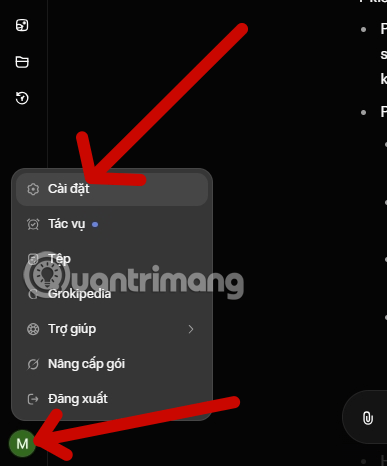
Choose Settings, then open Data Controls or the similarly named privacy and personalization section.
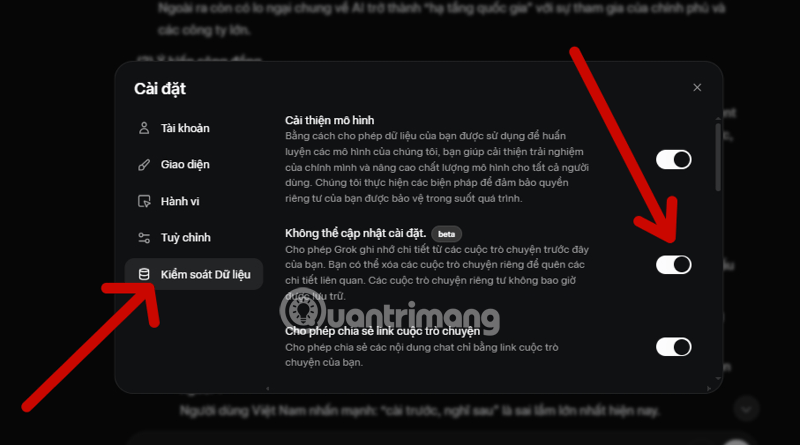
Enable the option that allows Grok to personalize responses using your conversation history. Depending on the version you use, the control may be labeled Personalize Grok with your conversation history or Grok Personalization. If the option is missing, update the app and check the same account on Grok.com; staged rollouts and regional availability can affect what appears.
What personalization can—and cannot—do
Conversation-based personalization can reduce repetition, but it is not a guaranteed record of every fact you have mentioned. Grok may overlook a detail, apply it in the wrong context, or continue using information that is no longer current. Treat remembered context as a convenience, not as an authoritative profile.
It works best with stable instructions such as:
- your preferred answer length, tone, or formatting;
- the tools, programming language, or units you normally use;
- the purpose and terminology of a continuing project;
- recurring constraints that should apply to future answers.
State these preferences directly and explain when they apply. For example, “When we discuss this project, use metric units and put action items first” is more useful than a vague request to “remember how I work.” This is the same principle behind building a reliable AI-assisted second-brain system: the information should be specific, organized, and easy to correct.
Review and correct remembered context
When a reply seems to rely on an old preference, correct it explicitly and provide the replacement. You can also ask Grok what context it is using for the current task, but verify the answer against the settings and conversation history rather than assuming the model exposes a complete account record.
Keep important instructions in your own project notes as well. If you need an assistant for a workflow where consistent context matters, compare the available memory and project controls rather than choosing solely by model output; this comparison of Claude and ChatGPT illustrates other factors worth checking.
Privacy and data controls
Do not enter passwords, recovery codes, payment details, confidential client data, or other information you would not want retained. Use a private or temporary chat option for sensitive one-off questions when one is available.
Turning off personalization is not necessarily the same as deleting conversation history or withdrawing data from model training. Review each control separately. On X, the current path is Settings and privacy > Privacy and safety > Data sharing and personalization > Grok & Third-party Collaborators. X documents separate controls for Grok personalization, data sharing, and deleting conversation history in its official Grok help page. Grok also explains conversation history, private chats, and shared-link controls in its consumer FAQ.
Turn memory off when you no longer need it
Return to the same personalization setting and switch it off. Then review the available options for deleting chats or conversation history if you also want previously saved interactions removed. Because app interfaces change, follow the wording shown in your account and read any confirmation message before deleting data.
Related Articles
 What Is the Project Feature in Grok AI? How to Effectively Manage Your Projects with Grok10 minutes read
 Experience the Hilarious Grok AI Chatbot on X3 minutes read
 How to Disable the Automatic Video Creation Feature in Grok6 minutes read
 How to Write Basic Code with Grok: Step-by-Step Guide11 minutes read
 Grok Will Have a Voice Copying Feature: Explained3 minutes read
 Negative Prompt AI Techniques5 minutes read
Reader Comments 0
Sign in with email or Google to join the discussion.