Table of Contents
Chrome does not include a built-in command for assigning a custom icon to an individual bookmark. It normally displays the favicon supplied by the website. To override that icon, you need a browser extension that can manage bookmark favicons. If you want to avoid extension permissions, edit the bookmark name and add an emoji instead.
Before installing a favicon extension
A bookmark-favicon extension may need access to your bookmarks and to the sites whose icons it changes. That is sensitive access. Install only from the Chrome Web Store, review the current permissions and privacy disclosure, and avoid an extension if the requested access is broader than its stated purpose.
Back up important bookmarks first:
- Open Chrome menu > Bookmarks and lists > Bookmark Manager.
- Open the three-dot menu in Bookmark Manager and select Export bookmarks.
- Save the HTML file somewhere you can recover it.
Change a bookmark favicon with an extension
The extension shown in the original screenshots used an older interface. A currently listed option is Bookmark Favicon Changer in the Chrome Web Store. Its current listing says it can change, reset, and export bookmark favicons. Check its latest update, developer information, reviews, data disclosure, and permissions before installing.
- Open the verified Chrome Web Store listing and select Add to Chrome.
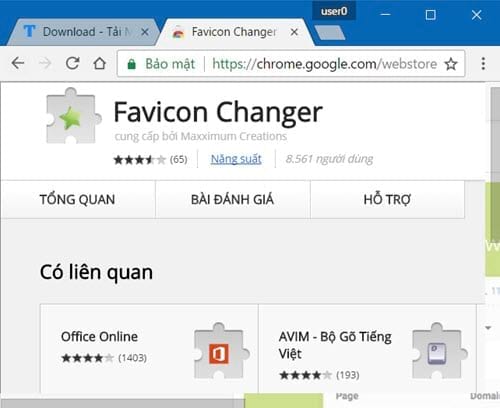
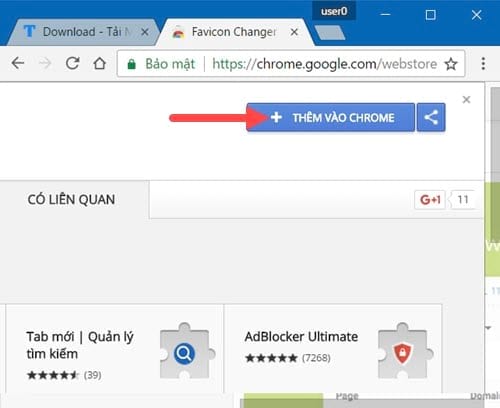
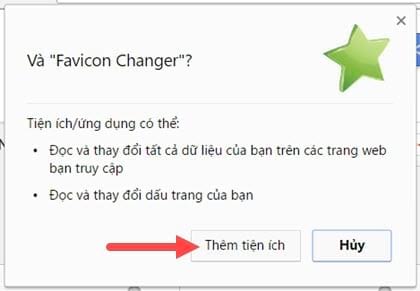
- Read the permission dialog. Select Add extension only if the access matches the feature you expect.
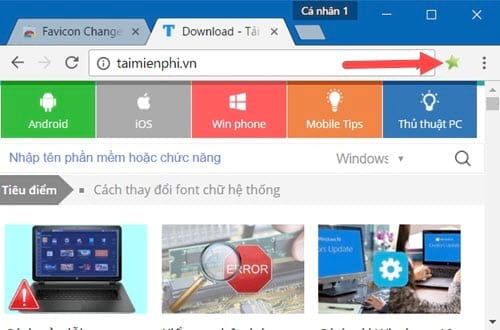
- Pin the extension from Chrome's Extensions menu if you want its icon visible. Depending on the current extension, either open its options page or right-click the target bookmark and choose Change Favicon.
- Select a square image from your computer or enter an image URL if the extension supports it. The current Bookmark Favicon Changer listing accepts browser-supported image files and resizes them; the old requirement that every image must be PNG is no longer universally true.
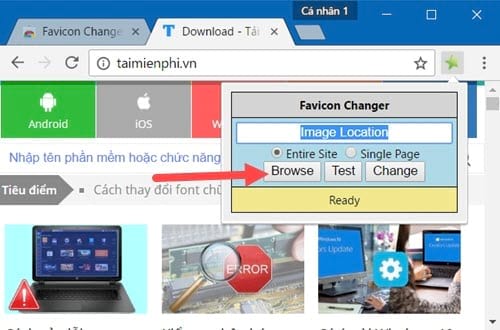
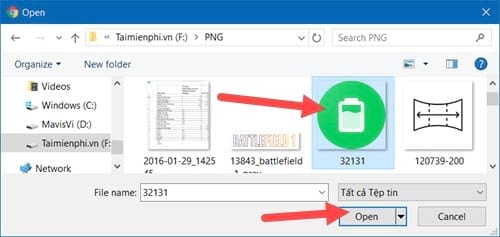
- Preview the icon and apply the change. Reload the bookmarked page or restart Chrome if the bookmarks bar does not update immediately.
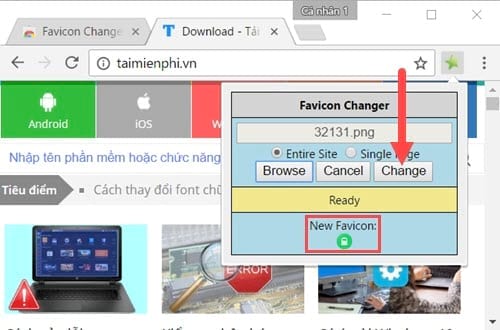
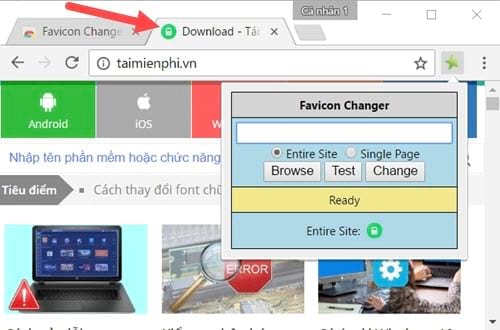
The extension's current listing notes several limits: bookmarks with the same URL share the same custom favicon, only supported URL schemes can be changed, and its custom icon reverts when the extension is removed. Custom favicon behavior may also differ on another device even when Chrome syncs the bookmark itself.
Reset or remove a custom icon
- Open the extension's options or right-click the bookmark.
- Select Reset Favicon or the equivalent command.
- Visit the bookmarked site so Chrome can load its normal favicon again.
If you no longer trust or need the extension, open chrome://extensions, select Details, review its site access, then choose Remove. Removing it may restore every custom icon it managed.
Use an emoji instead—no extension required
An emoji in the bookmark name is often easier to recognize than a tiny custom image and does not give another extension access to browsing data.
- Right-click the bookmark and select Edit.
- Add a short emoji at the beginning of the name, such as 📧 Mail, 📅 Calendar, or 🧾 Expenses.
- Shorten or remove the remaining text to save space on the bookmarks bar.
This changes the label, not the favicon, but it works with Chrome's built-in bookmark editor and is easier to maintain.
If the website's normal favicon is blank or outdated
- Open the bookmarked page and perform a normal reload.
- Delete and recreate only that bookmark if the URL or redirect has changed.
- Check whether the site itself displays a favicon in the tab. If not, the site owner may not provide one.
- Test a new Chrome profile before clearing all browser data; a profile test avoids deleting useful cookies or history.
Website owners should update the page's favicon files and HTML rather than telling every visitor to install an extension. Visitors cannot permanently repair a missing site icon for all users.
Organize bookmarks without custom favicons
- Use short bookmark names and folders.
- Open Bookmark Manager with Ctrl+Shift+O on Windows/Linux or the Chrome menu.
- Drag bookmarks into a useful order and export a backup before bulk changes.
- Use Chrome profiles to separate work and personal collections.
Google's Chrome bookmark help covers the built-in edit, move, sort, and export workflows. For larger collections, compare these bookmark-management services; if bookmarks contain private work links, review our advice on securing Chrome bookmarks before syncing or sharing them.
Related Articles
 How to Change the Bookmark Icon on Chrome, Change the Bookmark Icon4 minutes read
 Fixing the Icon Bookmark Error on Chrome Browser Is 'Missing'4 minutes read
 Google Introduced a New Bookmark Widget for Chrome4 minutes read
 Where Is Google Chrome Bookmark Data Stored on Your Computer?4 minutes read
 Google Upgraded Bookmark for Chrome3 minutes read
 Increase the Space on Your Browser's Bookmark Bar by Saving Only the4 minutes read
Reader Comments 0
Sign in with email or Google to join the discussion.