Table of Contents
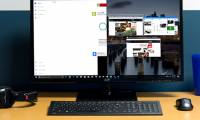
Windows uses Snap to arrange two, three, or four app windows, while macOS provides Split View and window tiling. These features resize windows; they do not divide the physical display or create extra monitors.
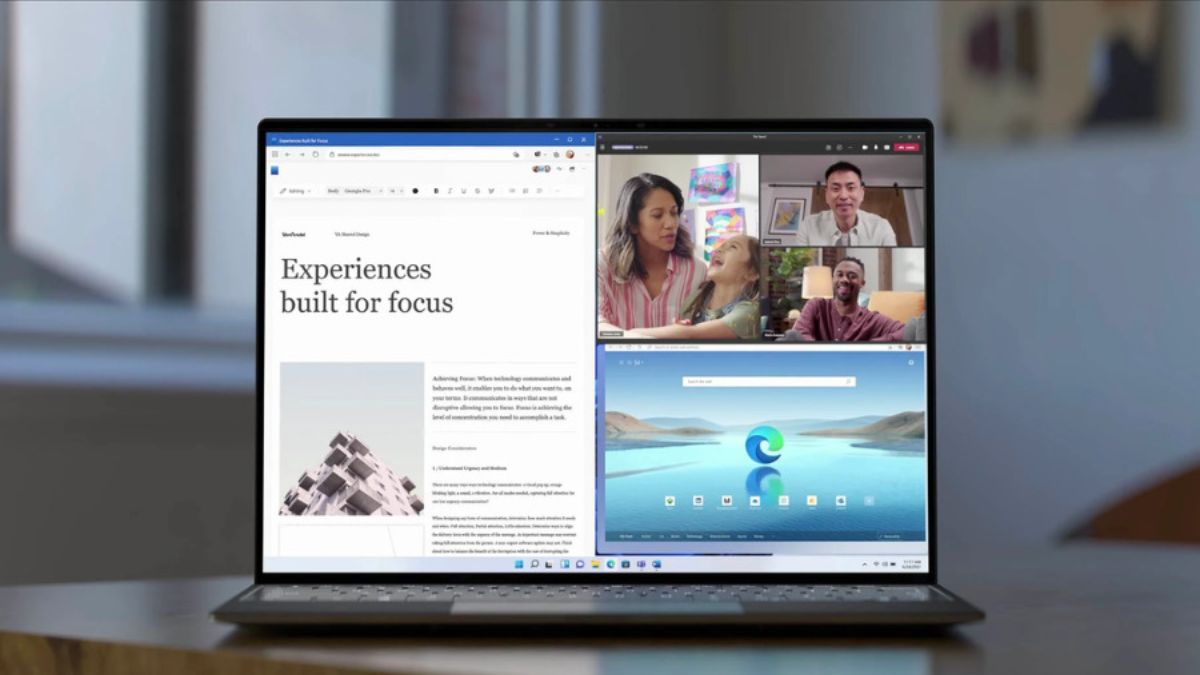
Use Snap layouts in Windows 11
- Move the pointer over a window's maximize button, or press Windows + Z.
- Choose a layout and select the zone for the active window.
- Select other open apps to fill the remaining zones.
Available layouts depend on display size, resolution, scaling, and orientation. Drag the shared boundary where offered to resize adjacent snapped windows.
Snap with the mouse
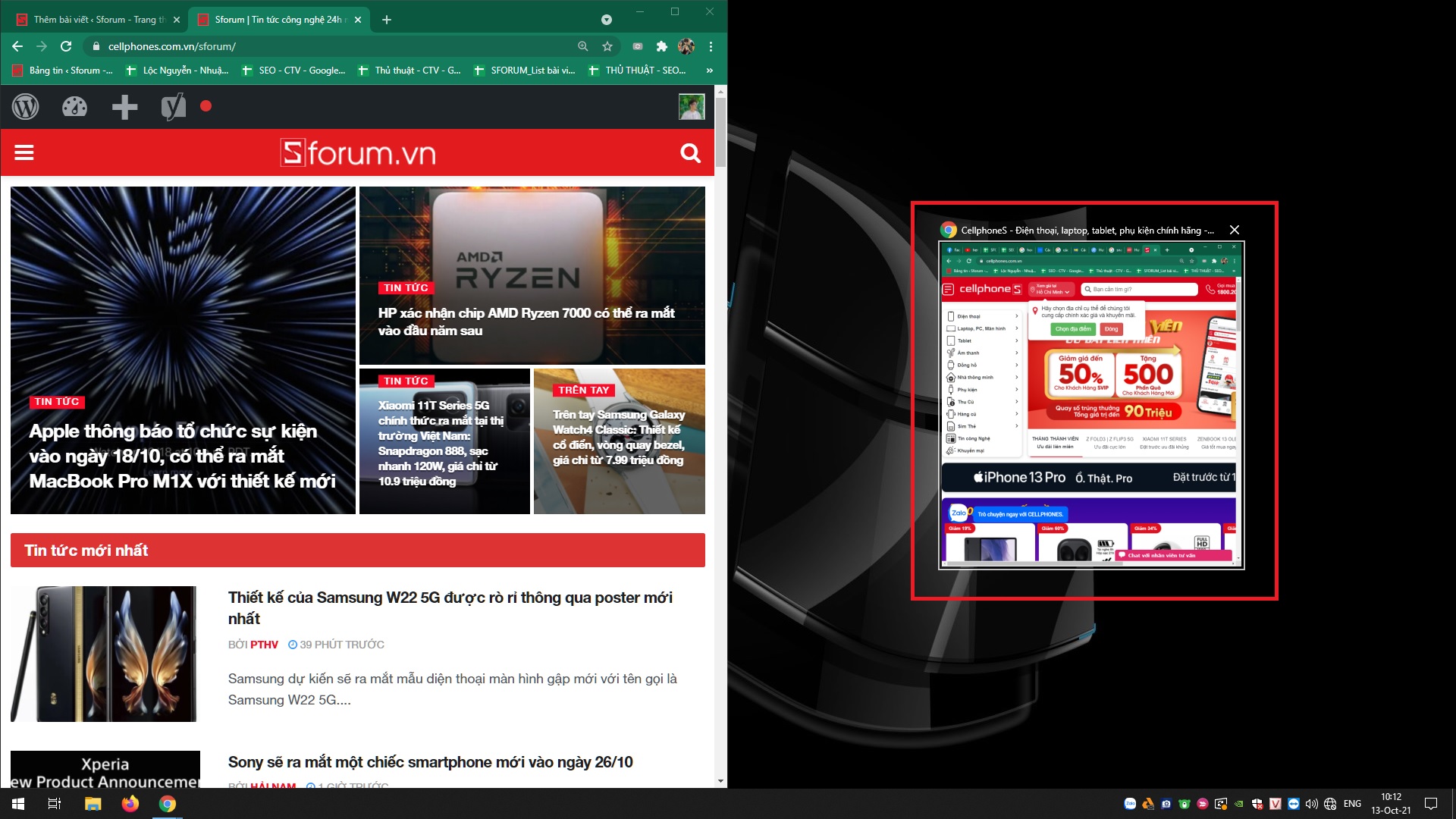
- Drag a window to the left or right edge for a half-screen layout.
- Drag it to a corner for a quarter-screen zone.
- On current Windows 11 versions, drag toward the top to reveal Snap layouts.
Release only when the preview outline shows the desired zone.
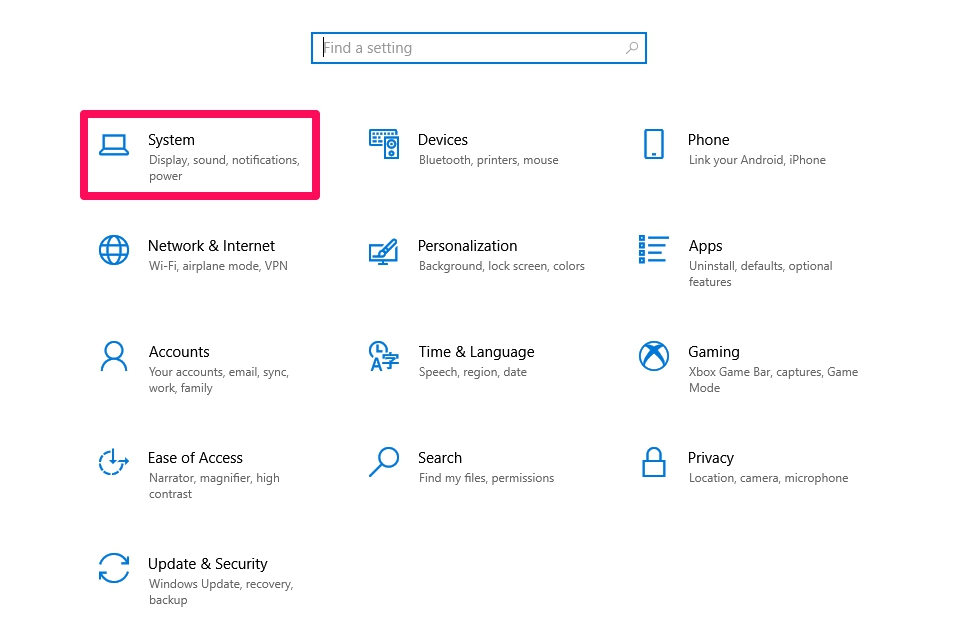
Snap with keyboard shortcuts
- Windows + Left/Right Arrow: snap to a side or move between zones.
- Windows + Up/Down Arrow: maximize, restore, minimize, or move into a corner depending on the current state.
- Windows + Shift + Left/Right Arrow: move the active window to another monitor.
- Windows + Z: open the layout selector in Windows 11.
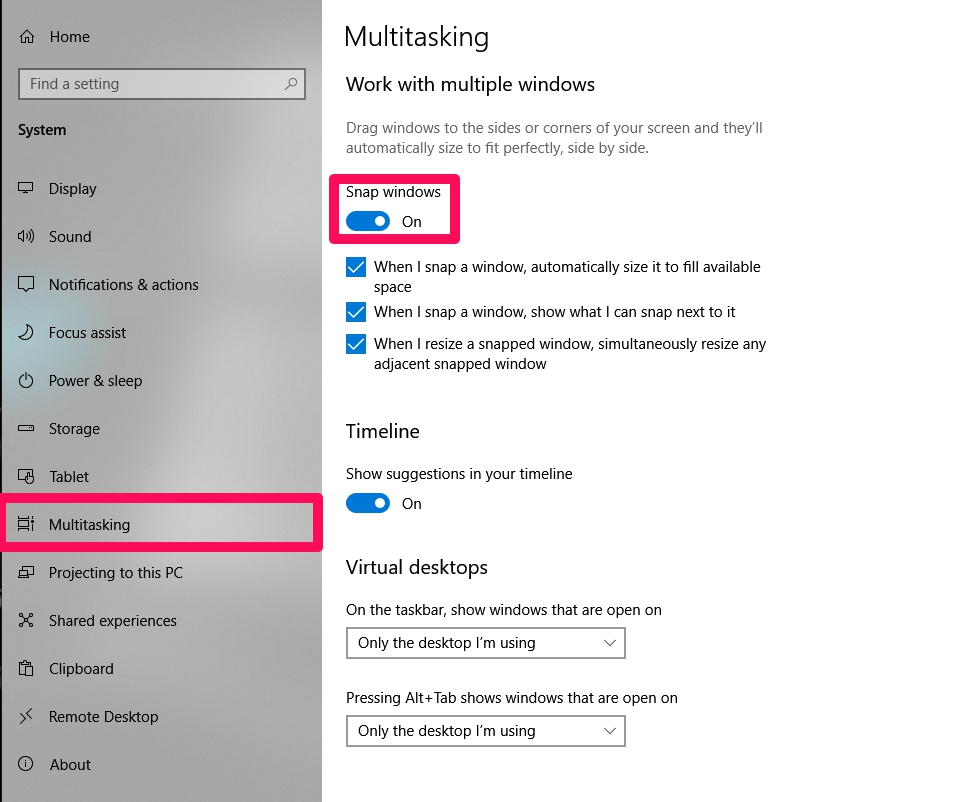
Enable or adjust Windows Snap
Open Settings > System > Multitasking and enable Snap windows. Expand its options to control suggestions, drag behavior, and remembered layouts. In Windows 10, the same Multitasking area controls the basic side and corner snapping features.
Arrange windows on a Mac
On current macOS versions, move the pointer over or click and hold the green window button, then choose an option to tile the window left or right or move/resize it into another region. You can also drag windows to screen edges where window tiling is supported.
Use macOS Split View
- Hold the pointer over the green button.
- Choose to tile the window to the left or right of the screen.
- Select a second app for the other side.
- Drag the divider to change the share of the screen.
Move the pointer to the top to reveal window controls. Use the green button to leave Split View. Some apps have fixed minimum sizes or do not support the mode.
Work with multiple monitors
Arrange displays in Windows Display settings or macOS Displays settings so pointer movement matches their physical positions. Snap works within each display. On macOS, Mission Control's “Displays have separate Spaces” option can affect full-screen and Split View behavior and may require logging out.
If a window will not snap
- Confirm Snap or window tiling is enabled.
- Restore a maximized or full-screen window before dragging.
- Check whether the app enforces a minimum width.
- Reduce display scaling or use a simpler layout on a small screen.
- Restart the app or window manager after an update.
Practical layouts
Use two equal halves for comparison, a wide main window plus a narrow reference pane for research, or four corners for dashboards. More windows are not automatically more productive; keep the primary task largest and avoid placing sensitive messages where they may appear during screen sharing.
For more shortcuts, see Windows 11 keyboard shortcuts and how to use Split View on a Mac.
Related Articles
 How to Split Screen PC: How to Split a Computer Screen3 minutes read
 How to Split the Screen on a Windows 11 Laptop7 minutes read
 How to Split Screen on Windows 105 minutes read
 How to Split Computer Screen in Windows4 minutes read
 How to Quickly Split the Screen on a Windows 10, 11, and macOS Laptop9 minutes read
 How to Split the Screen on Google Chrome: Split Tabs Chrome5 minutes read
Reader Comments 0
Sign in with email or Google to join the discussion.