Table of Contents
Use an image close to your display's aspect ratio and native resolution, then choose Fill, Fit, Stretch, Tile, Center, or Span based on how you want it cropped. Windows and macOS both let you set a personal photo or a built-in background without extra software.
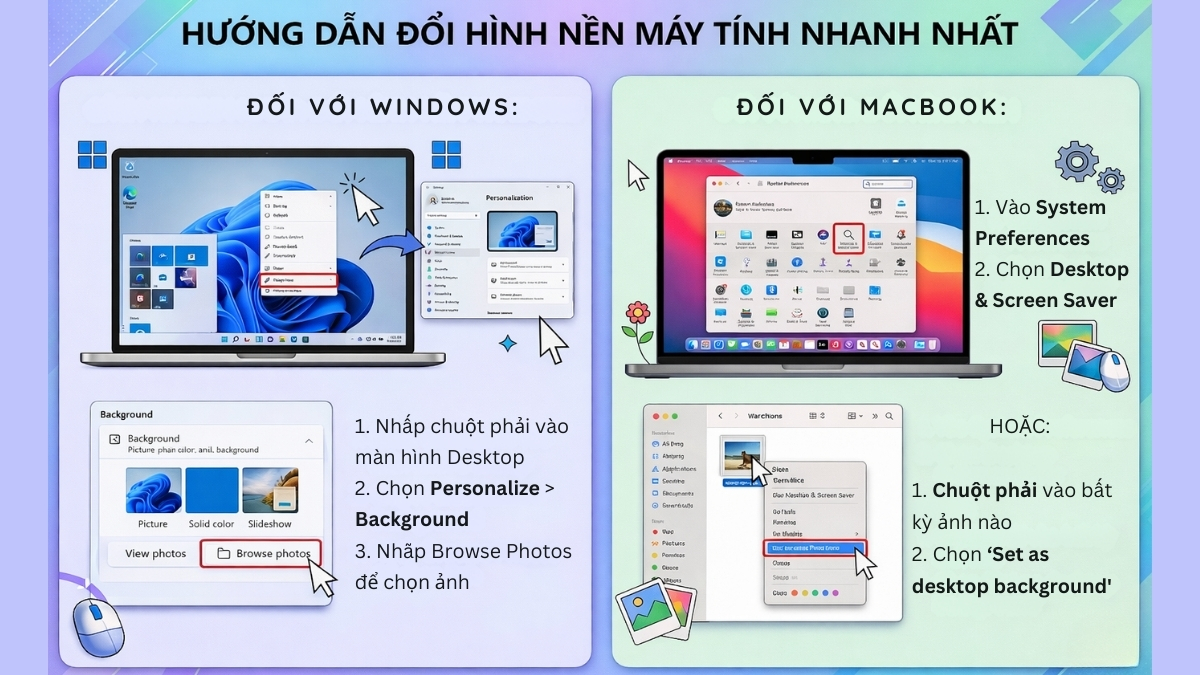
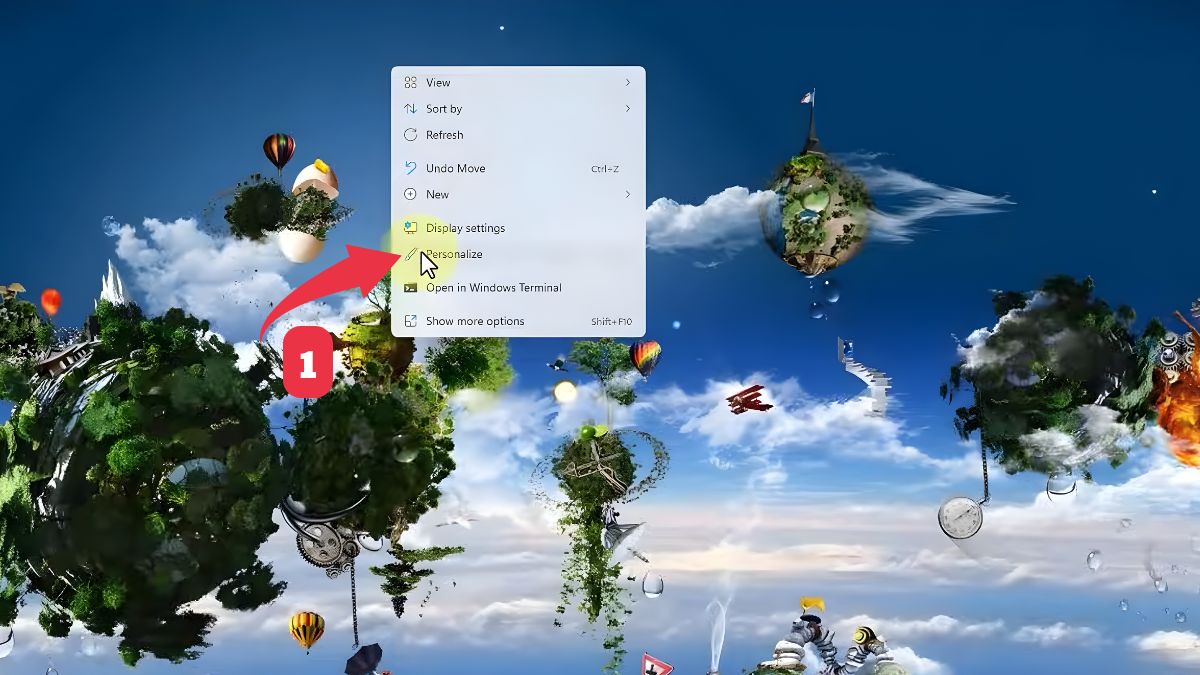
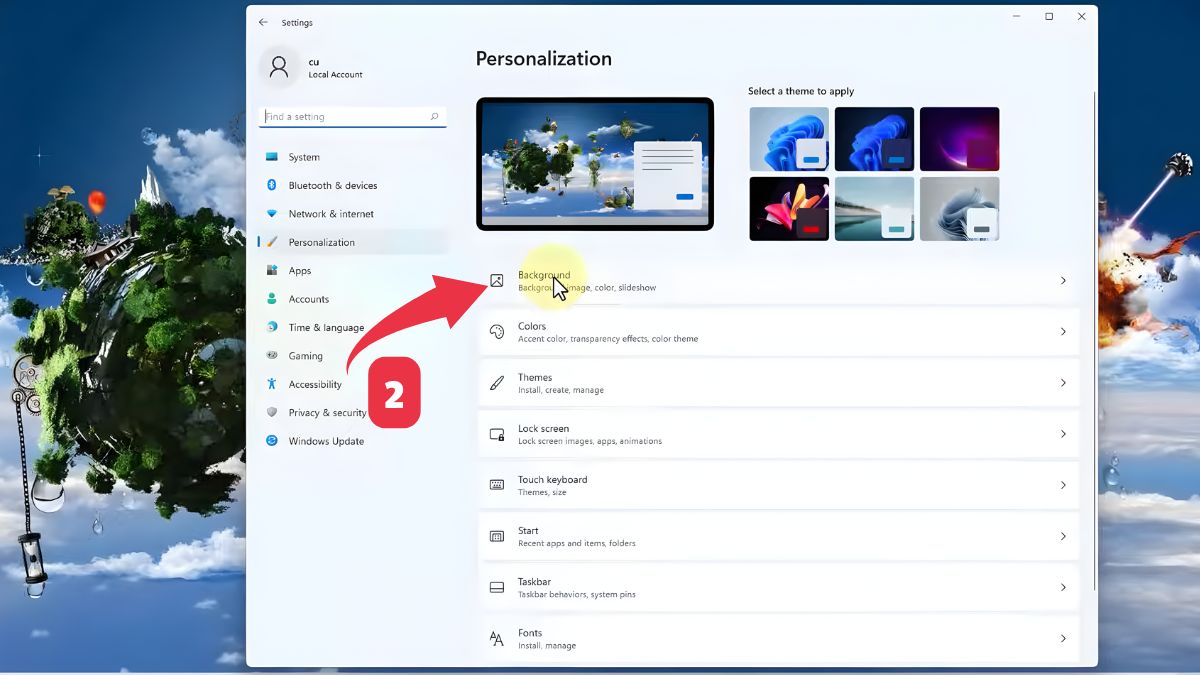
Change wallpaper in Windows 11
- Right-click an empty area of the desktop and select Personalize.
- Open Background.
- Choose Picture, Solid color, Slideshow, or Windows spotlight.
- For Picture, select Browse photos and choose a JPG, PNG, or other supported image.
- Choose a fit mode. Use Fill for most single-screen photos; use Fit when preserving the entire image matters.
You can also right-click a supported image in File Explorer and choose Set as desktop background.
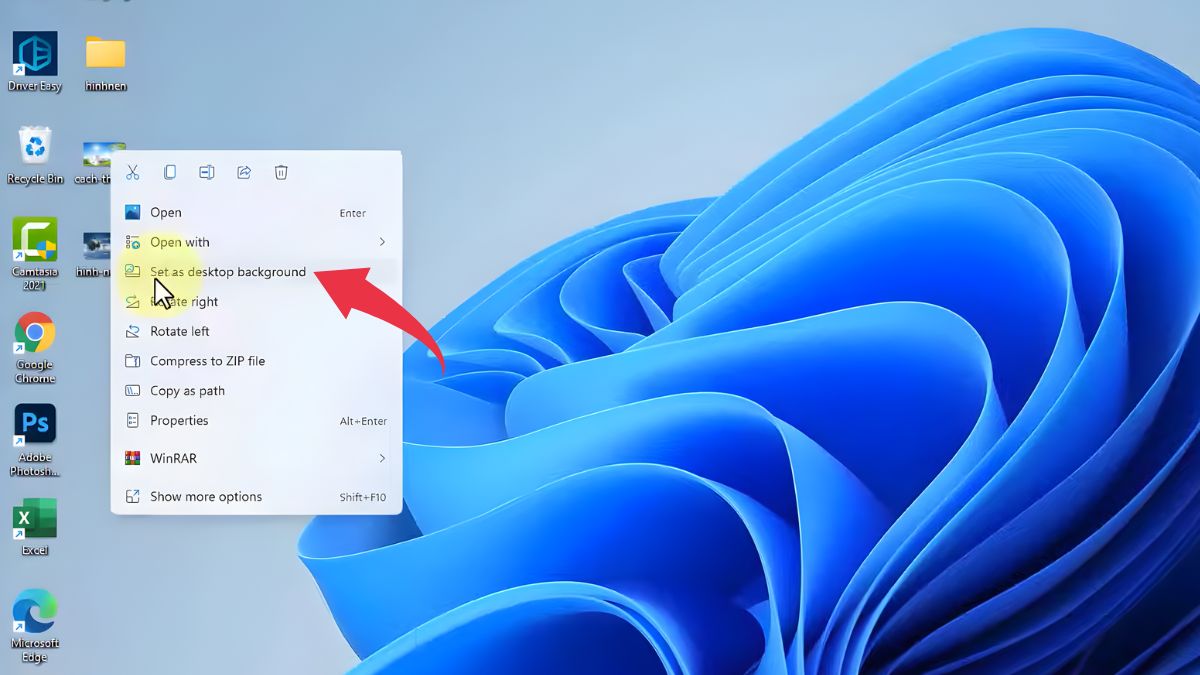
Change wallpaper in Windows 10
Right-click the desktop, select Personalize > Background, choose Picture or Slideshow, browse to the image or folder, and select a fit. Normal Windows 10 support ended in 2025, so keep the PC on an applicable supported security-update path.
Change wallpaper on a Mac
- Open System Settings > Wallpaper.
- Choose an Apple background, color, Photos item, or add a folder/image.
- Select how the image fills or fits the display where the option is available.
In Finder or Photos, you can also Control-click a supported image and choose the desktop-picture command. Menu wording varies by macOS version.
Choose the right image size
Check the display's native resolution and aspect ratio. A 1920×1080 image fits a 16:9 Full HD screen, while a high-resolution Mac or ultrawide display uses a different shape. A larger source usually downscales cleanly; a much smaller one becomes soft or pixelated when enlarged.
- Keep important subjects away from edges if using Fill.
- Use Span only with an image designed for the combined dimensions of multiple displays.
- Prefer JPG for photographs and PNG for graphics or text with sharp edges.
- Keep the original file in a stable folder; moving or deleting it can break the background.
Set different images on multiple monitors
In Windows Personalization, right-click a recent image and assign it to a specific monitor where supported. On macOS, open Wallpaper settings on each display or select the display before choosing. Monitor numbering and arrangement should match Display settings.
Fix a black, blurry, or unchanged wallpaper
- Open the image directly to confirm it is not corrupted.
- Copy it to a local Pictures folder and use JPG or PNG.
- Choose the correct fit instead of Stretch.
- Check Windows accessibility contrast/theme settings or macOS appearance and management restrictions.
- Restart File Explorer or log out and back in.
- On a work or school computer, policy may enforce a wallpaper.
Slideshow and animated wallpaper
A normal slideshow has a modest impact on modern systems but can use more battery when changes are frequent or files come from network/cloud storage. Video and animated wallpaper require extra software on most Windows setups and can use CPU/GPU power. Install such tools only from trusted stores or publishers; macOS support and behavior differ by release.
Privacy and licensing
Do not use a wallpaper that exposes family photos, addresses, QR codes, calendars, or client information during screen sharing. Confirm that you have permission to reuse downloaded artwork. For related customization, see customize the Windows 11 desktop and manage multiple Mac displays.
Related Articles
 Error 'Can't Change Desktop Wallpaper' on Windows 10, This Is How4 minutes read
 How to Change Windows 11 Desktop Wallpaper Quickly4 minutes read
 Change Wallpaper 10: How to Change Win 10 Computer Wallpaper5 minutes read
 Instructions for Changing Windows Desktop Wallpaper4 minutes read
 Change Wallpaper, Set Wallpaper Wallpaper for Computer3 minutes read
 Download a Beautiful Set of 5K Wallpapers for Your Computer3 minutes read
Reader Comments 0
Sign in with email or Google to join the discussion.