Table of Contents
For reliable, high-quality YouTube downloads, use YouTube’s Download button for offline viewing or export videos you uploaded through YouTube Studio or Google Takeout. The official offline copy stays inside YouTube, while Studio and Takeout can provide a normal file for content you own. Third-party download sites and generic “YouTube Downloader” programs are not necessary for these tasks.
First decide what kind of download you need
| Goal | Method | Where the video can be played |
|---|---|---|
| Watch someone else’s eligible video offline | YouTube Download button | Inside the YouTube app or supported browser |
| Save one of your own uploads | YouTube Studio or Your videos | As an MP4 file on the device |
| Archive all your uploads | Google Takeout | As exported video files |
| Keep the best master quality | Preserve your original camera/editing file | Any compatible media player |
Streaming access does not automatically grant permission to copy or redistribute a video. Download only your own work, content whose owner permits downloads, public-domain or appropriately licensed material, or videos made available through YouTube’s official offline feature.
Download an eligible video for offline viewing
- Open YouTube and sign in to the account with an eligible membership or regional offline access.
- Open the video and select Download below the player.
- Choose the highest useful quality offered. A higher setting consumes more data and storage.
- Open You or Library > Downloads to watch without a connection.
YouTube manages these copies. They are not ordinary MP4 files, and the device must reconnect periodically to confirm that each video remains available. The highest option depends on the upload, device, plan, region, and available storage.
Set a default offline quality
In the mobile app, tap your profile picture > Settings > Background & downloads > Download quality. Choose Wi-Fi-only downloads if mobile data is limited. On a supported computer, open YouTube settings > Downloads > Download quality.
Google’s current steps are in Watch videos offline with YouTube Premium. For phone-specific help, see our YouTube mobile download guide.
Download a video that you uploaded
From YouTube Studio on a computer
- Sign in to YouTube Studio.
- Select Content.
- Find the upload, open its options menu, and select Download.
From the YouTube mobile app
- Tap your profile picture and open Your videos.
- Select the Videos or Shorts tab.
- Open the menu beside the upload and choose Save to device, if available.
YouTube says individual Studio downloads are MP4 files in 720p or 360p, depending on the video size. That means this method may not return the same resolution as a 1080p or 4K source. Keep the original recording and final export if you may need a full-quality master later.
An upload may be unavailable for download when it has been removed, has certain policy or copyright restrictions, uses some preapproved audio, or has reached a download limit. See YouTube’s rules for downloading your own uploads.
Export all your uploads with Google Takeout
Google Takeout is useful for a channel archive or when you no longer have the original files.
- Open Google Takeout and sign in.
- Choose Deselect all, then select YouTube and YouTube Music.
- Open the included-data options and keep the video data you need.
- Choose a one-time export, delivery method, archive format, and part size.
- Create the export and wait for Google’s notification before downloading the archive parts.
Google states that exported YouTube videos are provided in their original format or as MP4 with H.264 video and AAC audio. Large channels can produce several archives. Store the files securely and verify them before removing any other backup.
How to choose the right quality
- Match the source. Selecting 4K cannot add detail to a video uploaded at 1080p.
- Consider the screen. 720p or 1080p is often sufficient on a phone; a large monitor or TV benefits more from higher resolution.
- Check frame rate and HDR. Resolution alone does not describe motion quality, color range, or compression.
- Leave storage headroom. Higher quality takes more space and may fail when the device is nearly full.
- Use Wi-Fi for large downloads. A high-resolution playlist can consume substantial mobile data.
- Keep the original for editing. A downloaded YouTube copy has already been processed and compressed.
Why the former YTop1, Cốc Cốc, IDM, and downloader steps were removed
The original article mixed YouTube and TikTok instructions, named third-party sites without verifying their ownership, and implied that download speed depends mainly on computer power. In practice, speed depends largely on the service, connection, available stream, and server limits. It also listed upload formats as if they were guaranteed download formats.
Online converters and downloader programs can change domains, add deceptive advertisements, request broad browser access, or deliver installers unrelated to the video. Some tools may also conflict with YouTube’s terms. Our guide to safe YouTube downloading and converter risks explains how to handle authorized content without relying on an unknown service.
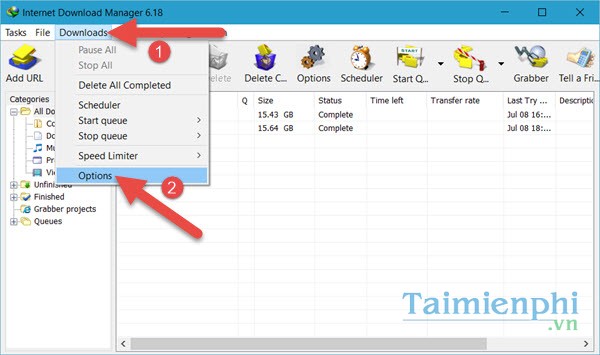
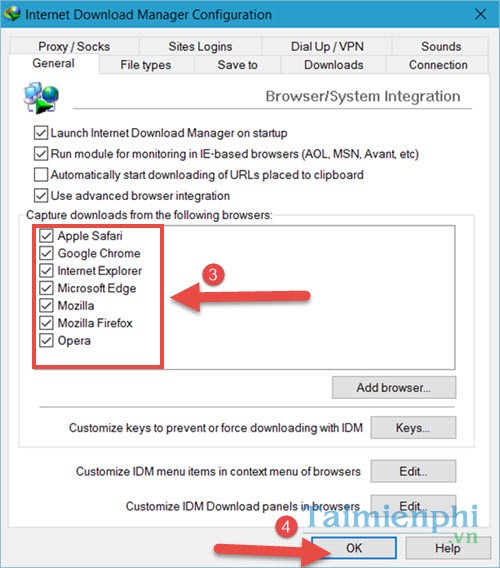
If you use Internet Download Manager for legitimate file downloads and its browser panel is missing, troubleshoot the official integration rather than installing a counterfeit extension; see fixing IDM browser integration.
Security checklist for any downloaded file
- A video download should not require an executable, browser extension, APK, “codec pack,” or notification permission.
- Do not sign in to Google through a third-party converter.
- Do not paste private or unlisted video links into an unknown site.
- Check the extension: a file ending in
.exe,.msi,.apk, or a script extension is not an MP4 video. - Scan unexpected files and delete anything that opens an installer or redirects to a payment page.
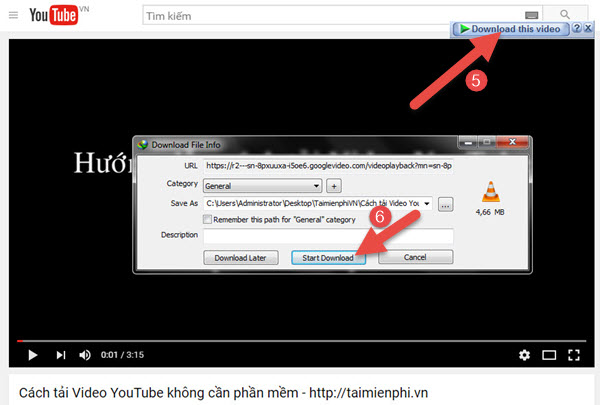
Legacy screenshots from older downloader methods
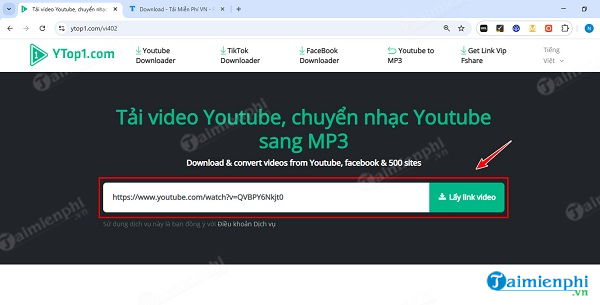
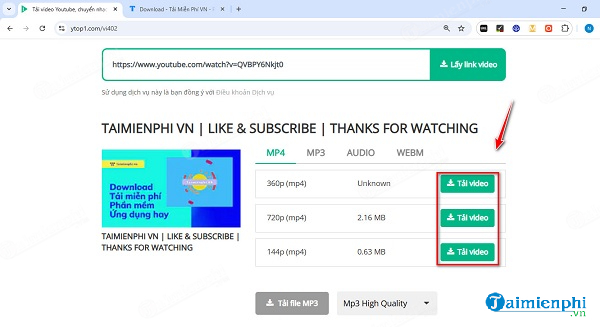
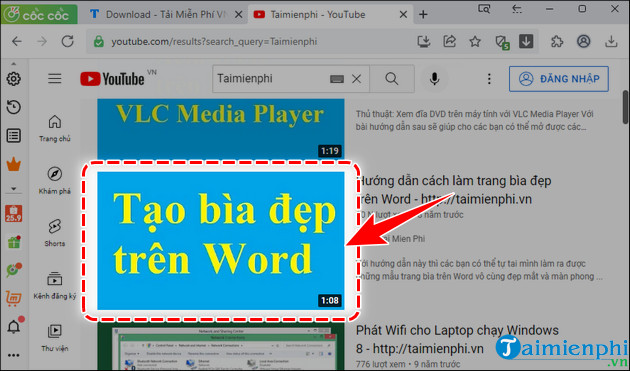
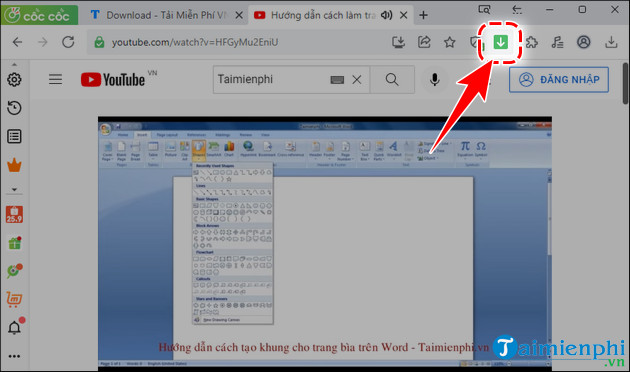
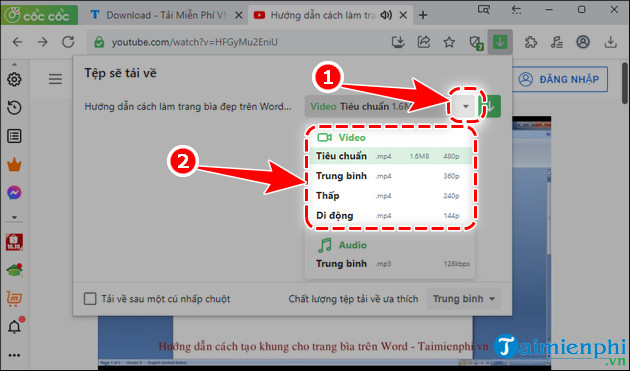
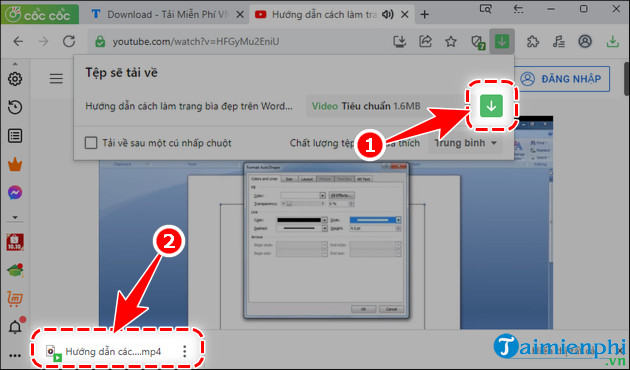
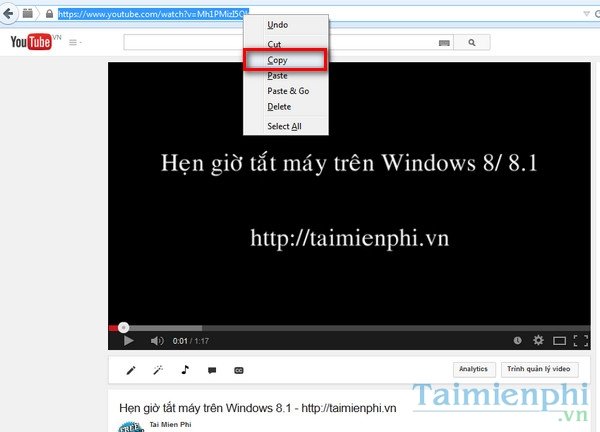
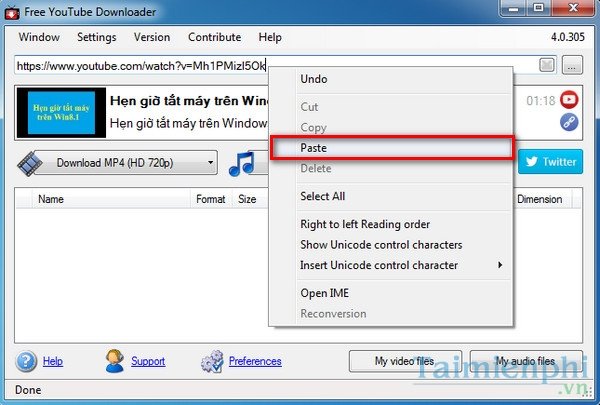
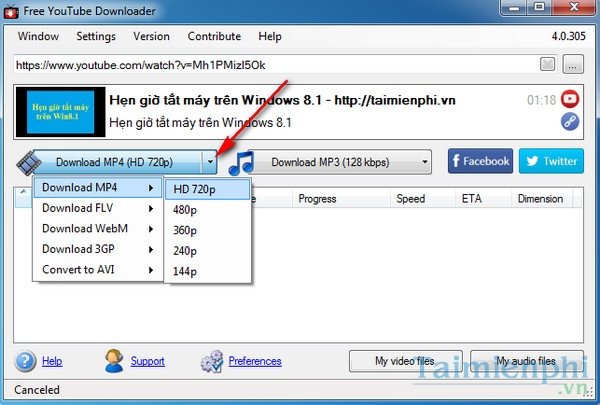
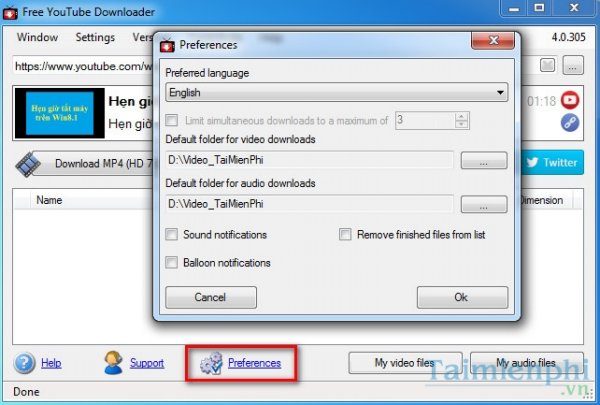
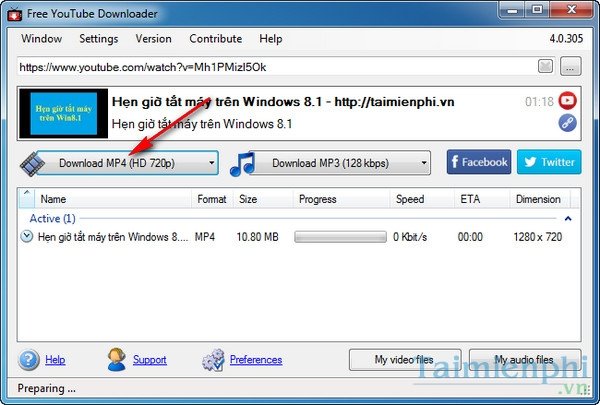
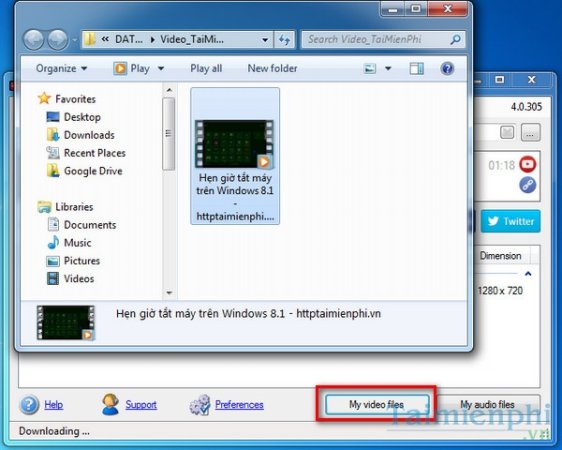
The following images are preserved for historical identification. They show older third-party interfaces and are not current recommendations or proof that a service remains safe.
Former YTop1 workflow
Former Cốc Cốc workflow
Former YouTube Downloader workflow
Former IDM workflow
Related Articles
 How to Convert High Quality Mp3 from YouTube to Your9 minutes read
 10 Ways to Download YouTube Videos Fast and Simple14 minutes read
 How to Download YouTube Videos to Android Smartphones3 minutes read
 How to Downloading Music on YouTube, Downloading MP3 Files of YouTube Videos4 minutes read
 Add a Tool to Download High Quality YouTube and Facebook Videos5 minutes read
 8 Ways to Download Videos 4k on Youtube12 minutes read
Reader Comments 0
Sign in with email or Google to join the discussion.