Table of Contents
If a shared Google Drive video has no Download button, the owner or an organization policy may have disabled downloading for your role. There is no legitimate viewer setting that overrides that decision. Ask the owner to enable downloading or provide an authorized copy.
Do not use browser developer tools, extensions, or screen capture to defeat a restriction. Being able to view a video does not automatically grant permission to copy, redistribute, or retain it.
Why the Download button is missing
- The owner restricted your role: Drive can hide download, print, and copy controls for viewers, commenters, and—in some configurations—editors.
- An administrator applied a policy: a work or school account may use data-loss prevention, trust rules, or shared-drive controls.
- You opened the wrong Google account: the link may grant different access to a named account.
- The video is still processing: a recent upload may play or download incompletely until processing finishes.
- The file or quota is temporarily limited: heavy traffic, owner storage, or service errors can prevent an otherwise permitted download.
- You are viewing an embed or preview: open the item in Drive with the authorized account to see the controls for your actual role.
Ask the owner for authorized access
Send a precise request that explains why you need the file, how it will be used, who will receive it, and when it can be deleted. The owner can then choose one of these options:
- temporarily allow downloading for your role;
- share a separate lower-resolution or watermarked copy;
- add you as an authorized collaborator if editing is required;
- deliver the file through an organization-approved transfer system;
- decline the request when licensing, privacy, or policy does not permit copying.
If the video contains people, confidential work, licensed media, or student information, obtain any additional consent required before storing or redistributing it.
If you own the Google Drive video
- Open Drive on a computer and select the file.
- Click Share, then open the Settings gear.
- Under People who can download, copy, and print, enable the appropriate role.
- Review General access and named recipients; do not broaden the audience unnecessarily.
- Test with a separate account that has the intended role.
Google’s official Drive sharing guide documents the current controls. If the setting is locked, an administrator or shared-drive manager may control it.
To download your own file directly, select it in Drive and choose Download. Keep the original source file outside Drive as a backup; a cloud preview is not an archival master.
Troubleshoot a download the owner already allowed
- Confirm in the Share dialog that you are signed in to the authorized account.
- Reload Drive and try the item’s three-dot menu rather than the embedded preview.
- Ask the owner whether the file still exists, has finished processing, and is within storage limits.
- Try a supported, updated browser with download-blocking extensions temporarily disabled.
- Check the browser’s download permission and available local storage.
- If Drive reports a usage or quota limit, wait and ask the owner for an approved alternative copy; do not use a “quota bypass” service.
Why the old developer-tools workaround should not be used
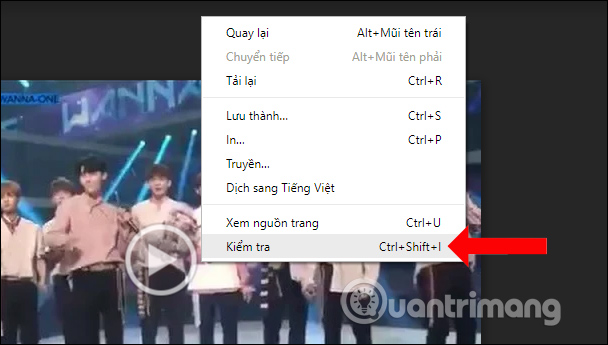
Older tutorials instructed viewers to open browser developer tools from the restricted Drive preview.
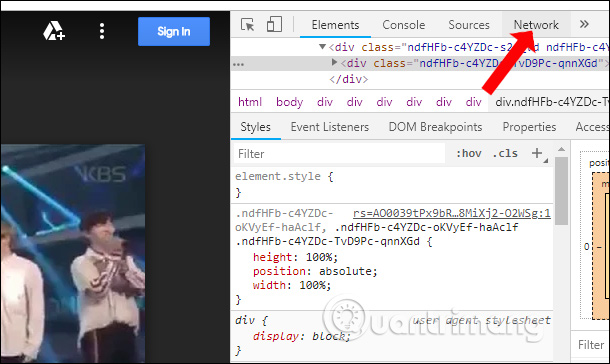
They then inspected the browser’s Network panel.
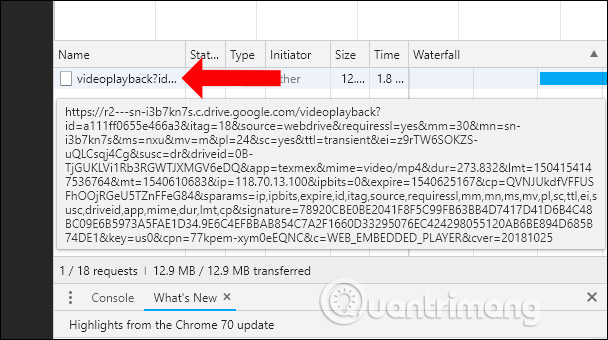
The method attempted to identify a temporary media request created for playback.
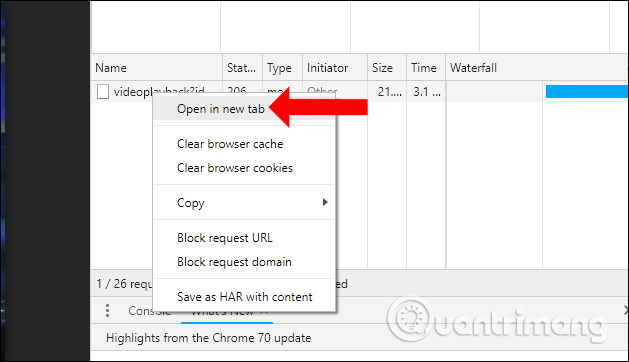
It then opened that request outside the normal Drive viewer.
Finally, it treated the temporary playback response as a downloadable file.
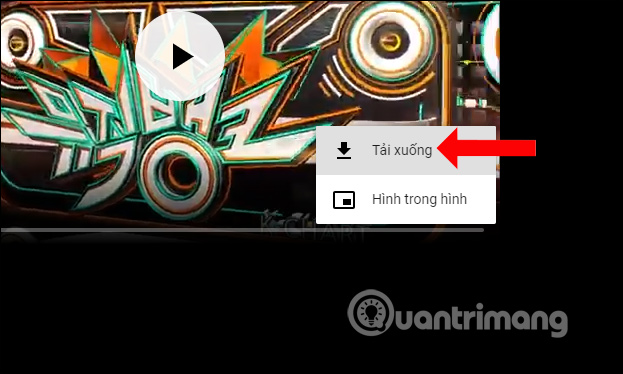
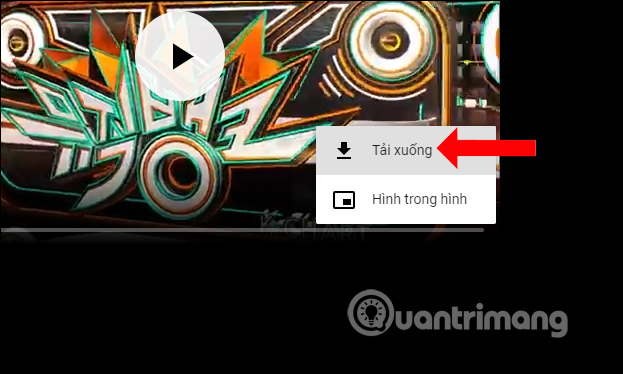
This workflow is unreliable because Drive delivery changes, temporary URLs can expire, and audio and video may be segmented. More importantly, it intentionally evades the owner’s download setting. It can violate authorization, organizational policy, privacy obligations, copyright, or service terms. The appropriate fix is permission, not a browser workaround.
Offline access is not always a file download
Drive and Google Workspace apps may offer Available offline for eligible content. That feature can store managed app data for offline use without granting a portable video file. Use it only when the account and file permissions allow it, and remove offline copies when access is revoked or the task ends.
For administrators and content owners
If viewers need temporary access, use named accounts, least-privilege roles, expiration where supported, and an approved delivery channel. Document the purpose and retention period. Remember that disabling Drive’s button reduces casual copying but cannot prevent screenshots, cameras, or information being repeated after viewing.
Related Articles
 How to Download Videos Google Drive Blocked Download4 minutes read
 The Easiest Way to Download Google Drive Files That Are5 minutes read
 How to Download Files on Google Drive That Are Blocked From6 minutes read
 How to Download PDF Files on Google Drive Is Blocked Download6 minutes read
 How to Block Downloading Files and Videos on Google Drive4 minutes read
 How to Download Files on Google Drive When the Download Limit Is3 minutes read
Reader Comments 0
Sign in with email or Google to join the discussion.