Table of Contents
Google does not provide one account-wide switch for Gemini. Gmail and other Workspace apps, Google Photos, and Chrome each have separate controls. Turning off a feature in one product does not disable it in the others, and some Gemini icons may remain available as an invitation to opt back in.
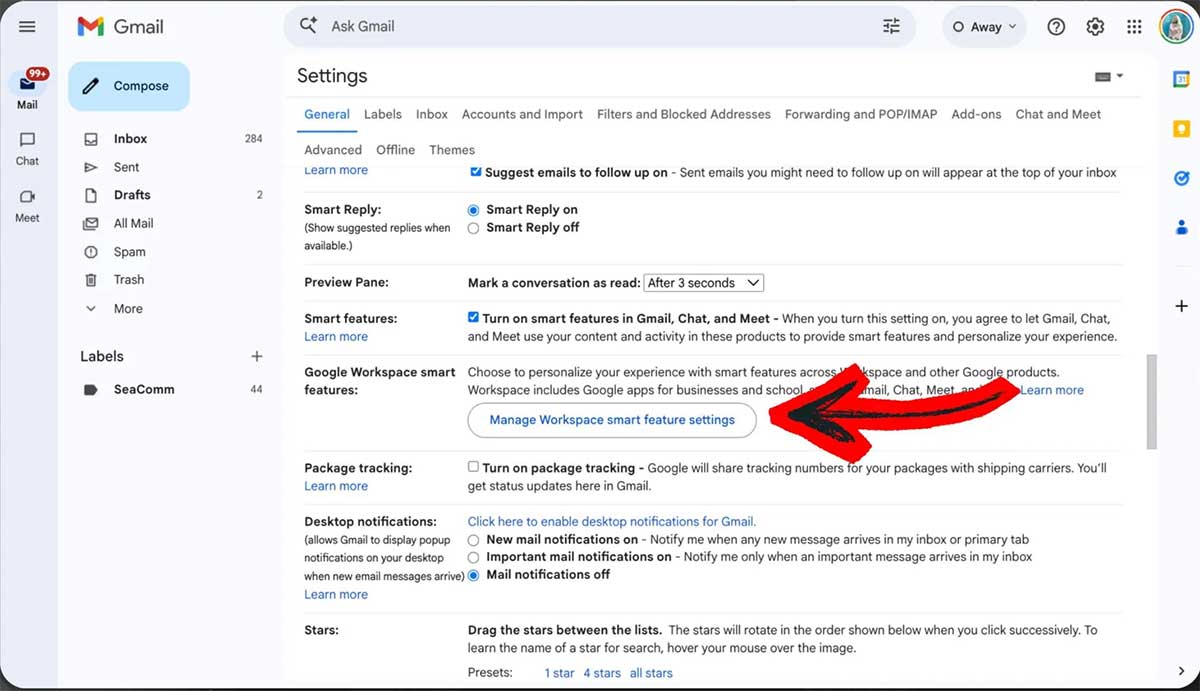
Turn off Gemini-related smart features in Gmail and Workspace
The most direct web route starts in Gmail:
- Open Gmail and select the gear icon.
- Choose See all settings.
- On the General tab, find Google Workspace smart features.
- Select Manage Workspace smart feature settings.
- Turn off the group that matches what you want to stop.
Understand the separate Workspace controls
- Smart features in Gmail, Chat, and Meet can include inbox categorization, Smart Compose, Smart Reply, and summary cards.
- Smart features in Google Workspace cover cross-product personalization such as events from Gmail in Calendar and personalized Drive search.
- Smart features in other Google products can use Workspace content and activity for experiences such as Personal Intelligence in Gemini or Search.
The choices shown depend on the account. Turning off a broad group may remove useful non-generative features as well as Gemini capabilities, so read the confirmation text before saving. Work and school administrators can manage availability. Google's smart-features guide lists the current effects.
Turn off Gemini features in Google Photos
Google Photos has its own mobile-app control:
- Open Google Photos and select your profile picture.
- Choose Photos settings.
- Open Preferences > Gemini features in Photos.
- Turn off Use Gemini in Photos.
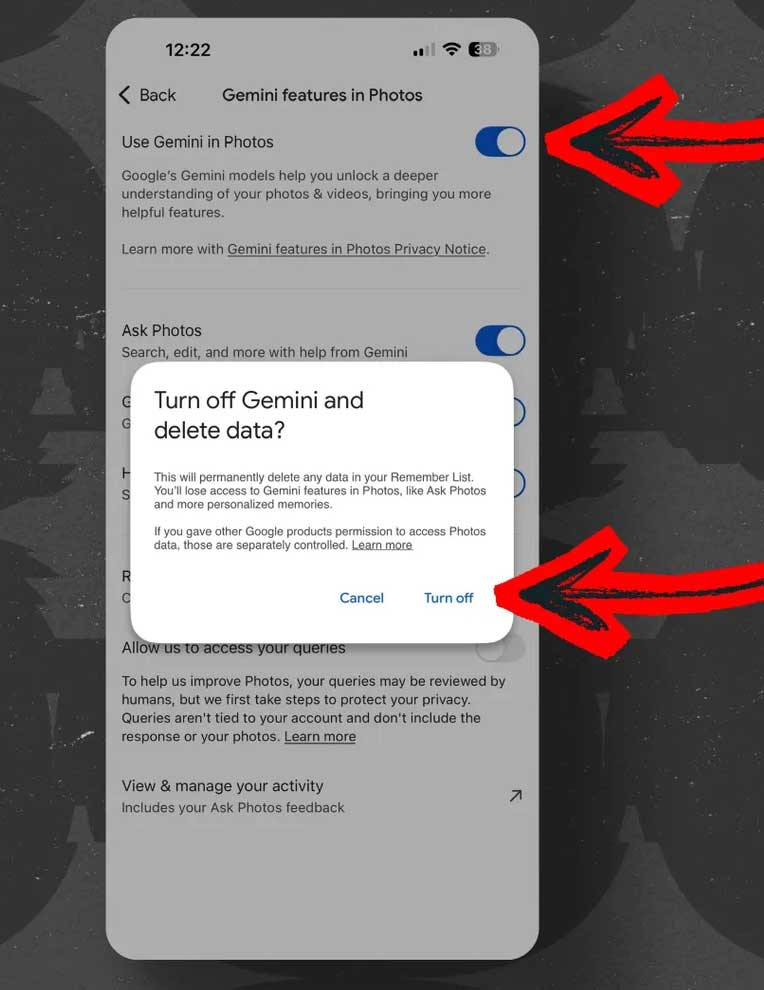
This stops the Gemini-assisted Photos experience, including Ask Photos where available, and returns search to the classic experience described by Google. It does not mean every traditional Photos feature or automatically created memory is removed.
If Gemini can still retrieve your library through the Gemini app, disconnect Google Photos separately in Gemini's Connected Apps settings. That connection is distinct from the Ask Photos switch. The official Ask Photos help page documents the current opt-out path.
For background on how the feature has evolved, see TipsMake's coverage of the Ask Photos rollout.
Turn off Gemini and other AI features in Chrome
On a desktop version of Chrome that includes these controls:
- Open the three-dot menu and choose Settings.
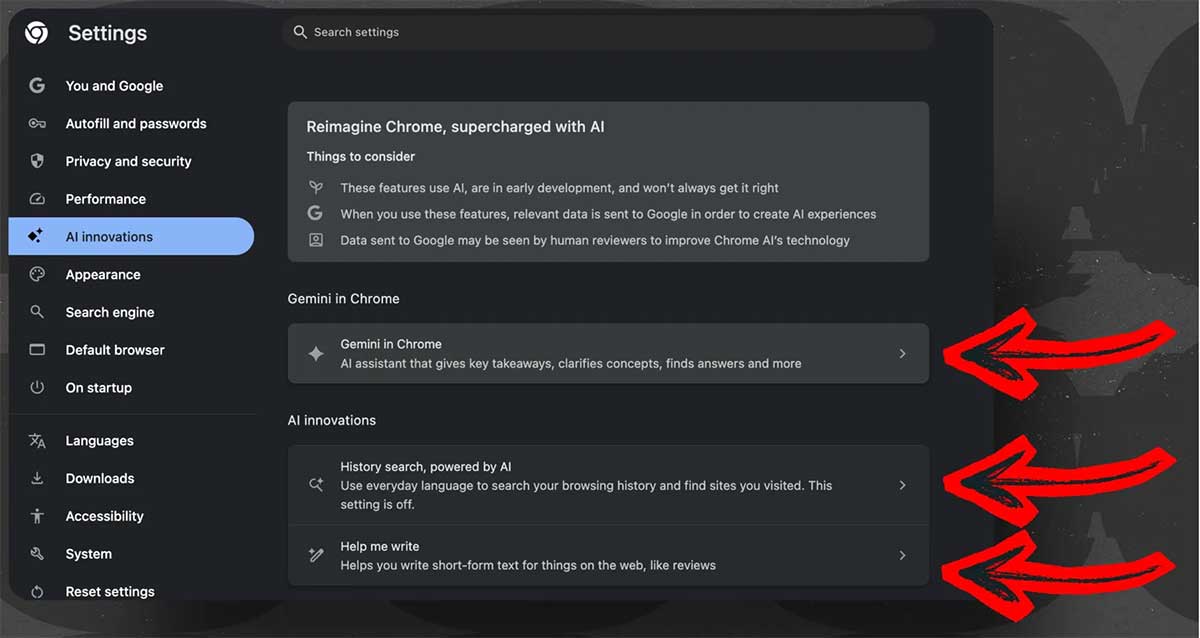
- Select AI innovations.
- Open each feature you want to change.
Gemini in Chrome
Open AI innovations > Gemini in Chrome. Under Preferences, turn off Show Gemini at the top of the browser and the Mac menu-bar or Windows system-tray option if present. You can also right-click the top of the browser and choose Unpin Gemini.
Under Permissions, disable access you do not want Gemini to have, such as precise location or microphone. Turn off Let Gemini browse for you if auto-browsing is available. Google's Gemini in Chrome help page distinguishes interface preferences from permissions.
History search and Help me write
Return to AI innovations and open other AI tools individually. Turn off History search, powered by AI to stop semantic AI matching across visited pages. Disable Help me write if its control appears and you do not want writing assistance in web forms.
Removing Gemini from the toolbar is not the same as disabling these other Chrome features. Likewise, clearing browsing history does not change their on/off settings. If privacy is the goal, also review Chrome's independent ad controls; TipsMake explains a Chrome Ad privacy panel that is not governed by Gemini settings.
If a setting is missing
Update the app or browser, confirm that you are changing the intended Google profile, and check for administrator policies. Google rolls features out by platform, account, region, language, and plan, so one account may not show the same menus as another. Do not use experimental flags or third-party extensions simply to hide an icon unless you understand the security and maintenance risks.
What these changes do not cover
These controls do not delete Gemini chat history, turn off Gemini Apps Activity, remove AI Overviews from Google Search, or change Android's default digital assistant. Those are separate settings. After making changes, restart the affected app and test the exact feature you wanted to stop.
Related Articles
 How to Disable Gemini in Gmail and Other Google Workspace Apps5 minutes read
 Why Should You Disable Automatic Summarization with Gemini in Gmail?6 minutes read
 How to Turn Off Gemini in Google Docs10 minutes read
 4 Google Apps That Work Better with Gemini: Explained5 minutes read
 Gemini on Google Chrome Helps Users Save Time8 minutes read
 Does Chrome Download Gemini Nano? How to Check and Remove It10 minutes read
Reader Comments 0
Sign in with email or Google to join the discussion.