Table of Contents
To stop Windows from turning off the display, change the screen timeout to Never for the power state you use. Screen timeout, sleep, lock, and the screen saver are separate settings, so change only the behavior that is interrupting you.

Identify which setting is responsible
| What happens | Setting to check |
|---|---|
| The display goes black, but moving the mouse brings it back immediately | Screen-off timeout |
| The PC takes a moment to resume and apps may pause | Sleep or hibernate timeout |
| A picture, animation, or blank screen appears | Screen saver |
| Windows asks for a password or PIN | Sign-in/lock settings, sometimes combined with sleep or screen saver |
Windows 11: change the screen timeout
- Press Windows + I to open Settings.
- Select System > Power & battery.
- Expand Screen, sleep & hibernate timeouts. The wording may appear as Screen and sleep on some builds.
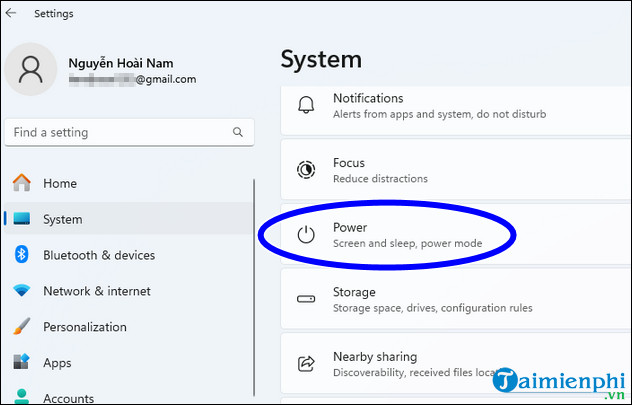
- For Turn off my screen after, choose Never under Plugged in if the display must remain on while connected to power.
- On a laptop, set the On battery value separately. A finite timeout is usually better for battery life.
- If the entire PC is sleeping, also change Make my device sleep after. You do not need to disable sleep merely to keep the display on during a presentation.
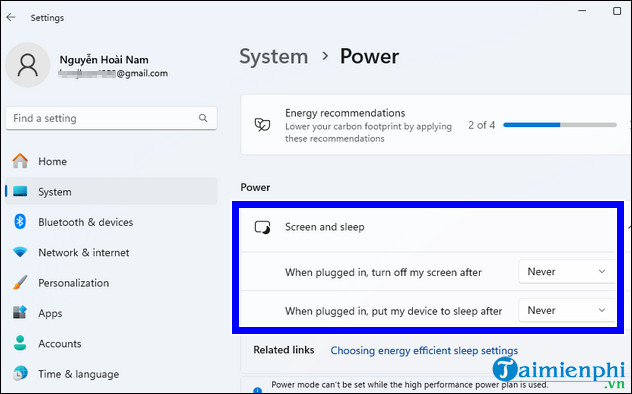
Microsoft's current Windows 11 power settings guide lists the same Settings path.
Windows 10: change Screen and Sleep values
- Press Windows + I and open System > Power & sleep.
- Under Screen, set the plugged-in timeout to Never or a longer duration.
- If the computer itself enters sleep, change the separate Sleep value.
- For laptops, review both battery and plugged-in values.
Windows 10 reached end of support for most editions on October 14, 2025. These settings still work, but a PC used online should have a plan for a supported operating system.
Windows 8.1 and Windows 7: use Power Options
These systems are out of support and should be kept offline or used only for a controlled legacy purpose.
- Open Control Panel and choose System and Security > Power Options. Switch the View by menu to Category if those groups are not visible.
- Next to the active power plan, select Change plan settings.
- Set Turn off the display to Never or a longer timeout.
- Set Put the computer to sleep separately if sleep is also interrupting the task.
- Select Save changes.
Use advanced power settings
If the simple controls do not show the value you need, open Control Panel > Power Options > Change plan settings > Change advanced power settings. Expand Display > Turn off display after and enter 0 minutes for Never, or choose a specific duration. Review the Sleep section separately.
Our Sleep versus Hibernate guide explains which state is appropriate when you want to reduce power use without shutting down.
If the screen still turns off
- Check the screen saver: Search Settings for “screen saver,” choose None, and review the “On resume” sign-in option.
- Check manufacturer software: Laptop, monitor, and graphics utilities can apply their own presence detection, eco mode, or display timeout.
- Check organization policy: A work or school administrator may enforce idle and lock timeouts. Do not try to bypass a managed security policy.
- Check the monitor: An external display can have its own sleep timer or eco setting in the monitor's on-screen menu.
- Check for a graphics problem: If the screen blanks while you are actively typing or watching video, update the graphics driver from the PC or GPU maker and test another cable or port.
If the screen goes black unexpectedly rather than after a consistent idle period, use the checks in TipsMake's Windows black-screen troubleshooting guide; a timeout change may only mask a driver or hardware fault.
Choose a practical timeout
Keeping a display on indefinitely consumes more power and can reduce battery runtime. For ordinary use, select a long enough timeout to avoid interruptions and keep a shorter battery value. Use Never temporarily for presentations, kiosk displays, long monitoring sessions, or other tasks where the screen must remain visible, then restore the normal plan afterward.
Related Articles
 Disable Hybrid Boot and Shutdown on Windows 85 minutes read
 Automatic Shutdown Increases the Screen Brightness of Windows 106 minutes read
 Instructions to Prevent Shutdown on Windows 10 Computers5 minutes read
 How to Turn Off the Computer Automatically10 minutes read
 4 Easiest, Quickest, and Simplest Ways to Schedule Your Computer to Shut Down29 minutes read
 How to Cancel Automatic Shutdown on Windows 104 minutes read
Reader Comments 0
Sign in with email or Google to join the discussion.