Table of Contents
Messages in iCloud backs up and syncs all SMS and iMessage messages on your iPhone and lets you use them on other Apple devices, as long as you're signed in with the same Apple account. Keeping lots of old messages in iCloud is also unnecessary and takes up storage space. Here's how to delete old messages in iCloud on iPhone.
How to delete old messages in iCloud
Step 1:
If you want to delete a specific message from iCloud, you'll have to delete it from the Messages app on one of your devices.
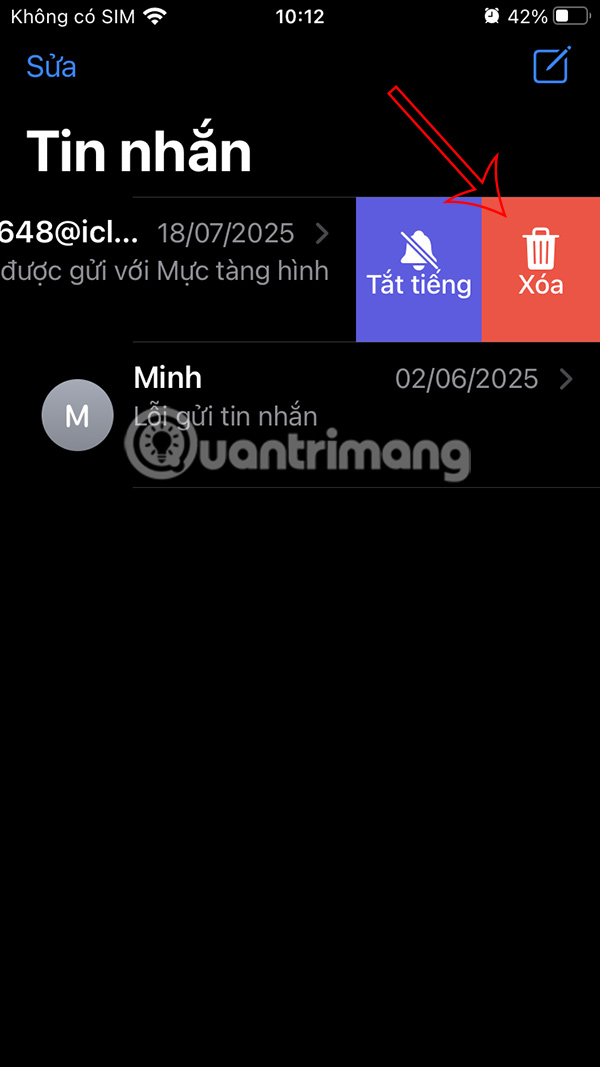
You open the Messages app on your iPhone, then on the message you want to delete, swipe left and select Delete to do so.
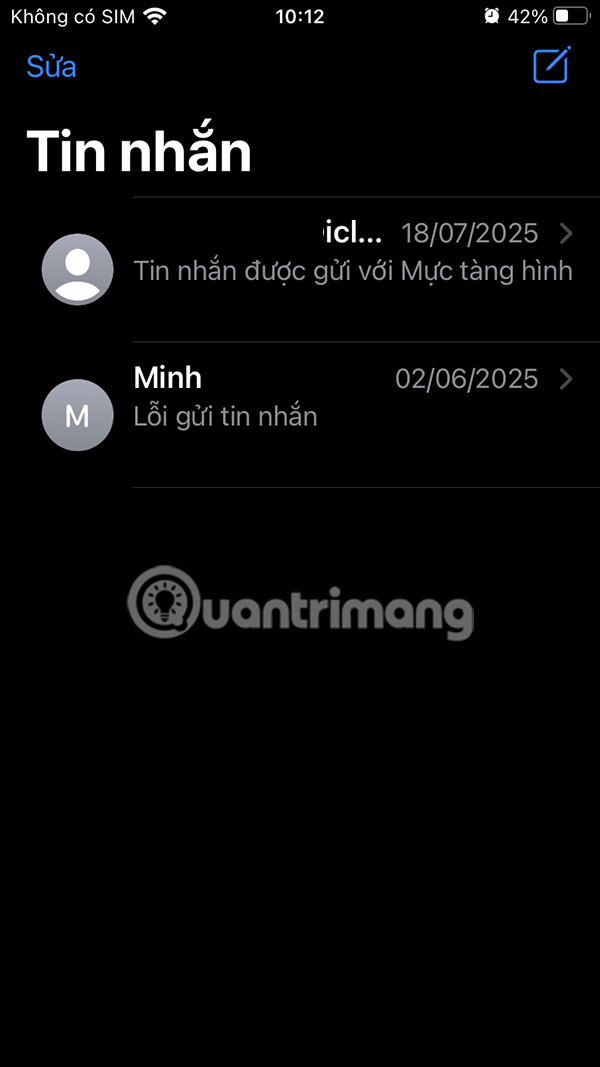
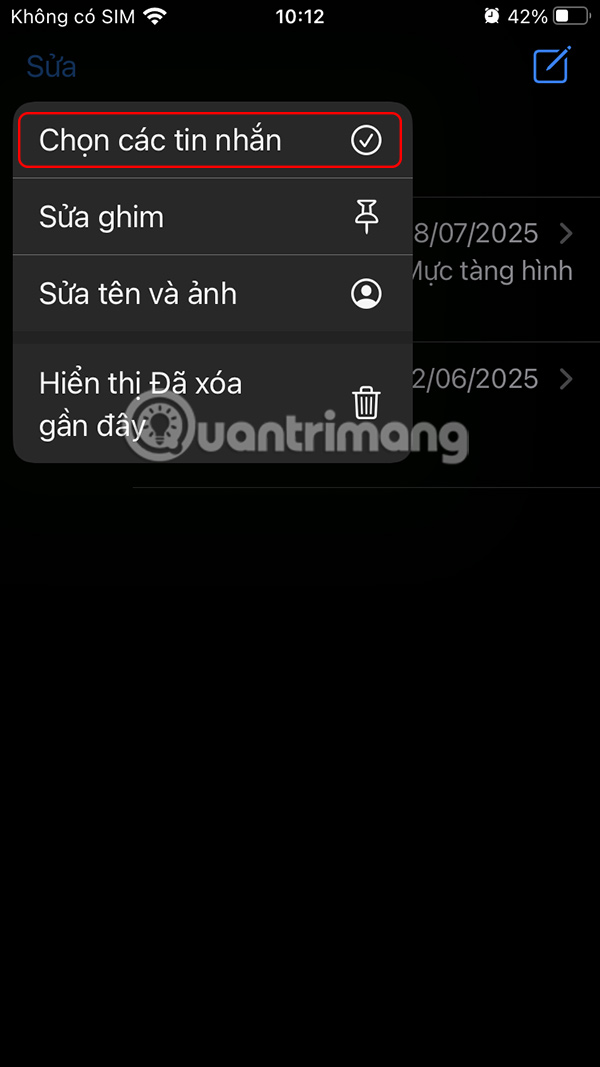
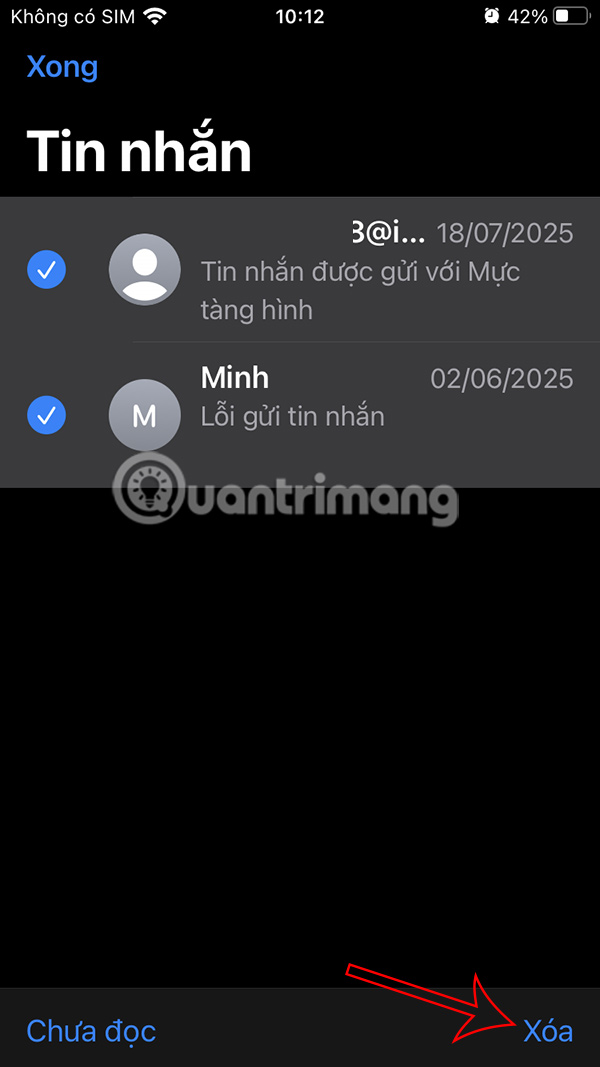
To delete multiple messages at once, click Edit then click Select multiple messages . Next, select the messages you want to delete and click Delete to perform.
Step 2:
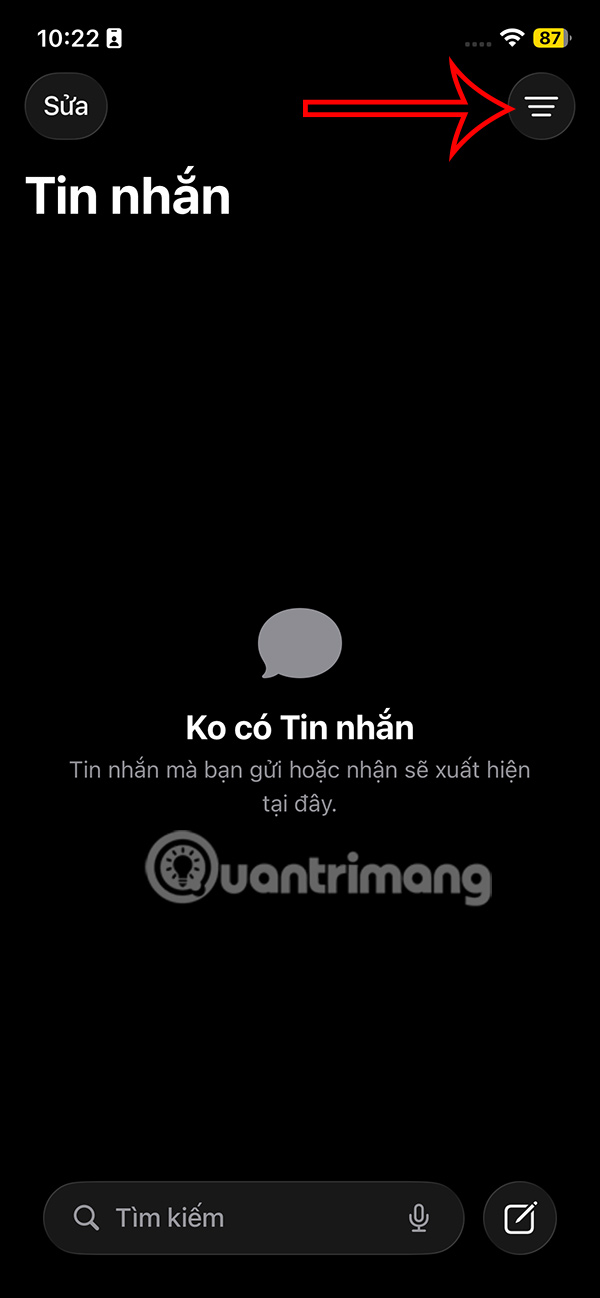
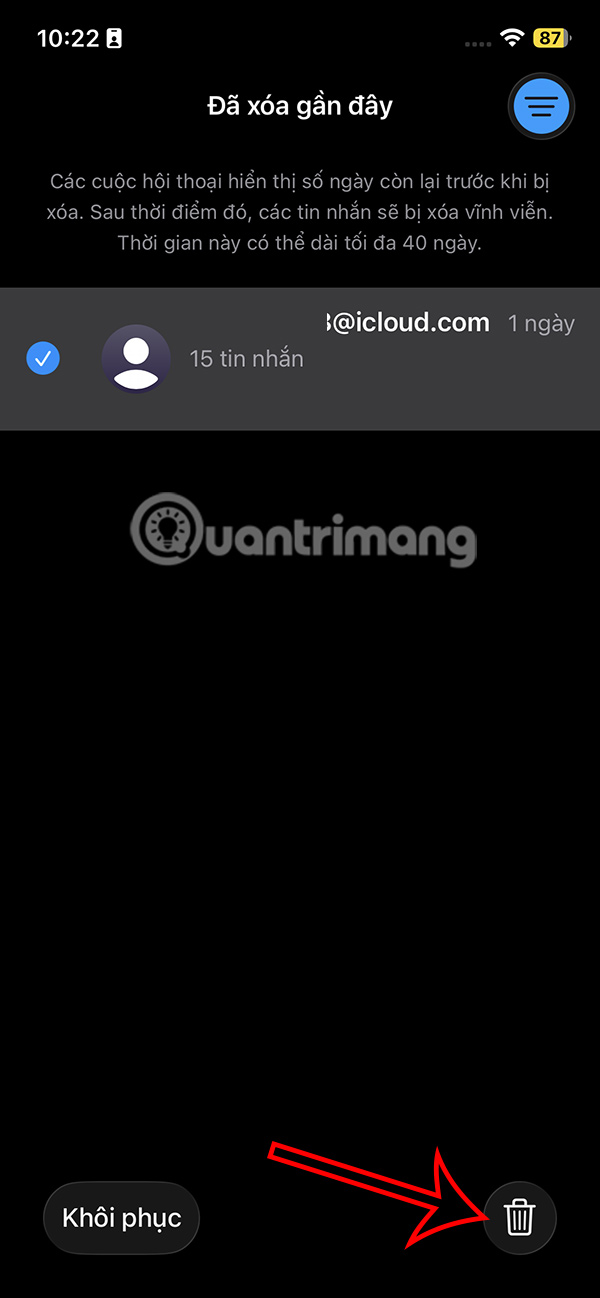
After deleting the message, you need to delete more in the trash.
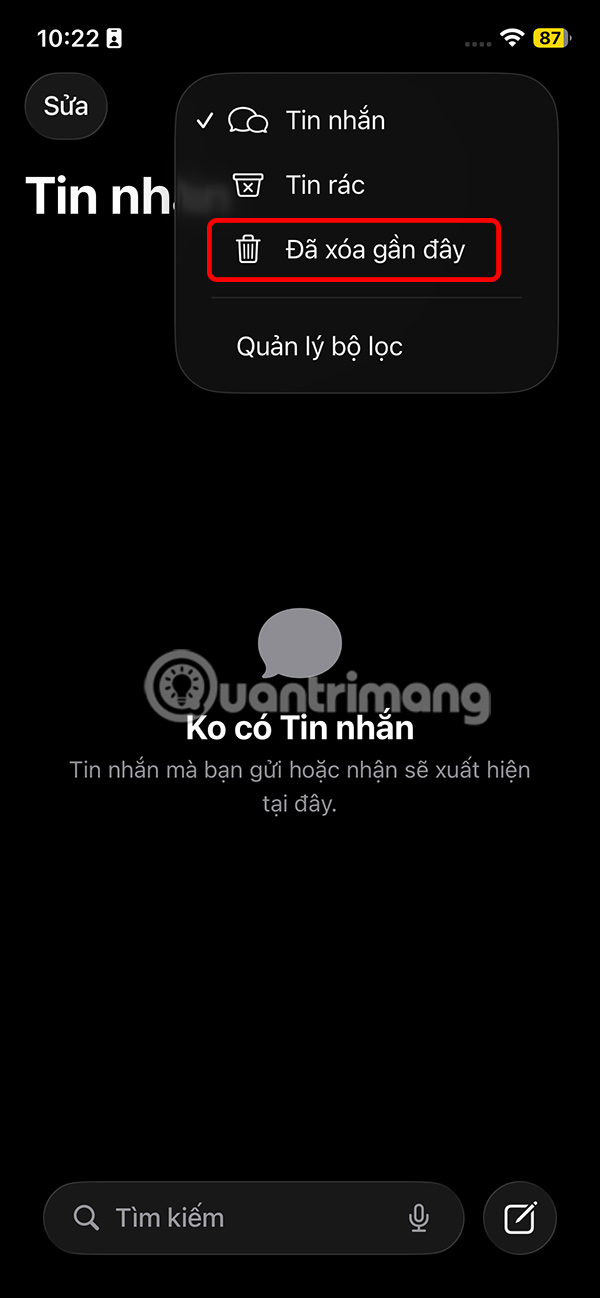
You select the 3 dashes icon in the Messages app and select Recently Deleted . Then you also need to delete all these messages .
Step 3:
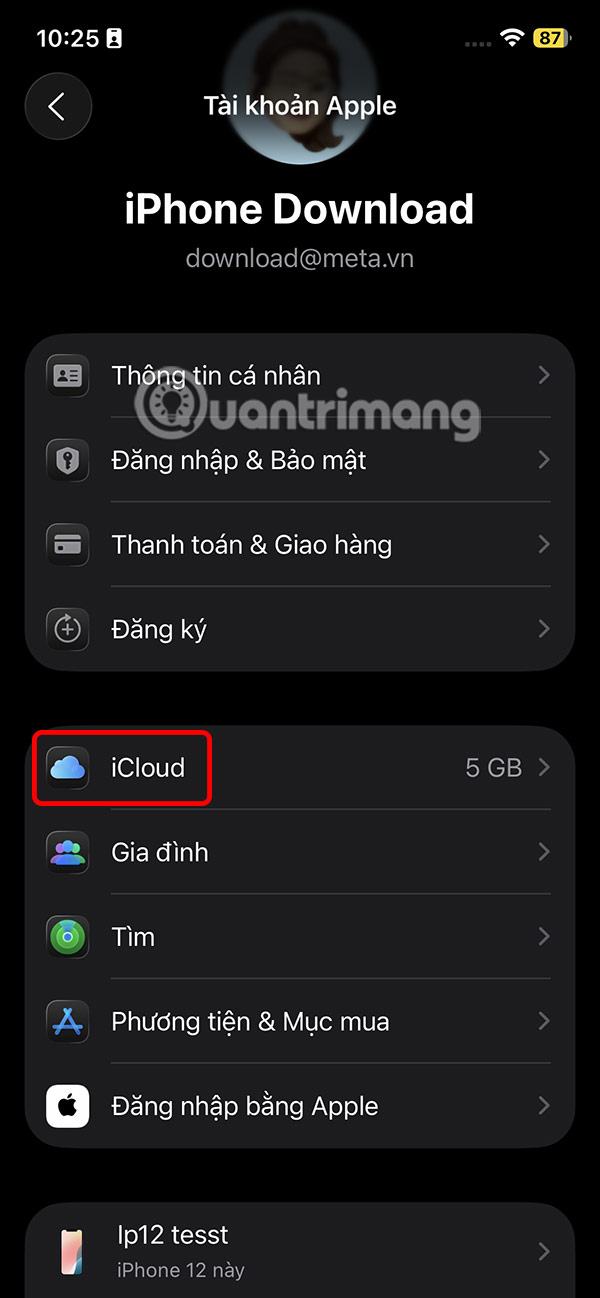
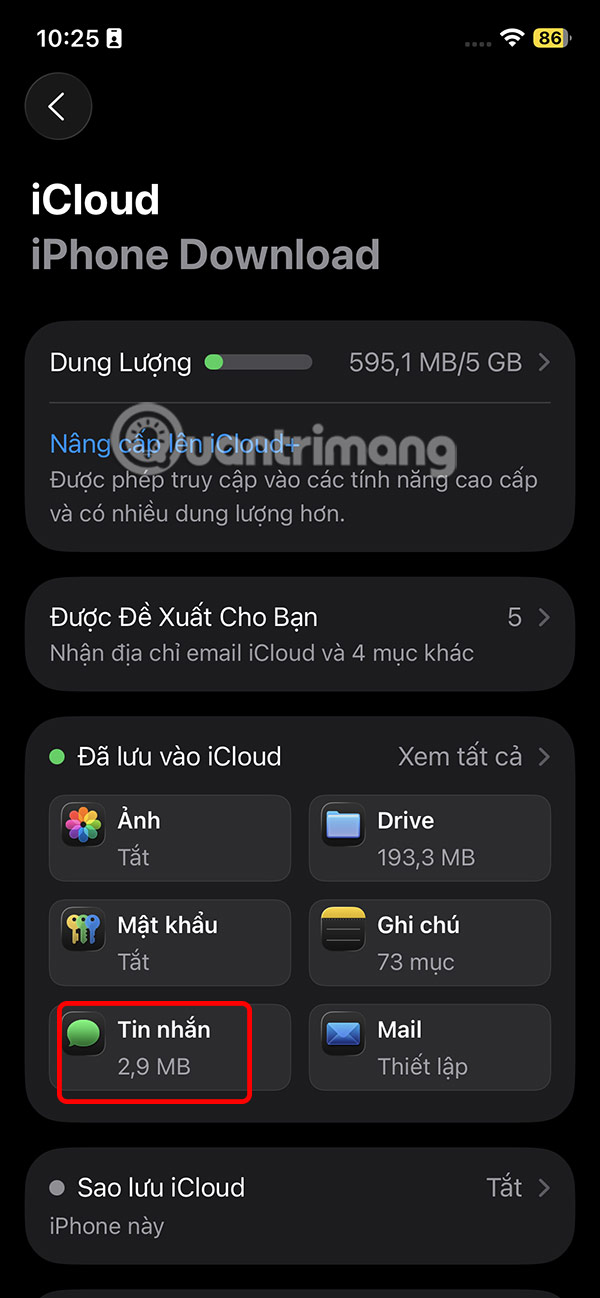
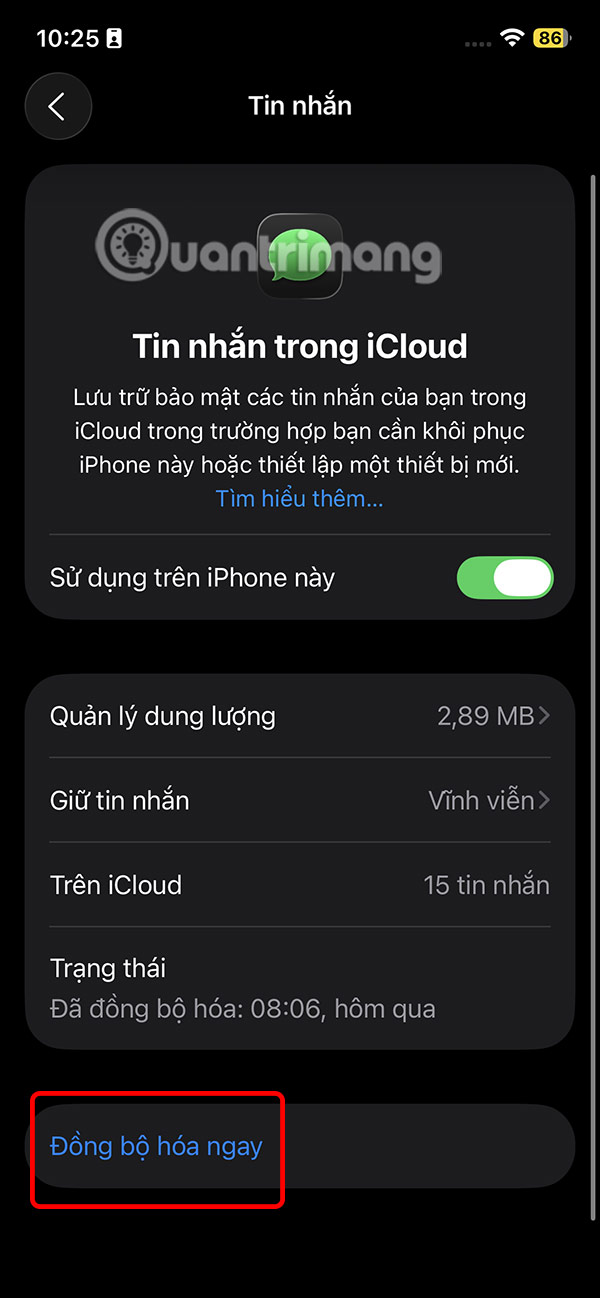
After you completely delete the messages including the trash, go to Settings and select Apple Account , then tap iCloud .
Tap Messages then tap Sync Now .
Step 4:
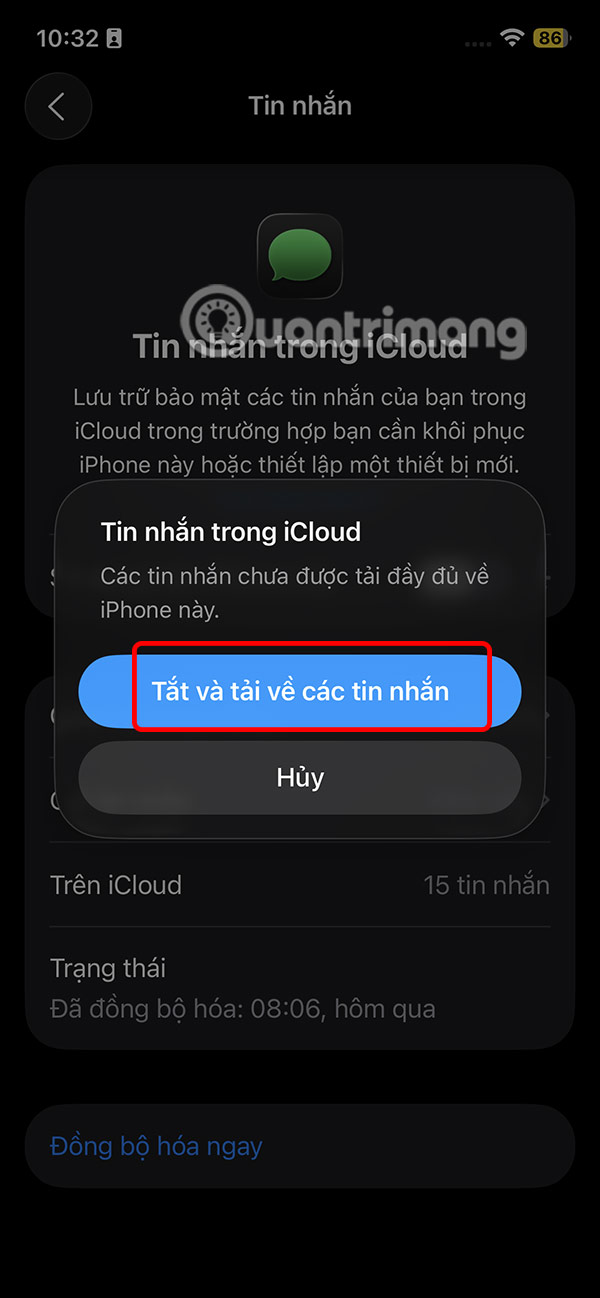
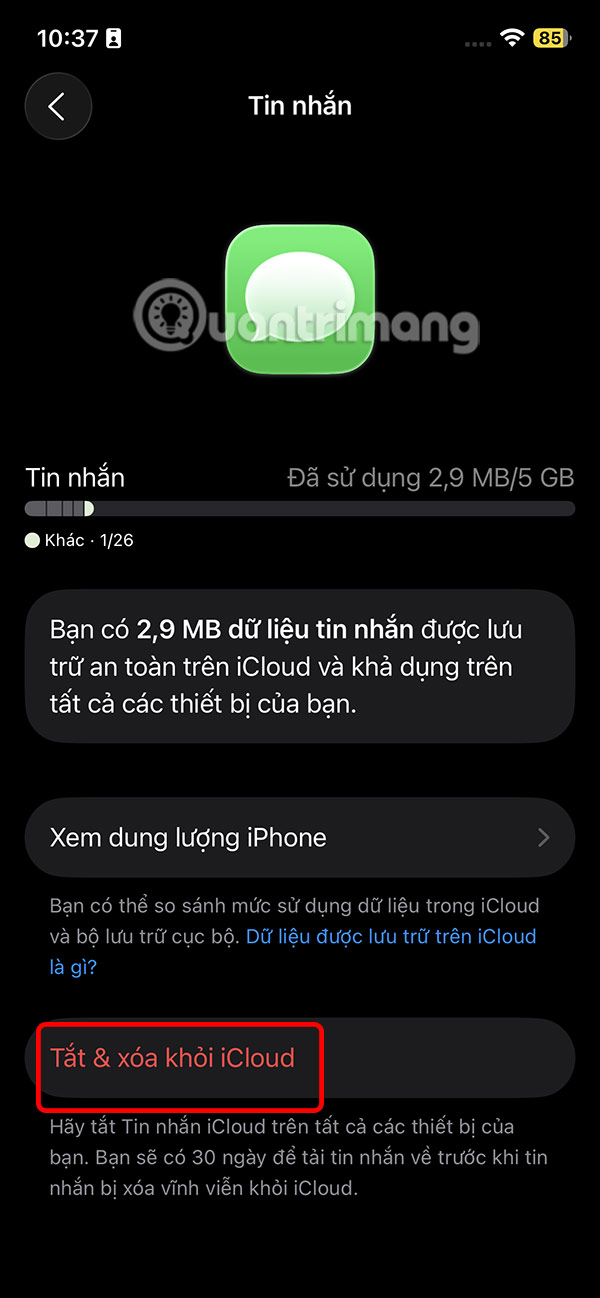
If you don't want to sync iPhone messages with other devices or backup, you need to turn off iCloud messages.
In the Apple Account interface, you also select Messages. Then we turn off Use on this iPhone . Then you click Off and download the messages .
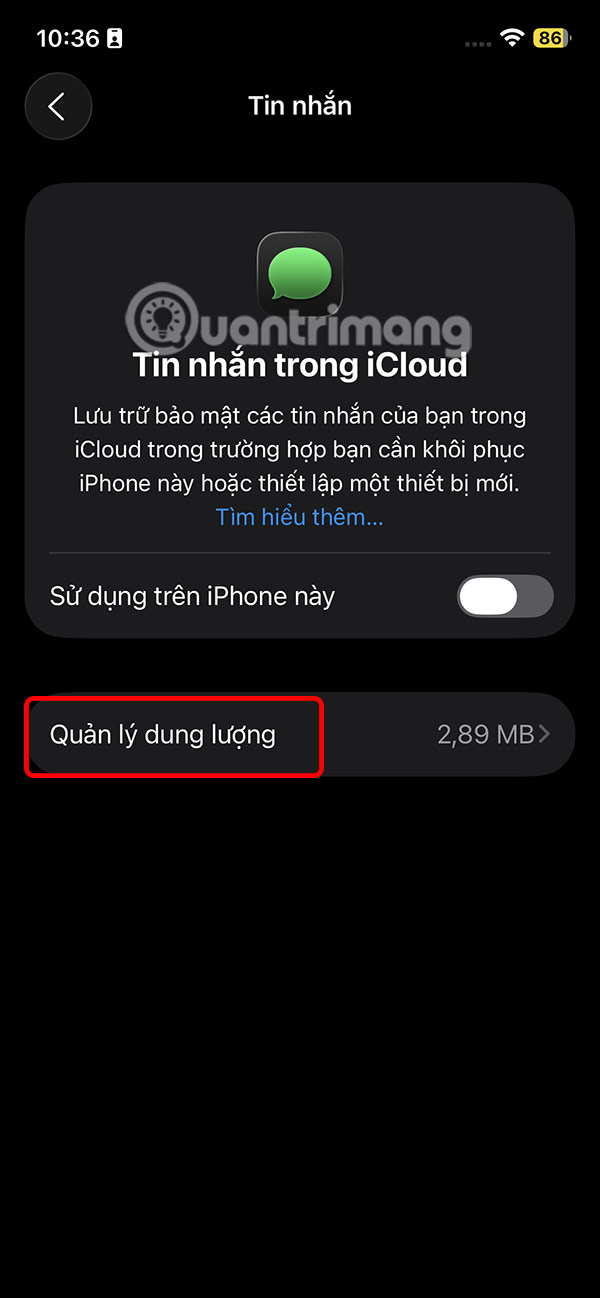
Tap on Manage Storage and finally tap Turn Off & Remove from iCloud and you're done.
Final Thoughts
Following the steps in order and checking version-specific settings should make it easier to Delete Old Messages in iCloud on iPhone. If an option looks different, verify the device, app, or operating-system version before changing additional settings.
FAQ
What is the best way to Delete Old Messages in iCloud on iPhone?
Start with the requirements described in the article and follow the steps in order. Messages in iCloud backs up and syncs all SMS and iMessage messages on your iPhone and lets you use them on other Apple devices, as long as you're signed in with the same Apple account.
What should you know about How to delete old messages in iCloud?
If you want to delete a specific message from iCloud, you'll have to delete it from the Messages app on one of your devices.
What should you do if the instructions do not match your screen?
Check the device, software version, account permissions, and regional settings. Interfaces can change after updates, so use the closest matching option and consult the official support documentation when necessary.
Related Articles
 Messages: How to Access Imessage on Icloud3 minutes read
 How to Delete iCloud Backup on Iphone/mac4 minutes read
 How to Synchronize Messages Between iPhone, iPad, macOS5 minutes read
 Instructions on How to Delete Apps from ICloud on Any Device5 minutes read
 How to Stop iMessage from Filling Up iPhone and iCloud Storage5 minutes read
 How to Delete Icloud Account on Iphone4 minutes read
Reader Comments 0
Sign in with email or Google to join the discussion.