Table of Contents
You can build a DIY wireless Android Auto adapter with a supported Raspberry Pi and the open-source WirelessAndroidAutoDongle image. The car must already run wired Android Auto; this project only replaces the phone-to-head-unit USB connection with a wireless link.
This is a community project, not an accessory certified by Google, Raspberry Pi, or your vehicle manufacturer. Compatibility varies by phone and head unit, so keep the original wired connection available as a fallback.
What you need
- A car or aftermarket receiver that works with wired Android Auto.
- A compatible Android phone with Bluetooth, Wi-Fi, an active data connection, and wireless Android Auto support.
- A supported Raspberry Pi: Zero W, Zero 2 W, 3A+, or 4.
- A microSD card large enough for the current release image.
- A card reader and a computer for flashing the image.
- A reliable USB data cable for the Pi and the car's Android Auto port.
The Raspberry Pi 3B/3B+ is not supported because it lacks the required USB gadget connection. Raspberry Pi 5 is not listed among the project's supported builds. Check the project page before buying hardware because support may change.
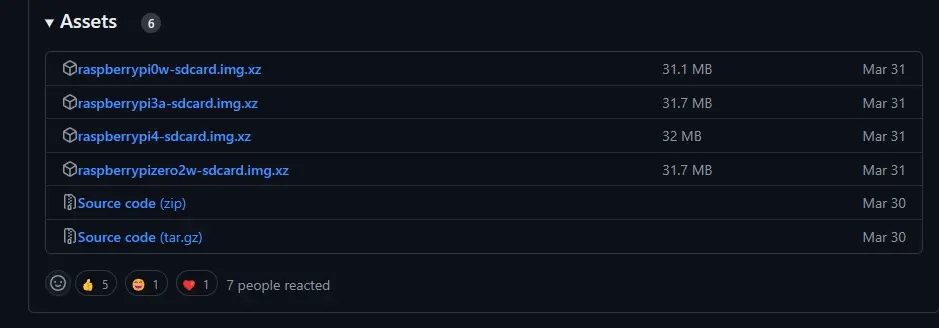
Download the correct image
- Open the project's official Releases page.
- Choose the newest stable release and download the image that exactly matches your board.
- Download and install balenaEtcher, or use another trusted disk-imaging tool.
Do not use an image for a different Pi model. Release filenames and image sizes can change, so follow the labels attached to the current release rather than an old fixed list.
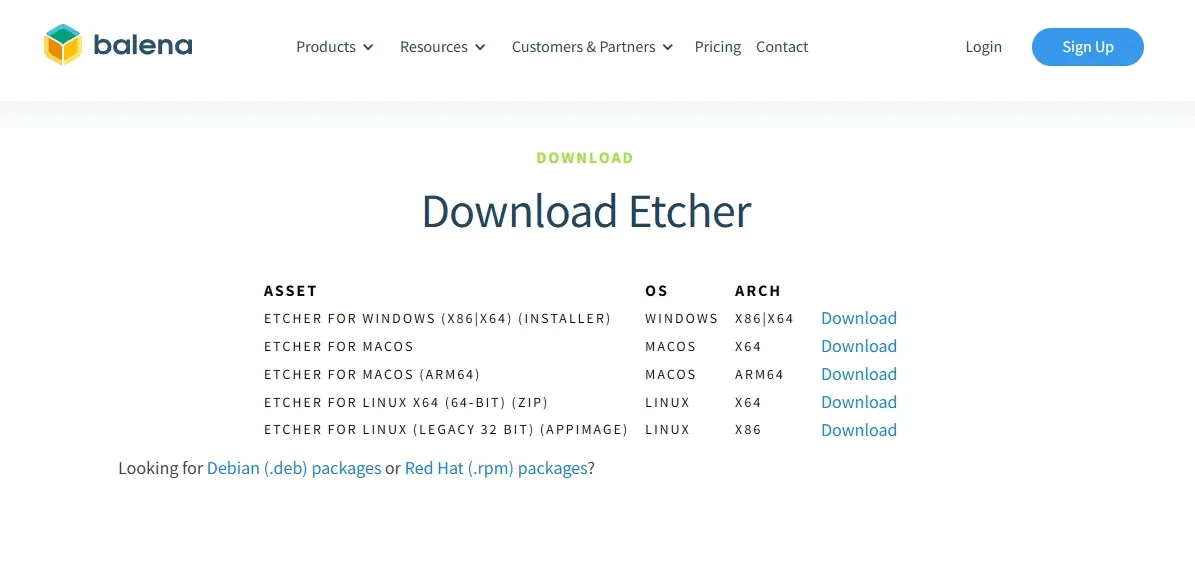
Flash the microSD card
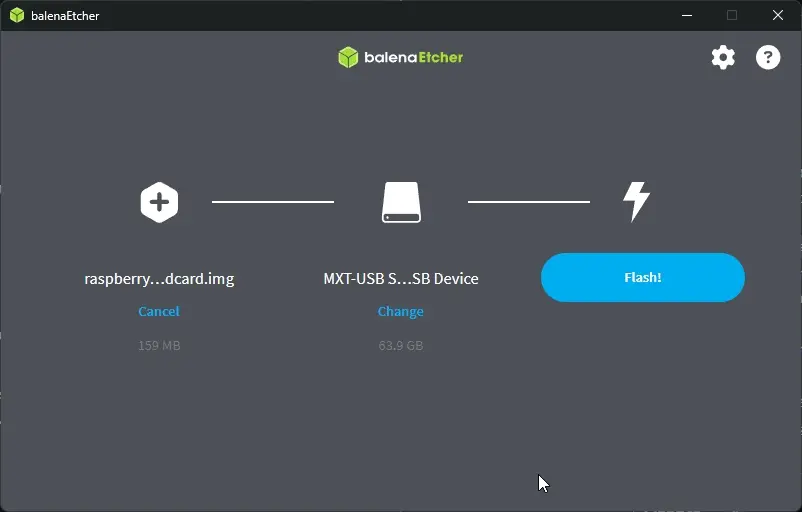
- Insert the microSD card into the computer. Back up anything you need from it because flashing erases the selected card.
- Open balenaEtcher and choose Flash from file.
- Select the downloaded WirelessAndroidAutoDongle image.
- Choose Select target and carefully select the microSD card, not another drive.
- Click Flash and wait for writing and verification to finish.
After flashing, the card appears as a drive named WirelessAA. The project stores optional settings in aawgd.conf; review that file if you need to set the Wi-Fi country or change another documented option. Eject the card safely, then insert it into the powered-off Raspberry Pi.
Make the first connection
Complete setup while the vehicle is parked, with the parking brake applied and the infotainment system on.
- Connect the phone directly to the car with a USB cable and confirm that wired Android Auto starts. Complete any prompts, then disconnect the phone.
- Connect the Raspberry Pi to the car's Android Auto USB port with a data-capable cable.
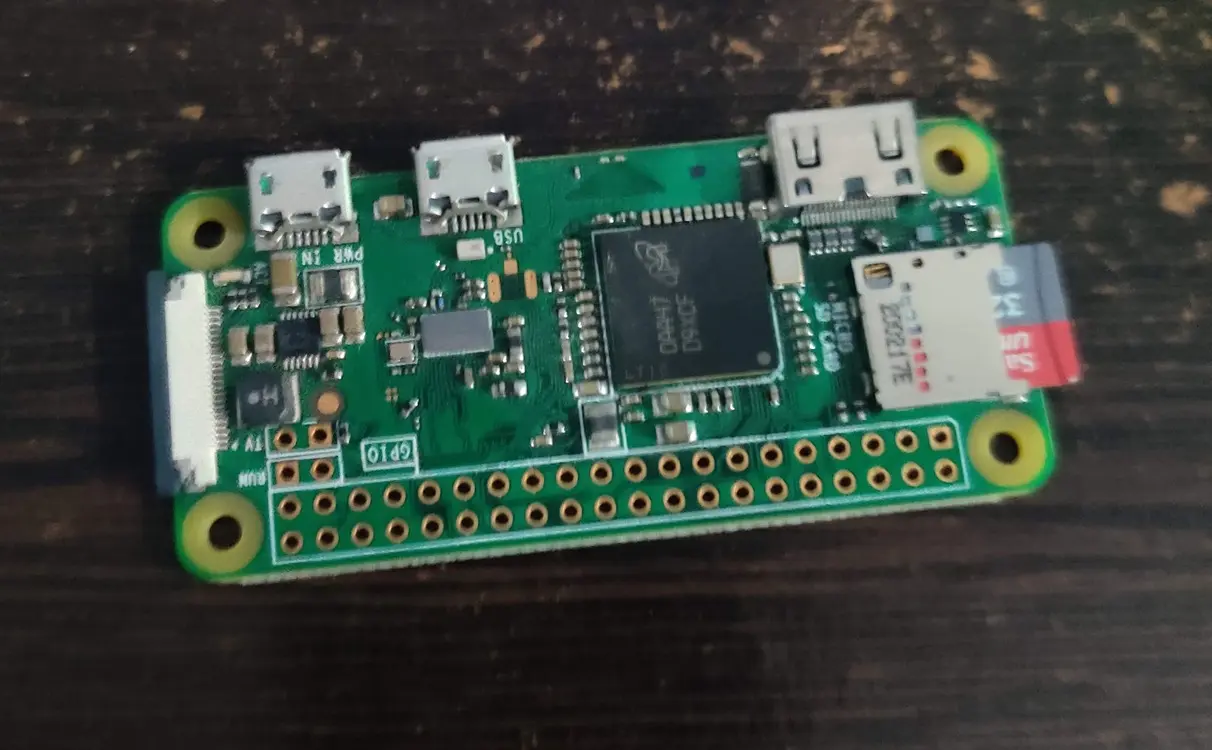
- Use the Pi's USB gadget/OTG port: the port marked USB on a Zero W or Zero 2 W, the USB-A port on a 3A+, or the USB-C port on a Pi 4.
- Wait for the Pi to boot. On the phone, keep Bluetooth and Wi-Fi enabled.
- Open Bluetooth settings and pair the device named
AndroidAuto-Dongle-*orWirelessAADongle-*. - Accept the Android Auto prompts. The phone should establish the Wi-Fi connection automatically and Android Auto should appear on the car display.
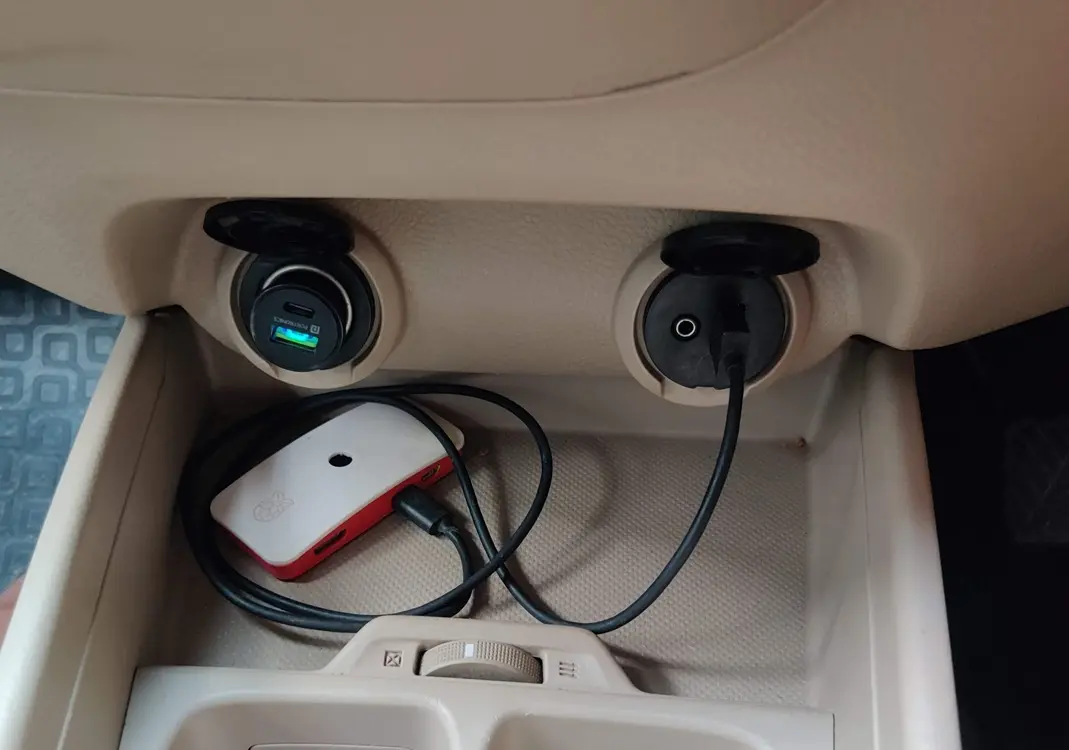
Current project instructions do not require manually joining a Wi-Fi network with the old password sometimes shown in earlier guides. Manual Wi-Fi access is primarily used for diagnostics after it has been explicitly configured.
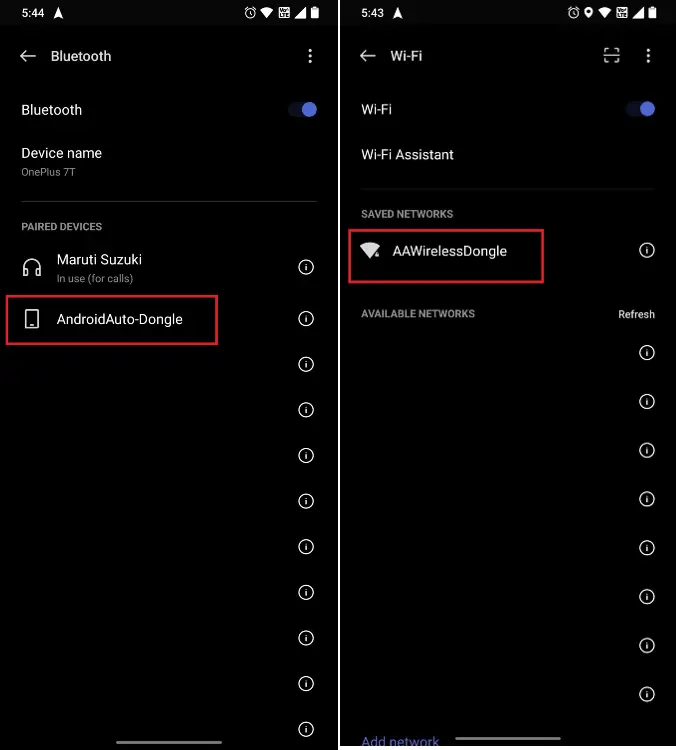
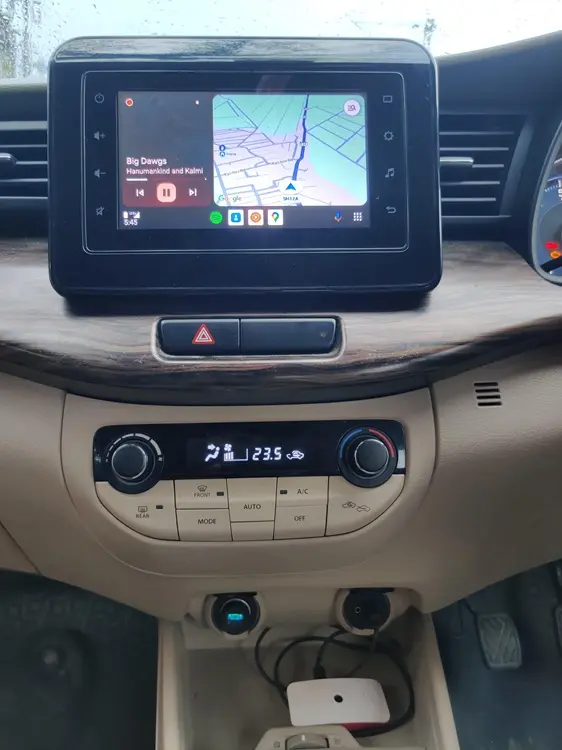
On later drives, the phone should reconnect automatically when Bluetooth and Wi-Fi are enabled. Connection time depends on the board, phone, head unit, and vehicle power behavior.
Troubleshoot a failed connection
- Phone says “Looking for Android Auto”: replace the cable with a known data cable and confirm that you used the Pi's OTG-capable port rather than a power-only port.
- Head unit says the device is not responding: check that wireless Android Auto is enabled in the phone's Android Auto settings. This setting is mainly relevant to some older phones.
- Pi repeatedly reboots: the vehicle port may not provide stable power, or the cable may have excessive voltage drop. Do not add an unsafe power arrangement to the car wiring.
- Audio stutters or the display lags: interference, board performance, heat, and head-unit compatibility can contribute. Test another supported Pi or return to wired Android Auto.
- It worked before an update: remove the Bluetooth pairing on the phone, reboot both systems, pair again, and check the project's release notes and issue tracker.
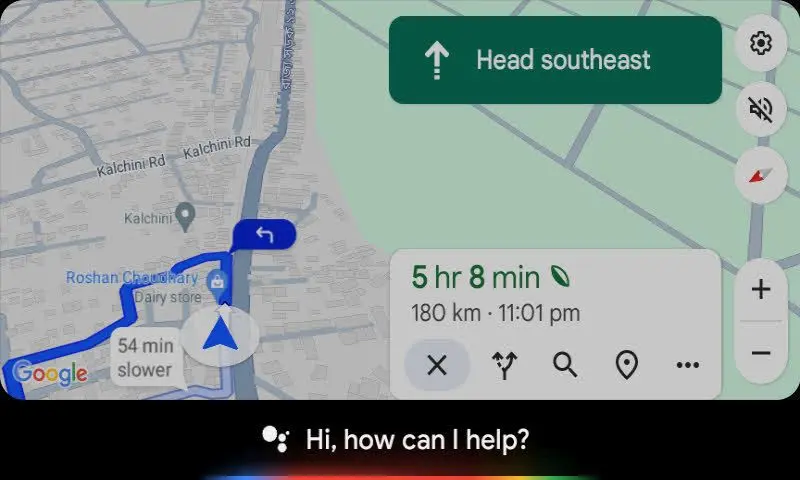
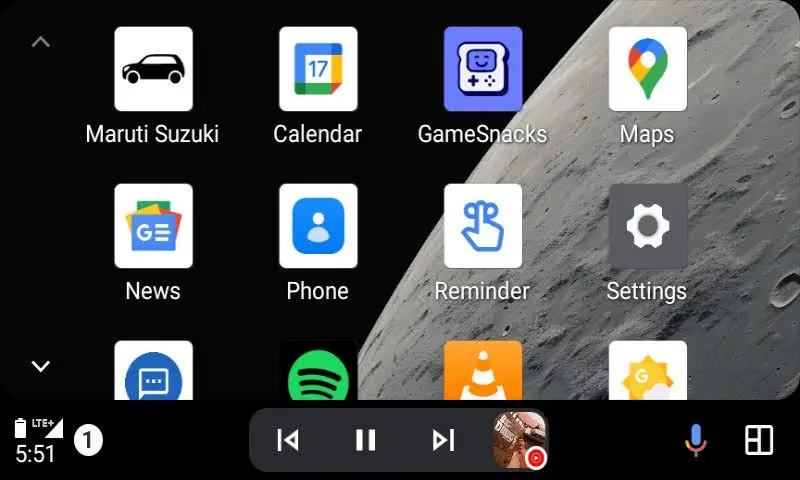
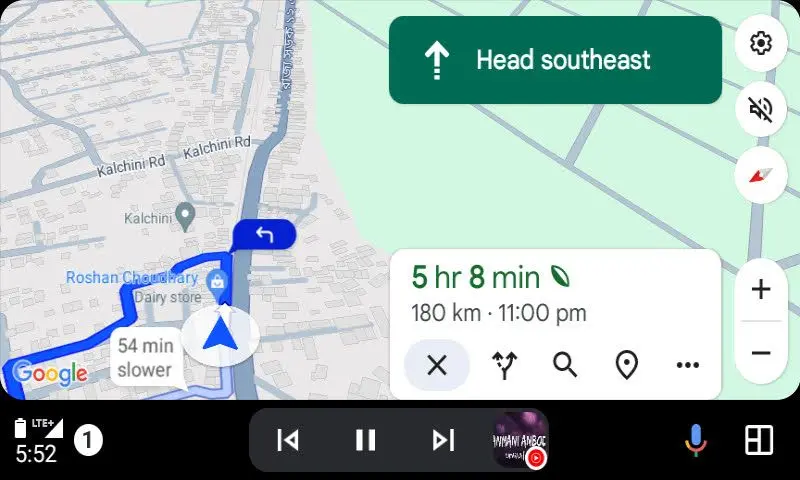
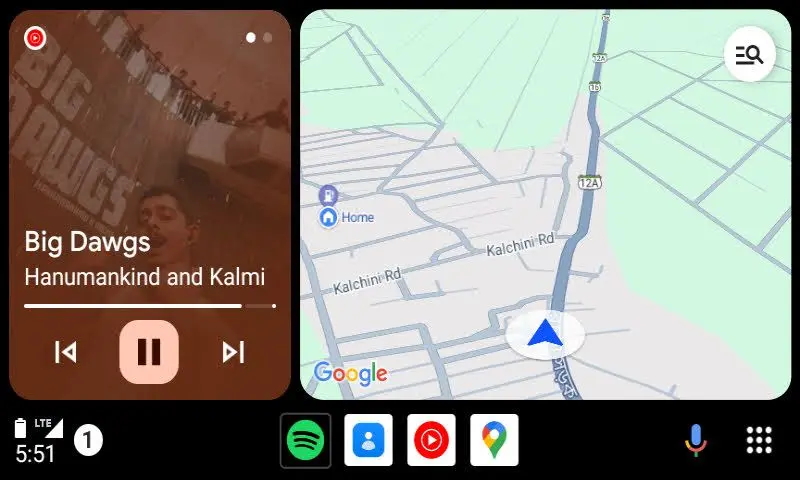
The project's official README contains current configuration and logging instructions. Google also documents the phone and network requirements for Android Auto.
For more hardware ideas, browse these practical Raspberry Pi projects and compare lightweight Raspberry Pi operating systems.
Related Articles
 Create Your Own Wireless Printer with Raspberry Pi10 minutes read
 How to Turn a Raspberry Pi into a Wireless Access Point8 minutes read
 How to Build Android TV Box with Raspberry Pi9 minutes read
 New Features of Android Auto5 minutes read
 How to Install Android on a Raspberry Pi5 minutes read
 6 Reasons for Slow Wi-Fi Dongle Speed, Poor Performance10 minutes read
Reader Comments 0
Sign in with email or Google to join the discussion.